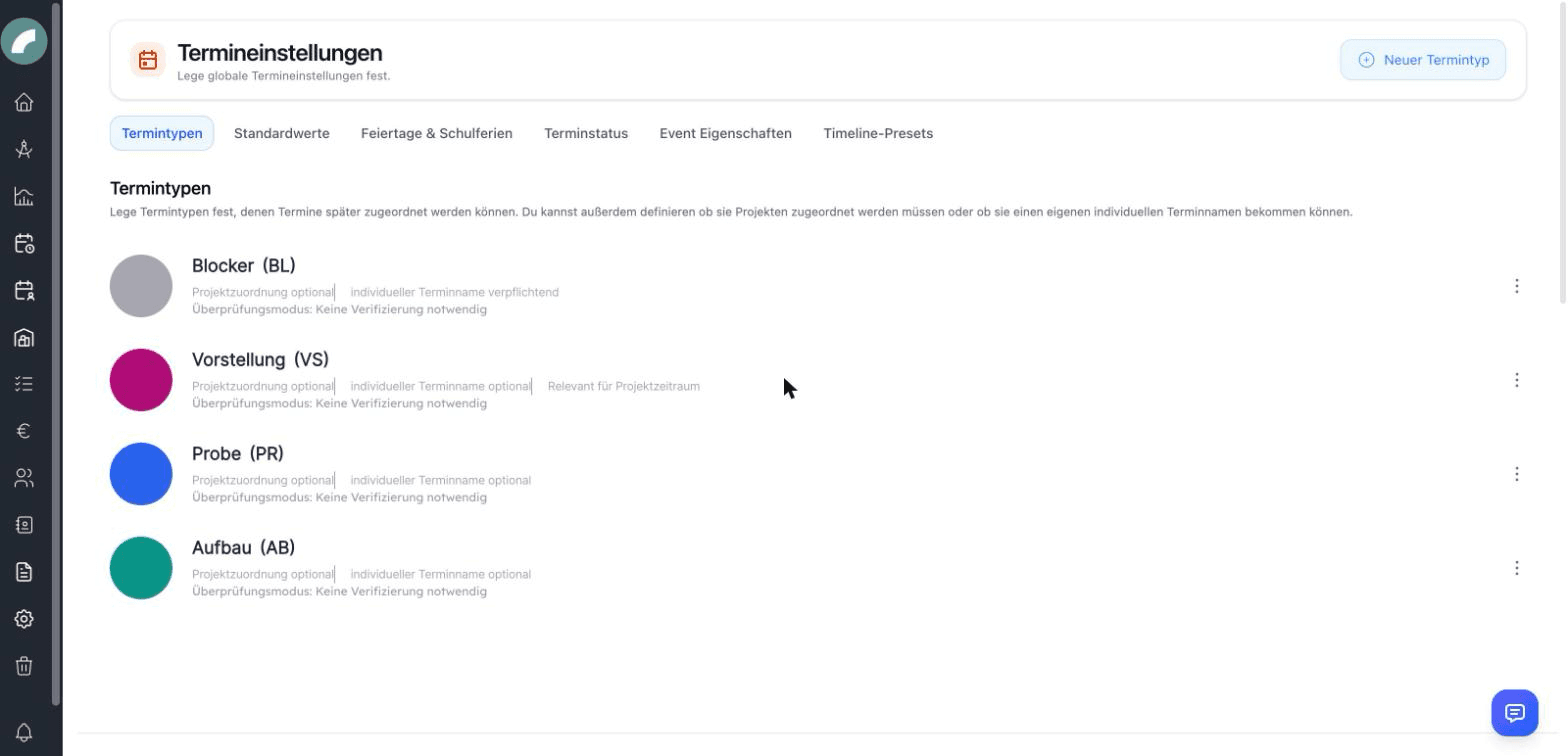
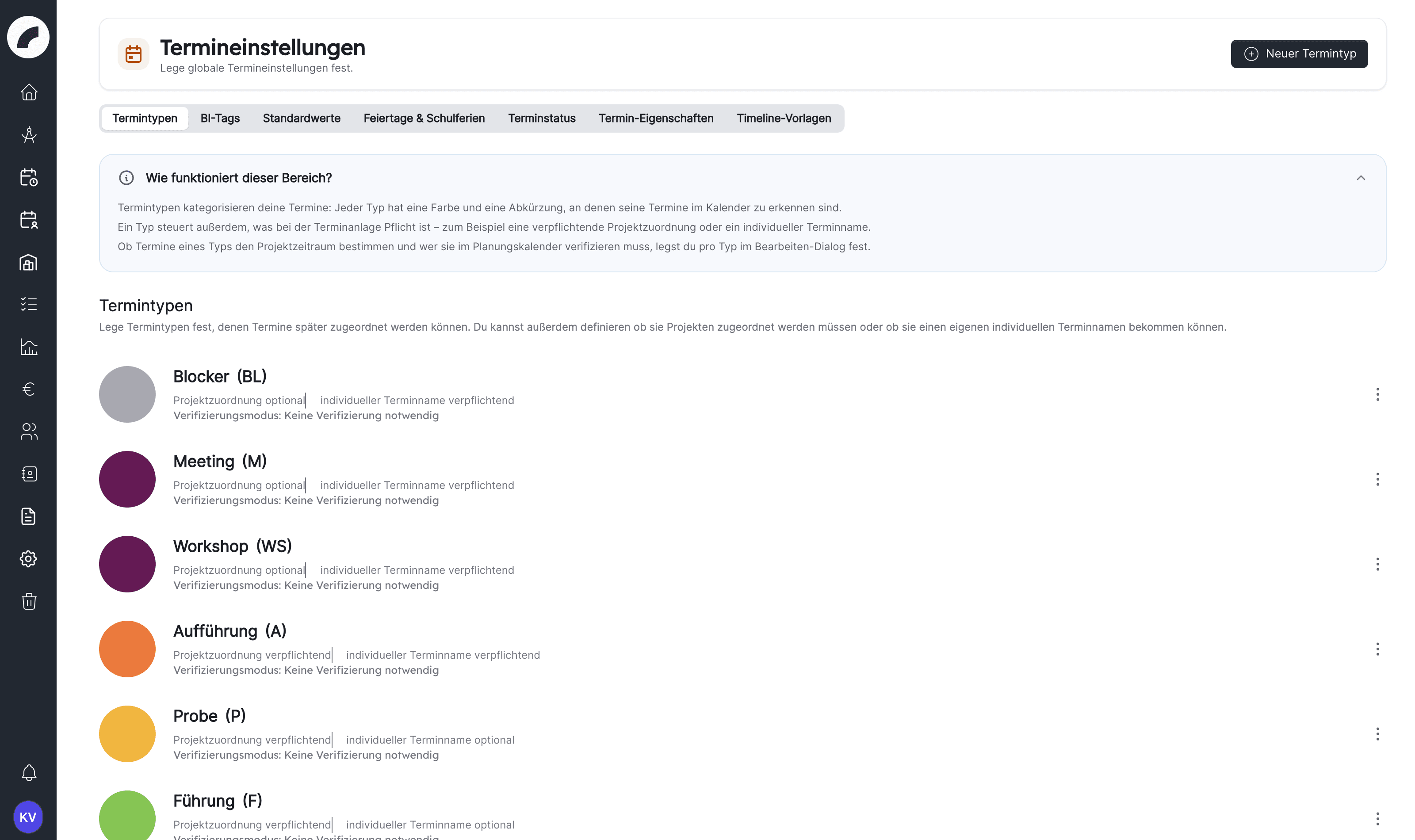
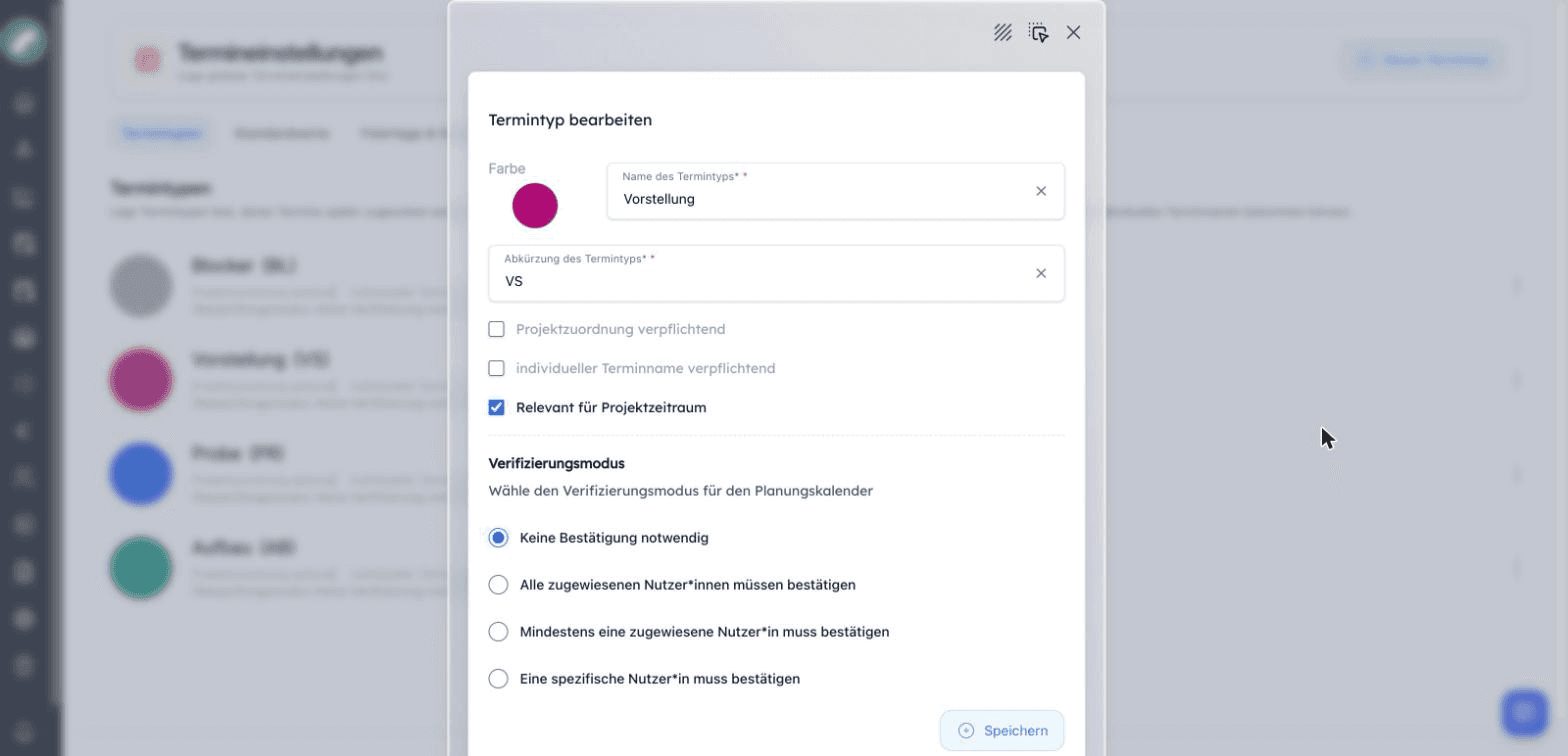
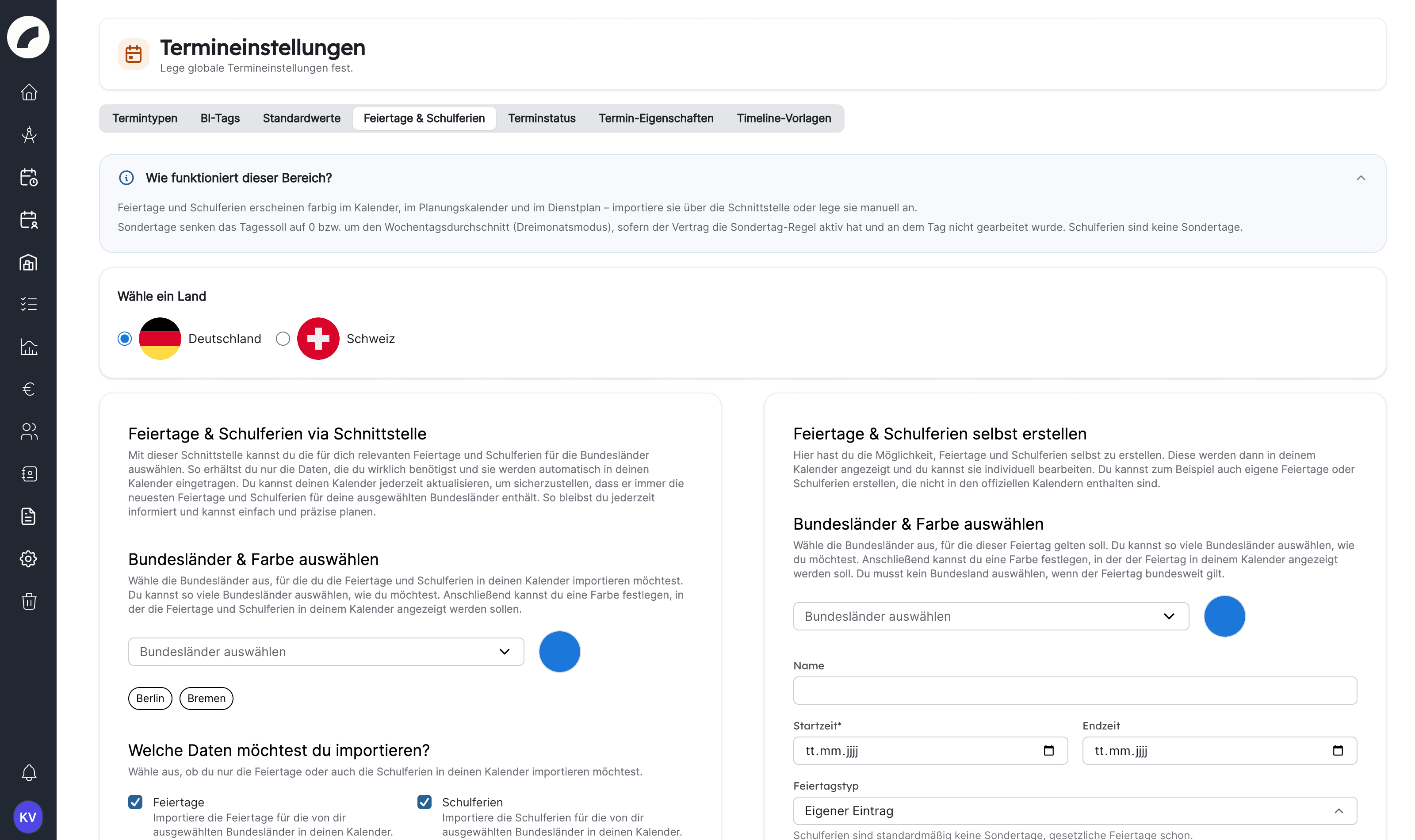
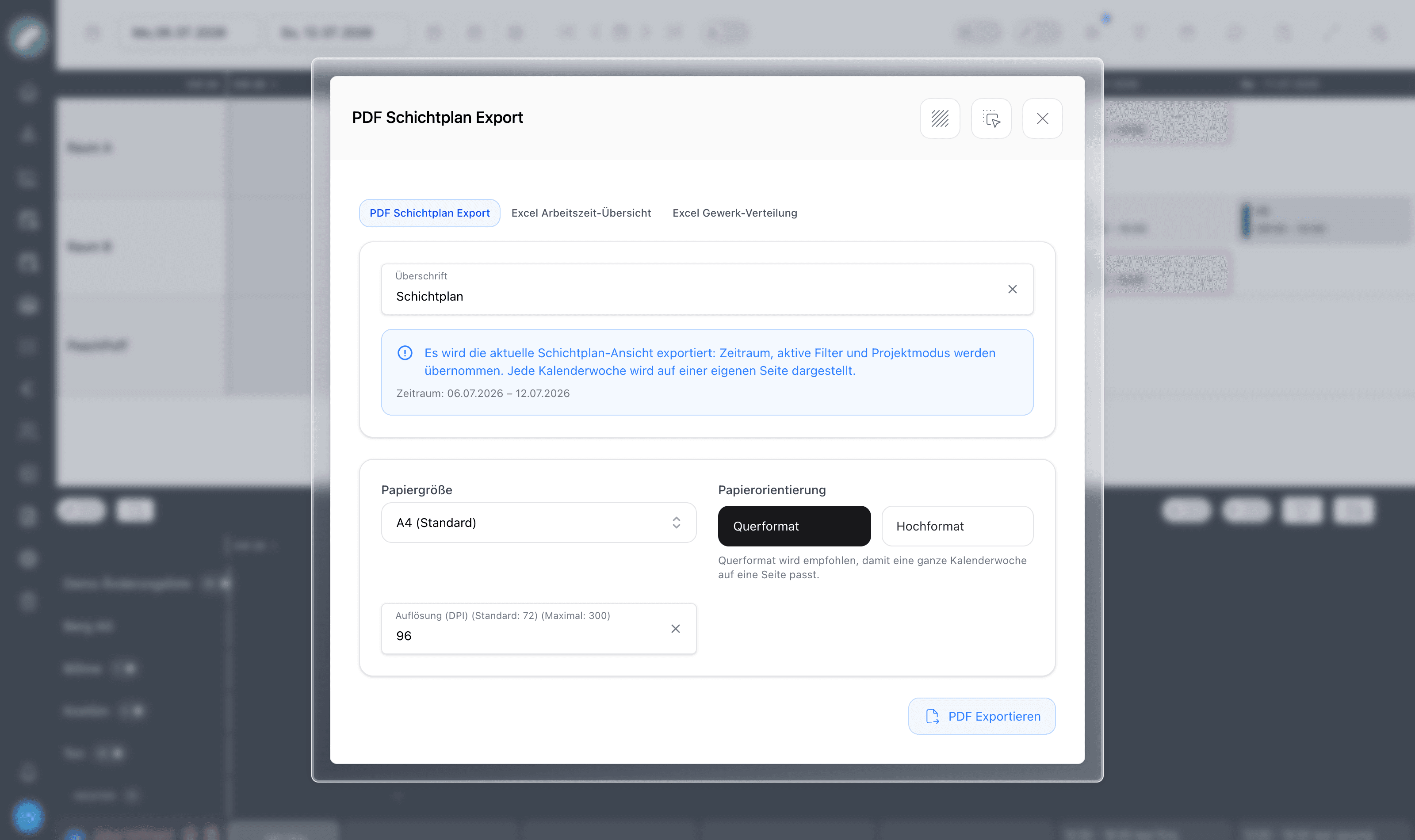
Choose “Save as PDF” in the print dialog. Enable background graphics so callouts and tables keep their colours.
Manual
The artwork manual as a single document
22 October 2026 · Based on the online edition at wiki.artwork.software
Introduction
What Artwork is and how these docs are organized
Artwork is a project and event management platform for cultural institutions —
theatres, concert halls, museums and festivals. It brings everything around a
production into one tool: projects, the room and event calendar, staff scheduling
(shift plans), inventory, budgets, contracts and contacts.
New here?
Start with Getting Started to learn how to log in,
navigate the tool and understand modules & permissions.
Artwork is modular. Administrators can enable or disable entire modules
(e.g. Inventory, CRM, Budget), and what you see also depends on your role and
permissions — so your sidebar may show fewer items than these docs cover.
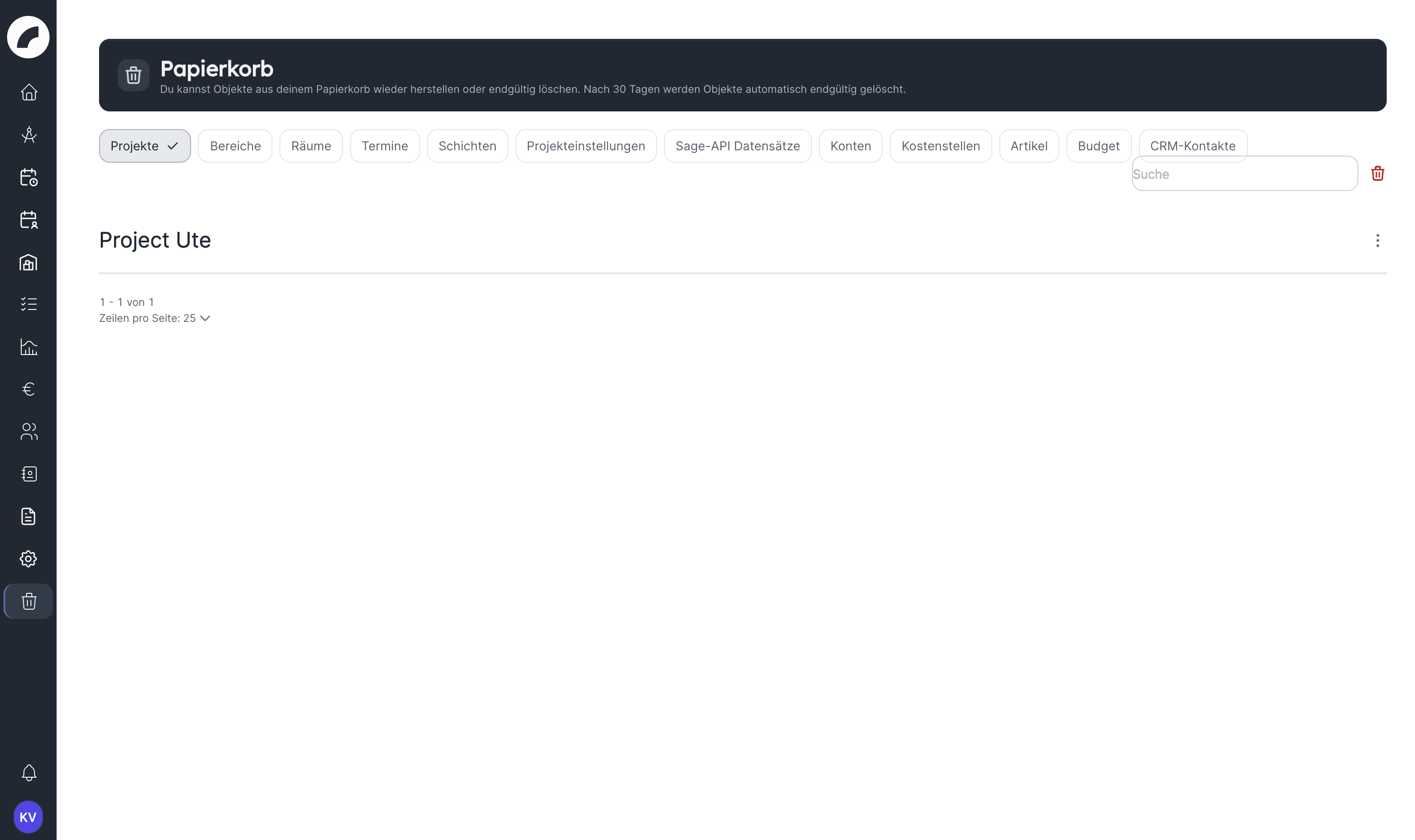
Recycle bin
Accidentally deleted administrative items can be restored for a limited time
in the recycle bin. Permanent deletion cannot be
undone.
Getting started
What is artwork?
What cultural organisations use artwork for, which modules it has and how this manual accompanies you from your first day to everyday routine
artwork is the shared workspace of a cultural organisation: a theatre,
concert hall, museum or festival uses it to plan its productions, book its
rooms, schedule its staff and manage material, budgets, contracts and
contacts. The benefit comes less from any single module than from how they
connect: an event in the calendar is also the frame for shifts, a project
brings together events, team, budget and documents, and whoever enters a
piece of information once does not have to repeat it anywhere else.
Looking for a specific task? The index
How do I …? takes you straight to the right
place in the module chapter. The module chapters themselves remain the
reference.
Unsure about a term? The glossary
explains each term in one sentence and links to the chapter about it.
The organisation decides which modules are visible and how artwork presents itself externally
artwork has no prescribed interpretation
A project can be a production, an event, a series or a festival. Tabs,
components, contact types, event types and crafts can be named freely. The
use cases show proven set-ups; what matters is
that your organisation chooses a convention and records it during setup.
Rooms and event types are the foundation of the calendar. Without them
there are no events.
An event takes place in a room, can belong to a project and helps
define the project's period. It can carry sub-events, a timeline and
shifts.
Crafts and functions are the foundation of the duty roster. A shift
belongs to a craft, needs functions and is filled with people whose work
profile matches.
A project brings together events, shifts, budget, documents, contacts
and tasks. Its team decides who may see and edit it.
Permissions and modules determine what each person sees. A missing
feature is usually a question of permissions or module visibility, not of
the version.
Getting started (this section): orientation, setup, paths by role,
use cases and the task index. These pages explain little themselves;
instead they lead you to the right place.
Working with Artwork: one chapter per module, each with an
Overview, the individual features and the related settings. This is
where you look things up while working in the software.
Administration: system menu and recycle bin.
Release notes: the changelog of each version with links to the
affected chapters.
The search at the top left finds headings and paragraphs on all pages. If a
search term leads to the wrong page, the index
How do I …? helps.
Getting started
Getting Started
Log in, understand navigation, prepare your account and start using Artwork safely
This chapter takes you from your invitation to your first working day in
Artwork. Your interface may differ from examples in the manual: modules are
enabled organisation-wide and roles additionally determine which data and
actions you can see.
An authorised person usually creates your account and sends an invitation to
your email address. The invitation link is valid for seven days—open it
promptly and complete the personal details requested. If the link has
expired, Artwork shows a notice page; ask the inviting person for a new
invitation. Use the email address for which the invitation was issued. After
registration you can sign in immediately; there is no separate email
confirmation step.
When setting your own password, fixed requirements apply: at least ten
characters with upper- and lower-case letters and at least one digit. Use a
password unique to Artwork and store it in a password manager.
Some organisations use central login instead. The login page then offers
Sign in with … for the configured identity provider. Use your
organisational account; a separate Artwork password may not be required. Once
the session expires, sign in again through the identity provider.
Select Forgot your password?, enter your email address and request the
reset link. Artwork confirms the dispatch regardless of whether the address is
known and limits the number of requests. Open the email and use its link to
set a new password; the same password requirements as at registration apply.
If no email arrives, check the spam folder and spelling, then contact your
Artwork administrator.
With central SSO, the password is managed by the identity provider. Use its
reset process or contact your IT team.
If two-factor authentication is enabled, Artwork asks for a code from your
authenticator app after your password. You can alternatively use a previously
stored recovery code. A recovery code cannot be reused once consumed.
The left sidebar is the main navigation. It can show only icons in compact mode
or icons and names when expanded. Areas with several pages—such as Calendar,
Duty roster, Documents and System—open a submenu.
Typical main areas are:
Area
Purpose
Dashboard
Your personal working status for today
Projects
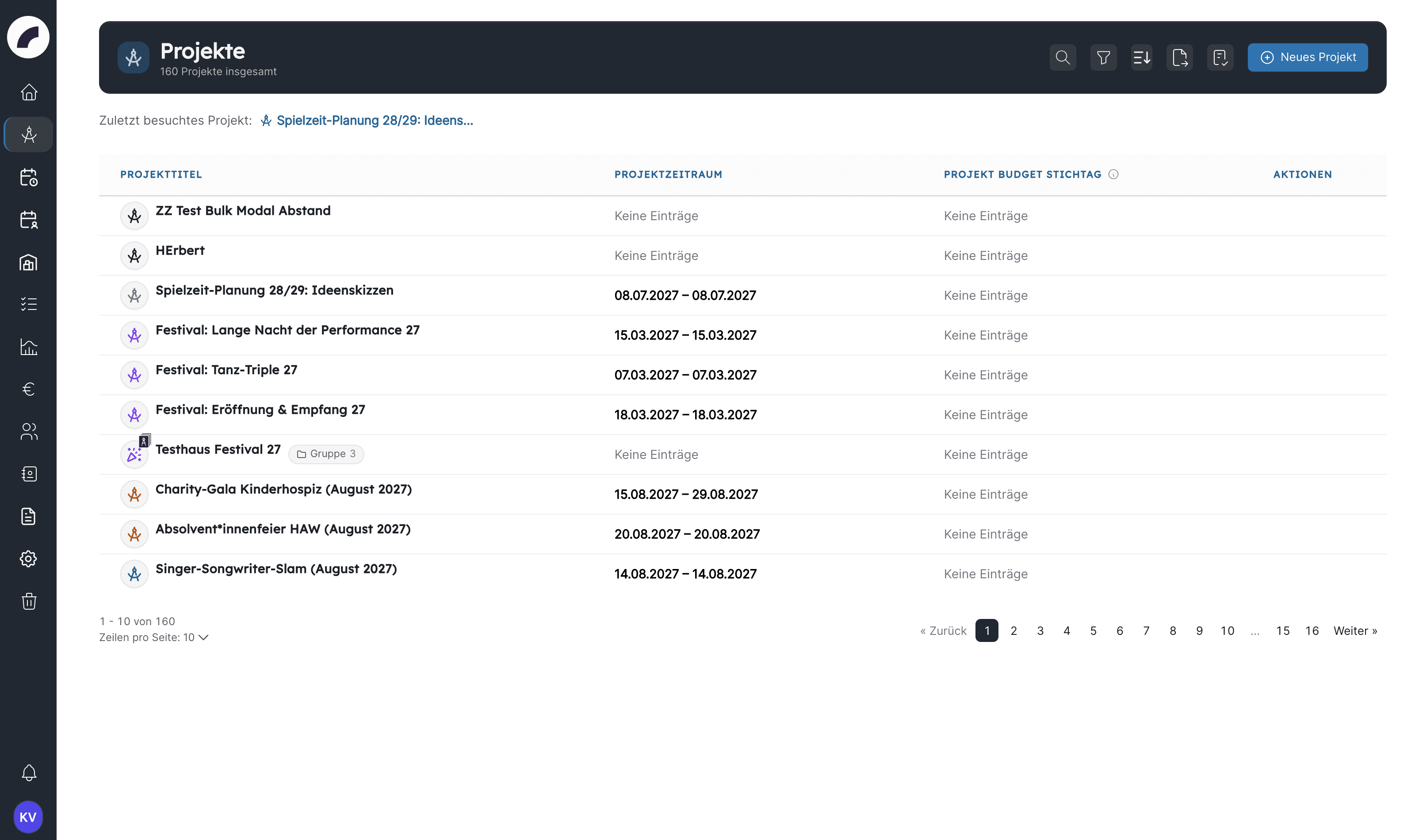
Productions, teams, events, budgets and project components
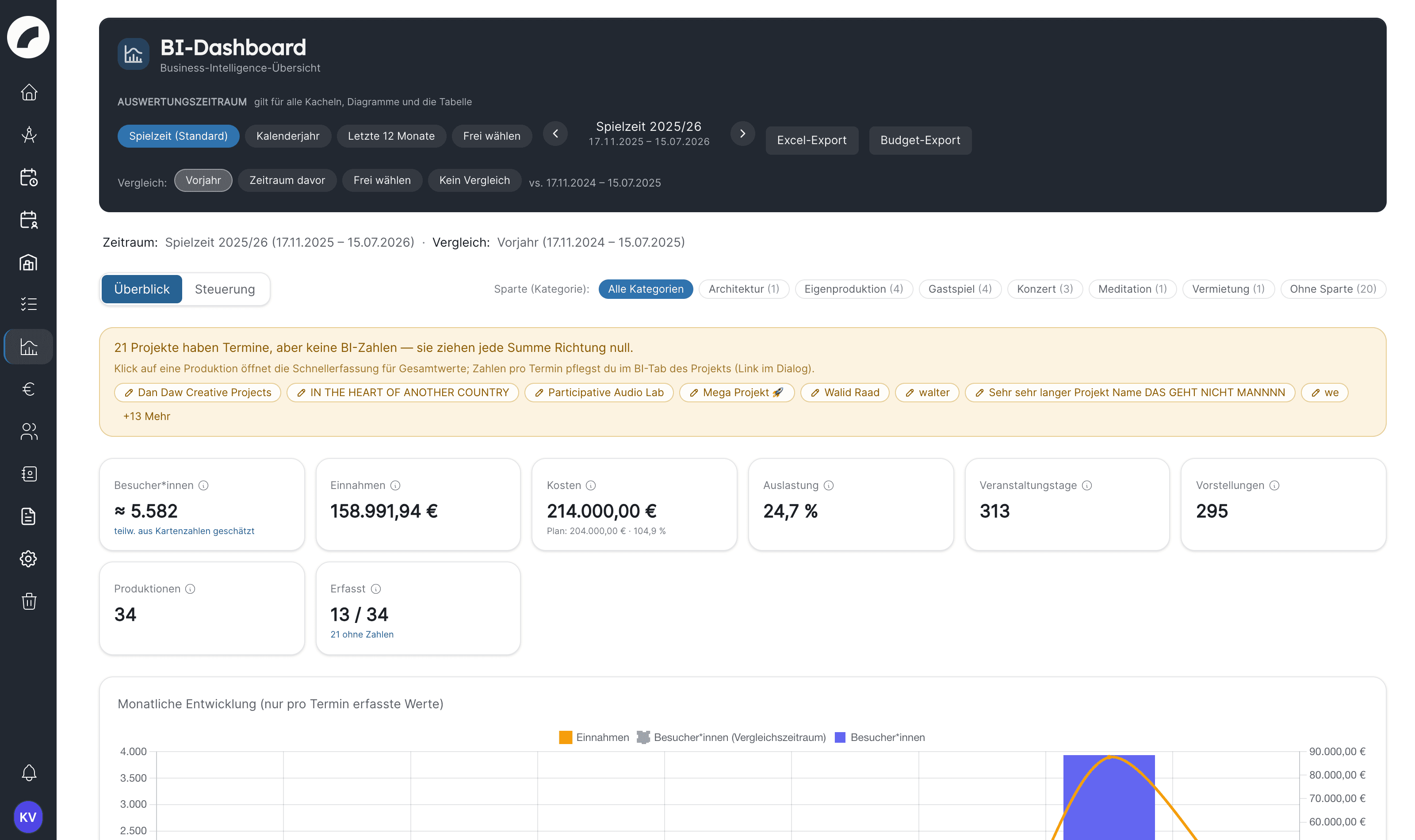
BI Dashboard
Organisation-wide figures and production comparisons
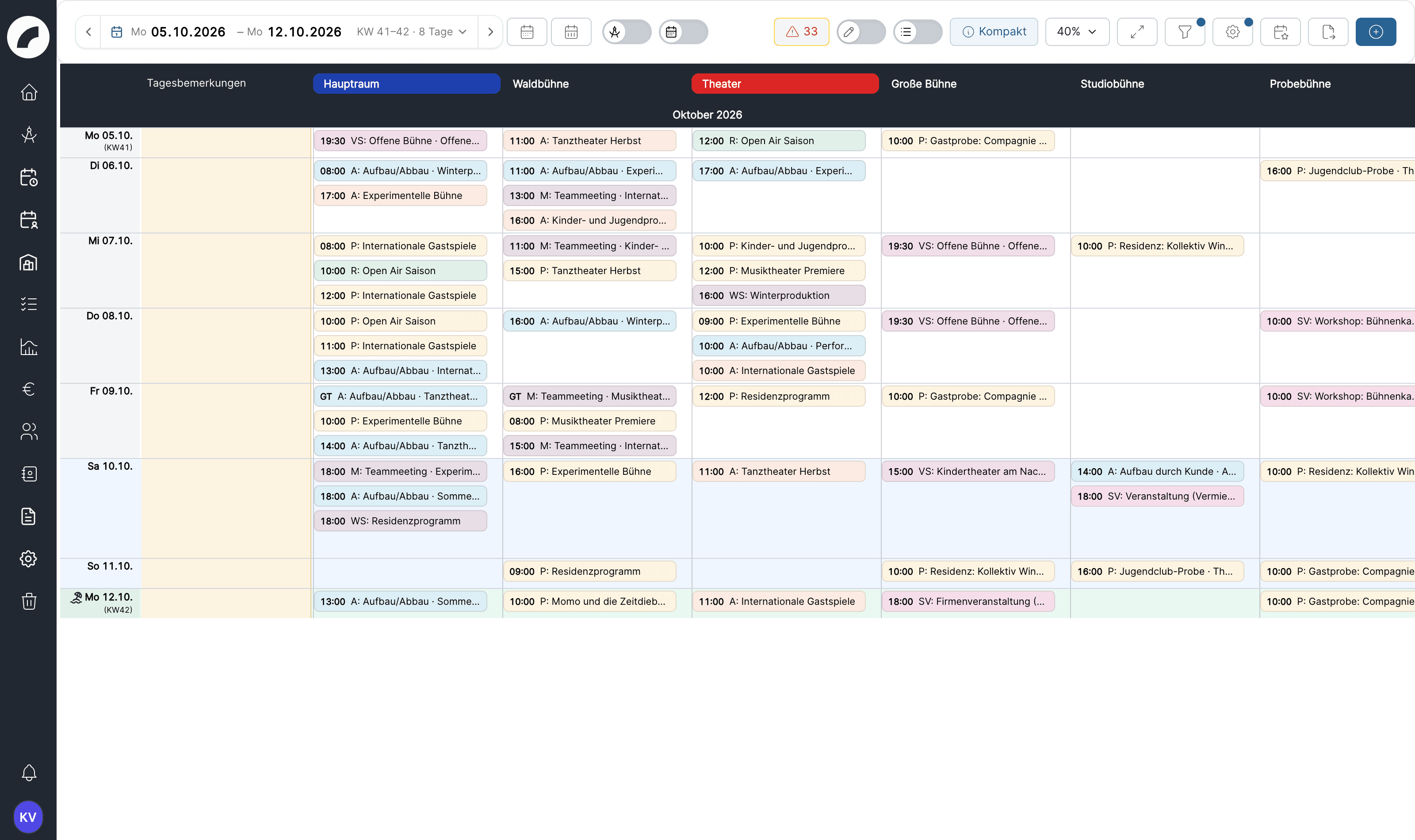
Calendar
Events, rooms, planning calendar and verifications
Duty roster
Duty rosters, staffing, My operational plan, rules & violations and approvals
Inventory System
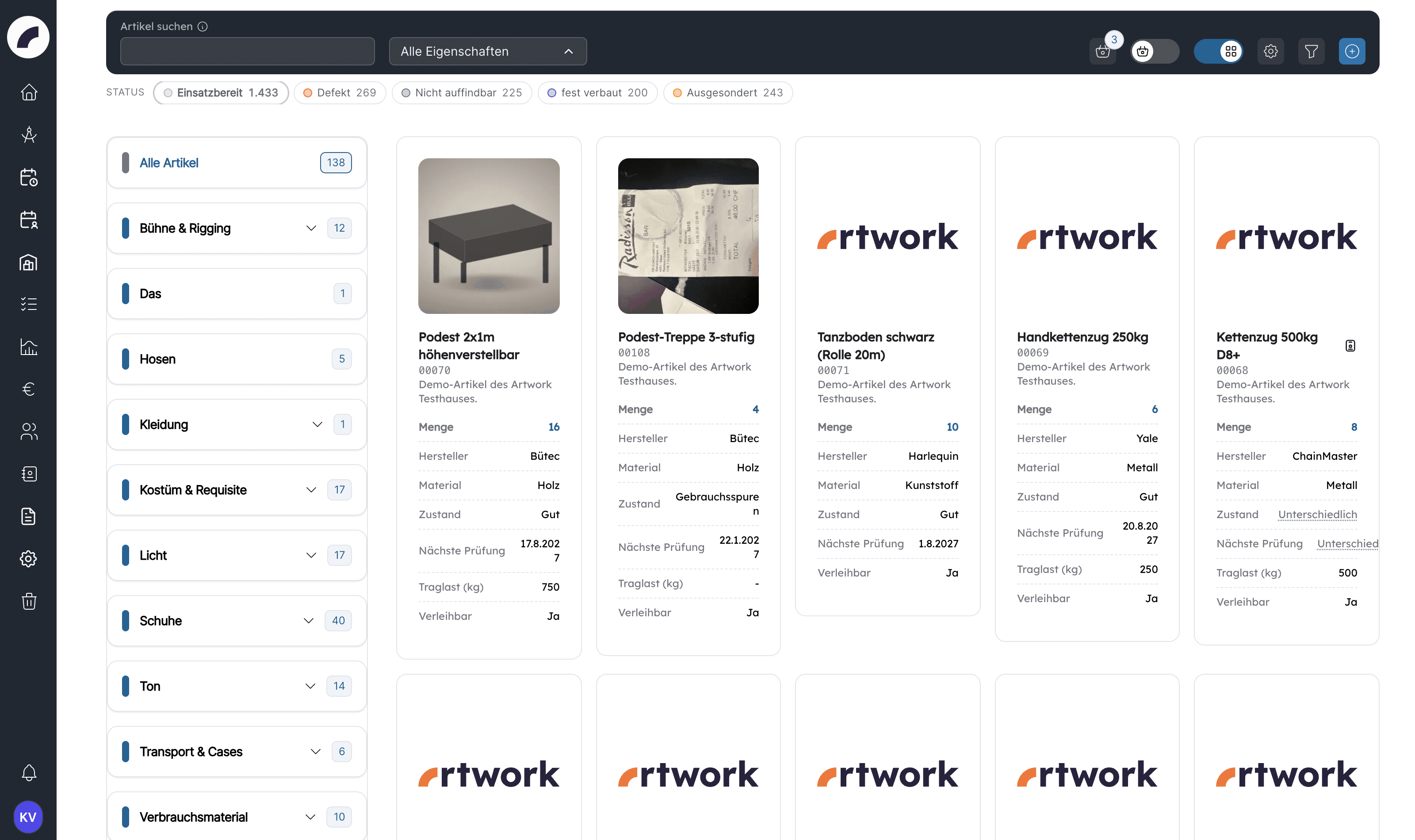
Article catalogue, planning and material issues
To-dos
Personal tasks, checklists and templates
Sources of funding
Grants and cross-project budgets
Users
People, teams, roles and work data
CRM
Contacts and their project relationships
Documents
Contracts and internal document requests
System
Global configuration for authorised administrators
Recycle bin
Restore deleted objects (permission Open trash)
Notifications and your profile menu are at the bottom. The profile menu
opens your own account and provides logout.
A missing menu item is not automatically an error
The feature may be disabled for the organisation or unavailable to your
permissions. Ask the responsible feature administrator if you need it for a
specific task. A direct link does not bypass permission checks: without the
required permission, Artwork shows the error page No permission.
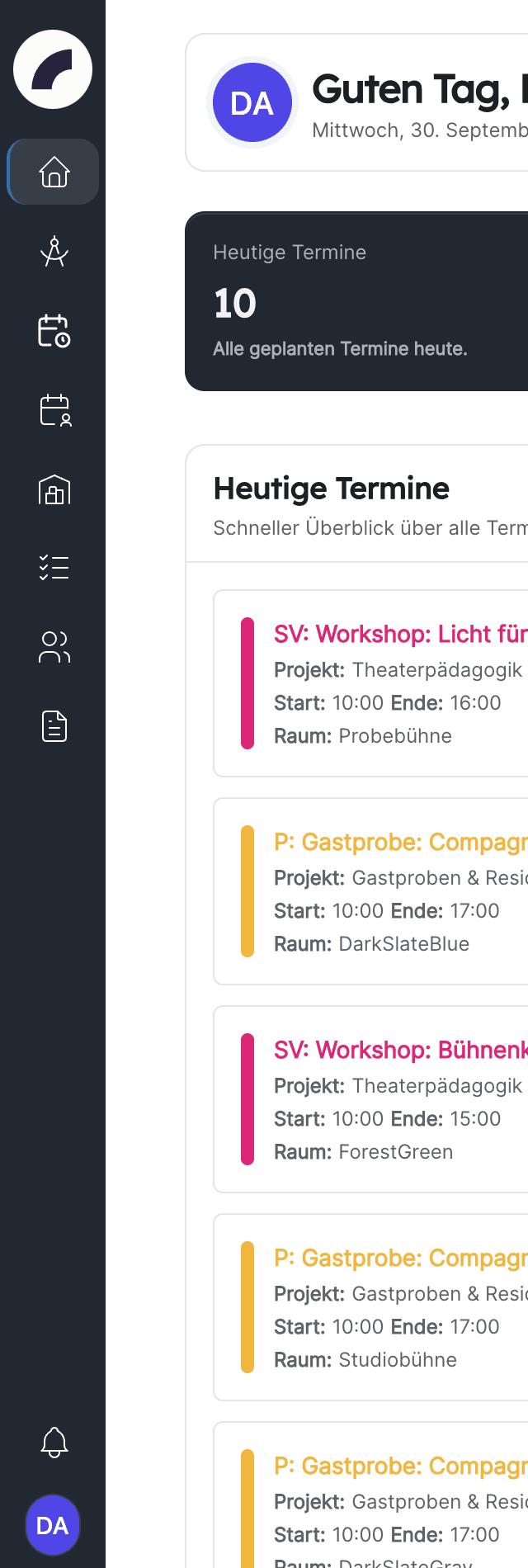
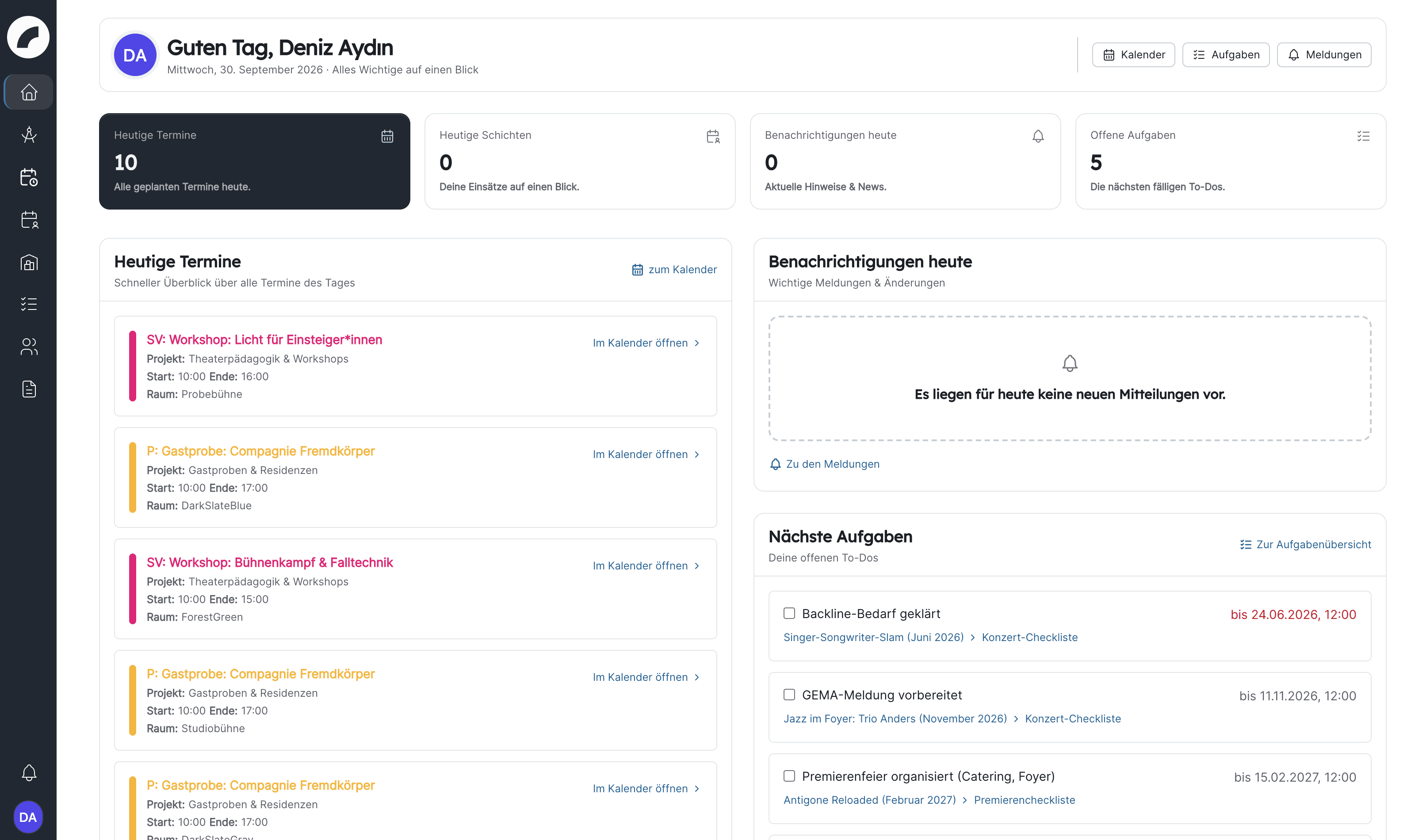
After login, Artwork usually opens your personal dashboard. It shows today's
events from your projects, your shifts and individual times, unread notices
received today and a selection of your next tasks. Use its quick links to open
the full feature area.
The dashboard is a personal daily summary, not a replacement for the complete
calendar, task or shift view. See Dashboard.
Open My account through your profile picture and check:
first and last name,
position, email address and phone number,
profile picture and short description,
application language,
teams and other work details where visible.
A complete profile makes assignments and collaboration easier. Teams and
administrative work data can only be changed by authorised people. See My
account.
You can change your password in your personal account. If enabled in your
installation, set up two-factor authentication, scan the QR code with an
authenticator app and store the recovery codes. Keep those codes outside
Artwork in a protected password manager.
Log out through the profile menu after work, especially on shared computers.
If you suspect unauthorised access, change your password, log out other
browser sessions under
My account and inform your
administrator.
Text stays text: in comments, chat messages, text components,
inventory descriptions, timelines and manufacturer details, HTML is not
interpreted as formatting but shown as text; line breaks are preserved.
Excel exports: cells whose content starts with "=", "+", "-" or "@"
are exported as text so spreadsheet applications do not execute them as
formulas.
PDF exports are cleaned up automatically after one day. Download
exports promptly.
Page expired: if you submit a form that has been open for a very long
time, Artwork may report "Page expired". Reload the page and submit again.
The notification centre groups notices by topic and provides direct actions.
Personal email and push settings determine which messages are delivered
outside Artwork and whether email arrives immediately or as a summary.
Start with enough time-critical messages enabled and adjust after a few working
days. See Notifications.
Set a strong password and, if possible, two-factor authentication.
Open the dashboard, calendar and task overview.
Verify that expected projects, teams and shifts are visible.
Adjust email and push settings to your responsibilities.
Review an existing record before creating new data yourself.
If permissions are missing, describe the concrete work need instead of
requesting general administrator access.
Do not alter live data just for practice
Artwork contains shared production, staffing and financial data. Use a
designated test project or coordinate exercises with the team. Deletions,
acceptances, approvals and commitments can directly affect other people.
Getting started
Setup for administrators
For each module, what is essential for it to work, and what you can add optionally and what it is meant for
This page is the roadmap for the initial setup – and the checklist when an
organisation starts using another module. For each module it first lists
what is essential (without it the module does not work in a meaningful
way), and then what is optional and which use case it is meant for.
All essentials together take about half a day for a medium-sized
organisation; optional items follow step by step as the need arises.
Where the settings are
You will find almost everything on this page in the System menu (only
visible to admins and people with the relevant settings permissions).
Every settings page has an expandable banner at the top, How does this
area work?, describing the intended workflow. The order and dependencies
across all areas are explained in System & administration.
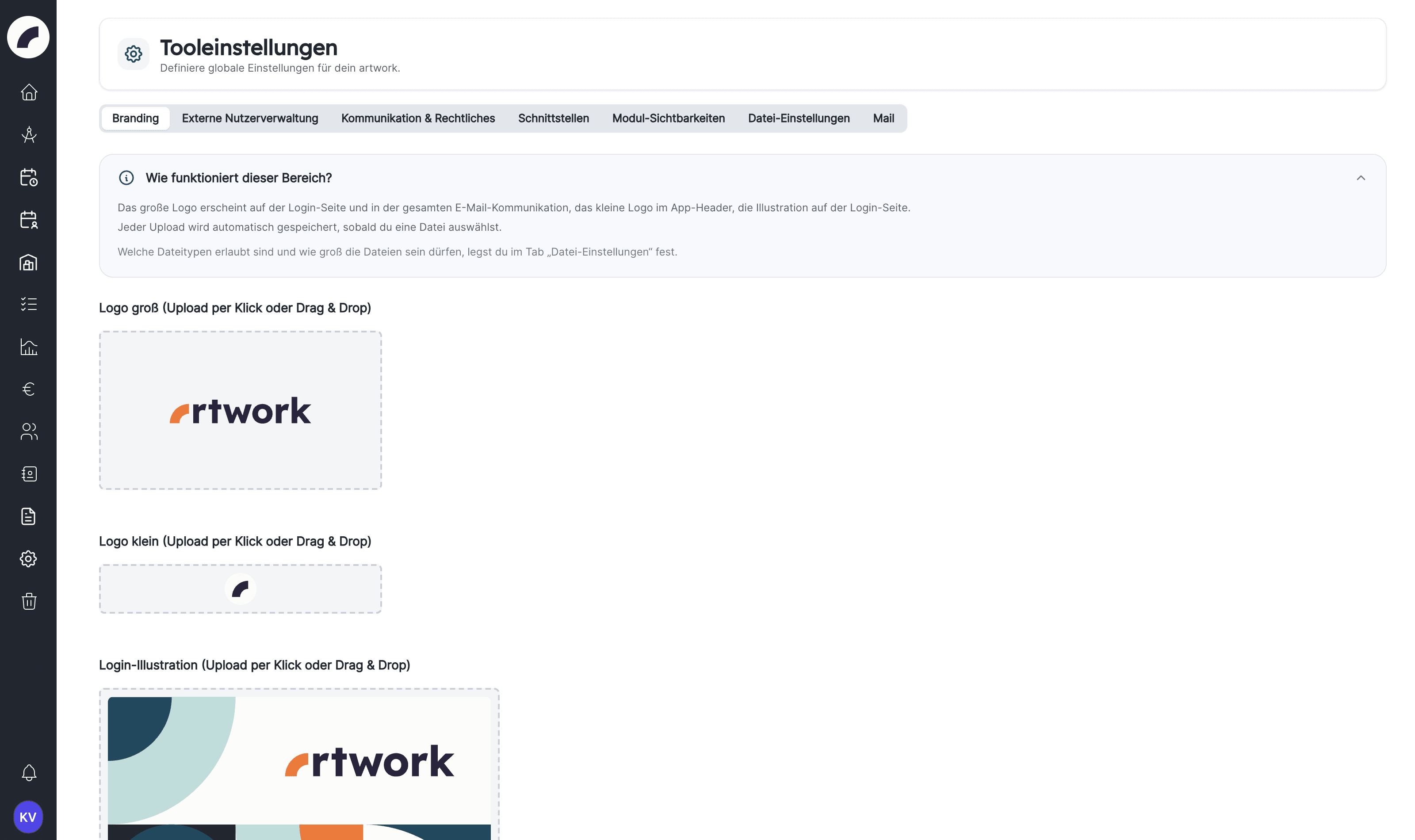
Branding: big logo (login, emails), small logo (header), login
illustration – so that artwork is recognisable as your tool.
Branding
Communication & Legal: organisation name, page title, business and
invitation email (the sender of all emails), links to legal notice and
privacy policy, the season window (basis for BI and season-related
figures).
Communication & Legal
Mail: SMTP access and test email, otherwise invitations and
notifications will not arrive. Mail
Module visibility: hide modules your organisation does not use – they
disappear from the navigation for non-admins.
Module visibility
Optional – what it is for
Adjust the file settings if you want to upload video, audio or larger
files; the default lists cover documents, office files and images.
File settings
External user management (LDAP/Active Directory, OIDC/SSO) if your
IT runs a central login.
External user management
Interfaces: API keys for your own reports, webhooks for other
systems, Sage for matching booked invoices in the budget.
Interfaces
Letterhead for the per diem statement of artist residencies.
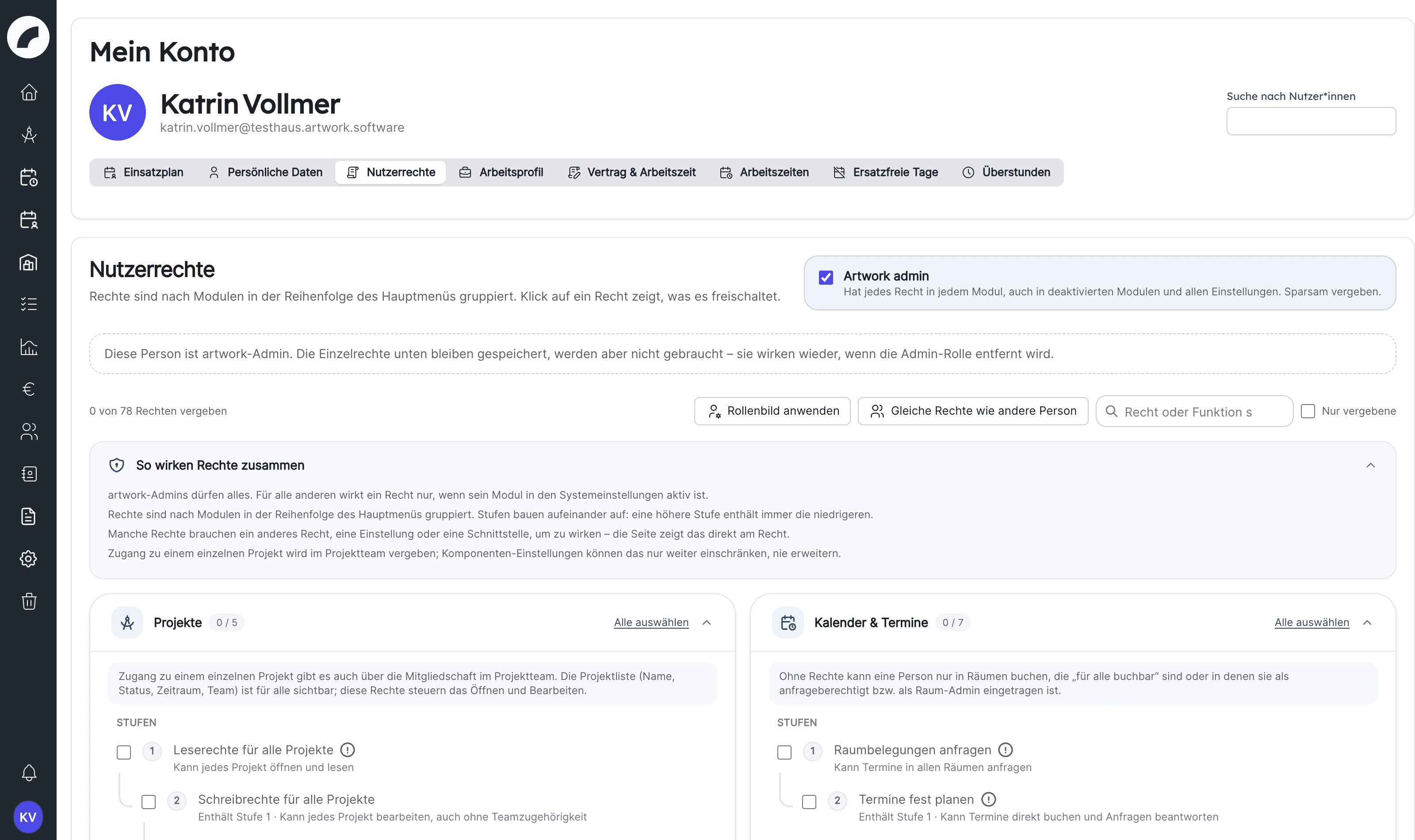
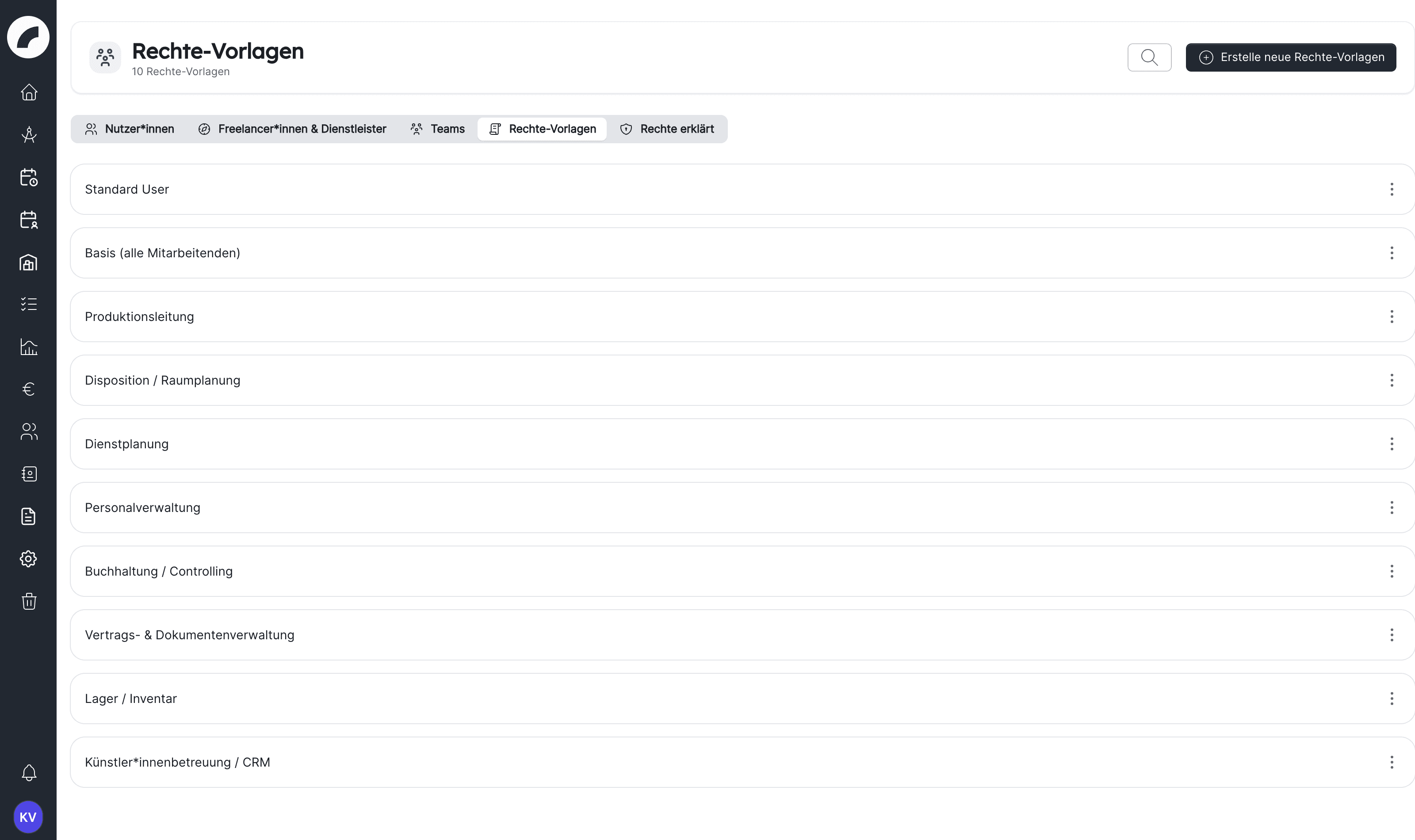
Create permission presets or check the supplied role presets (Basis,
Production management, Disposition / room planning, Duty roster
planning, HR administration, Accounting / controlling, Contract &
document administration, Warehouse / inventory, Artist relations / CRM,
System administration) – this turns every invitation into the question
"which role preset?" instead of "which 80 checkboxes?".
Roles & permissions
Invite users – by email, the invitation is valid for 7 days; if
needed, with teams and permission preset right away.
Accounts & invitations
At least two admins, so that nobody gets locked out.
Areas and rooms: areas as a building, site or floor; rooms with
colour, Relevant for disposition (only these rooms appear in the
calendars) and room admins who answer booking requests. Then
Sort rooms, because the order applies in all calendars.
Rooms, areas & booking access
Event types with colour and abbreviation (performance, rehearsal,
setup, blocker …). They shape the calendar tiles, the filters and shift
planning. Event types
Decide on the booking model: should everyone book directly
(Events always bookable directly), or should room admins approve
booking requests? Standard values
Optional – what it is for
Activate event statuses (requested, confirmed, cancelled …) if the
confirmation state of an event matters more than its type – tiles can
then be coloured by status.
Event statuses
Event properties such as With audience or It gets loud to protect
neighbouring rooms and to filter by them.
Event properties
Room categories and room attributes (stage, rehearsal stage, grand
piano, dance floor …) as filters for "find free rooms".
Adjacent rooms and capacity per room if you want to evaluate
noise conflicts and utilisation.
Verification mode per event type if certain events (such as
performances) are to be approved for content.
Event verifications
Enable the planning calendar (module visibility and permissions) if
scheduling staff are to pre-plan seasons without colleagues seeing the
drafts. Planning calendar
Import holidays & school holidays so that they are visible in the
calendar and duty roster and count as special days in working time.
Holidays & school holidays
Activate the admission field if admission times are maintained on
the event.
Day remarks column for notes on the whole day (such as house
information for all crafts).
Calendar settings
Adjust the daily view time window (start and end time) to your
operations, for example 08:00–02:00 for performances with late-night
shows.
Timeline presets for recurring daily schedules (get-in, admission,
start, end).
The detailed path with stages, visibility, documents and print layouts is
described in Setting up the project view.
Essential
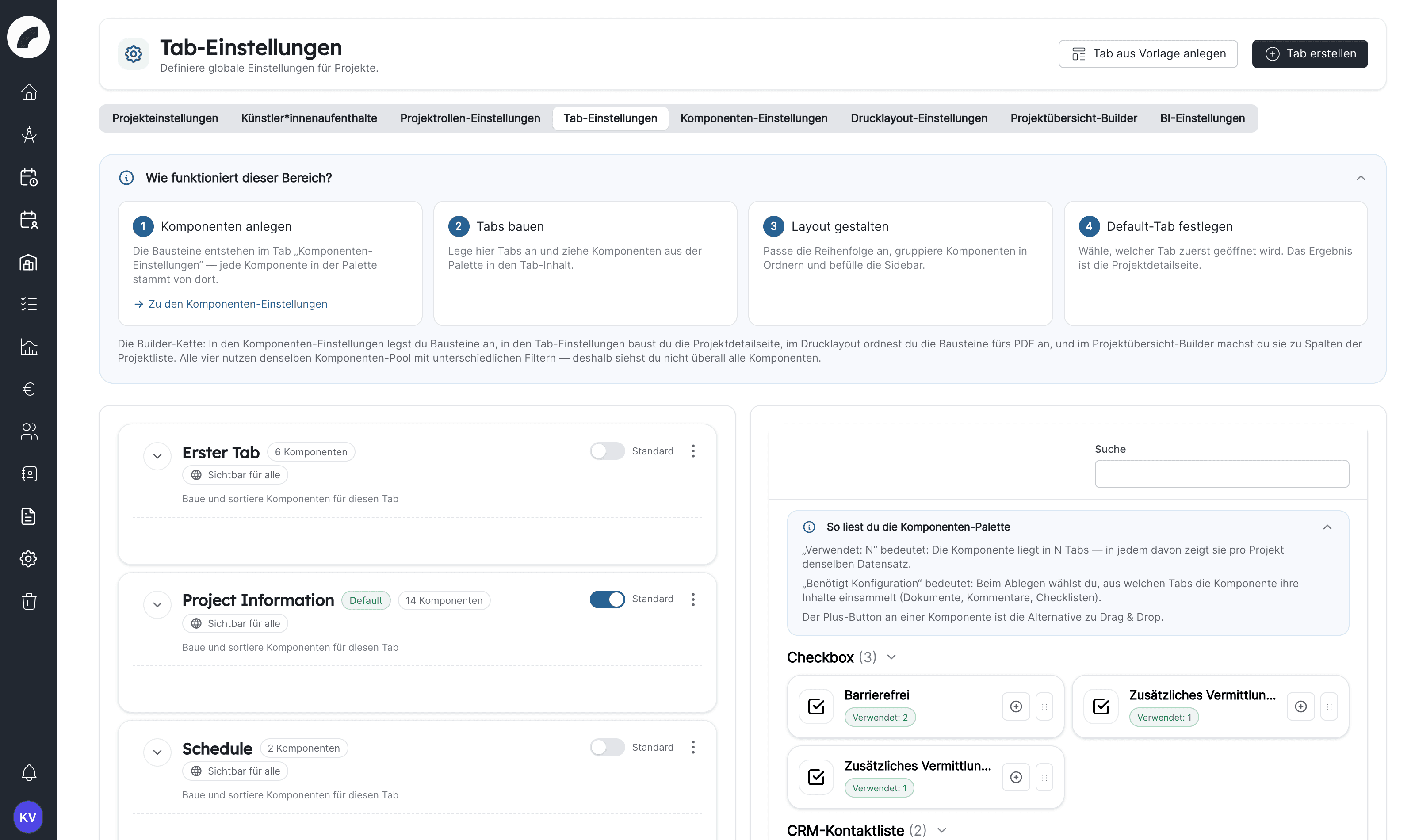
Check the tab settings: the default tabs (project information,
schedule, to-do lists, shifts, budget, comments) can be used right away;
decide whether you divide tabs by department or by phase. Create tab
from template restores missing default tabs.
Tabs & components
Project statuses (in planning, confirmed, cancelled …) so that lists
and calendars can filter by them; mark planning statuses as Project
counts as "in planning".
Project statuses
Optional – what it is for
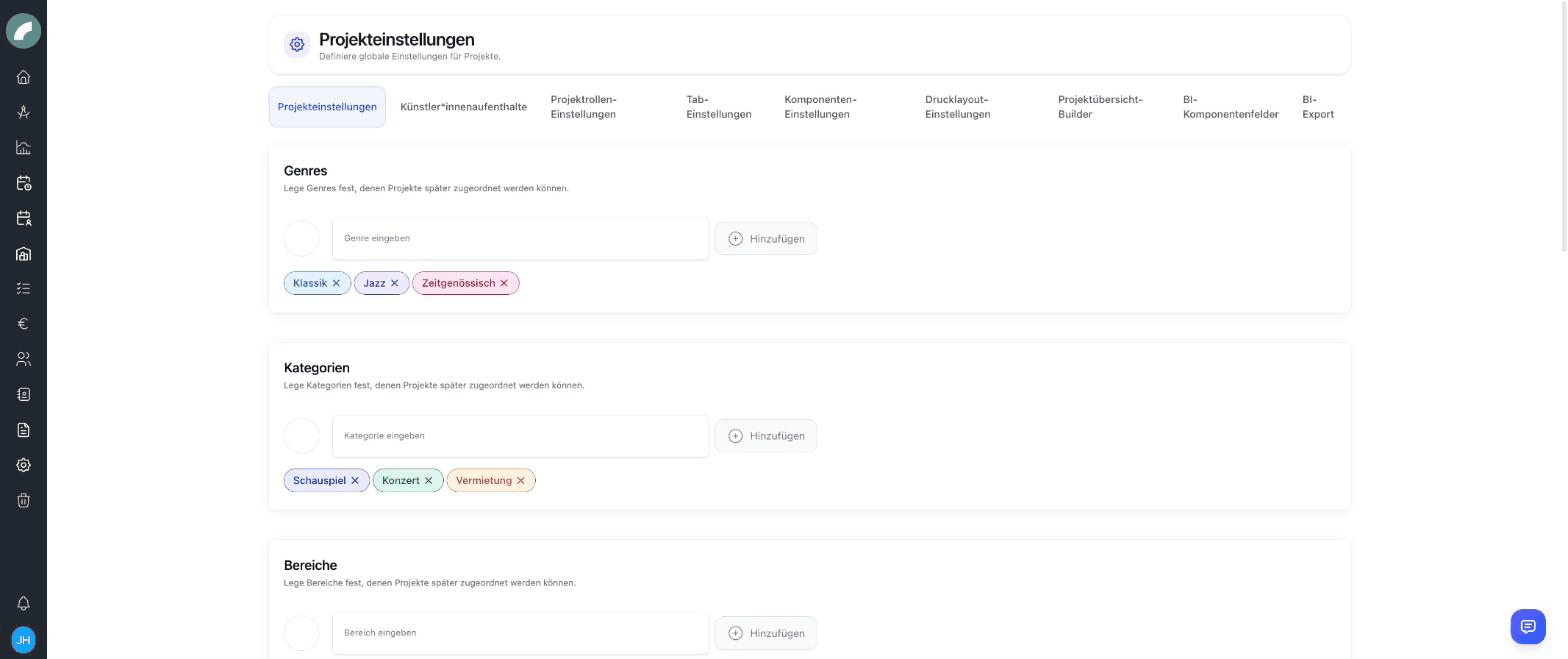
Categories, genres, areas as project properties if you evaluate by
division or want to colour tiles by main category.
Project creation settings: which fields are asked for when creating
a project (status, project manager, artists, budget deadline, cost unit)
and whether CRM contacts in the project team are allowed.
Project creation settings
Project roles (director, production manager …) as labels in the team
– they do not grant permissions.
Project roles
Custom components (text fields, select fields, checkboxes, folders)
for information your organisation needs for each project.
Print layouts to hand project data to external partners as a PDF
without revealing internal content.
Print layouts
Project overview builder to define the columns of the project list.
Artist residencies (per diem, breakfast deduction, accommodation in
the CRM) if you handle guest performances with travel and hotel planning.
BI settings (audience categories, BI fields, BI tags) if you want to
record visitors, revenue and utilisation.
The detailed path in three stages – staffing shifts, calculating working
time, checking rules – is described in
Setting up the duty roster.
Essential
Functions first (master, specialist, assistant …), because every
shift asks for slots per function and the craft dialog only offers
existing functions.
Functions and qualifications
Crafts with abbreviation and colour (sound, lighting, stage,
admission …), usually along the house's departments; per craft the
functions and who may plan the craft. Crafts
Work profiles of the people: May be assigned to shifts, crafts and
functions – otherwise nobody appears in the workforce panel.
Work profile
Optional – what it is for
Time presets and shift templates (with template groups) if the
same shifts come up again and again – one click instead of ten dialogs.
Templates
Working-time planning: work time patterns (daily target per
weekday) and user contracts (vacation days, days off, overtime rule),
assigned to people under Contract & working hours. Only then are there
time accounts, target/actual, overtime and key figures. If you do not
need this, switch off Work time accountingComing with the next update.
Work time patterns & contracts
Rules & violations if you want to track working-time law and
collective agreements: daily and weekly maximums, rest periods, days off,
Sunday work – with Create legal default rules as a starting point.
Violations appear in the duty roster and in the overview of substitute
days off.
Rules & violations
Shift groups if rest periods between shift types (such as evening →
early) are to be checked; a prerequisite for the corresponding rule.
Night work period so that night hours are counted separately.
Day services (key service, standby) that are assigned to a person
for a day without a shift.
Approval workflow if craft managers submit their weeks for approval
and a second person approves them; plus request deadlines per craft.
Committing & approval
Shift confirmation by employees if people are to accept or decline
their duties.
Project assignments to assign people to a production bindingly or as
a wish; can be switched off if you do not need it.
Allow overbooking, sorting by first or last name, calendar feed
with or without provisional shifts according to your house rules.
Miscellaneous toggles
Properties first (lumens, weight, serial number, condition … with
data type), then categories and subcategories to which you assign the
matching properties – so a lamp asks for lumens and a shoe for its size.
Inventory settings
Check the statuses (ready for use, defective, on loan …) and their
colours; only the status ready for use counts as available quantity.
Permissions: who creates articles, who plans, who issues material.
Optional – what it is for
Tags and tag groups for cross-sections across categories
(production, location, ownership).
Material sets for packages that are always issued together (projector
set, microphone case). Material sets
Manufacturers as CRM contacts of the contact type Manufacturer if
you want to record them on the article and filter by them.
Inventory number prefix and Detailed articles always with quantity
1 if you keep individually tracked articles with numbers.
Check and extend the contact types (artist, agency, company,
accommodation, manufacturer …) with their properties; decide which fields
are mandatory, shown in the list and filterable.
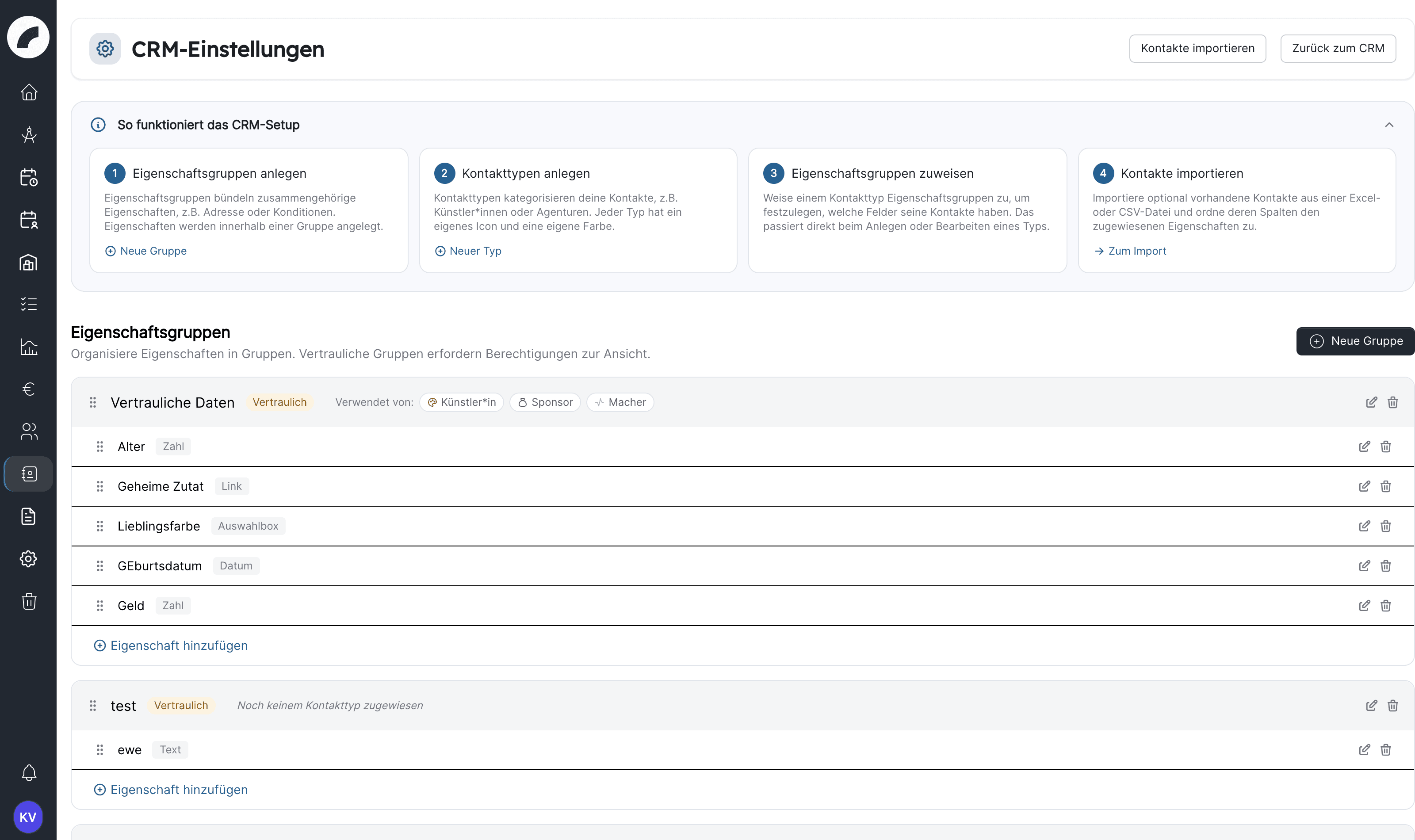
CRM settings
Optional – what it is for
Confidential property groups (bank details, terms) with group
permissions so that only finance can see them.
Import from Excel/CSV to take over existing address data.
Import contacts
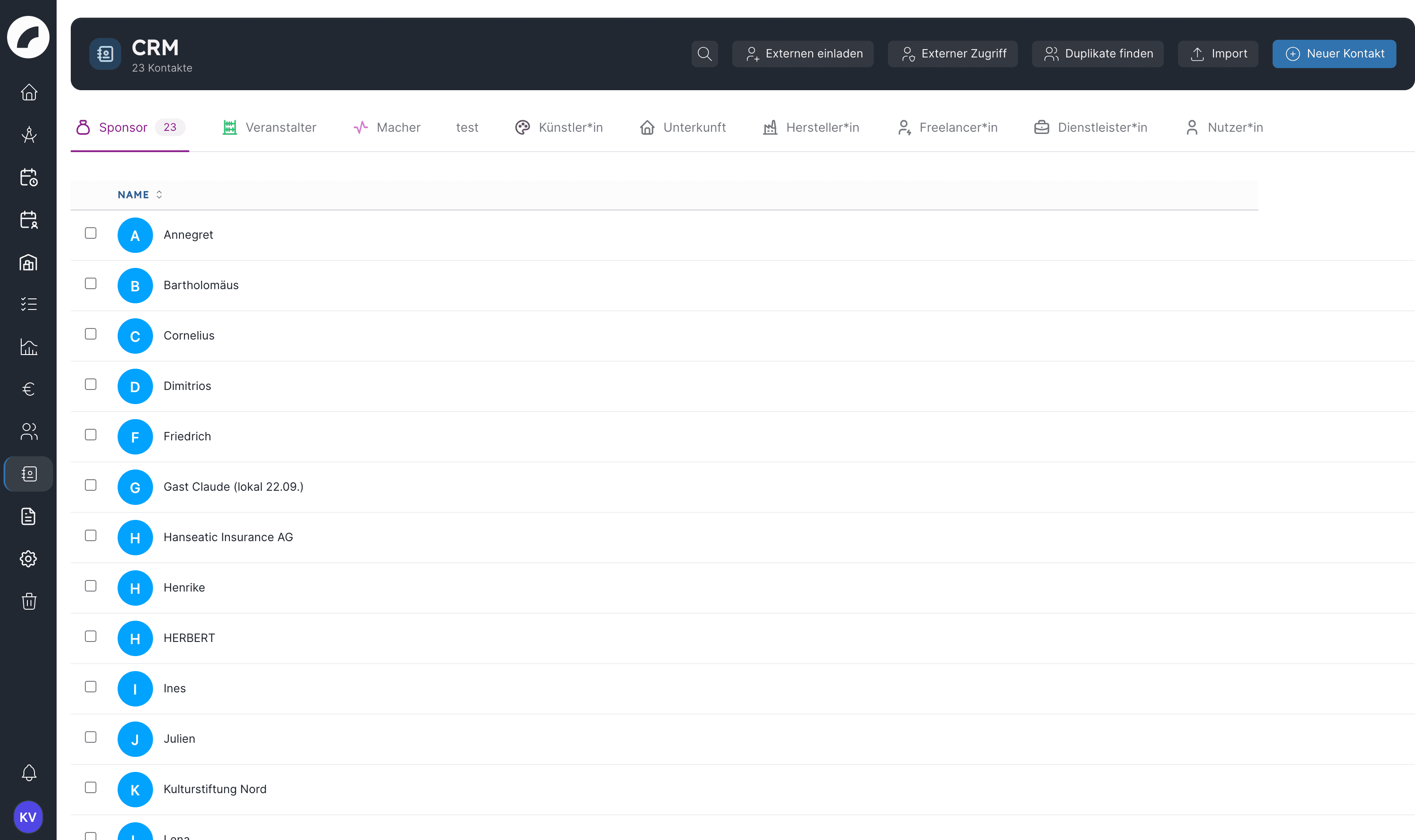
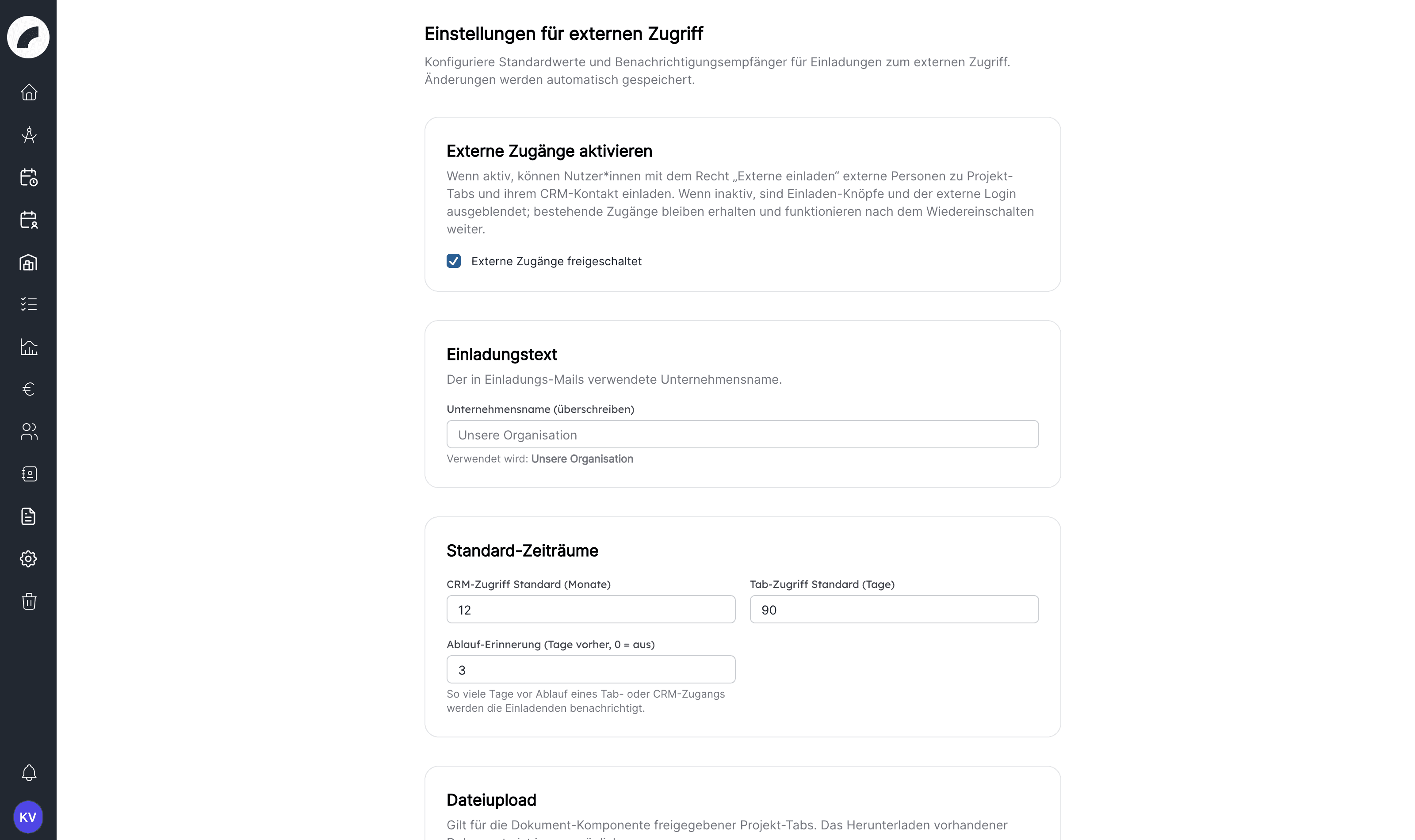
Enable external access so that companies and artists fill in their
data and project inquiries themselves; this requires the permission
Invite externals and the tab template Production inquiry.
External access
Allow CRM contacts in the project team to list external partners as
team members with a role.
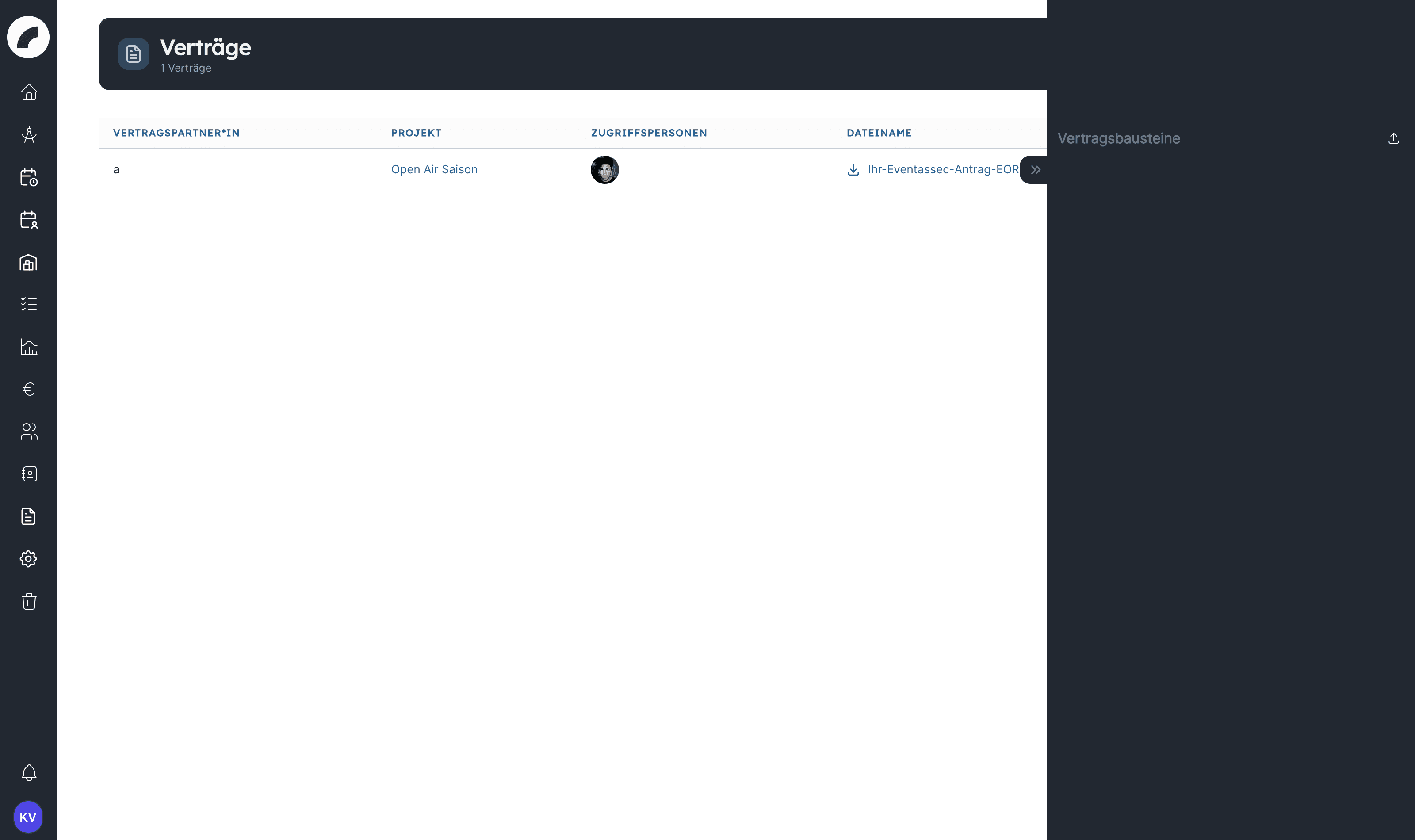
Only if you store contracts in artwork: contract types, company
forms and currencies in the project settings, so that the contract
form offers suitable values.
Other project-related master data
Checklist templates for recurring routines (premiere, guest
performance, get-out) with relative deadlines.
Checklist templates
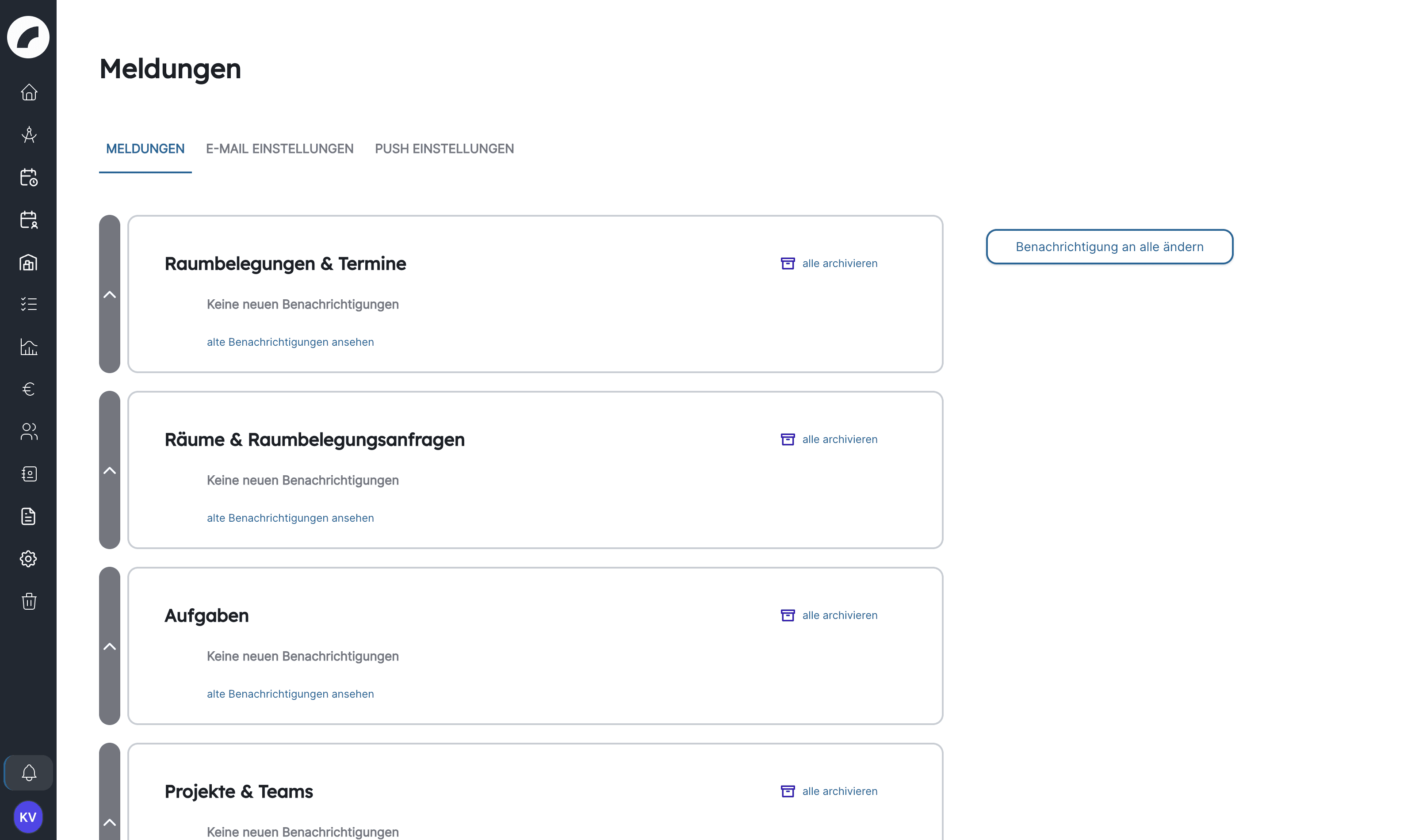
Notifications: each person sets up email and push themselves; as an
admin you take care of the mail account and can set a central banner
with Notification to all. Notifications
BI: season window, BI tags on event types and the BI component in a
project tab, so that the dashboard shows values.
BI dashboard
Walk through the whole process once with a test project: create an event, fill a shift, issue material, upload a document.
Check with a person without admin rights what they see – only then do permission presets become truly visible.
Show the display settings for the calendar and the duty roster to the different roles; they are personal and often overlooked in the introductory session.
The guided path for admins – in three stages from "plan and staff shifts" via time accounts to rules and violations, with everything you can leave out
The duty roster is the module with the most settings. This page walks
through the setup in the order in which the parts build on each other.
Each stage can be used on its own: a house can plan productively after
stage 1 and switch on stages 2 and 3 later or never.
Stage
What you can do
What you need
1 – Plan and staff shifts
Create shifts, assign people, commit, send out operational plans
Functions, crafts, planning rights, work profiles
2 – Calculate working time
Target and actual hours per week, time account, overtime, work time overview
Work time patterns, user contracts, assignment per person
3 – Rules and violations
Check working time law, collective agreements and house rules, manage substitute days off
Stage 2 (contracts), rules, shift groups where needed
In addition there are features you can switch on at any time, regardless
of the stage, such as templates, the release workflow or shift
confirmation – see Available at any time.
Where the settings are
Everything on this page is under System → Shift settings (permission
View and edit shift settings) and in the person's profile under
Users (permission Manage workers). The Shift Settings tab is a
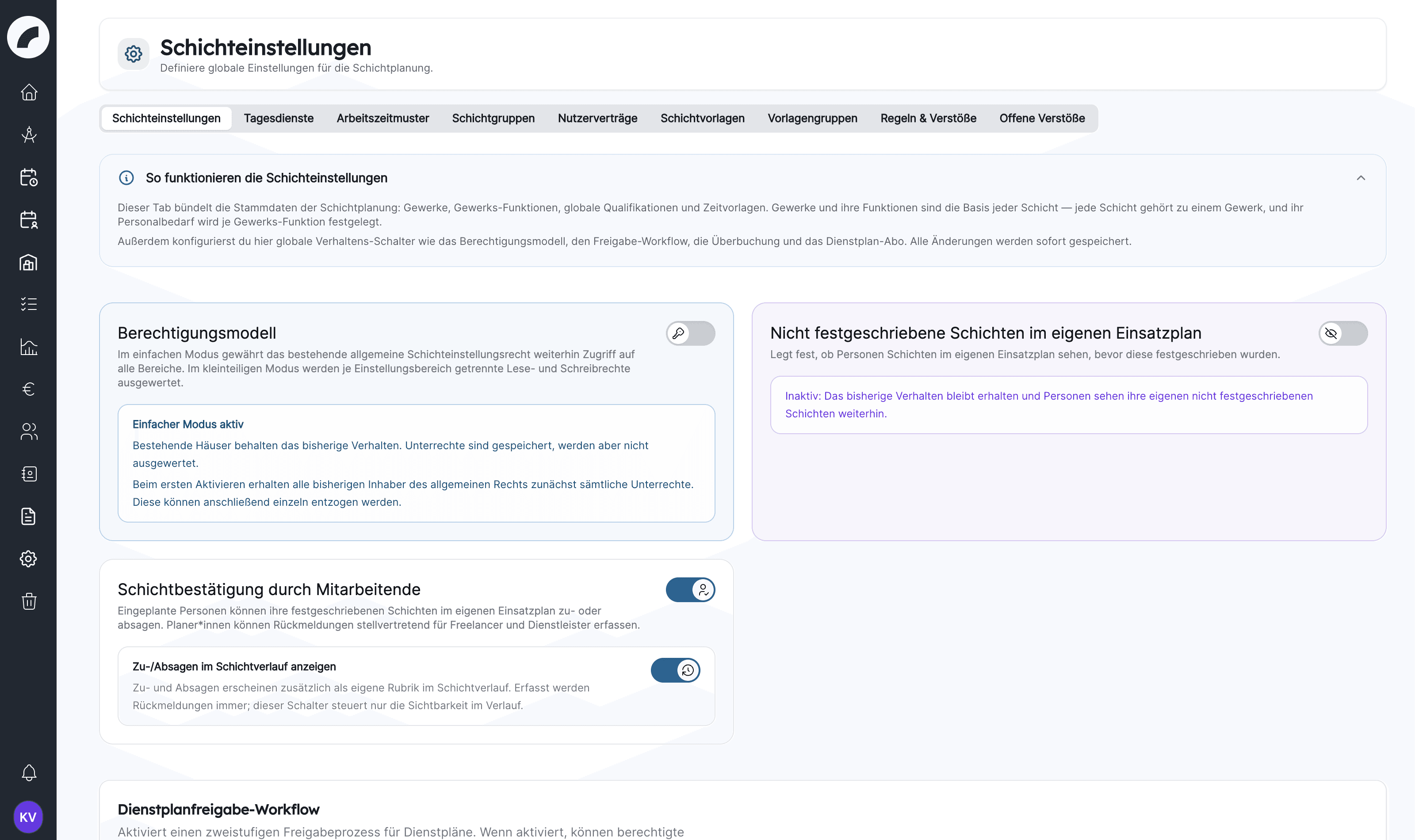
long page: the switches are at the top, below them Crafts, Global
qualifications, Craft functions and Time presets for shifts.
After this stage you can create shifts, assign people by drag & drop and
commit weeks. The order matters: the craft dialog only offers functions
that already exist.
Create functions. In the Shift Settings tab, further down in the
Craft functions section, with New qualification: name and icon,
for example Master, Specialist, Assistant, Rigging. Functions are
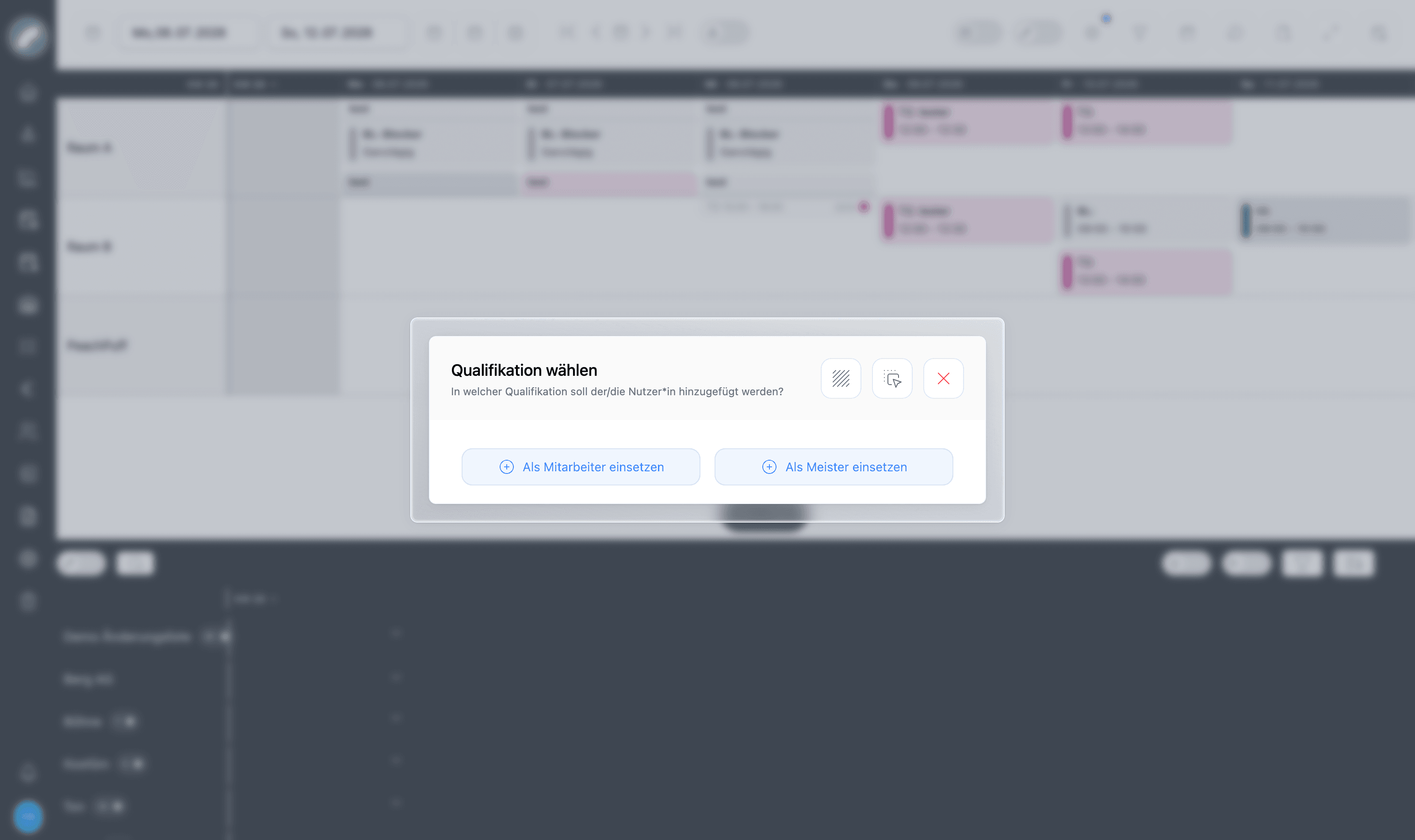
the slots a shift offers ("2 × specialist, 1 × master"). artwork ships
Mitarbeiter (worker) and Meister (master); Mitarbeiter cannot be
deleted because it serves as the fallback function.
A function applies to every craft you assign it to. Create it in
general terms (Specialist), not per craft (Lighting specialist).
Is taken into account for new shifts has only a small effect: it
controls the function columns in a project's personnel plan export. The
shift dialog always offers all functions of the craft.
The drag & drop order sets the order in shifts and in the workforce
panel.
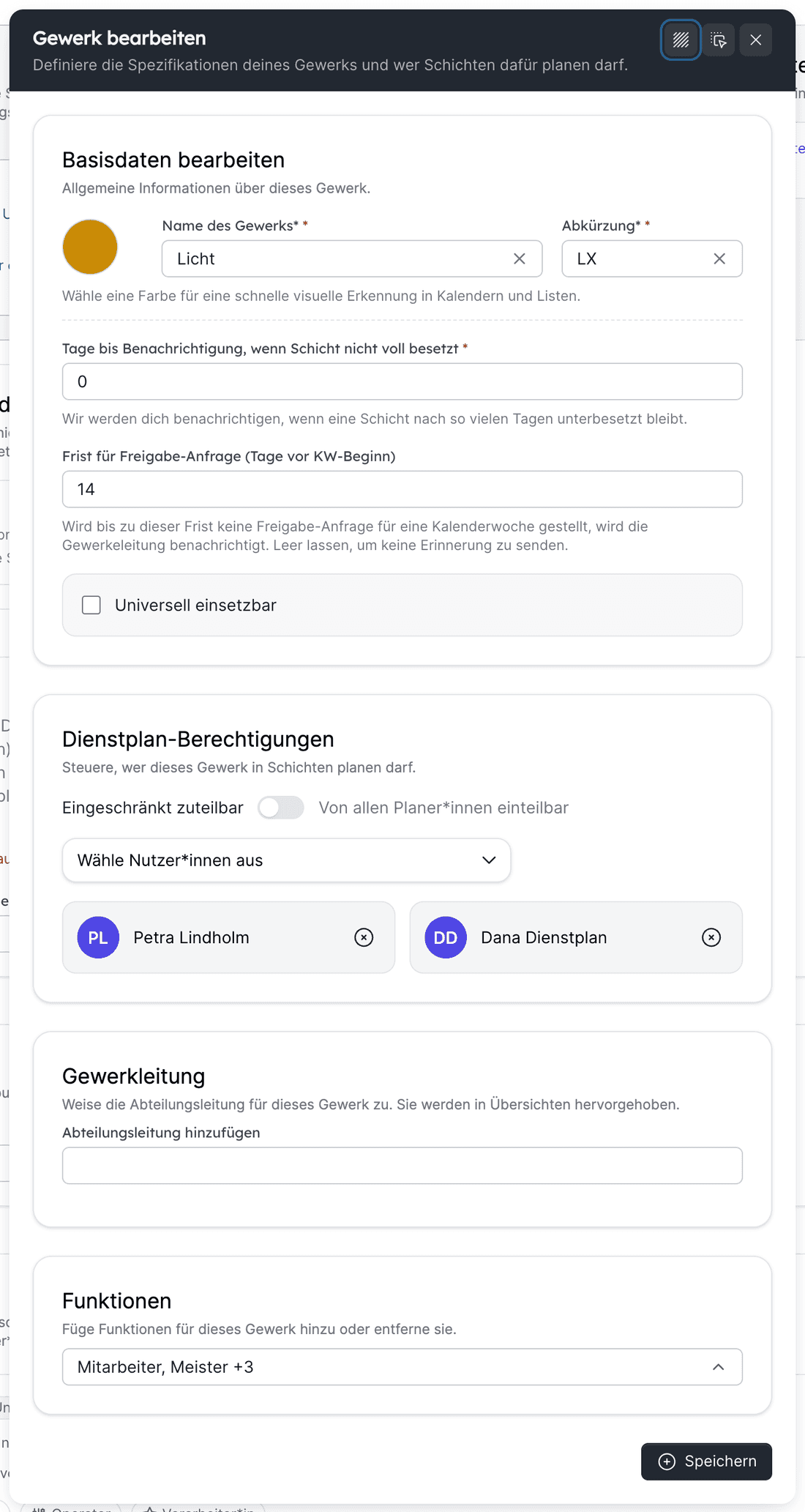
Create crafts. At the top in the Crafts section with New
Craft. Crafts usually follow the house's departments: stage, lighting,
sound, video, props, make-up, costume, front of house.
Name, abbreviation (at most four characters) and colour –
abbreviation and colour appear on every shift card.
Universally applicable for special cases: people of this craft can
be assigned to shifts of all crafts. Typical for apprentices, floaters
or a general event technology team. The person still needs a matching
function in the other craft; the functions they hold in the universal
craft count.
Days until notification if shift not fully staffed can stay at 0.
Assign functions to the crafts. In the craft dialog under
Functions, select the functions used in this craft. Only these can be
requested in the craft's shifts.
Decide who may plan. Planning requires two things:
the permission Plan shifts on the person (through a permission
preset such as Duty roster planning or individually), and for
committing also Commit duty rosters;
the release in the craft under Shift planning permissions: Can
be scheduled by all shift planners (default) or Allocable to a
limited extent with a list. The list only offers people who already
have Plan shifts. A restricted craft without entries can only be
planned by admins.
The craft manager is optional: they are highlighted in the workforce
panel and receive notifications when no planner is listed. Add them via
Edit after the craft has been saved.
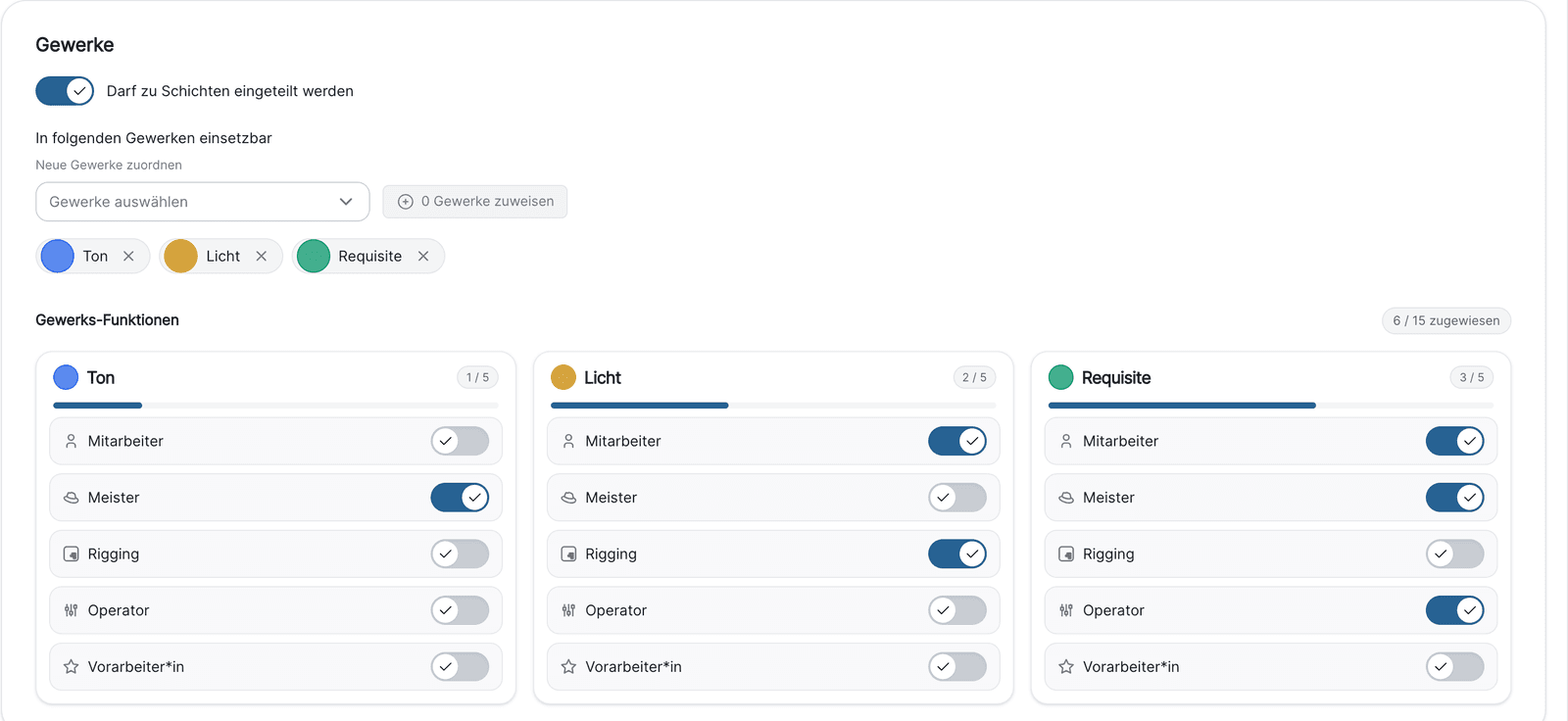
Make people assignable. For every person under Users → person →
Work profile:
Switch on May be assigned to shifts.
Assign the crafts under Can be used in the following crafts.
Under Craft functions, switch on the functions the person can take
on in each craft.
Freelancers and service providers have the same Work profile tab on
their profile page. Crafts are assigned to people only here – the craft
dialog has no list of people.
Trial run. Create a shift in the duty roster (craft, time, demand per
function), drag a person from the workforce panel onto it, commit. If
this works, stage 1 is done.
Creating shifts ·
Assigning staff
A person does not appear or cannot be assigned
For a person to be dragged onto a shift, all of this must be true: May
be assigned to shifts is on; the craft is assigned to the person (or
they belong to a universally applicable craft); the function is switched
on for the person in this craft; the craft has the function; the shift
still has a free slot for this function. Without a craft the person
does not appear in the workforce panel at all.
Without a work time pattern, artwork shows "–" in the calendar week column
and the hint Work time pattern missing. If you do not want to keep time
accounts, switch off Work time accountingComing with the next update in the
Shift Settings. Then:
the calendar week column shows only the planned hours of the week;
the time account, target hours, overtime, the nightly booking, the
Work Times and Overtime tabs in the profile, the Work Time Pattern
tab in the shift settings and the work time overview export are
removed;
stored patterns, contracts and time accounts are kept. When you switch
it back on, artwork continues from the next day; days while the
calculation was off are not booked afterwards.
With this stage every person gets a target per day and week that is
compared with the planned and booked hours. It requires stage 1 and
Work time accounting switched on.
Create work time patterns.Work Time Pattern tab: per pattern a
name and the daily target in hours per weekday (not clock times), for
example Full time 39 h with Mon–Fri 7:48 or Part time 20 h. A pattern
describes how many hours are owed on which weekday.
Create user contracts.User Contracts tab: templates for the
contract terms, for example TV-L full time, NV Bühne, Temporary
staff. A contract contains among other things full and half days off per
week, vacation days, the special day rule, the compensation period, the
three-month average, season key figures and the overtime rule with its
deadline.
Assign the package to the person. Under Users → person → Contract &
working hours with Plan change: from a date, choose a contract
(template or individual values) and a work time pattern (or individual
weekly hours). The previous period ends automatically on the day before.
This way artwork also handles contract changes during the season
correctly.
Contract & working hours
Check. In the duty roster the calendar week column now shows the
difference to the target, the person tile shows the time account. Booking
runs every night at 23:59; the time account therefore shows the state up
to yesterday.
Check the Night work period (default 22:00–06:00): hours in this
window are booked as night hours.
Take over opening balances at go-live via Work Times → Book working
hours in the profile.
A person without a work time pattern has no target and no booking; a
person with a pattern but without a contract has a time account but no
overtime rule.
With this stage artwork checks working time law, collective agreements
such as TVöD or NV Bühne and your own house rules while assigning, and
manages substitute days off. Rules are attached to contracts: a rule only
applies to people whose contract valid today is assigned to the rule.
Without stage 2, no rule applies.
Start with the legal default rules.Rules & violations tab →
Create legal default rules. artwork creates nine active rules:
Rule
Value
Legal daily maximum
10 h
Legal weekly maximum
48 h
Legal rest period
11 h
Legal maximum of consecutive working days
6
Sunday work (substitute rest day)
1 substitute day off within 14 days
Work on a special day (substitute rest day)
1 substitute day off within 56 days
Legal free Sundays per year
15
Legal weekly average
48 h over 24 weeks
Legal night work maximum
8 h
Clicking again creates nothing twice; it only assigns existing rules to
the contracts that are still missing.
Add your own rules.Create new rule for collective agreements and
house rules: rule type (cannot be changed later), limit, period, default
substitute days off and deadline, warning colour.
Assign contracts and set recipients. Under Assign contracts,
choose the contracts the rule applies to; under Notify on rule
violation, the people who are informed.
Meet the requirements of individual rule types.Rest time between
shift groups needs shift groups set on the shifts. Night work rules
use the Night work period. The overtime deadline rule needs work time
accounting switched on.
Violations appear in the duty roster as a coloured marker, under Open
violations and in the Compensation days overview.
The Rules & violations and Open violations tabs also require the
permission Plan shifts.
Freelancers and service providers are not checked.
Small house: one craft Technology with the functions Specialist
and Assistant, all planners may plan, work time accounting off. Set up
in an hour.
House with apprentices: a craft Apprentices, Universally
applicable, with the function Assistant; apprentices can then be
assigned to assistant slots in every craft.
House bound by collective agreements: stage 2 with one contract per
pay group, stage 3 with the legal default rules and additional
agreement rules assigned to the same contracts.
The guided path for the project builder – components, tabs, visibility, documents, print layouts and project list, with everything you can leave out
The project view is a building kit: admins decide which tabs exist, which
building blocks (components) sit on them and who sees what. The settings
apply to all projects. This page walks through the setup in the order in
which the parts build on each other.
Where the settings are
Everything is under System → Projects (permission Project
settings) in the tabs Component Settings, Tab Settings, Print
Layout Settings and Project overview builder.
Create building blocks: text fields, drop-downs, checkboxes, titles, links, folders. They are only created here; they become visible once they are placed.
Tab Settings
Build the project page: create tabs, drag components into them, fill sidebars, set visibility per tab.
Print Layout Settings
Arrange components for PDF exports.
Project overview builder
Arrange components as columns of the project list.
The special components that ship with artwork (calendar, shifts, budget,
project team, artist residencies, BI key figures …) bring their own logic
and cannot be deleted.
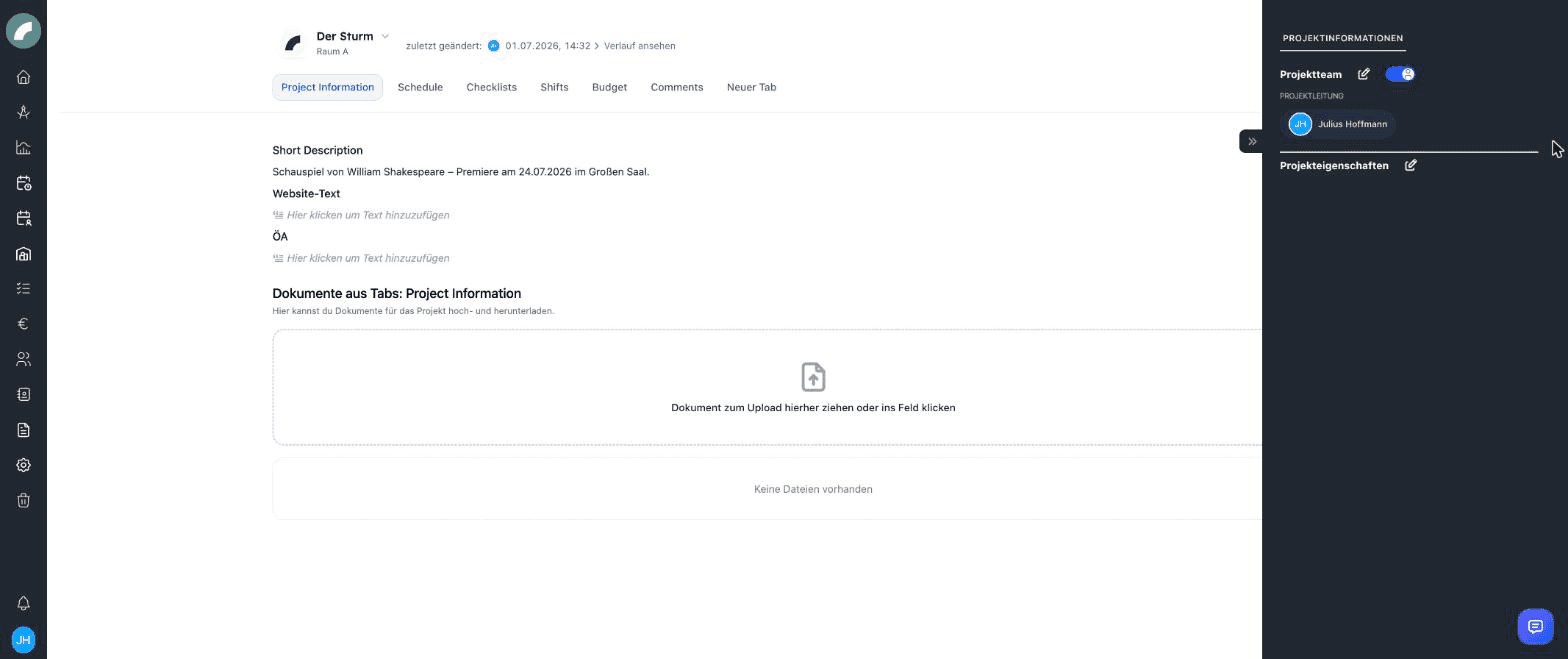
A new house has six ready-made tabs: Project information,
Schedule, Checklists, Shifts, Budget and Comments.
With these, the project view can be used without further setup.
Check which tabs your house does not need and delete them. Create tab
from template brings missing default tabs back at any time.
Decide which tab opens first when a project is opened (Default
switch on the tab). Without a choice it is the first tab the person may
see.
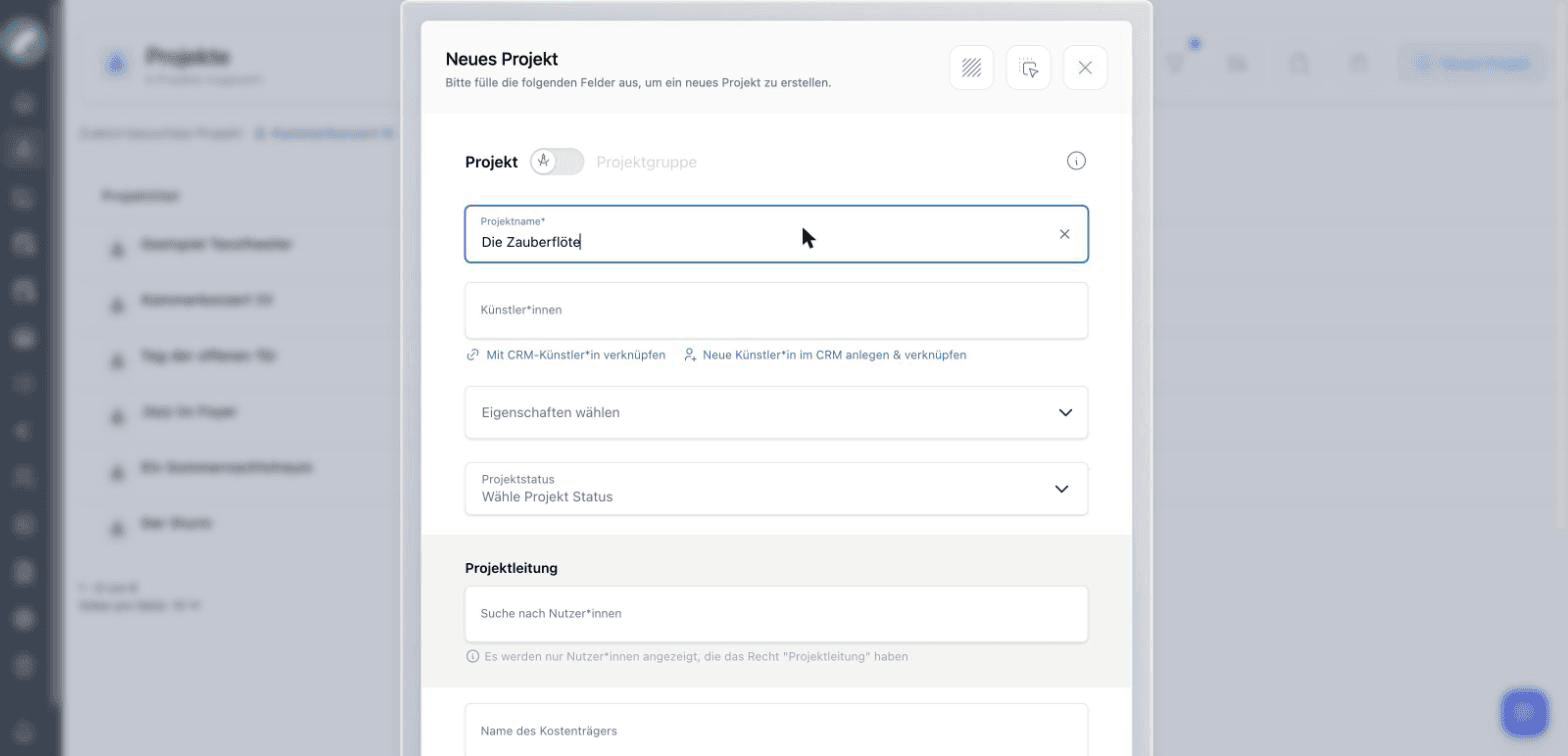
Create components.Component Settings → Create a new component:
choose the type (cannot be changed later), give it a name to find it
again (it does not appear in the project) and fill in the fields – label,
pre-filled value, Placeholder, the Options for drop-downs, font
size and Section bar for titles.
Create tabs.Tab Settings → Create tab: name and visibility. Put
components from the palette on the right into the tab by drag & drop or
with the plus on the component. Group related items in a folder
(collapsible section) and write hints into the Tooltip text of the
placement.
Use the sidebar. Every tab can have a narrow sidebar on the right with
its own sub-tabs. It suits information you need alongside the main area,
such as the project team or shift information. Folders cannot go into the
sidebar.
Check with a real project – with a project team member with and
without write access.
The same component may sit in any number of tabs. In each tab it shows
the same record of the project: what someone writes into the field
Technical requirements in the Technology tab appears immediately in
the Production tab. Each piece of information is thus maintained in
exactly one place, even when several departments need it.
Especially useful with department tabs and restricted visibility:
shared fields sit in several department tabs, confidential ones in only
one.
The palette shows with Used: N how many tabs a component is in.
Permissions belong to the component, not to the placement. If you need
different rights in one place, create a second component.
Folders share their content too: the same folder shows the same
components in every tab.
Visibility works on three levels that must all apply:
Project access – being in the project team or holding global
project rights.
Tab visibility – Visible for all or only selected users and
teams. Restricted tabs cannot be opened through a direct link either.
Component permissions in the component settings – No further
restriction, Visible to everyone with project access, only the
following may also edit … or Only the following may see …. They only
restrict and never extend; editing always requires write access to the
project.
Admins see all tabs and components. People with Write permissions for
all projects are exempt from component permissions but only see the tabs
that are visible to them. artwork also enforces these rules on the server:
anything a person may not see is never sent to their browser.
The Documents component shows the files of the tabs you select when
placing it (Only include current tab or Select tabs). Uploaded
files belong to the tab in which they were uploaded. This lets you protect
sensitive files:
The restricted tab Administration has a Documents component that only
includes this tab. Contracts and calculations uploaded there appear in
no other tab.
The general tab Project information has a Documents component that
includes Project information, Technology and Press – but not
Administration.
All Documents shows all files of the project from the tabs the
person may see. All Comments and All Checklists behave the same
way.
The tab selection of a placement can be changed via Edit.
Restricted tabs stay protected
If a Documents component includes a restricted tab, that tab's files
are only shown there to people who may also see the restricted tab.
Everyone else only sees the files of the other tabs. Downloading a file
also requires access to its tab, unless the file was explicitly shared
with the person.
Comments and Checklist work the same way: when placing them, you
choose which tabs they collect content from, and each person only sees the
content of the tabs they may see. This also applies to components inside
folders. To change the selection, remove the component and place it again.
When a tab is shared with external people, they see all externally
displayable components of this tab, regardless of internal permissions.
Create a separate tab for this, most easily via Create tab from template
→ Production inquiry.
External access
Print layouts turn project data into a PDF. Several standardised exports
for fixed purposes have proven better than one general layout. Each layout
stays short, and the person printing does not have to choose anything.
Create the layout.Print Layout Settings → Create print layout:
name, description and the number of columns for the header (1–5), body
(1–3) and footer (1–5). The column counts are fixed after creation. Use
one column for the body: with several columns the special components
cannot be used.
Arrange components. Drag components from the palette into header,
body and footer; the body adds a new empty row automatically. In header
and footer each column can also carry a free note, for example "Internal
version".
Release it. Switch on Should this print layout be available?. Only
active layouts can be chosen in the project.
Print. In the project, choose a layout via the printer icon in the
header and click Print. artwork opens a window with the browser's
print dialog; choose Save as PDF there. An active pop-up blocker
prevents the window.
Your own components (except folders) and most special components can be
printed. Components with a tab selection (Documents, Comments,
Checklist), Calendar, Budget (the table) and the Sage invoice
overview cannot; for lists, use the variants All Documents, All
Comments and All Checklists.
Newly created components can take up to ten minutes to appear in the
print layout palette.
Print layouts respect visibility
A print layout only outputs what the printing person may also see in the
project view. Components set to Only the following may see … and
components that only sit in tabs invisible to that person stay empty in
the PDF. All Documents, All Comments and All Checklists only
contain content from tabs the person may see. The same layout can
therefore be more or less complete depending on who prints it.
The Project overview builder sets the columns of the project list for
all users, for example genre, project management or a drop-down
Contract status. Project title and actions are fixed; each component can
appear once as a column. Columns from components with restricted
visibility are only shown to people with the right.
Project overview builder
A tab is visible to nobody: restricted, but without selected people
or teams. The tab card then shows No access configured.
A field is empty in one tab and filled in another: they are two
different components with the same label. The number under Used
shows whether a component is placed more than once.
A document has "disappeared": it is in a tab that the Documents
component does not include, or in a tab the person may not see.
Deleting a component also removes all values already entered in
projects.
For each typical role in your organisation, the most important pages, the first tasks and the settings that help
artwork shows each person only what their permissions and the enabled modules
allow. That is why getting started looks different for room scheduling than
for someone who only reads their operational plan. Pick the page closest to
your job – many people in an organisation combine two roles and read two
pages.
Every role page has the same structure: Your most important pages, The
first tasks, Settings that help you and Permissions you need. The
permissions are named after the role preset from the
permission presets,
so your administration can grant them exactly like that.
If a menu item is missing
A missing area is almost always a missing permission or a module that is
switched off for your organisation. Tell your administration the specific
task, not a blanket "admin rights" – see
Getting started.
Getting started
Room scheduling
Book rooms, create events and series, answer requests and plan seasons ahead
You plan what takes place when and in which room. Your tool is the calendar;
the project gives you the context, and the duty roster follows your events.
Role preset Disposition / room planning: Plan events directly (or
Request room occupancy if room admins approve), View planning calendar
and Edit planned events for provisional planning, and if applicable Room
administration and Event settings if you maintain rooms and event types
yourself. Details under
Calendar & events.
Typical pitfalls
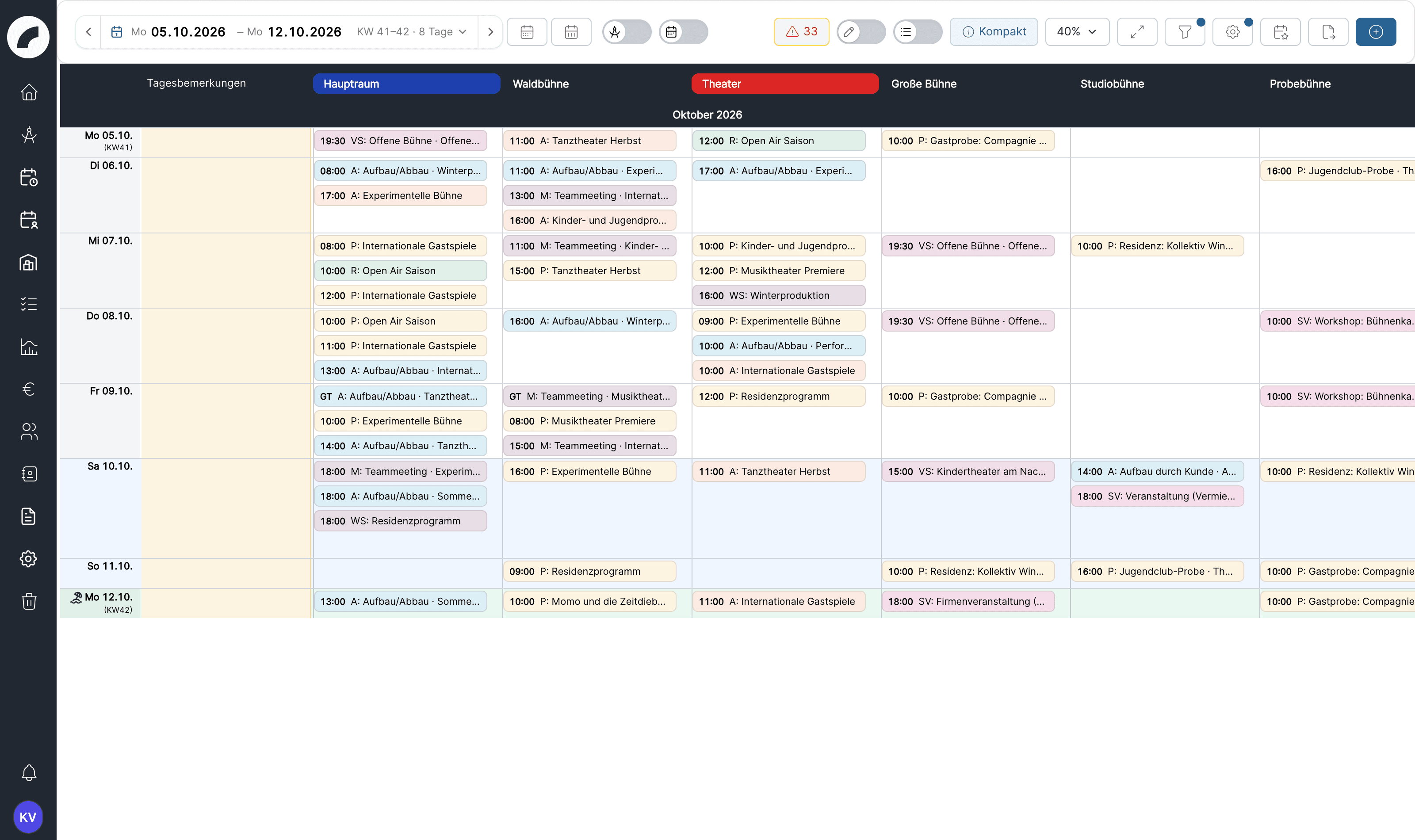
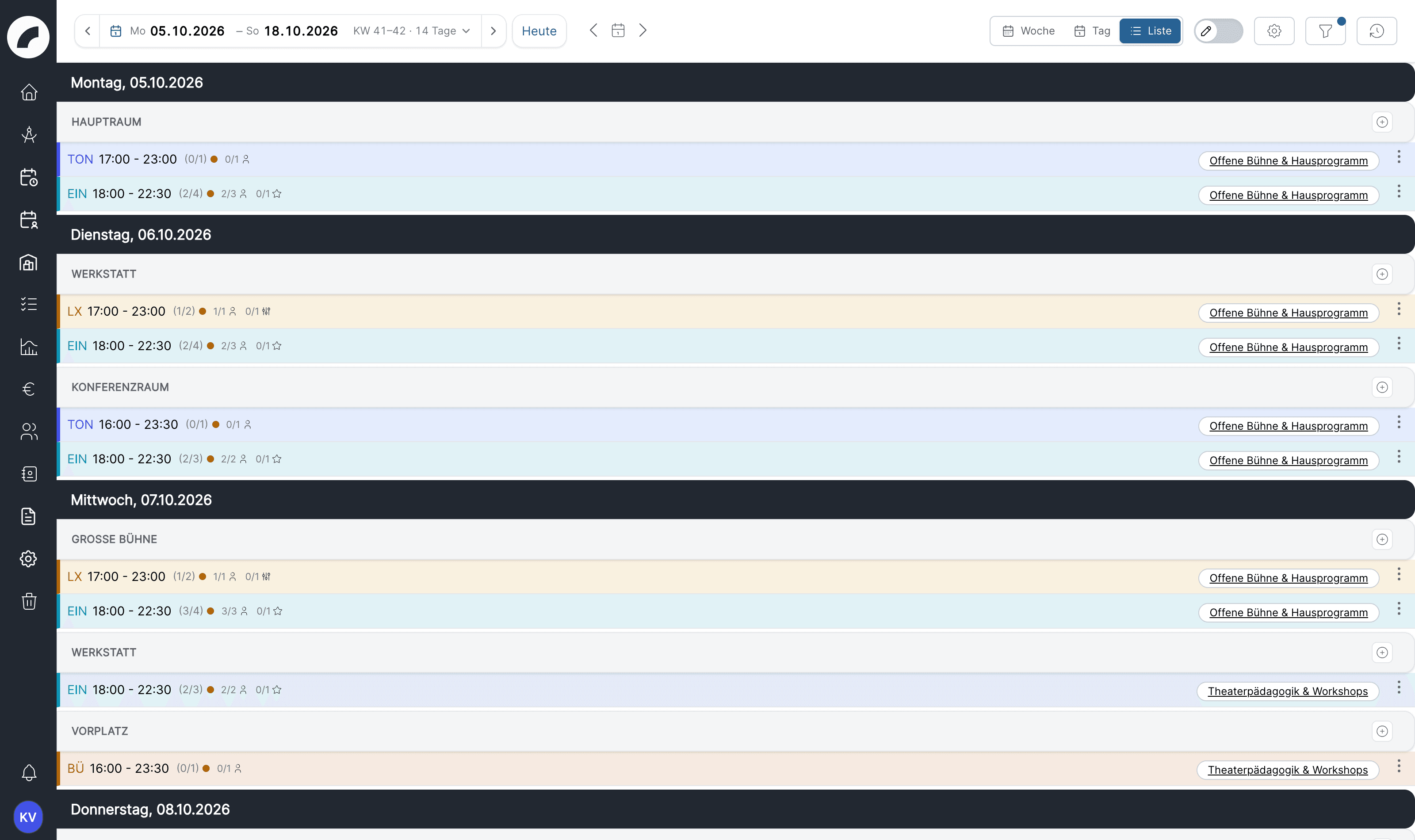
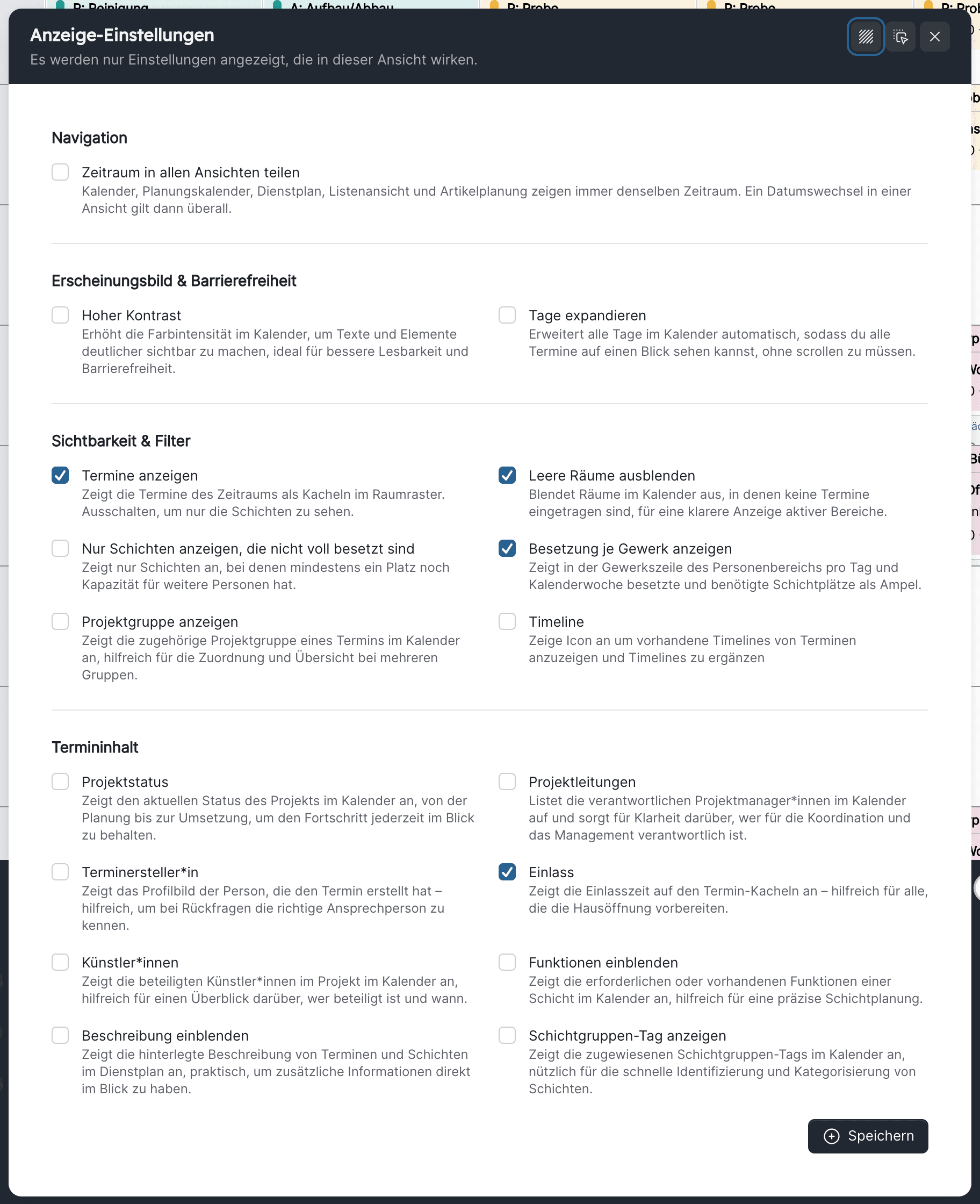
An event has "disappeared": check the filter, Hide empty rooms and
the period, then the recycle bin.
Events without a room after a cancellation: the amber chip in the
function bar lists them.
Getting started
Duty rostering
Create shifts, assign staff, commit calendar weeks and keep an eye on working time rules
You staff the events of your organisation or your craft. The duty roster is
your main view; events come from the calendar, people and their contracts
from user management.
Role preset Duty roster planning: View duty rosters, Plan shifts
(entered as planner in the respective craft), Commit duty rosters, Manage
availability of others for other people's availability, and View hour
accounts for time accounts. Details under
Duty roster.
Typical pitfalls
A person is missing from the workforce panel: their work profile needs
May be assigned to shifts and the assignment to your craft.
You may not edit a shift: you are not entered as planner of this craft –
Crafts.
Target and actual hours do not match: the person has no work time
pattern or contract –
Contract & working hours.
Getting started
Production management
Run a project from creation to settlement – team, events, budget, documents, contacts
You are responsible for a production or a series. Your home is the project:
it bundles everything that belongs to it, and you decide who in the team may
see and change what.
Create the project – as a single project or in a project group
(festival, series). Creating a project
Put the team together and set permissions per person: write permission,
budget access, project management, project roles.
Project team
Create events – individually in the calendar or many at once in the
schedule; the project period is calculated from them.
Creating several events together
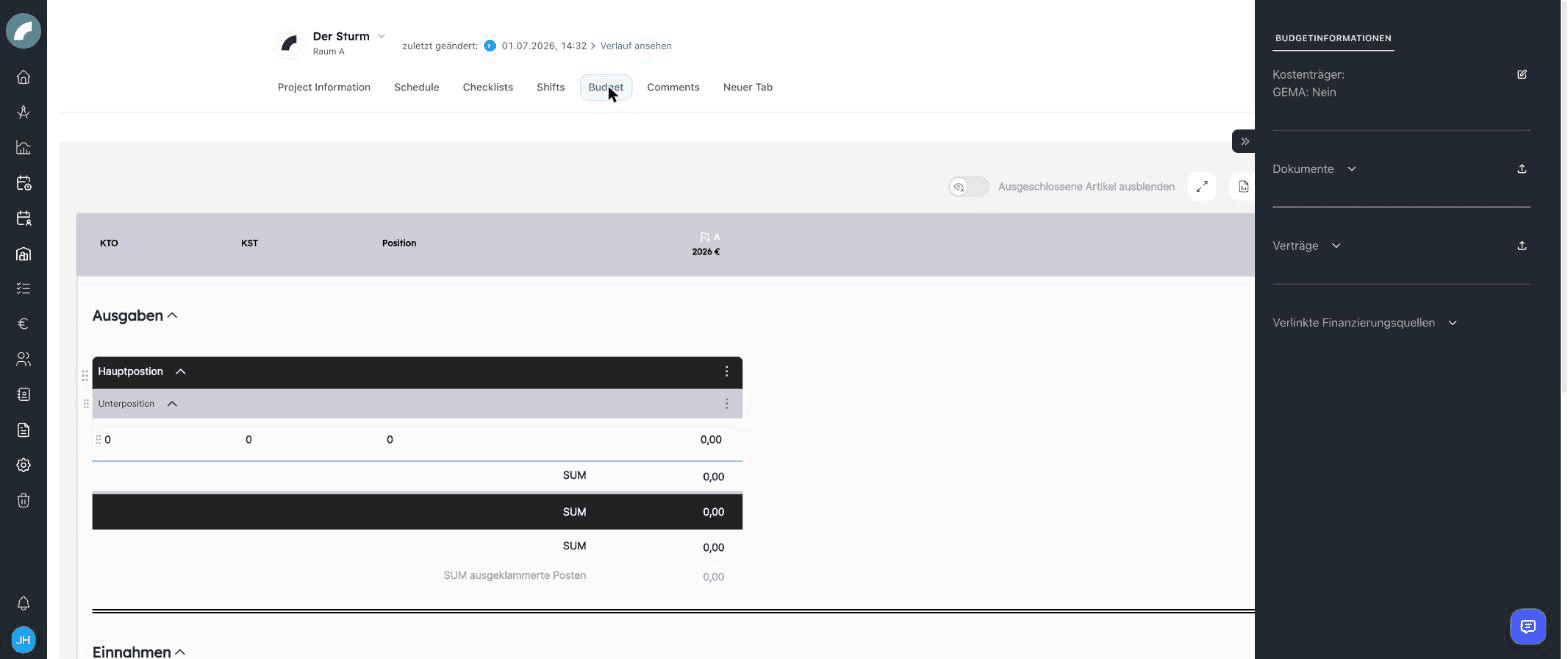
Build the budget, ideally from a template, and have items verified.
Table structure
Role preset Production management: Create own projects, Can be
project manager, read or write permissions for other projects depending on
your organisation's rules, contract permissions as needed, and budget access
in the project team for budgets. Details under
Projects and
How project permissions work together.
Typical pitfalls
A team member cannot see a tab: check the tab or component visibility in
the tab settings.
The budget is missing: budget access in the team is a separate checkbox.
The project period is wrong: it follows the events with a
period-relevant event type – Event types.
Getting started
Staff
Read your own operational plan, enter availability and absence, confirm shifts, complete tasks
You work in a craft or a department and use artwork mainly to know when and
where you are assigned, and to tell your organisation when you are
available. Much of this also works on your phone.
Role preset Basis (all staff): View own roster, Subscribe to roster
calendar, if applicable Accept or decline shifts, and read access to the
calendar and to the projects whose team you belong to. You need nothing more
for your own work; if you plan, read
Duty rostering.
Typical pitfalls
A shift is missing from your operational plan: depending on your
organisation's rules, provisional shifts may be hidden until the week is
committed.
You cannot see a project: you are not in its team; ask the production
management.
Your hours are wrong: individual times (office, training) are entered by
the planners – or you request a work time change.
Getting started
Technical & stock
Maintain inventory, issue material for productions, check availability and read your own craft in the duty roster
You are responsible for technical equipment, stock or a workshop. artwork
helps you know what is where and when, and reserve material bindingly for
productions and external parties. On top of that, you often look at the
duty roster of your craft.
Role preset Warehouse / inventory: create and edit inventory, inventory
disposition, material issues; for settings (categories, properties) the
Inventory settings permission. For the duty roster, View duty rosters or,
as head of a craft, Plan shifts. Details under
Inventory & material issues.
Typical pitfalls
Availability is 0 although there is stock: only the status Ready for
use counts as available.
An article does not ask for the right property: the property is not
assigned to the category – Inventory settings.
A manufacturer is missing from the selection: manufacturers are CRM
contacts of the contact type Manufacturer.
Getting started
Administration & finance
Review budgets, assign funding, file contracts, request missing documents and evaluate working times
You work in accounting, controlling, contract administration or HR
administration. Productions create their budgets, contracts and working
times in artwork; you review, approve, assign funding and evaluate – without
figures having to be copied back and forth between spreadsheets.
Define the budget structure: names of the first columns, centrally
maintained accounts and cost centers, a budget template from a clean
project budget. Budget settings
Review budgets – have items verified or verify them yourself, lock
columns, mark the budget-relevant column.
Verifying & committing
Assign Sage bookings if the interface is active: drag booked invoices
into the budget rows and use the Sage invoice overview in the project.
Sage integration
Create funding and release it to the funded projects, then assign
budget items to the source; set reminders for expiry and remaining budget.
Projects & budgets
File contracts with contract type, amount, artists' social security
(KSK) and tax details and targeted access; pass missing paperwork to the
production as a document request.
Uploading a contract
Evaluate: budget export by deadline for the premieres of a period, BI
dashboard for the season, contract list as Excel.
Assign contracts and work time patterns to each person under
Contract & working hours; only then are there target hours, actual
hours and overtime.
Contract & working hours
Book hours retroactively, credit or deduct them, and check the time
account. Work times
Role presets Accounting / controlling (budgets and sources of funding),
Contract & document administration (contracts and document requests)
and HR administration (profiles, contracts, working times). Access to
all project budgets requires Global budget access; otherwise budget access
in the respective project team. Sage data has its own permissions. Details
under
Budget & funding,
Documents & contracts
and Staff.
Typical pitfalls
A budget is missing from the list: budget access is a separate checkbox
in the team per project, or Global budget access is required.
The budget export is empty: the projects have no budget deadline.
Getting started
Administration
Set up your organisation, grant permissions, look after modules and interfaces and help colleagues get started
You have the artwork admin role or the settings permissions of
individual areas. You always see everything – which is exactly why it pays
to look through the eyes of a role without admin rights.
The specialist areas: events, calendar, rooms, shift settings, projects, inventory, CRM, budget, sources of funding, to-do lists, external access – System menu guide
Users
Accounts, invitations, freelancers, service providers, teams, permission presets – Users & teams
Users → Person → User rights
Permissions per module, applying presets, copying the permissions of another person – Roles & permissions
Recycle bin
Restore deleted items before they disappear for good after 30 days – Recycle bin
Create permission presets or review the role presets, and use a test
person without the admin role to check what they see.
Role presets and permission presets
Invite users – with role, teams and work profile, so they can start
working straight away. Accounts & invitations
Hide modules your organisation does not use, and check the file
rules. Module visibility
Test the mail setup and get to know Notification to all for
organisation-wide information. Mail
After every update, read the changelog and inform the affected roles;
notes for admins are listed there separately.
The artwork admin role includes all permissions. For specialist
administrators without full access, there are settings permissions per area
(Event settings, Calendar settings, Room administration, Shift
settings, Project settings, Inventory settings, Manage CRM, Tool
settings, HR administration …) – see
System settings and interfaces.
What you do not see as an admin
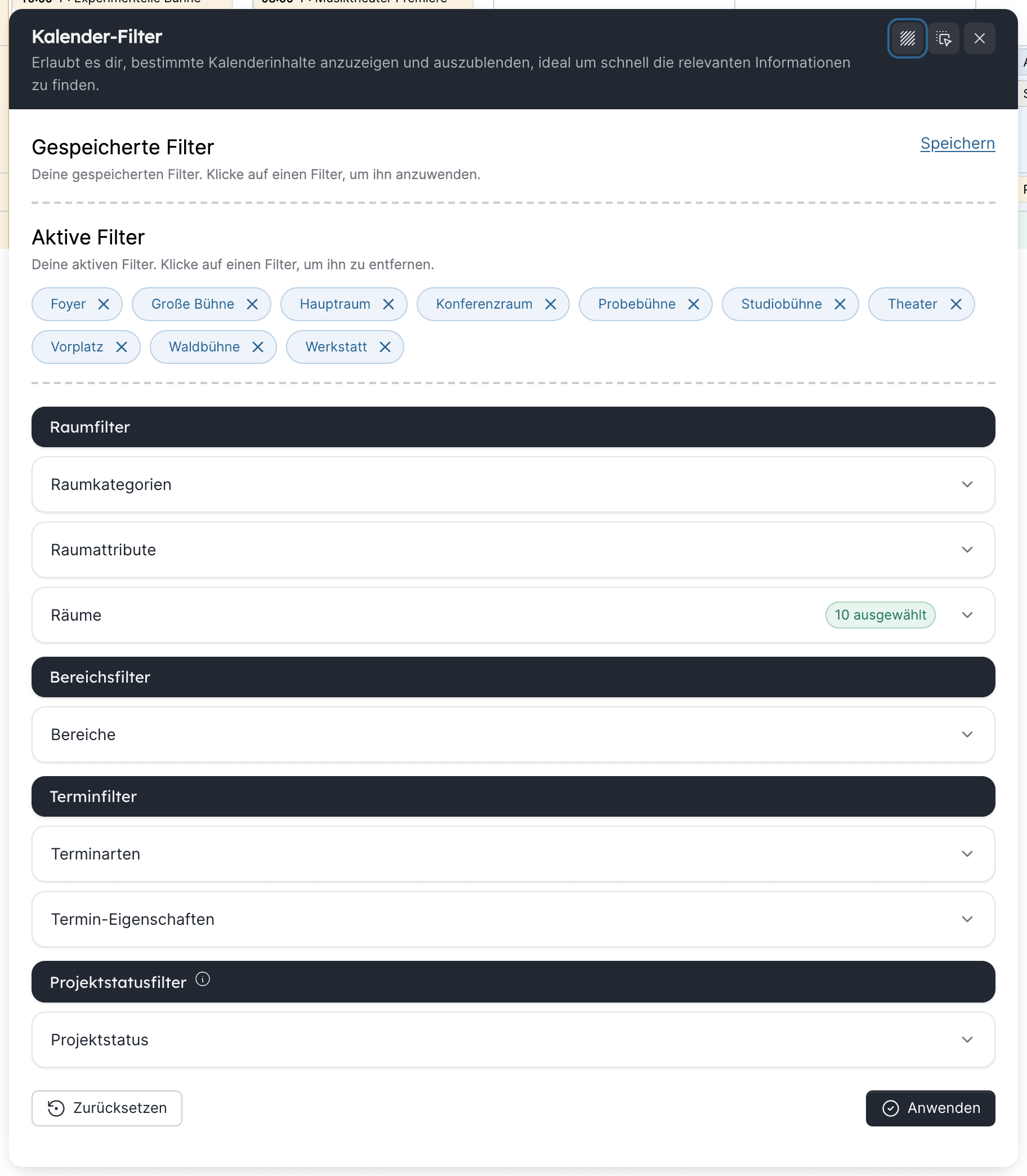
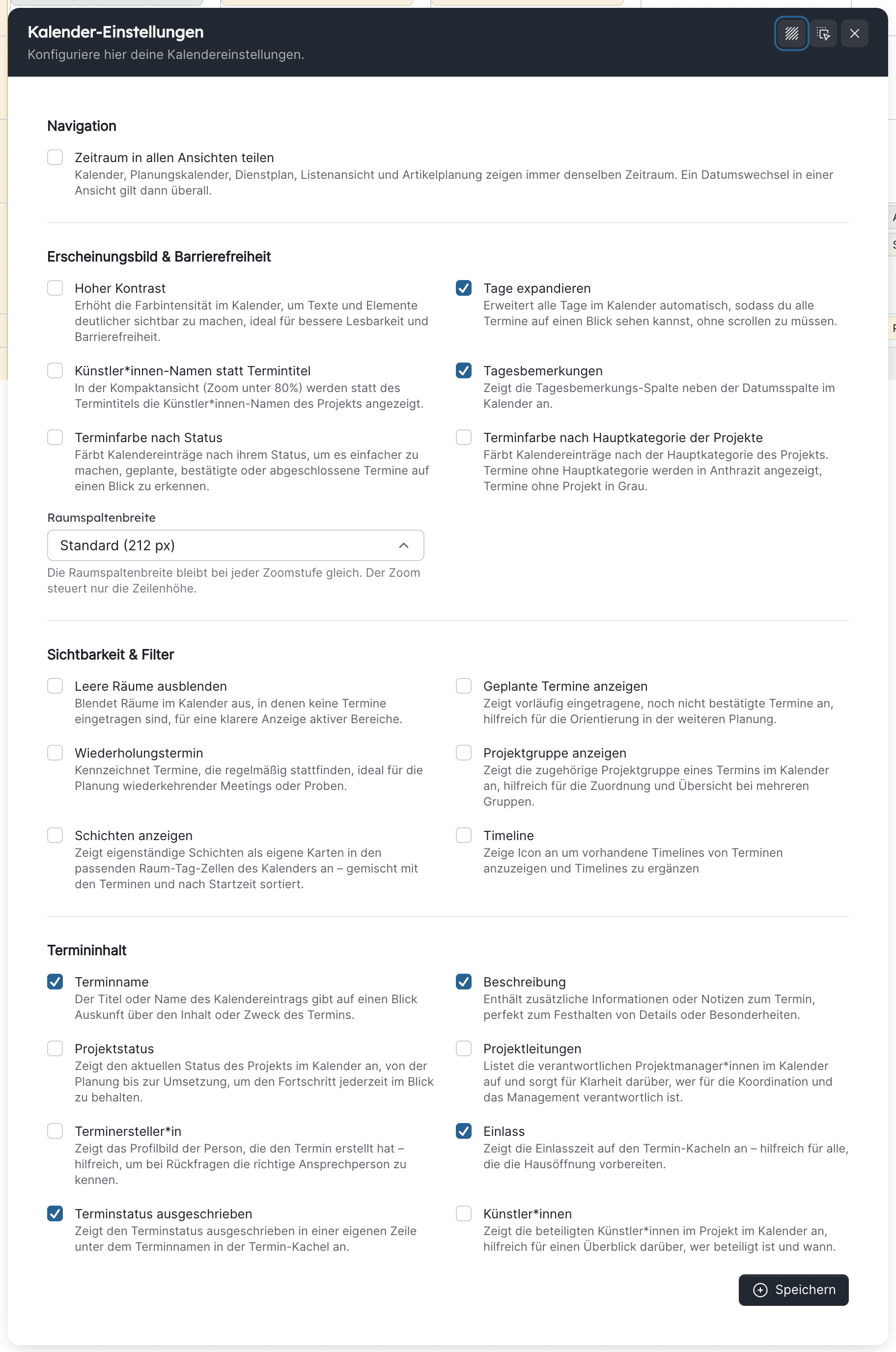
Personal display settings, saved filters and notification preferences
belong to each person. If someone "sees nothing", first check permissions
and module visibility, then filters, period and Hide empty rooms in
the view in question – the
display settings
are the most common cause.
Getting started
Use cases
Cross-module workflows from the everyday life of a cultural venue, step by step with links into the module chapters
The module chapters explain each function on its own. In daily work, however,
several modules interlock: a guest performance needs the calendar, project,
duty roster, CRM and inventory at the same time. The use cases walk through
such workflows once from start to finish – as a starting point you adapt to
your organisation.
Every use case has the same structure: Situation, People and
permissions, Workflow with links, Pitfalls and Variants. If
your organisation handles a workflow differently, the relevant section of the
module chapter is the right place to look things up.
Getting started
Planning a performance with shifts
From the event in the calendar through the shifts per craft to the committed duty roster and the notice board printout
A production has three performances in the Main Hall. Each performance
needs stage, lighting, sound and front of house with fixed staffing; the
technical team also has a set-up on each performance day. In the end,
everyone should know when they are on duty, and the plan should hang on the
notice board.
Create events. In the calendar or in the project's schedule, create the
three performances with the event type Performance and the set-up with
Set-up – each in the Main Hall and assigned to the project. A series is a
good fit for the run of performances.
Creating events ·
Event list in the project
Check shift-relevant event types. For the events to appear in the
project's shifts tab, Performance and Set-up must count as shift-relevant
there – globally in the shift settings or in the sidebar of the shifts tab.
Shift information in the project
Create shifts. In the shifts tab, create the shifts per craft on each
event with times, break and demand per function. With three identical
performances, a template group ("Performance Main Hall") covering all
crafts pays off – one click instead of twelve dialogs.
Creating shifts ·
Planning many shifts with templates
Assign staff. In the duty roster, open the week, set the craft filter
and drag people from the workforce panel onto the shifts. The conflict check
reports absences, double bookings and rule violations; the staffing traffic
light per craft shows what is left.
Assigning staff
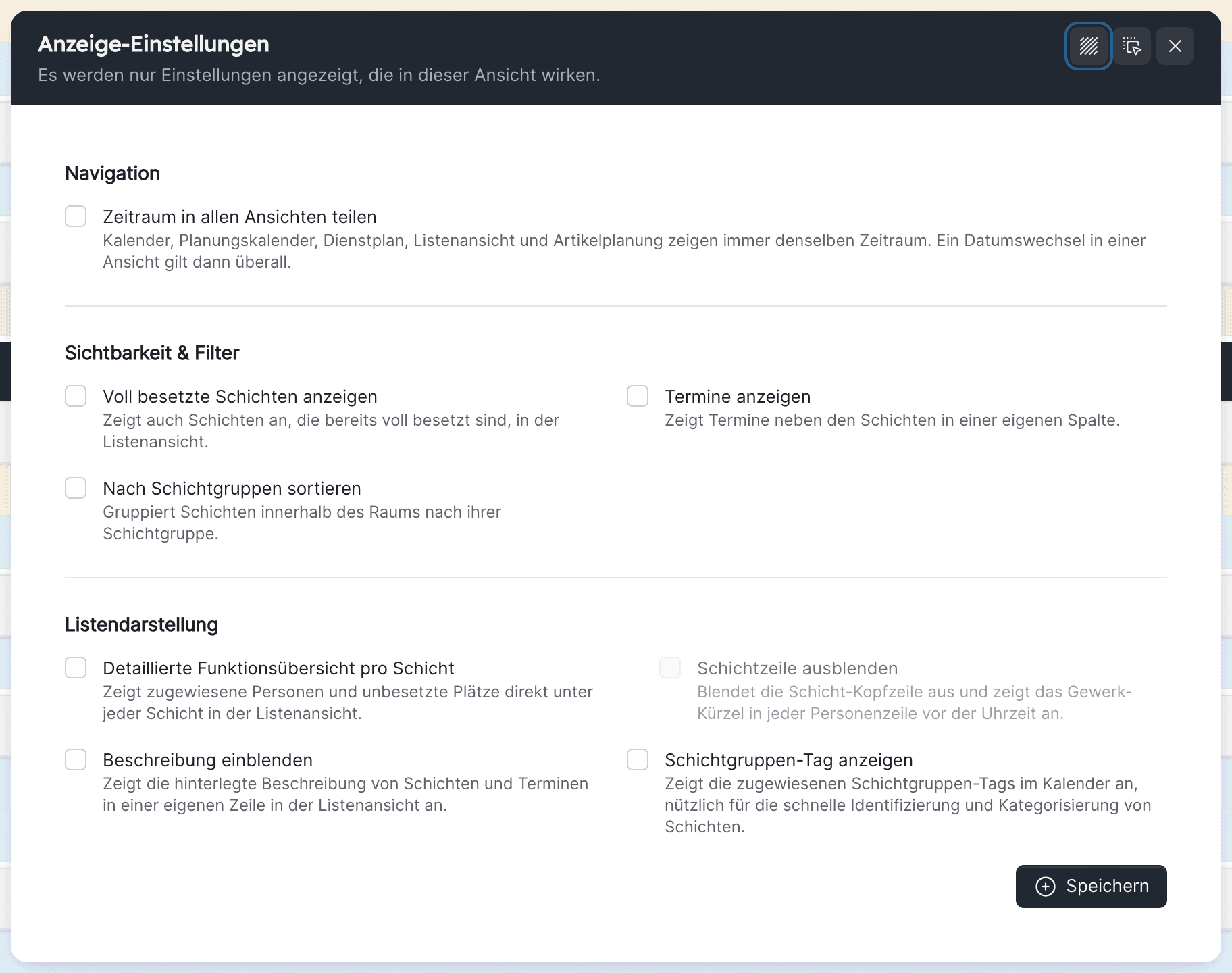
Close the remaining gaps. Switch on Only show shifts that are not fully
staffed or use the list view; for declines, use Find replacement.
Find replacement
Commit. Per calendar week and craft, Commit duty roster – or, with
the workflow active, Submit for approval. Staff are notified and, if set
up, can accept or decline.
Committing & approval
Notice board and subscription. The PDF export Rooms by day for the
notice board, Personnel overview for the question "who works when"; staff
subscribe to their operational plan on their phone.
Exports
Event missing in the shifts tab: the event type is not shift-relevant,
or the event has no project.
Person missing in the workforce panel: work profile without May be
assigned to shifts or without this craft.
Change after committing: possible, but it appears in Changes after
commitment and must be acknowledged – the people affected are informed.
Changing a committed shift
Set-up on the previous day running past midnight: shifts across
midnight occupy both days; rest period rules check this.
Without a project: shifts can also be created freely in the room cell
of the duty roster, for example for building services.
Shifts without a room or event
With the approval workflow: the craft lead submits, operations
management approves; the Week status shows which weeks are still open.
With working time planning: contracts and work time patterns turn the
plan into time accounts and overtime.
Contract & working hours
Getting started
A festival as a project group
Many individual events under one roof – project group, budgets, calendar, team and evaluation
A ten-day festival with thirty events in five rooms. Each event has its own
artists, dates and budget; the festival as a whole needs an overall view, an
overall budget and a team that sees everything.
Create the project group. When creating, choose Project group; it
gets a status, category and team just like a project.
Project groups
Create the individual projects – directly from the group with Create
project in this group, or add existing projects with Add projects. A
project can belong to several groups.
Book the events. Each individual project gets its events; in the
calendar, Show project group shows on every tile that it belongs to the
festival, and the Project status filter hides cancelled programme items.
Display settings
Manage budgets. Each individual project has its own budget; in the
group, the project group aggregation adds up the individual budgets to
the overall budget. Create funding as a source of funding and release it to
the projects.
Project group aggregation ·
Projects & budgets
Team and visibility. Whoever is in the group's team sees the group – not
automatically every individual project. Production managers belong in the
team of their individual project; the festival management in all of them, or
it gets Read all projects.
How project permissions work together
Publish the programme. The Season schedule projects (PDF) shows all
programme items in wall-calendar style; the Excel event list provides the
data for the website and print.
Season schedule projects (PDF)
Evaluate. Record BI data per individual project; the BI dashboard
compares the productions by audience, revenue and effort.
Business intelligence in the project
A company from abroad is visiting with seven people for four days. The
organisation needs riders, travel details, the names of everyone arriving,
image and press material, books a hotel, pays a daily allowance and signs a
guest performance contract.
Create the company in the CRM (contact type Company or Agency) and
link it in the project – as an artist or, if allowed, as an external team
member with a project role.
Link contacts to projects
Create an inquiry tab. In the tab settings, Create tab from template →
Production inquiry: coloured sections for contact, arriving people (as a
CRM contact list), technical requirements, documents, texts, image and
video. Managing tabs
Invite the company. In the inquiry tab, Invite external to this tab:
email, name, tab with write permission and end date. The person fills it in
without an account, uploads riders and photos (if uploads are enabled) and
creates the arriving people as contacts; with Submit entered data they
report that everything is complete. You confirm or return it for revision.
External access
Plan the residencies. In the Artist residencies component, enter
arrival, departure, accommodation (a CRM contact of the contact type
Accommodation with room types), room type, cost per night and daily
allowance for each person; take the arriving people from the contact list.
Artist residencies
Export. From the component, export the residency plan as PDF or Excel
and the daily allowance statement as Per Diem Export – with the letterhead
from the tool settings, in German or English.
File the contract under Documents → Contracts or in the project: contract
type Guest performance, amount, currency, foreign tax and KSK details,
access only for administration and project management; request missing
paperwork as a document request.
Managing contracts
Events and shifts. Set-up, rehearsals and performances in the calendar,
shifts as in the use case
Planning a performance with shifts.
The timeline of the performance event records get-in, sound check and
admission.
Externals see too much: the external person sees all components of the
shared tab, regardless of internal visibility settings. That is why you use
a separate inquiry tab, never the internal production tab.
Upload does not work: file upload for externals is a separate switch
in the external access settings.
Accommodation missing from the selection: accommodations are CRM
contacts; room types and prices are maintained on the contact.
Daily allowance without letterhead: name, address and email for the
letterhead are set under Communication & Legal.
A partner venue borrows twelve spotlights, a mixing desk and a set of radios
for two weeks. During that time the material must be blocked for your own
productions, the loan documented and the return recorded with any defects.
Check the contact. Create the borrowing venue as a CRM contact (for
example contact type Institution or Partner) with contact person and
address.
Create a contact
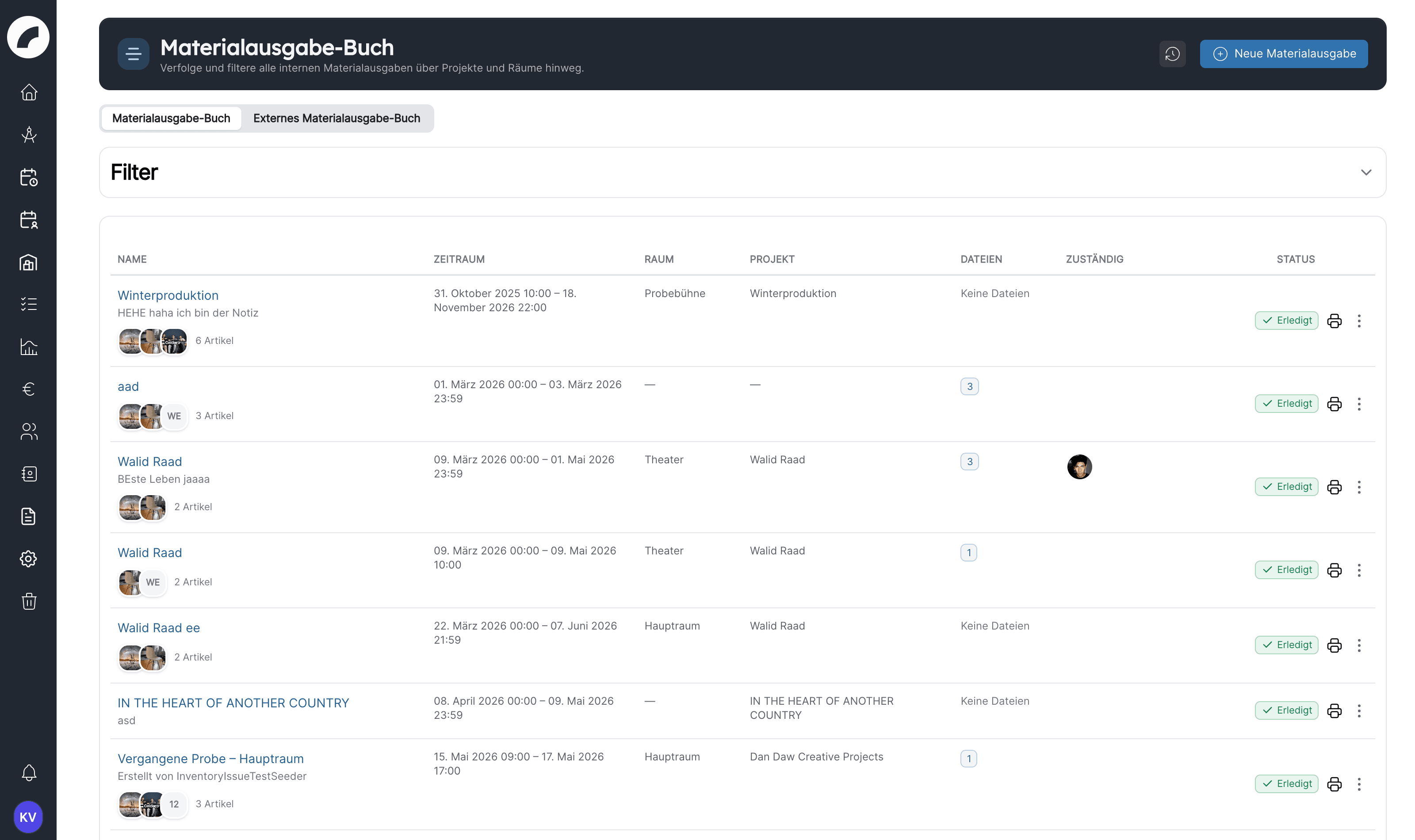
Create an external material issue under Inventory system → Material
issues in the External material issue book: name, material value, issue
and return date, external contact, issuing person.
Creating an external material issue
Add articles – via search or from a material set ("Radio set large").
The badge in period shows the available quantity; when overbooked, the
conflict banner appears with Automatically adjust quantities.
Selecting articles and checking availability
Print the loan slip.Print → Document preview → Create and attach
document generates the PDF and attaches it to the issue; the venue signs
on collection.
Creating a PDF and printing
During the loan, your own productions see the blocked quantity in
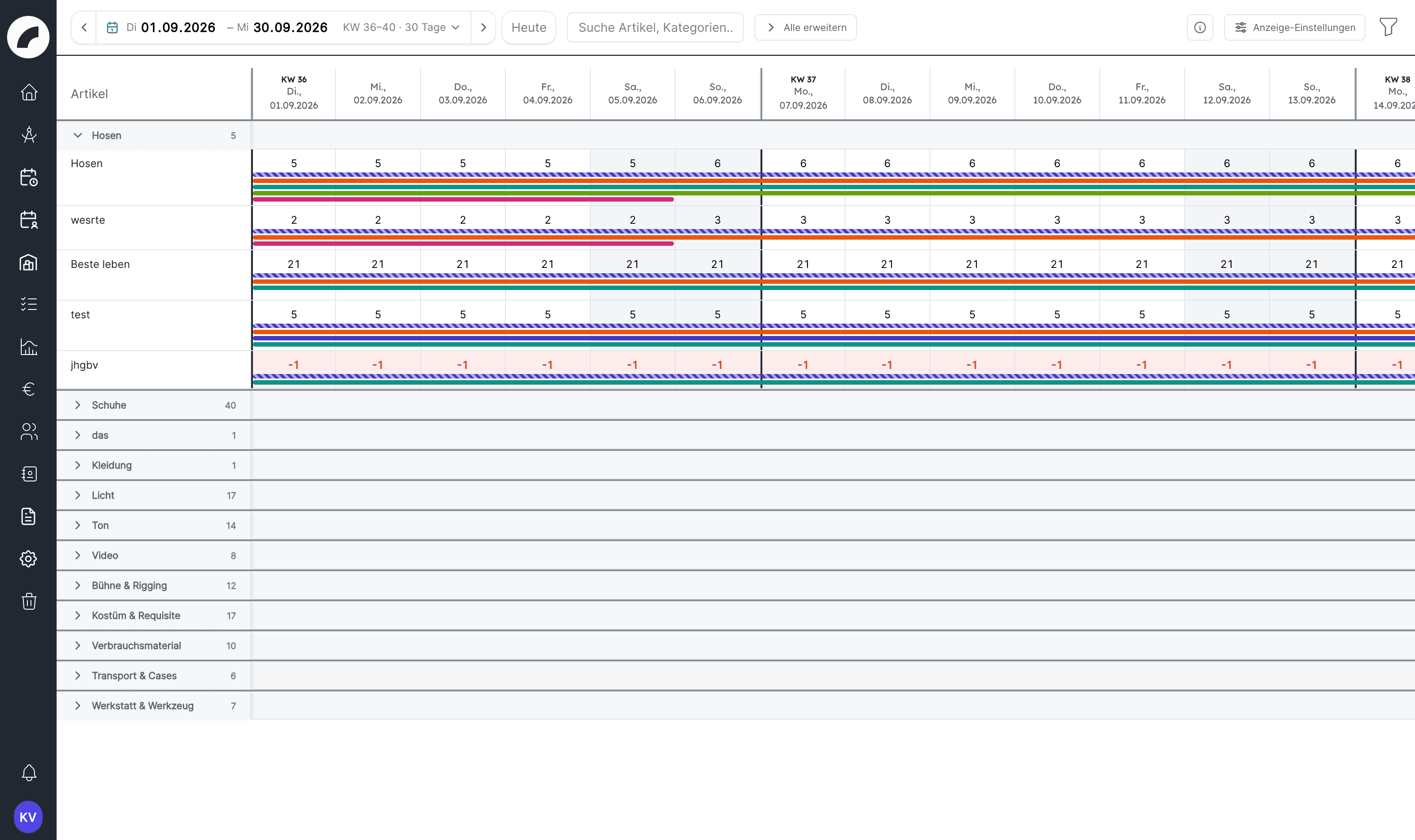
article planning as a striped bar (external issue).
Article planning
Record the return with Enter return and Defects after return;
set defective items in the catalog to the appropriate status. If the return
date is reached without a return, artwork reminds the issuing person with
Confirm return / Not returned yet directly in the notification.
Documenting the return
Availability is lower than the stock: only items with the status
Ready for use count; overlapping issues are deducted with their highest
simultaneous quantity.
No reminder: without an issuing person entered, no return reminder is
sent.
Finding overdue loans: filter Only overdue returns in the external
issue book.
Internal issue for one of your own productions: the same route in the
Material issue book or directly in the project's Material issue
component, with project and room reference.
Creating an internal issue
Custom articles for things that are not in the catalog (third-party
loan material, consumables). Custom articles
Recurring loans: Copy material from another material issue takes
over the articles and quantities of the last loan.
Getting started
Renting out a room to external parties
Handle a rental from first contact through room booking, contract, technical equipment and staff to billing
A company rents the Main Hall for an evening event. It brings its own
technical equipment but needs front-of-house staff, one in-house technician
and ten standing tables from the stock. The organisation signs a rental
agreement and invoices the rent and the staff.
Create the tenant in the CRM – as contact type Organiser or Company
with contact person and billing address.
Create a contact
Create a project, for example "Rental Company X, 14 Nov", with a category
Rental so that rentals can be evaluated separately in lists, filters and
the BI dashboard.
Creating a project
Create events: set-up, event and strike in the Main Hall, with the event
type Rental or Set-up; admission time on the main event. Anyone who may
not book the hall directly submits a room request in the process.
Creating events ·
Handling room booking requests
Not sure yet? As long as the company has not signed, create the event in
the planning calendar or set the project to a status in planning; that
way the organisation does not see the hall as booked.
Planning calendar
File the contract on the project: contract partner from the CRM, amount,
access only for administration and rentals. Request missing paperwork (such
as proof of insurance) as a document request.
Contracts
Plan staff: shifts for front of house and technical duty on the event,
then staff and commit them as usual.
Planning a performance with shifts
Reserve material: an internal material issue on the project with the
standing tables; article planning shows the booking.
Creating an internal issue
Bill: rent as revenue, staff costs and material as costs in the project
budget; with the Sage interface active, the booked invoices appear in the
project.
Project budget
The hall looks free although it was requested: open room requests are
marked as requests in the calendar; room admins see them under Event
Verifications.
Noisy neighbours: the event property It gets loud and include
adjacent rooms in the filter show whether a rehearsal is taking place
next door at the same time.
Rentals distort evaluations: a separate project category keeps them
apart in the BI dashboard.
In spring, the artistic direction and the scheduling office plan the next
season: premieres, revivals and guest performances exist only as drafts so
far, and some dates exist in two variants. The technical team and the crafts
should not see the drafts yet, but should later receive a binding plan.
Create projects for the season's productions, with a project status that
is marked as Project counts as "in planning". New events of these projects
are then created as planned events.
Projects with a planning status
Plan in the planning calendar: create events with project, room and
times, leave variants side by side, and use multi-edit to duplicate and move
events.
Planning calendar
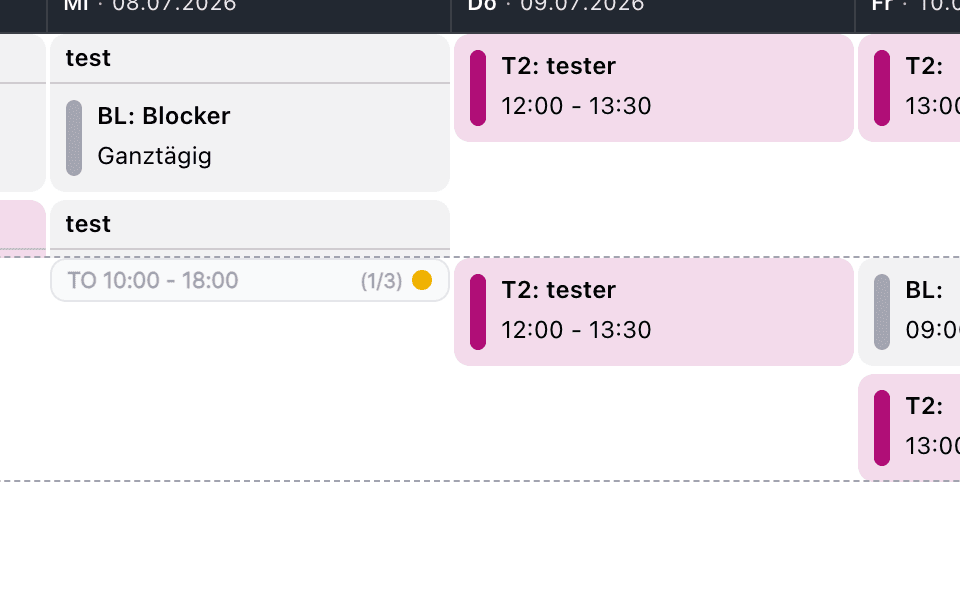
Check against the real calendar: the display setting Show fixed
events overlays the existing bookings, so clashes with rentals or revivals
become visible.
Planning mode
Provide an overview: the Season schedule projects (PDF) with the
planned events for the management meeting, or temporarily switch on Show
planned events in the normal calendar.
Season schedule projects (PDF)
Confirm: as soon as a production is fixed, select its events and choose
Confirm as fixed events – or set the project status to a normal status;
the dialog then offers to confirm the events or send them for verification.
From plan to real event ·
Project header
Have them verified: event types with a verification mode go to the
verifiers, rooms with room approval go to the room admins. Only then do the
events appear for everyone.
Event verifications
Direct booking in the organisation: with "Events always bookable
directly", verification is skipped; Confirm as fixed events books
immediately.
Events always bookable directly
Festival: the drafts of a project group can be viewed specifically via
the project status filter, see
A festival as a project group.
Getting started
Rehearsal planning with series and timeline
Create a rehearsal period as a series, move single rehearsals, maintain daily schedules as a timeline and staff rehearsals
A production rehearses for six weeks, Monday to Friday from 10 am to 2 pm, on
the rehearsal stage, and in the last week on the Main Stage. Some rehearsals
move, the final rehearsals follow a fixed daily schedule, and the technical
team needs staff for the stage rehearsals.
Create the series: an event Rehearsal on the rehearsal stage, under
Repeat weekly, Monday to Friday, ending on a date.
Repeat
Adjust the stage week: open the first event of the last week, change the
room to the Main Stage and choose This and following.
Editing series
Move single rehearsals: change only this event; it remains part of the
series but deviates from it. With the display option Repeat event you
recognise series events in the calendar.
Visibility & filters
Maintain daily schedules: on the final rehearsals, a Timeline with
admission, start, break and end; save recurring schedules as a timeline
preset and import them into other events.
Timeline
Sub-events for parallel partial rehearsals (for example a music
rehearsal in the rehearsal room during the scene rehearsal), so that they
are attached to the main event.
Sub-events
Plan staff: in the project's shifts tab, create shifts for the stage
rehearsals from a template and staff them.
Planning many shifts with templates
Distribute the plan: the team subscribes to the calendar or receives the
project's event list as Excel.
Calendar subscription
A change affects too many events: when saving, the choice Only this
event, This and following or Whole series decides. Deviating events
are kept when the series is changed.
Deleted by mistake: series events go to the recycle bin; Restore
series brings all of them back.
Restoring event series
Timeline without permission: anyone with write permission in the
project may create it; a duty roster permission is not required.
A technician works 39 hours a week under a collective agreement. She is
assigned to shifts, has office days without a shift, stays longer on
performance evenings and should be able to see her overtime at the end of the
quarter, reduce it or have it paid out.
Create contract and pattern in the shift settings: a User Contract
(vacation days, days off, overtime rule, reduction deadline) and a Work
Time Pattern with the daily target per weekday.
Work time patterns & contracts
Assign them to the person under Contract & working hours, each with a
validity period; a planned change (for example to part-time) can already be
entered in advance.
Contract & working hours
Record work: shifts in the duty roster count automatically; office days,
training or working from home are entered as Individual times, recurring
ones also as a series.
Individual working times
Nightly calculation: every night, artwork calculates target, actual and
balance for the previous day. Vacation and sickness are target-neutral,
special days reduce the target. The employee sees the result under My key
figures.
My key figures
Correct: stayed longer? The employee requests a work time change on
her shift; planning approves or declines it. For times without a shift, HR
administration books an adjustment in the time account (add or deduct
hours, with night hours).
Requesting a working time correction ·
Work times
Reduce or pay out overtime: the overtime account shows open hours and
their deadline. Whatever is not reduced can be booked out with Pay out
overtime.
Overtime ·
Paying out overtime
Keep the rules in view: working time rules (rest periods, weekly
maximum, free Sundays) check the planning continuously; violations and
substitute days off appear in the duty roster and in the overview.
Rules & violations
Target shows "–" and "Work time pattern missing": no pattern is
assigned to the person, or it does not apply to this period.
Actual differs from the duty roster: a person's individual shift times
count instead of the shift time; an approved time adjustment replaces them.
Public holiday without target reduction: the holiday is not marked as a
special day, or the contract does not have the special day rule active.
Special days
Three-month average instead of daily target: contracts can calculate
the target over a compensation period.
Three-month average
Month-end closing for a whole craft: the Excel work time overview per
craft lists target, actual and balance of all people in a craft per month.
Working time overview per craft
Getting started
How do I …?
The task index – from the question straight to the right place in the manual, sorted by module
This index is meant for the moment when you are working in artwork and
looking for a specific task. Each row takes you directly to the matching
section. If a task is missing, use the search at the top left; the module
chapters are more complete than this index.
The terms used in artwork explained in one sentence, with a link to the place where they are described in detail
artwork uses some terms differently from what you may know from other tools
or from your own organisation. Each term is listed here with a short
explanation and a link to the detailed chapter. Synonyms in parentheses
also lead to the term in the search.
The lower part of the duty roster's week view with all schedulable people per craft. The workforce panel
Dashboard
Review today's events, personal working times, tasks and current notices
The Dashboard is your personal Artwork home page. Its main purpose is to
answer: What matters to me today? It combines information from the calendar,
duty roster, tasks and notifications. The dashboard is a working overview;
the underlying information is maintained in the respective feature areas.
The top area links directly to Calendar, Duty roster, Tasks and
Notifications. The duty roster link is only shown if you are allowed to
view that area.
Four figures summarise the current day:
Figure
What it counts
Today's appointments
Today's events from projects you are working on
Today's shifts
Your shifts and individual working times for today
Notifications today
Your unread notifications received today
Open tasks
The not-yet-completed tasks shown on the dashboard
These figures are personal. A colleague may see different numbers on the same
day because project membership, staffing, task assignment and read status are
different.
Event cards are sorted by start time. They show the event type and title or
project, start and end or All day, and the room. Open in calendar takes
you to the event in the calendar, where additional details can be viewed or
edited according to your permissions.
The dashboard does not show every event across the organisation. It shows
today's events from projects to which you are assigned. Use the full calendar
to review other projects, days or rooms.
Shifts today shows your assigned shifts and the individual times
applying today in chronological order. Your day services sit above them
as separate bars — one bar per service with icon and name in the colour of
the day service. All-day entries appear at the beginning.
The shift cards match those in My operational plan and show the
context of the shift where maintained: project, event, craft and function,
time, break and room. In addition:
Colleagues — who is scheduled with you in the shift.
Accept / decline — with shift confirmation active you see your reply
status (Requested, accepted, declined). If you hold the permission
Accept or decline shifts, you can accept or decline directly on
the card, optionally with a comment.
Note — your individual shift note can be edited directly on the card.
Project link — clicking the production jumps to the day of the shift
in the project's shifts tab; this also works for project team members
without additional duty roster rights.
The counter includes both shifts and individual times. The section may
therefore contain an individual time even if you have no assigned shift.
Select to the shift plan to open the full planning view.
A central organisational announcement may be displayed prominently with a
title, text and image. Below it, Artwork shows your unread notifications
received today. If there are more than five, use the page controls to move
through them.
Notifications can contain links and actions leading to their origin, such as
a project, event or shift process. Go to the notifications opens the full
notification centre with older messages and your personal settings.
The count can change
Once a notification has been read or otherwise processed, it no longer counts
as an unread notice for today. The dashboard is therefore a snapshot of your
personal working status.
Artwork shows up to five open tasks assigned directly to you or belonging to
one of your own checklists. Tasks with a deadline are ordered by the earliest
date first; overdue deadlines are highlighted. You see the task name,
description and, where applicable, its project and checklist context.
Use the checkbox to complete a task directly. The project link opens the
relevant checklist. Select To the task overview for all tasks, filters and
additional editing options.
A missing event may mean you are not assigned to its project or that it is
not scheduled for today.
A missing shift may be caused by its date or staffing assignment.
The duty roster link is hidden without the required permission.
The dashboard shows only a selection of open tasks, not necessarily every
task.
Read or older notifications are available in the notification centre.
If in doubt, check the relevant feature area first. It provides complete
filters, date ranges and details.
Projects
Overview
What projects are in Artwork and how the module is structured
Projects are the central bracket in Artwork: a production, a concert, a
festival edition or an event series — with its own team, events, budget,
checklists, documents and shifts. Almost everything in the system can be
assigned to a project: calendar entries, shifts, contracts, funding
sources.
A project is therefore more than a digital project folder. Changes made in
one place feed into the connected modules: events define the project period,
shifts appear in the duty roster, budget figures can roll up into project
groups, and documents stay attached to the production. Core information is
maintained once and then shared by planning, technical, administrative, and
communications teams.
The planning unit — from a single event to an entire production.
Project group
A project with a group flag that bundles other projects (e.g. a festival with its individual events). Budget columns can be aggregated across the group.
Project status
Freely definable statuses with a color (e.g. idea, in planning, confirmed, cancelled). Statuses can be marked as a "planning status" — events of such projects then appear as provisional.
Properties
Category, genre and area — freely definable attributes with an optional main assignment, by which projects can be filtered.
Tab
A page within the project view. Which tabs exist and what they contain is freely configurable.
Component
A content element in a tab — from text fields to checklists to the complete budget.
Unlike most modules, the project view is not a fixed layout:
administrators assemble the tabs from components — standard components such
as calendar, budget, shifts or comments, plus custom fields (checkboxes,
texts, dropdowns, links). Visibility and editing can additionally be
restricted per component. What your project view looks like therefore
depends on your venue's configuration; this documentation describes the
default tabs as shipped.
Create and classify the project. Name, artists, status, properties,
project leaders, and an optional project group provide the shared starting
point.
Set up the team and access. Decide who can view the project, who may
edit it via the Write permission checkbox, who is project management,
who receives budget access, and which project role each person performs.
Plan events and the project period. Add events in the calendar or in the
project table. Relevant event types automatically determine the period.
Work together. Custom fields, checklists, comments, links, documents,
contracts, material issues, and shift information keep the current state in
one place.
Evaluate and share. Budgets, BI figures, history, Excel exports, and
configurable project PDFs support reporting, handovers, and documentation.
Your view may look different
Artwork can be adapted to the workflows of each organisation. Tab names,
order, fields, and visible functional blocks may therefore differ from the
examples in this guide, while the underlying interaction stays the same.
Read permissions for all projects (Leserechte für alle Projekte)
Open and read all projects (otherwise only your own or team projects). Read only: editing requires write permission in the project team or the global write permission.
Create and edit own projects (Eigene Projekte anlegen & bearbeiten)
Create projects; the creating person can edit their project afterwards
Write permissions for all projects (Schreibrechte für alle Projekte)
Edit any project, even without team membership; component restrictions do not apply
Delete permissions for all projects (Löschrecht für alle Projekte)
Delete any project
Can be project manager (Projektleitung sein)
Can be marked as project management in a project team. Grants no access to and no write permission for other projects.
Define system settings for projects (Systemeinstellungen für Projekte definieren)
There are additionally rights per project (the checkboxes Write
permission, Project management, Budget access and Permission to
delete — granted via the
project team) and
restrictions per component.
Access: whether a project can be opened is decided by membership in
the project team (person or department) or by the global permission
Read permissions for all projects.
Editing: writing in a project requires write permission within that
project — the Write permission or Project management checkbox in
the project team, having created the project, or belonging to an
assigned department. The global permission Write permissions for all
projects grants this for every project.
Components: the permission settings of individual tab components
(component settings)
can only restrict these rights further, never extend them.
Read only means read only
Anyone who may only read a project cannot edit its tab components — even
if a component is set to "editable by everyone". The permission Can be
project manager no longer opens other people's projects; anyone who is
meant to work in a project needs a team membership or the global read or
write permission. The rules apply in the interface and on the server
alike.
Projects
Project Overview & Creating
Work with the project list and create new projects or project groups
Open the project overview via Projects in the sidebar.
The overview is the personal starting point for daily project work. Filters
and sorting are saved per user, so production managers can focus on their
current projects while administrators can look specifically for groups,
projects without events, or productions with BI data.
Search — "Search project or artist" finds projects via their linked
artists too.
Pinning — projects can be pinned via the project menu; they then
appear for you at the top in the Pinned section. The section stays in
place during a search as well and shows the pinned projects that match the
search; they do not appear a second time in the normal result list.
Sorting — alphabetically or chronologically, each ascending and
descending. When sorting by project period, projects without events
always come last; the period column shows the date only, without time.
Filters — your selection is saved per user:
By kind: only project groups, only projects
By time: show upcoming or past projects
Other: hide projects without events, only projects without a group,
only projects where you are a team member, only productions with BI
data
Project status: only projects with certain statuses
Trash — deleted projects can be restored or deleted permanently
(permission Delete permissions for all projects).
Multi-select — authorised users can select several projects and move
them to the trash together.
New browser tab — Ctrl-click (Windows), Cmd-click (Mac) or the middle
mouse button opens a project in a new tab.
The Pin menu entry is in the three-dot menu that appears when you hover
over a row, or in the right-click menu; it is only available to people with
edit or delete permission on the project.
All events by project (project search, recently opened projects) or by period, with room, area and event filters and selectable columns (event ID, project name, artists, date and times, admission, event type, event name, description, event status, room, project team, project properties).
Excel Calendar Export
The calendar grid as a table, using the calendar's display settings.
Budget export by deadline
Only visible if the Budget deadline is enabled in the project settings. Exports all project budgets whose deadline lies between Start date and End date — either aggregated (one row per project with forecast and Sage totals) or itemised (one row per budget line and per Sage booking, with cost center, ledger account and position). Columns can be deselected. The download requires the permission Global budget access with document viewing.
Excel Project Role Overview
Only with Read permissions for all projects. A matrix: all productions touching the selected period as columns (with their event period), all people with a fixed project role as rows, and the assigned role in the cells. Quick selection This week, This month, Next month, This year, Next year; up to 36 months. Only people who have default project roles in their user settings and hold a role in at least one project team during the period are listed. Project groups are not exported.
Last opened project takes you straight back to your most recent work;
the Recently opened projects dropdown of the project search lists up to
ten productions. Pinned projects are a separate, permanent personal
favourites list.
The overview only shows projects you are allowed to see — your own, your
team projects and, with Read permissions for all projects, all of them.
Rows of projects without project access cannot be clicked.
The New project button opens the creation window (permission Create &
edit own projects or higher). A switch toggles between project and
project group.
Besides the mandatory project name, the window asks — depending on your
venue's creation settings —
for:
Field
Contents
Artists
Artists as free text or linked from the CRM
Properties
Category, genre and area as an expandable checkbox grid (multiple selection); the main marker sits directly on the respective row
Project status
One of the configured statuses. If Project status as a required field is enabled, a status must be selected — it remains changeable when editing the base data later, only removing it is blocked
Assign the project to an existing group right away
Anyone who creates projects but has no global read access is automatically
added to the project team — so the project stays visible to them.
After saving, Artwork opens the new project. These initial details are not
final: authorised users can edit them later from the project menu. The main
content—description, team, events, checklists, shifts, and budget—is then
maintained in the project tabs.
Artists can be entered as a name or linked to an existing CRM contact. A
link is useful when contact details, company relationships, and other
projects involving the same person should remain discoverable. Project
search also considers assigned artists.
A project group is technically a project itself, with a group flag.
Typical use: a festival as the group, the individual concerts as members.
Projects can be assigned to a group at creation or later; the group shows
its members in a dedicated component. In the
budget, columns can be marked as relevant for
project groups — the group then aggregates the values of its sub-projects
when the account (KTO) and cost center (KST) match.
The header of a project group offers additional actions: add existing
projects or create a new project directly inside the group. Member projects
link back to their parent group, making it easy to move between a festival,
season focus, or tour and its individual productions.
Project group or regular project?
Use a group when several independent projects should be navigated or
evaluated together. Several events belonging to the same production will
usually be better represented by one regular project with multiple events.
There is no "project from template" — instead, an existing project is
duplicated via its menu and serves as the blueprint.
Budget templates exist as a
separate concept on top.
A duplicate is an independent new project. Review its name, team, period,
status, and project-specific content afterwards. Later changes to the source
and the copy are not synchronised.
Moving a project to the trash removes it from normal work without deleting
it immediately. It can be restored from the project trash. Permanent
deletion requires a broader permission because events, files, budgets, and
shift data may all be connected to the project.
Projects
The Project View
Tabs and sidebars, project team, checklists, comments, documents and contracts
Clicking a project opens the project view. Its structure — which tabs exist
and what they contain — comes from the
tab construction kit; here we
describe the default configuration as shipped.
At the top are the project name and status, plus the project actions:
Print — opens the selection of
print layouts and generates a
project PDF.
Duplicate — copies the project as the basis for a new one.
Edit — the base data (name, properties, status …).
If you change the status here to one marked as Project counts as “in
planning” in the project settings,
the Project status change dialog asks whether all events of the project
should be converted into planned events
— Convert to planning events affects every event without exception,
including past and fixed ones; with No only the status changes.
Converting requires Edit planned events. In the opposite direction (from
“in planning” to a normal status) the dialog offers Request appointments
verification or Confirm as fixed events. The dialog only appears
when editing via the header, not when changing the status from the project
list or via the status component.
History — the project's change log.
Delete — moves the project to the trash.
Copy link — copies the direct address of the open project. The
recipient still needs the appropriate access rights.
Project groups also provide Add projects and Create project in this
group. A member project links back to its parent group from the header.
The header also shows when the project was last changed and shortens long
room lists to three rooms plus "+n". It collapses automatically while you
scroll so the tab content gets more space.
The top tabs switch between major work areas. An optional sidebar keeps
frequently used details such as the team, properties, shift contacts, and
budget information available independently of the current tab. Collapsible
folders help structure longer pages.
The project period is normally calculated from the earliest and latest
events whose event type is marked as relevant. It drives the project mode of
the calendar and duty roster and updates when relevant events change.
Each tab can additionally have a configured sidebar with its own
sub-tabs — in the default setup project information (team & properties),
shift information and budget information; it is expanded and collapsed
via the arrow at the right edge.
The team component lists everyone involved. Anyone on the team can open and
read the project. Per person, the project additionally grants via the
permissions menu:
Write permission — may edit the contents of the tab components. New
team members start with write permission set; remove the checkbox
deliberately wherever read-only access is intended.
Project management — marks the person as project management. Write
permission is then set automatically and greyed out; an info icon in
the menu explains the differences (see below).
Budget access — may see and edit the budget table.
Permission to delete — may delete the project.
Project roles — freely definable roles (e.g. direction,
production management), managed in the
project settings. Each user
can have default project roles that are preselected when they are added.
Project roles are plain labels and grant no rights.
Only users with the global permission Can be project manager can be
marked as project management. Project management differs from a team
member as follows:
Always has write permission in the entire project, even without the
Write permission checkbox.
Automatically sees the project's contracts (Contracts component,
separate from the Documents component) and linked funding sources.
Receives notifications for room requests, room changes, unfilled shifts
at the staffing deadline and submissions from
external accesses.
Is shown as project management in the project header, on calendar and
duty roster tiles and in exports.
Depending on the setup, users and departments can be found while editing
the team. Members of an assigned department have write permission in the
project. The checkboxes apply only to this project; house-wide permissions
for all projects are managed in the user rights (see
Permissions). A person may thus be
unable to edit projects in general but receive targeted write or budget
access within one production.
Anyone who joins the team receives the notification “You have been added to
…” — whether when the project is created, via the team component or
automatically through a shift, a task or a checklist. New project managers
receive “You have been appointed as the project leader of …”. As long as an
identical notification is unread, no second one is created.
Without write permission, read only
Team members without Write permission see all components released to
them but cannot edit anything — regardless of the component settings.
Component permissions only restrict write permission further; they never
extend it. Admins and people with Write permissions for all projects
are exempt.
Access and project roles are different
A project role describes a person's responsibility, such as direction or
production management. Write permission, project management, budget
access and permission to delete determine what that person can do in
Artwork.
If the toggle CRM contacts in project team is enabled in the
project settings,
the team window additionally offers CRM contacts. This lets you record
which external contacts — an agency or a company, for example — are relevant
for the project and assign project roles to them. External team members
appear in the project team and in project outputs with their contact type;
they do not gain access to Artwork through this. If a project role is
deleted, it is also removed from external team members.
Email the entire project team in the team component opens your mail
client with all team addresses as recipients — including in Outlook. People
without a stored email address, or whose address is marked as private, are
flagged accordingly in the component.
The project calendar shows only this project's events. The schedule
table maintains many events quickly: add rows, sort and filter, adjust
column widths, and edit or delete several entries together. Room, event
type, name, dates, times, all-day status, repetition, description, and
timelines can all be handled there.
The shift tab opens the duty roster restricted to the project period and
its events. Project-specific shift contacts, a general shift description,
and the event types relevant to shift planning tell planners what to include
and whom to contact. The selection is a hint for planning; the shift tab
still shows all events of the project.
Via the shift tab's display settings, events and shifts from other
projects can additionally be shown — handy for spotting conflicts with
other productions while planning. The display setting Show project
assignments adds an overview of the
people assigned to the project and project wishes,
including the avatars in the day bars.
Checklists belong to a project (or stand on their own) and contain tasks
with assignees and a done status:
Lists can be private — only you see them.
Tasks can be assigned to users, sorted and moved between lists;
"complete all / reset all" is available per list.
Checklist templates (system settings) fill in recurring workflows
with one click; users stored in the template are assigned to the tasks
automatically and added to the project team if necessary.
Depending on the construction kit, a tab shows one specific list or
all lists of the project.
Checklists in a project follow the project permission: creating,
editing and ticking off require write permission in the project. Without
editing rights the tick-off checkbox is greyed out.
The comment component collects discussions with timestamp and author — as a
tab for all comments, or as an individual component that only shows the
comments of its tab.
Project documents — files on the project, as a per-tab component or
as a complete list. Depending on the type, they can be previewed,
downloaded, printed, renamed, or replaced. Files uploaded by an invited
external person via an external access
carry the badge Uploaded externally by ….
Contracts — contracts have their own metadata (contract partner,
contract type, amounts) and are collected project-wide under
Contracts; reusable contract modules are available as downloads.
Access is controlled by dedicated permissions (e.g. view/edit/upload
contracts); project management automatically sees the contracts of its
project.
Document requests — missing files can be requested from users and
tracked with a deadline. The Contracts & documents component shows
them in the tabs Assigned to me, Created by me, Unassigned,
Assigned to others and Completed requests (see
Document requests).
Uploaded files remain linked to the request and, where applicable, the
resulting contract.
Keep production folders, ticketing, press, streaming, and approvals with the project.
Artist residencies
Record stays, travel dates, and custom residency details, then export them; the name can be changed directly in the table with a click.
Material issue
Track inventory articles, special items, rooms, periods, notes, and attachments. Visible to everyone with read access to the project; creating and editing require write permission in the project.
Sage invoice overview
All Sage bookings of the project as a table — only with an active Sage integration.
BI figures
Record and evaluate audiences, revenue, occupancy, production attributes, and time efforts.
The BI component combines project and event data with manually maintained
figures. Values can be recorded as a project total or per event (input
mode). Artwork derives KPIs, highlights missing information, and offers
room and event filters. Snapshots compare reporting states with current
figures; reusable column presets tailor Excel exports. See
Business intelligence in a project
for details.
If external access is enabled and you have
the permission Invite externals, every project tab offers the button
Invite external to this tab. Use it to invite a company or agency by
email to read or fill in this tab without an Artwork account. In the
project you recognise the results as follows:
Uploaded files carry the badge Uploaded externally by … in document
components.
The External persons in this tab block next to the invite button
shows the status of each invited person (invited, in progress, submitted,
confirmed, returned).
When the invited person clicks Submit entered data, the tab is locked
for them, an entry is written to the project history with the external
person as the actor, and the inviting person as well as project
management are notified. Confirm completes the process, Return for
revision reopens the tab — both with an optional comment that reaches
the person by email.
Contacts that externals create in a CRM contact list carry the badge
External · not reviewed until you confirm them.
The workflow, the invitation dialog and access management are described on
the page External access.
Via the header you reach the history: who changed what on the project
and when — from base data to events to the team list. Submissions from
external accesses appear here too.
The history is useful for handovers because it shows when and by whom a
value changed, not only its current state. Shifts and budgets provide
additional specialist histories.
Projects
Event list in the project
Create, edit and filter many project events in a table and connect them with the calendar and timelines
The event list (also called schedule) is designed for projects with
many events: rehearsals, setup, performances, guest appearances and strike
can be maintained in a table more quickly than through many separate
calendar dialogs. Every row is a real calendar event. Changes therefore
appear immediately in the main calendar and may affect the project period
and shift planning.
Depending on your configuration, the tab may be called Event list,
Schedule or use a custom name. It must be set up as a component of the
project view and always runs across the full width there.
Each row represents one event. Depending on the configuration and the width
of the view, it includes among other things:
room and event type,
event name,
start date, optionally end date,
start and end time or the all-day marker,
repetition or series information,
properties, description and timeline,
an action menu for editing or deleting.
The columns fill the full width of the tab; a configured column width acts
as a minimum width. The column header row stays visible while scrolling in
both directions. Descriptions can be shown or hidden so that either as many
events as possible or more content details are visible.
Recently edited and newly created events are marked by a subtle tint of the
row. The marker switches immediately on saving, even if only the
description was changed.
The event list has its own filter panel with the same categories as the
calendar — including project
status, which shows only events of projects with the selected statuses.
Filter combinations can be stored as saved filters; the active saved
filter is highlighted in green with a check mark, the Deselect filter
icon switches it off, the X deletes it.
Add a new row. Select room and event type. Required fields depend on the
event type configuration.
Enter date and time. Without a time, the event is all-day. For
multi-day events, show the end date column.
Add name and description. The description is also visible in the
calendar and in the regular event form.
Save the row. The event is assigned to the open project directly and
appears in the calendar.
Events crossing midnight
If the end time is earlier than, or identical to, the start time, Artwork
can place the end on the following day. Always verify the displayed end
date for night shifts and multi-day bookings.
For similar events you can prepare several new rows and create them
together — for example a run of performances or several rehearsal days.
Before saving, check:
Are room and event type correct in every row?
Are individual names really required, or is the event type enough?
Are times and end dates in the correct calendar day?
Should all events be relevant for the project period?
Many values can be changed directly in the row. For more extensive details,
the action menu opens the single editor in the event form. For series
events you choose there at the top whether the change applies to Only
this event, This and following or the Whole series — see
Editing series.
In multi-edit mode, select several rows and change shared values
together. Depending on the selection, event type, name, day, start and end
time and deletion are available, for example. Only enabled fields are
applied to the selection; all other values remain unchanged.
Edit series deliberately
A change with Only this event creates a deviating event. Use This
and following or Whole series if the new value should apply to the
run. Deleted events go to the trash; before a
bulk deletion, check whether the series also includes events outside the
currently visible period.
The event menu opens a timeline. It describes the internal sequence,
such as get-in, soundcheck, doors, performance and strike. Rows can be added
individually or imported from a timeline preset. A completed sequence can in
turn be saved as a new preset.
The timeline is part of the event but not an additional room booking. If a
section needs its own room or its own approval process, create a separate
event or sub-event for it.
The calendar shortcut of a row opens the corresponding day in the main
calendar. Use it to check adjacent rooms, parallel productions and booking
conflicts. The option Show project period in calendar uses the
project's calculated period as the visible range.
Events with a type configured as relevant for the project period
automatically move the start or end of the project. The shifts tab shows
all events of the project. If an event is moved or deleted,
therefore also check planned shifts and timelines.
Review conflicts and adjacent rooms in the main calendar.
Then open the project's shift planning.
Projects
Documents, contracts & additional project data
Manage files, document requests, contracts, artist residencies, and material issues
Projects can contain different specialist components. What you see depends
on the configuration and your permissions. This chapter covers the standard
workflows for project documents, contracts and document requests,
artist residencies, and material issues.
Documents can belong to a particular tab or appear in an All documents
component that combines files from across the project. Common examples are
production plans, technical riders, press materials, quotations, and
approvals.
Depending on the file type and permissions, you can upload, download,
preview, print, rename, reassign, replace, or delete a document. Tab-specific
documents keep specialist areas separate; the combined view supports handover
and helps prevent files in another tab from being missed.
If a tab is shared via an external access,
invited people can view and download the tab's documents — and, if file
upload for externals is allowed, upload their own files. Such files carry
the badge Uploaded externally by … in the component.
Contracts are protected project documents with additional structured data:
Field
Purpose
Project and contract partner
Connects the contract to the project and a CRM contact.
Contract type
Distinguishes guest performance, fee, cooperation, and other contracts.
Amount and currency
Records the fee, contribution, or other value.
Social security levy, foreign tax, reverse charge
Records relevant additional amounts and reasons.
Deadline
Shows when the document or next action is required.
Status and status comment
Documents the processing stage.
Note
Stores supporting information outside the uploaded file.
Document access
Selects individual users and departments allowed to view the contract.
When uploading, you can also create tasks and assign them to a person who has
document access. Project management automatically sees the contracts of its
project without being released individually.
Check access before assigning tasks
Only assign a contract task to someone who can also access its document.
Contract access and general project access are separate safeguards.
A document request starts the process before the contract file exists. The
Contracts & documents component separates five tabs:
Assigned to me — open requests for which you should provide a file,
Created by me — requests whose progress you follow,
Unassigned — requests of this project without a responsible person,
Assigned to others — open requests of this project assigned to other
people, with Requested by, Assigned to, status and deadline,
Completed requests — finished requests with the uploaded file.
The tabs Unassigned and Assigned to others are visible to people
with the permission to create or edit document requests, and to admins. The
cross-project overview is described under
Document requests.
Select the responsible person who should provide the file.
Choose the project and CRM contract partner.
Prepare contract type, amount, tax-related details, status, and comment where known.
Set a deadline and note. A project's budget deadline may be used as an editable starting value.
Send the request and monitor its status in your created requests.
The responsible person opens the request and uploads the required file. They
can carry over the prepared contract data and define final document access.
The request then moves to the completed area and links to the resulting
contract. Open requests you created can be edited or deleted.
The Artist residencies component documents an artist's or CRM contact's
stay and its costs. At least one accommodation address must first exist in
user administration. You can then record:
artist or CRM contact,
accommodation and room type,
arrival and departure dates and times,
cost per night,
per diem and additional per diem,
number of breakfasts and deduction per breakfast,
description and organisation-specific CRM fields.
The number of nights and totals are recalculated when dates or rates change.
Review arrival/departure days and breakfast deductions before exporting.
You change the name of a residency directly in the table: a click on the
name opens an input field in the cell, Enter saves, Escape
discards. This applies to all residencies; a linked CRM record remains
untouched.
A material issue connects the project with inventory. It can contain
inventory items, custom items, quantities, period, room, responsible people,
notes, tags, images, and other files. The project view shows the issues for
this production; the central material-issue overview is better for searching
across projects and rooms.
Deviating issue periods are highlighted. The issue log records changes and
helps trace adjustments to quantities, dates, or assignments.
Material issues are visible to everyone who may read the project. Team
members with write permission in the project can create and edit the
material issues of their project in the project tab, even without the
inventory permission for material issues.
The budget table — positions, verifying and committing, templates and the Sage integration
Every project has a budget table (default tab Budget). It is only
visible to people with budget access in the project and to users with
global budget access.
Main positions (e.g. income, artistic expenses) contain
sub positions (e.g. fees, technology), which in turn contain
rows with the actual amounts.
The columns are configurable: besides the base columns (KTO, KST,
description), further columns can be created, renamed, colored and
calculated from other columns via formulas. Cells support comments and
calculations; totals run per sub position, per main position and
overall.
Exactly one column carries the flag "Relevant for budget": wherever
Artwork pulls budget data from projects (e.g. in overviews and evaluations),
only this column is used. For newly created columns the flag is set
automatically in a sensible way; it can be moved to another column manually
at any time — info texts in the table explain the behaviour. Assigning it
more than once is not possible.
With the required permissions, positions, rows, and columns can be created,
duplicated, renamed, reordered, and deleted. When reordering via drag &
drop, the message Order saved confirms that the new order has been
applied. Column colours and comments help distinguish plan, actual,
forecast, and explanatory data.
If accounts and cost centers are enabled in
account management,
the KTO and KST cells always show the entry as number – name — in the
budget table, in template and compact view and in the Excel export. There
is no longer a switch between number and name.
You operate the account search in the KTO/KST cell with the keyboard:
arrow keys move between results, Enter takes one over, Escape
closes the search. The search term is highlighted in the results; if you
type a number exactly, it is taken over automatically when you leave the
field. The search shows at most 50 results and points out with More
results available – refine your search when there are more.
Cells may contain direct values or calculations based on other cells.
Calculated columns are useful for differences, forecasts, and percentages;
hierarchical totals update automatically. The source remains visible for
Sage postings and other imported values.
Verifying — main or sub positions are requested for verification and
confirmed by authorized people (a four-eyes principle for the budget).
Verified positions are marked accordingly.
Committing — committed ("fixed") positions are locked against changes
until they are released again.
Verification confirms a reviewed state, while committing prevents further
editing. Both can be applied at different levels and withdrawn when needed,
allowing one section to be closed while others remain in progress.
A finished table structure can be saved as a budget template and
applied to new projects — so all productions start with the same chart of
accounts. Templates are managed centrally under System → Budget
(permissions View/Edit budget templates; the menu item itself requires
Budget settings); in addition, a project's table can be reset to the base
structure.
Templates can standardise hierarchy and column logic as well as row labels.
Before resetting a budget, check for project-specific data because the reset
intentionally changes the existing table structure.
Under System → Budget you globally maintain accounts (KTO) and
cost centers (KST) in Account management, which are available for
selection in the budget rows, and the names of the first columns in the
General tab — see Budget settings.
If the Sage100 interface (tool settings) is set up, Artwork pulls
booking data from your accounting: bookings are matched to budget rows
via KTO/KST; bookings that cannot be matched land in a separate list for
manual assignment. Dedicated permissions control who sees project-related
or global Sage data.
Unmatched postings can be assigned manually to the appropriate budget row,
including in groups. This keeps the table useful when booking texts differ
or accounting information is not yet complete. Difference and sum columns
that include the Sage column calculate with the assigned bookings from the
start.
The tab component Sage invoice overview (special component in the
tab construction kit)
shows all Sage bookings of the project as a table — those assigned to a
budget cell as well as the project-related ones not yet assigned:
Columns Creditor / name, KTO (general ledger account, otherwise
debit account, with the account name from account management), KST,
Designation, Amount, Document date and a status chip
Assigned or Not assigned.
Group headers per cost center, a total row across all bookings;
collective bookings can be expanded.
A click on a booking opens the familiar booking detail window — read
only for bookings that are not assigned.
The component is only visible with an active Sage integration and requires
budget access to the project as well as the permission View
project-related Sage data.
Place the component once
After the update the Sage invoice overview exists as a component but is
not yet in any tab. Drag it once into the desired tab under
Tab settings.
Project budget as Excel — the project's table. KTO, KST and
description are output as text; leading zeros such as "04000" are
preserved.
Budget export by deadline — across projects: all budgets whose
budget deadline falls within the chosen time range (the field from
the creation window).
The project export is intended for one calculation. The deadline export is
a cross-project management tool for a selected planning or reporting period.
In a project group,
columns can be marked as relevant for project groups: when the KTO and
KST values match, the group aggregates the numbers of its sub-projects in a
dedicated column.
Projects
Budget settings
Manage standard columns, accounts, cost units and reusable budget structures
System → Budget maintains shared foundations for project budgets. The
menu item requires the permission Budget settings (module System
settings); depending on your further permissions, you see General,
Account management and Budget templates. Changes affect new budgets
or the master data available in existing projects.
Because these settings directly control project budget work, this manual
places them in the Projects chapter.
General defines the names of the first three columns in newly created
budget tables. Enter a clear name for each and confirm it with the tick. Empty
names cannot be saved.
Choose terms understood across the organisation. Also consider integrations:
with Sage enabled, the first two columns can represent debit account and cost
unit and their order can be defined in tool settings.
The global switch in Account management determines whether accounts and
cost units are used in every project budget as the first and second columns.
Enable this only when master data is maintained and the budget workflow
requires it. In the budget rows, accounts and cost units then always appear
as number – name; the account search in the cell is described under
Project budget.
An account contains:
account number,
description,
classification as an expense or revenue account.
A cost unit contains a number and description. Both lists can be searched,
extended and edited directly. Numbers and descriptions must be meaningful;
descriptions are limited to 255 characters.
Artwork asks for confirmation before deletion. Deleted accounts and cost units
appear in the corresponding recycle-bin tabs if you
have access, where they can be restored or removed permanently.
Check usage before deleting
A master-data entry may be used in several project budgets. Before deletion,
check whether historical assignments, imports or evaluations depend on it.
Renaming is more appropriate when only its label needs correction.
Budget templates preserve a reusable table structure with columns, main and
sub-positions, rows and existing calculations and comments. They let new
projects begin with a consistent calculation.
In Budget templates, you can search, expand and edit templates with the
familiar budget tools. A template is created from an existing budget table by
saving it under a template name.
Important limits apply when creating and using templates:
Sage integration columns are not copied as ordinary template columns.
Links to specific funding sources are not retained.
Applying a template to a project replaces its existing budget structure.
A template replaces the project budget
Before applying one, check whether the project already contains required
positions, comments, calculations, assignments or imported data. This is not
merely an addition of a few rows.
Agree organisation-wide names for the budget columns.
Decide whether accounts and cost units are used globally.
Maintain complete, duplicate-free account and cost-unit lists.
Build and review a realistic budget structure in a sample project.
Save it as a clearly named budget template.
Apply the template to a test project and verify totals, calculations and columns.
Only then use it as a standard for further projects.
Daily work with positions, calculations, comments, approvals, funding sources
and exports is covered under Project budget.
Projects
Business intelligence in a project
Record attendance, tickets, revenue, occupancy, production data, and reporting snapshots
The Business Intelligence project component collects data for analysis
and reporting. It combines manual entries with the project's events, rooms,
and properties. Visibility, editing, and export may each depend on separate
configuration and permissions.
The header summarises key figures such as attendance, sold tickets, revenue,
and occupancy. Values that have not been recorded are shown as — rather
than 0, so "not entered yet" and "actually zero" remain distinguishable.
Data quality shows which information required for a reliable report is
present and what is still missing.
A missing value is not automatically zero. If a figure genuinely does not
apply, mark it not relevant for this project so reports can distinguish a
deliberate exclusion from an overlooked entry.
The component follows the principle "record first, then evaluate": you
enter figures at the top, and key figures, comparisons and snapshots below
evaluate them. The save feedback names the reason if a value was not
accepted and highlights the field concerned.
Each of these figures can be entered in one of two input modes:
Input mode
Use
Total
One figure for the whole production.
Per event
Relevant project events receive individual values and Artwork calculates totals. Required for period comparisons and the monthly trend in the BI dashboard.
In per event mode a table of the project's events appears. By default
it shows Audience events only — events whose event type carries the BI
tag for performances; Show all events adds the rest. The table can be
searched and sorted by room and event. Several selected rows can be filled
with a common value; events in the future are marked as such. The total row
shows the current state; occupancy is calculated from sold tickets and the
effective room capacity.
Do not switch the input mode casually
Switching between total and per-event recording discards the figures of
the other mode. Artwork asks for confirmation; export or note any values
you still need first.
If attendance is missing, Artwork may provisionally estimate it from sold
tickets and labels the figure as an estimate. From the tickets per audience
category (full, reduced, free), Artwork derives rates such as the paying
rate.
Artwork initially uses the room's regular capacity. Enter a
project-specific capacity if this production uses a different seating
layout. The effective-capacity column shows which value is used. Maintain
capacity before judging occupancy; no reliable percentage can be calculated
without it.
The standard production information records whether the project is a new,
co-, or in-house production, whether it is a German premiere, and the
premiere date. These fields can be exported across projects for statistics
and funding reports.
Artwork calculates further values from the project, events, and BI entries.
Configured BI tags can group event types for reporting without changing the
event types shown in the calendar.
The key figures performances, event days and occupancy are only
calculated if the respective BI tag is assigned to at least one event type.
Which tag controls which key figure is set in the tag dialog under
System → Events → BI tags with Controls key figure — exactly one
tag controls "Performances" (also the capacity basis of the occupancy
rate), one controls "Event days". Without the assignment, — is shown
with a hint; there is no fallback to all events.
Correct the source event, capacity, or entry rather than trying to
overwrite a derived value.
Record a named effort in one of the ranges 0–10, 10–25, 25–50,
50–100, or 100+. The name should identify the area being assessed, such
as “production management” or “technical preparation”. The creator remains
visible on the entry.
A snapshot (German label: Stichtag) preserves the project's current
BI values under a name and date. Use it for planned, interim, and final
reporting states.
Enter a name and date.
Create the snapshot to preserve the current values.
Select a snapshot via Compare snapshot with current values.
Review differences and trends.
Snapshots do not change with live project data. Deletion is permanent.
The comparison with the previous period and the attainment shown in
the component refer to the live values instead: they relate the actual
figures to the preceding period or to the plan values.
Administrators can add organisation-specific text, number, selection, and
other fields. They can also contribute to the data-quality indicator.
You open the BI export in the project's BI component or in the
BI dashboard — it is the same dialog. It can cover
multiple projects and a date range. The column selection is grouped and
searchable: select columns for master data, project period, capacity,
attendance, tickets, revenue, occupancy, production details, BI tags, and
custom fields. Save common column combinations as presets with unique
names. While the Excel file is being created you see a waiting state with
Cancel export. The file has a frozen header row, autofilter, real date
and percentage values and an info sheet with period, filters and creator.
Export files stay available for 24 hours — only to the person who started
the export; after that you have to create the export again. Before downloading, verify the date range, projects, and
selected columns against the reporting state you intend to deliver.
The project settings live under System → Projects (permission Define
system settings for projects) and are organized into tabs: Project
settings (master data & creation
toggles), Artist residencies, Project role settings, Tab
settings, Component settings, Print layout settings, Project
overview builder and BI settings. The biggest lever — the
tabs & components of the project
view — has its own page; this one covers master data and toggles.
Three freely definable attribute lists used to describe and filter
projects:
Categories (e.g. drama, concert, rental)
Genres (e.g. classical, jazz, new drama)
Areas (e.g. in-house production, guest performance, education)
Projects can carry several values per list; one of each can be marked as
the main category/genre/area. The display option Event color by main
category uses this in the calendar.
Freely definable statuses with a color (e.g. idea, in planning,
confirmed, cancelled). A status can be marked as a planning status
(is_planning): events of projects in this status are treated in the
calendar like planned events.
These toggles determine which fields the
creation window
offers — keeping it as lean as your process allows:
Toggle
Field in the creation window
Project properties
Category / genre / area
Project status
Status selection
Project management
Project management selection
Cost center
Cost center name
Budget deadline
Deadline date field
Artists
Artists field
Two further toggles on the same page take effect beyond the creation
window:
Project status as a required field — a project status must be
selected when creating a project; an assigned status remains changeable
when editing the base data but can no longer be removed.
CRM contacts in project team — CRM contacts can additionally be
linked in the project team as
external team members
and given project roles.
Project roles (e.g. direction, dramaturgy, production
management) are defined in the Project role settings tab and assigned
in the project team. Each user can
have default project roles in their profile, which are preselected when
they are added to a team.
The same page also maintains contract types, company forms and
currencies (for the contract module); there are additionally separate
settings pages for artist residencies and the
budget settings.
Print layout settings define what the project PDF looks like: you assemble a
layout from the printable components of the project view (title, base data,
texts, properties …); when printing from the project header, users then
pick one of the layouts. This way there can be, for example, an internal
info sheet and a rental exposé from the same project data.
The order and colours of project statuses should be easy to understand in
both the overview and calendar. A planning status is functional, not merely
visual: it affects whether related events are treated as provisional and
who can see them.
The overview builder is arranged by drag and drop. Typical contents include
period, status, artists, properties, management, group, and BI figures. The
layout is central, while each user's filters and sorting remain personal.
Print layouts can include headings, custom text, base data, period, status,
team, properties, shift and budget information, document lists, and other
printable components. The PDF always uses current project data.
Placed components are rearranged via drag & drop: you can move them or
swap their places, also across the areas of the layout. The component
search also finds special components by their German name.
A layout consists of a Header (1–5 columns), a Body (1–3 columns)
and a Footer (1–5 columns); the column counts are fixed after
creation. With a one-column body all special components can be used.
Each header and footer column can carry a free note. Only layouts with
Should this print layout be available? switched on can be chosen in
the project. Printing runs via the printer icon in the project header and
the browser's print dialog (Save as PDF).
Print layouts respect visibility
A layout only outputs what the printing person may also see in the
project view: components with restricted visibility or from tabs
invisible to them stay empty, and document, comment and checklist lists
only contain content from visible tabs. Deactivated layouts can only be
opened with the project settings permission.
Residency settings define which project-related stay and travel details are
recorded, such as arrival, departure, accommodation, purpose, and custom
fields. Entries appear in the project component and can be exported.
The user workflow is covered in
Documents, contracts & additional project data.
The BI settings tab (permission Tool settings) bundles the setup of
the BI module:
The setup checklist at the top of the page shows in seven steps what
the module still needs — enable the BI module, assign the key-figure
tags to event types, place the BI component in a project tab, enter seat
capacities for rooms, check audience categories, set the season window,
grant BI permissions. The status is read live and every step links
directly to the relevant page.
Audience categories structure how ticket numbers are recorded (full,
reduced, free).
BI fields are free additional fields for venue-specific figures.
Which event types count as performances or event days is defined in the BI
tags under System → Events → BI tags: in the tag dialog, Controls key
figure decides whether the tag controls "Performances" or "Event days".
There is no separate menu item for the BI export any more; the export sits
in the BI dashboard and in the project's BI
component. Their day-to-day use is covered in
Business intelligence in a project.
Central settings may still be referenced by existing projects. Deleted
entries therefore have their own trash, from which they can be restored or
removed permanently. Check current use before permanent deletion.
Projects
Tabs & Components
Assemble the project view from components — the construction kit behind the tabs
The project view is a construction kit: which tabs exist, what is on
them and who may see what is configured by administrators under
System → Projects in the Tab settings and Component settings
tabs (permission Define system settings for projects). Changes affect
all projects.
Create tab adds a new tab; name and order are up to you — the order
is sorted via drag & drop.
A tab can be marked as the default tab via the Standard toggle: it
opens when someone opens a project. In addition, every tab shows its
visibility ("Visible for everyone" or restricted).
Every tab contains an ordered list of components; it can additionally
have sidebar tabs — narrow sub-sections on the right (in the default
setup e.g. project information, shift information, budget
information).
Folder components (collapsible containers) group components into
expandable/collapsible sections.
Create tab from template next to Create tab adds a fully
equipped tab. Every template has a description; templates with a sidebar
show Including sidebar with the names of the sidebar tabs. You can
choose from:
the default tabsComing with the next updateProject information
(with the orange sections Descriptions, Website text and Press &
public relations plus the project documents), Schedule,
Checklists, Shifts (with the Shift information sidebar), Budget
(with the Budget information sidebar) and Comments — handy if a
default tab was deleted by mistake or a new venue wants to start with
the proven layout;
the Production inquiry template: an inquiry form with coloured
sections for contact & company, artists (as a CRM contact list),
general information, documents, music & rights, texts & description,
image & video, and sponsors & partners — for collecting data from guest
performances, also in combination with
external access.
The result is always a normal tab: the template only saves you the manual
setup, and you can rename, rearrange, extend or delete the components like
any other.
All project tabs follow a uniform, left-anchored layout: tools such as
calendar, shifts, budget and schedule always run across the full width,
tables and lists in a uniform column, text and form components in reading
width.
Freely creatable contents that are filled in per project:
Component
Contents
Title
Heading (font size selectable)
Text field / text area
Single- or multi-line text
Checkbox
Yes/no marker
Dropdown
Predefined options
Link / link list
A single link or a collection
Separator component
Visual dividing line with adjustable height
For text field, text area and link components, the configured
placeholder is a real placeholder: it appears in the empty field and
disappears as soon as something is entered. A component therefore needs its
own label in the component settings if it should be named permanently.
Special component: all Sage bookings of the project, only with an active Sage integration. It is created during the update and must be dragged into a tab once.
Comments / All comments
Discussions
Documents / All documents, contracts & documents
Files, contracts and document requests
Artists, artist residencies
Artist data and residencies
CRM contact list
Coming with the next update A list of CRM contacts in the project, such as arriving people. In the component settings you define the Allowed contact types, a Hint text and optionally a Maximum number of contacts. Contacts can be created or added with Link existing CRM contact; external people can also fill the list.
Every component – your own as well as the standard ones – may sit in
several tabs and shows the same record of the project there. A field
placed in the Technology and Production tabs is therefore maintained
only once. Permissions apply to the component and thus in all tabs; for
different rights you need a separate component. Examples and how to handle
documents in restricted tabs are described in
Setting up the project view.
One component, one place
The "all …" variants (all checklists, all comments, all documents) show
the project's entire contents; the single variants are bound to their
tab — so, for example, every craft can have its own tab with its own
checklist and its own comments.
Basic rule: seeing a component always requires access to the project,
editing always requires write permission in the project (the Write
permission or Project management checkbox in the
project team or the global
permission Write permissions for all projects). The settings in the
component settings can narrow this circle further, but never extend it.
Per component you choose:
Setting
Meaning
No further restriction
Visible to everyone with project access, editable by everyone with write permission in the project
Visible to everyone with project access, but editing is additionally limited to …
Readable by everyone in the project; editable only by the named users or departments — and only if they also have write permission in the project
Only visible to the following …
Visible only to the named ones; editing additionally requires write permission in the project
This way the budget component, for example, stays reserved for the
administration while everyone sees the short description. Admins always
see every component. The permission Write permissions for all projects only
lifts the editing restriction of components a person can see – “Only visible
to the following” also applies to these users. The rules are also checked on the server — they match exactly
what the interface offers. The content of a component a person may not see
is never sent to their browser and does not appear in
print layouts either.
In the component dialog an info icon on every field explains what it does;
the texts depend on the component type.
External accesses see the whole tab
If a tab is shared via an external access,
the invited person sees all components of that tab, regardless of the
internal visibility settings. Create a dedicated tab for exchanging data
with externals — for example from the Production inquiry template.
The shipped setup (project information, schedule, checklists, shifts,
budget, comments) covers most venues. It has proven best to create new tabs
only once a department repeatedly needs contents of its own — every
additional tab is one more click for everyone.
A tab should represent one clear work context, such as communications,
technical planning, or finance. Details needed almost everywhere are often
better placed in the sidebar. The default tab should contain what most users
need first when opening a project.
Many standard components expose connected data in a project context. The
period is calculated from calendar events, the shift tab opens the global
duty-roster logic for this project, and material issue links to inventory.
Consider the workflow a component starts as well as its appearance.
Tab visibility, the project permission and the permission of the individual
component work together: a person needs access to the project, to the tab
and to the component within it; editing additionally requires write
permission in the project. Specialist permissions can additionally apply to
budgets, contracts, or material issues. After larger changes, check the
result with a typical project-team role (with and without write
permission), an administration role and an external-access role.
Define the purpose and audience of the new tab or field.
Reuse a standard component or create a clearly named custom one.
Assign view and write permissions deliberately.
Place it in a clear location and test it with an existing project.
Inform teams when names, ordering, or expected workflows change.
BI Dashboard
Overview
Understand organisation-wide figures, trends and production comparisons
The BI Dashboard consolidates the business-intelligence data recorded in
projects into an organisation-wide steering view. While the regular
Dashboard shows today's personal work, the BI Dashboard
answers questions such as:
How many visitors, how much revenue and how many performances were recorded?
How are visitor numbers and revenue developing compared with the previous year?
Which sectors or production categories contribute to the results?
Which productions show a notable relationship between effort and output?
Where are BI figures still missing?
The menu item is only visible when the BI module is enabled and your account
is allowed to view the BI Dashboard.
The dashboard has two views that you switch at the top:
View
Content
Overview
KPI tiles, data-gap notices, monthly trend, revenue and visitors by category
Steering
Effort vs. output and the production table
Below the header, one sentence states which evaluation period currently
applies — it affects all tiles, charts and the table. The category
filter is a real page filter: clicking a category filters the whole
dashboard, not just the table. Excel export opens the shared
BI export dialog,
prefilled with the dashboard period.
By default, Artwork uses the season window defined in the general settings.
If no season or an invalid one is configured, the dashboard uses the current
calendar year. Alternatively, you can use these presets:
Selection
Effect
Season (default)
Uses the centrally configured season start and end
Calendar year
1 January through 31 December of the current year
Last 12 months
Rolling period ending today
From / To
A freely selected inclusive date range
For Season and Calendar year you step with the arrows next to the
selection to the previous or next season or year without typing dates;
preset and offset are part of the URL, so the view can be shared as a link.
From and To fields only appear for Custom period. After entering dates
manually, select Apply. The To date cannot precede the From date. Previous-year comparisons automatically use the equivalent
period shifted back by one year.
Missing figures are not automatically extrapolated in totals. Values that
have not been recorded are shown as — so they are not confused with a
real zero; productions without figures still pull totals towards zero. Use
the data-gap notices and mark figures Not relevant in the project when
they deliberately do not apply.
Interpret KPI tiles, estimates, warnings and quick entry correctly
The KPI tiles summarise the selected period across all productions. Where
appropriate, a green or red percentage shows the change from the equivalent
previous-year period. If no comparison is shown, the previous value may be
zero or unavailable. Values that have not been recorded are shown as —,
not 0. An info tooltip on every tile explains how the figure is calculated;
a legend describes the colour logic of occupancy (green from 90 %, blue
from 50 %, yellow below) and attainment.
Total recorded attendance; missing values may be estimated from sold tickets
Revenue
Total revenue recorded in BI data
Occupancy rate
Sold tickets in relation to the seat capacity of the rooms played in the period
Event days
Number of days with events whose event type carries the BI tag "Event day"
Performances
Number of events whose event type carries the BI tag "Performance"
Productions
Number of regular projects with at least one event in the period, whether or not all BI figures are complete
Recorded
Productions in the period that have at least one BI figure (or are marked as not relevant); the others pull every total towards zero
An ≈ before the visitor total means that at least one value was estimated
from sold tickets. The estimate is useful for orientation but is not a
substitute for confirmed attendance.
For occupancy, Artwork adds sold tickets and effective capacities across
productions and calculates an overall ratio. It is not a simple average of
the displayed project percentages.
BI tags classify event types as performances or event days for reporting.
Which tag controls which key figure is set in the tag dialog under
System → Events → BI tags with Controls key figure: exactly one tag
controls "Performances" (and thus the capacity basis of the occupancy
rate), one controls "Event days". Renaming a tag does not change this.
If the controlling tag is not assigned to any event type, the dashboard
displays a warning and shows Performances, Event days or the
occupancy rate as — with a hint — even when calendar events exist. There
is no fallback to all events.
Configure BI tags takes authorised users to the BI tags. Assign the
appropriate event types there. This does not change the events themselves;
it defines how they contribute to reporting.
Artwork flags productions that have events in the selected period but no
overall or per-event visitor, ticket or revenue figures. These gaps pull the
overall evaluation towards zero and should be reviewed before reporting; the
Recorded tile shows how many productions already have figures.
A production is not considered a gap if all three figures have deliberately
been marked Not relevant. This distinction identifies whether information
is missing or genuinely does not apply.
Click a project name in the data-gap warning or in the production table.
Quick entry lets you record project totals for:
visitors,
sold tickets, and
revenue,
or mark a figure Not relevant. Existing values are prefilled — you only
change what is new. Artwork refreshes the dashboard after saving. Open
project takes you to the project's complete BI view.
Quick entry stores project totals
It does not distribute figures among individual events. If a figure is
already recorded per event in the project, totals do not apply here; quick
entry points this out. Maintain event-specific visitor, ticket or revenue
data in the project's BI tab in the Per event input mode.
Does the selected range match the reporting period?
Are the controlling BI tags assigned to the relevant event types?
Have all reported data gaps been resolved?
Are estimated visitor figures sufficient for the intended purpose?
Are room and project capacities current?
Have non-applicable figures been explicitly marked?
You can also create a project
snapshot to preserve a
reporting state. The BI Dashboard itself shows the currently available source
data for the selected period.
BI Dashboard
Charts & steering
Explore trends, categories and effort/output comparisons down to each production
The BI Dashboard moves from trends over time and categories to individual
productions. The Overview view contains the monthly trend and the
category charts, the Steering view the effort-vs.-output chart and the
production table. Charts provide orientation and reveal notable patterns;
any business interpretation should also consider the period, data quality
and project context.
The Monthly trend chart uses only per-event BI entries because these have a
specific date. It shows:
visitors per month as bars,
visitors in the corresponding previous-year month as a dashed line,
revenue per month on a second scale.
Figures entered only as project totals do not appear in the monthly chart, but
can still be included in the KPI totals. The sum of the monthly bars may
therefore differ from the visitor or revenue tile.
For very long ranges, Artwork limits the chart to a maximum of 36 months to
keep it readable.
Revenue by category and Visitors by category group productions by their
main category or sector. If no main category has been set, Artwork uses the
first assigned category; productions without a category appear under a neutral
entry.
Click a segment or bar to filter the whole dashboard — tiles, charts and the
production table — to that category. The active category is displayed and
can be removed there. This filter is temporary and does not modify any
project.
The scatter chart in the Steering view compares each eligible production
using:
horizontal axis: effort score,
vertical axis: revenue when revenue data is available, otherwise visitors.
The coloured quadrants compare each production with the median across all
productions in the current period:
Colour
Classification
Red
high effort, low output
Green
low effort, high output
Indigo
high effort, high output
Grey
low effort, low output
Click a point to open its project. The chart appears once at least three
productions in the period have figures.
A comparison, not an automatic judgement
“High” and “low” refer only to the median among the productions currently
being compared. Artistic quality, strategic importance, public remit and
special production circumstances are not assessed automatically.
Effort ranges recorded in a project are converted to representative hour
values for this calculation. The score is not a time account or cost
calculation. It provides a consistent comparison for internal steering.
Click a column heading to sort ascending or descending. Metrics per
performance show a dash if no performance is available as a denominator;
values that have not been recorded are also shown as —. Clicking a
production opens the quick entry for totals or the project's BI tab.
Export table hands the table over to the
BI export.
The occupancy bar offers quick visual guidance, colouring low, medium and high
values differently. The displayed percentage and the quality of its ticket
and capacity data remain decisive.
In Steering, sort the table by revenue, occupancy or effort.
Open affected projects and review source data and circumstances.
Only then draw conclusions or prepare reports.
Calendar
Overview
What the calendar is and how events, rooms and approvals fit together
The calendar is Artwork's room occupancy and event planning module:
performances, rehearsals, setups and teardowns, blockers — everything is
planned as an event into a room. The grid shows days as rows and
rooms as columns, so you see occupancy and free slots at a glance.
The calendar is also the starting point for project and staff planning: an
event can be assigned to a project, determine its period, contain sub-events
and a production timeline, and provide the context for shifts. Changes to an
event are therefore immediately visible in the project and the duty roster.
A calendar entry with an event type, a time range (or all-day), a room and an optional project.
Event type
The category of an event (e.g. performance, rehearsal, setup, blocker) with a color and abbreviation — configurable, including mandatory fields and a verification mode.
Event status
An optional add-on module: freely definable statuses (e.g. requested, confirmed) with a color — the calendar can color events by status or spell the status out on the tile.
Event properties
Configurable attributes such as with audience or loud, shown as icons on the event and available as filters.
Series
A repeating event with frequency, weekdays and end — changes apply to one event, to this and following events or to the whole series, see Editing series.
Room booking request
Anyone who may not book a room directly submits a request — room admins accept or decline. Not used when "Events always bookable directly" is active.
Planned event
An event in the planning calendar: provisional and invisible to regular users until it is adopted.
Incoming room booking and verification requests, plus your own sent requests. The entry disappears when the setting Events always bookable directly is active.
Narrow down period and rooms. Choose the period you need and use
filters for areas, rooms, properties, event types and project status.
Create the event. Event type, time, room, project, description and
properties provide its working context. Repetitions and sub-events cover
series and detailed day schedules.
Coordinate room and content. Artwork shows potential occupancy
conflicts. Depending on room rights, the event is booked directly or
requested from the room admins — unless your organisation has switched on
direct booking for all events.
Request approval where needed. Event types requiring verification get a
separate content approval. Provisional season planning stays in the
planning calendar until it is adopted.
Continue and publish. Maintain further events in the project table,
create shifts in the duty roster, and pass approved information on through
exports or calendar subscriptions.
Three different approvals
A room booking request asks whether a room may be used. An event
verification approves the content of a configured event type. A
planned event is a provisional planning-calendar entry. Depending on
configuration, one event may require more than one of these steps. With
the setting
Events always bookable directly,
room booking requests and event verification are dropped entirely; only
the planning calendar remains as a provisional stage.
Edit, move, duplicate, delete planned events and adopt them as fixed events
Plan directly in the planning calendar (Im Planungskalender fest planen)
Book planned events without a request — independent of Plan events directly
View duty rosters (Dienstpläne einsehen)
Use the display setting Show shifts in the calendar
In addition, every room grants its own rights: room admins (edit the
room and approve occupancies) and users authorized to request — see
Event Verifications.
When ‘Events always bookable directly’ is active
Everyone who may create events then books directly in the calendar and
the planning calendar. Request room occupancy acts like "create
events", Plan directly in the planning calendar has no effect, and
Plan events directly only still covers editing, declining and deleting
other people's events, events without a room and timeline presets. The
permissions page marks affected rights as "No effect" or "Partially no
effect".
Calendar
The Calendar View
Working with the event calendar — navigation, filters, display settings, daily view and multi-edit
Open the event calendar via Calendar → Calendar in the sidebar. The grid
shows days as rows (grouped by calendar week) and rooms as columns;
each cell contains that room's events on that day as colored cards with the
type abbreviation and time.
Click a room heading to open its room view. Long room names wrap onto up to
two lines in the header; if a name is still truncated, hover to see it in
full. Clicking an event card opens the event — read-only if you have no
edit rights, otherwise as an editable form. The project symbol on a card
links directly to the associated project.
Two directly editable date fields with the weekday, followed by the calendar weeks and number of days (e.g. "CW 12–14 · 21 days"). The arrows Time range back / forward shift the range by its own length, or by one month for a whole month. The calendar icon opens Select period with the mode chips Day, Week, Month and Free selection, the quick selection (Today, Current week, Current month, Current year, Next 7/14/30/90 days, Next 12 months) and two month calendars; clicking a calendar week number selects the whole week. Keyboard when the bar has focus: ←/→ page, T jumps to today, Enter applies, Esc closes. A maximum of 2 years.
Current week / Current month
Jumps to the common time ranges; Current month also takes you from the daily view back to the grid.
Jump to month
Appears as soon as the range spans several months: a click scrolls to the first day of the selected month without changing the range. Not in "At a glance" and not in the project period.
Daily view
Hour-based detail view — limited to a maximum of 31 days.
At a glance
Compact list display of the events.
Project period
Couples the calendar to a project: search for a project or artist, and exactly its period is shown.
Zoom
Dropdown with the levels 40–140 % and the entry Month view (40%); alternatively Ctrl/Cmd + mouse wheel over the calendar. Below 80 %, compact mode applies — see Views & Display Settings.
Multi-edit
Select several events and edit them in bulk — see below.
If events lack a room, a red notice appears above the grid ("n event(s)
without a room!") — clicking it opens the list from which the events can be
scheduled after the fact.
Grid, month view (zoom 40 %), daily view, "At a glance" and project period
show the same calendar with a different focus. A comparison of the views,
the effect of each zoom level and recommended settings for typical tasks
are described under
Views & Display Settings.
In short: zoom, expanded days and fullscreen affect presentation only;
filters and project mode determine which data is included — which matters
especially before an export.
The month view is the smallest zoom level (Month view (40%) in the
zoom dropdown). With Expand days switched off, a whole month fits on the
screen; the tiles appear in compact mode. Details under
Zoom, compact mode and room column width.
If a room column becomes narrow (for instance with many rooms or a small
room column width), tiles only show name, time and an info icon; all
details are in the tooltip. Truncated descriptions likewise show the full
text on hover.
The filter panel narrows the grid down to what you are working on right
now. Active filters appear as removable tags; a search field per filter
category quickly narrows down the displayed entries.
You can filter by room categories, room attributes, rooms,
areas (building areas), event types, event properties,
crafts and project status. On top of that there are quick filters
such as loud / not loud, with / without audience, show free rooms and
include adjacent rooms — handy, for example, to avoid placing a quiet
rehearsal next to a loud event.
Project status shows only events of projects with one of the selected
statuses; events without a project are hidden. The filter applies to the
calendar, the planning calendar, the daily views and the project's event
list, and can be stored in saved filters.
The Shift filters section contains Only show shifts that are not
fully staffed — useful together with the display setting Show
shifts.
Show free rooms is a search tool for new bookings: it reduces the view
to rooms matching the selected criteria and times. Include adjacent
rooms helps assess the impact on neighbouring rooms.
Save filter stores the current combination as a saved filter that
you can apply later with one click. The currently active saved filter is
highlighted in green with a check mark; the Deselect filter icon
switches it off without deleting it, while the X deletes the saved
filter. A saved filter remembers the combination for your personal
workflow; it never changes events. The same behaviour applies in the duty
roster (week, day, list) and in the project's event list.
The gear opens your personal display options; they persist across
sessions and show only settings that take effect in the current view. The
options are sorted into four groups:
Navigation — Share time period across views
Appearance & Accessibility — contrast, expand days, colour source of
the tiles (event type, status or main category), room column width, day
remarks
Every option with its effect, the views it applies in and a usage
recommendation is described in
Views & Display Settings.
That page also explains why the calendar and the planning calendar share
the same settings.
Show shifts requires duty roster access
Show shifts (calendar and daily view) is only available to people with
the permission View duty rosters. Without it the option is missing and
shifts do not appear in the calendar.
Day rows additionally show public and school holidays (managed in the
event settings).
Weekends inside a holiday period are recognisable by a darker shade of the
holiday colour.
If the day remarks column is activated in the
calendar settings, the calendar (and likewise
the planning calendar) shows a dedicated column for notes covering the whole
day per room — for instance hints for all crafts or organisational
specifics. The notes also appear in the
duty roster. If a remark does not fit
into its cell, a tooltip shows the full text on hover — in the calendar,
the daily view and the duty roster. The permissions View day remarks and
Edit day remarks control who may see and who may edit the column.
The daily view shows up to 31 days as an hourly grid per room — ideal
for show days. Which part of the day is displayed (e.g. 08:00–24:00) is
defined by the
calendar settings system
setting.
Hours outside the highlighted day window remain accessible but appear more
compactly. Multi-day and all-day events remain visible. The tiles show
their full content at every zoom level; if parallel events make them
narrow, name, time and an info icon with a tooltip remain. On very short
tiles, the status (Planned Event, Verification requested) appears only
as a colour stripe at the edge, with the text in the tooltip. For long
periods, switch back to the grid, as the daily view is limited to 31 days.
The multi-edit switch lets you select several events and cells and handle
them in bulk:
Duplicate or delete events (to the trash; sub-events are deleted
along with them)
Duplicate one event into selected cells — select the event, then
click the day/room cells it should be copied into
Create events in several cells at once — first select several
day/room cells, then create an event; this creates independent
individual events, not one collective event
Move selected events into one cell — when exactly one cell and at
least one event are selected, the events move together into that day
and room cell. Times and duration are kept; multi-day events and their
shifts move along accordingly
Accept / decline requests (for room admins, as long as room booking
requests are in use)
Activate multi-edit mode first, then select the events or cells. The
available bulk actions depend on the status and permissions of the
selection. Before confirming, check in particular whether series, room
requests or planned events are included — their follow-up actions can
differ from those of regular individual events.
Deleted events move to the trash for 30 days and
can be restored from there.
When deleting a series event, Artwork asks whether only this event,
this and following or the whole series should go to the trash — see
Editing series. Series
are never deleted permanently; the trash offers Restore series to bring
back all events of a series at once. The trash protects against accidental
deletion but is not a long-term archive.
Calendar
Views & Display Settings
Which calendar view suits which task, what each display option does and in which view it applies, plus recommended settings for typical tasks
You can adapt the calendar to your way of working in many respects. Almost
all of it sits in two places of the function bar: the zoom and the
gear (display settings). This page explains every option, says in
which view it applies and suggests settings for typical tasks. How to use
the calendar in general is described in
The Calendar View.
Display settings are personal
Everything on this page applies only to you and stays saved across
sessions. Other users see the calendar with their own settings. What
display settings do not do: they change no events and do not
restrict what others see.
Comparing several days and rooms, spotting free space, moving events by drag & drop.
Month view
Zoom dropdown → Month view (40%)
Reviewing a whole month at a glance; tiles appear in compact mode.
Daily view
Switch Switch between weekly and daily view
Time overlaps within a day, the schedule on a show day; a maximum of 31 days.
At a glance
Switch At a glance
Comparing room utilisation over the period: one column per room, all events listed below each other, without day rows.
Project period
Switch Project search, then choose a project or artist
Working only on the events of one production in its automatically calculated period; other events stay visible for orientation.
Planning calendar
Menu Calendar → Planning calendar
Planning provisionally without colleagues seeing the drafts in the calendar — see Planning Calendar.
Zoom, fullscreen, daily view and "At a glance" only change the
presentation. Filters and project period, on the other hand, change
which content is shown — this matters before an export, because
exports adopt the active filters.
The percentage dropdown in the function bar offers the levels 40 %,
60 %, 80 %, 100 % (default), 120 % and 140 %. The first entry, Month
view (40%), also jumps to the start of the month of the currently visible
range. Alternatively, zoom with Ctrl (Windows) or Cmd (Mac) +
mouse wheel over the calendar.
Important to understand: the zoom only controls the row height, i.e.
how many days fit on the screen. The width of the room columns stays the
same at every level; you set it separately via Room column width in the
display settings (Narrow 160 px, Standard 212 px, Wide 280 px, Very
wide 320 px).
Below 80 %, the calendar switches to compact mode, recognisable by
the Compact chip in the function bar:
Every tile becomes one line with time and title. The title is the event
name, otherwise the project name, otherwise the event type; the event
type abbreviation precedes it (for example SET: Stage setup).
A click on the tile opens the event directly; the three-dot menu is not
available in compact mode.
Hovering shows a tooltip with all details.
The options under Event Content (see below) only affect the large
tiles from 80 % upwards.
In the daily view, the zoom instead determines the height of the hours and
the width of the room columns; "Room column width" does not exist there.
The gear opens the Calendar Settings window. It shows only options that
actually take effect in the view that is currently open; that is why the
daily view has fewer checkboxes than the grid, and the planning calendar an
additional section. Changes apply after Save. A dot on the gear
indicates that at least one option is switched on (options that are on by
default and "Share time period across views" do not count).
Calendar, planning calendar, duty roster, duty roster list view and article planning always show the same period. When you switch it on, all views adopt the period of the view you are currently in. When it is off, each view remembers its own period.
all
When you switch back and forth between calendar and duty roster and do not want to navigate anew every time. Switch it off if, for example, you look at next week in the duty roster and at the season in the calendar.
Stronger colours for grid lines, weekends, holidays and tiles. Text on coloured areas switches to white only on really dark shades.
C, CD, P, PD
With light event colours, on a projector or for visual impairments.
Expand days
Day rows grow until all events are visible. Off: fixed row height, each cell scrolls on its own.
C, CD, P, PD
For rooms with many events per day. Switch it off for the month view, otherwise the month does not fit on the screen.
Artist names instead of event title
In compact mode (below 80 %), the tile shows the project's artists instead of the event title.
C, P
For guest-performance venues and festivals where the artists say more than the event title.
Day remarks
Shows the day remarks column next to the date column. Only appears if the column is enabled in the calendar settings and you have View day remarks. If your administration has made the column mandatory, the checkbox is locked and always on. Default: on.
C, P
Switch it off if you need space and the notes play no role in your work.
Use event status colour
Colours tiles by event status instead of event type. Only with the event status module active. Excludes "by main category".
C, CD, P, PD
When the confirmation state (requested, confirmed, cancelled) matters more than the kind of event.
Event colour by main category
Colours tiles by the project's main category. Events without a main category appear anthracite, events without a project grey. Excludes "by status".
C, CD, P, PD
For venues that work in divisions (drama, music, rentals) and want to read the calendar that way.
Room column width
Width of each room column, independent of the zoom (see above). Default: 212 px.
C, P
Narrow for many rooms side by side; Wide or Very wide when tiles carry a lot of content (description, artists).
Where does a tile's colour come from?
If neither colour option is active, every tile carries the colour of its
event type. The two colour options cannot be active at the same
time: switching one on switches the other off. The same logic controls
the colours in the exports.
Rooms without events in the visible period disappear from the grid. Shifts do not count as occupancy in the calendar.
C, CD, P, PD
With many rooms of which only a few are in use; for printouts and presentations. Switch it off when you are looking for free rooms.
Show planned events
Shows provisional entries from the planning calendar in the normal calendar. Only with View planning calendar or Edit planned events.
C, CD
For schedulers who want to check fixed and planned occupancy together without opening the planning calendar.
Repeat event
Marks events that belong to a series with a repeat icon.
C, CD, P, PD
Whenever you want to know while editing whether a change affects a series.
Show project group
Shows the project group (e.g. the festival) on the tile.
C, CD, P, PD
For project groups with many individual projects.
Show shifts
Stand-alone shifts appear as separate cards in the room/day cell, mixed with the events and sorted by start time. Only with the permission View duty rosters or Plan shifts.
C, CD, P, PD
For technical and craft managers who want to see in the calendar where staff are scheduled. The filter Only show shifts that are not fully staffed goes well with it.
Timeline
Shows an icon on tiles through which you open and extend the event's timeline.
C, CD, P, PD
For venues that maintain daily schedules (admission, start, interval, end) in artwork.
These options determine what appears on the large tiles (from 80 %
zoom). The more you switch on, the taller the tiles become; with Expand
days everything still stays readable.
Option
Effect
Applies in
When useful
Event name
The name of the event. Default: on. If there is no name, the tile shows the project or event type.
C, CD, P, PD
Switch it off only if your events have no names of their own and project name plus event type are enough.
Description
The description text of the event. Truncated texts show the full wording on hover.
C, CD, P, PD
For show days and for venues that keep notes directly on the event.
Project Status
The status of the associated project (for instance in planning, confirmed).
C, CD, P, PD
When the calendar also shows projects that are not yet certain to take place.
Project managers
The project managers of the project.
C, CD, P, PD
For queries from technical and administrative staff.
Event creator
The profile picture of the person who created the event.
C, CD, P, PD
In venues where many people create events.
Admission
The admission time on the tile. Only if the admission field is enabled. Default: on.
C, CD, P, PD
For admission, box office and evening duty.
Event status spelled out
The event status as its own row with a colour dot below the name. Only with the event status module active.
C, CD, P, PD
When you want to read the status without switching the tile colour to it.
The settings are saved per user, but not every view has its own set. This
explains why a change sometimes takes effect in more places than expected:
Setting
Shared by
All checkboxes of the gear and the room column width
Calendar and planning calendar (grid) share one set; the two daily views share a second one.
Zoom, "At a glance", weekly/daily view switch
Calendar and planning calendar together; independent of the duty roster.
Period and filters (including saved filters)
Each of the four views on its own: calendar, calendar daily view, planning calendar, planning calendar daily view. With Share time period across views, one shared period applies.
Project period (project search)
Grid views together, daily views together.
So if you set Hide unoccupied rooms in the planning calendar, you will
also see that in the normal calendar afterwards.
Both sit next to each other in the function bar, but they do different
things:
A filter decides which rooms and events are loaded. It also
affects exports and can be stored as a saved filter.
A display setting decides how the loaded content looks. It does
not affect other people and is adopted in exports only as a preset that
you can change there.
If you cannot find an event, first check the active filters (tags in the
filter panel, dot on the funnel), then Hide unoccupied rooms and the
period.
Calendar
Creating Events
The event form — type, times, repetition, room, project, sub-events and editing series
Hover over a room/day cell and a plus icon ("Add event") appears — it
opens the event form with the day and room prefilled. Clicking an existing
event opens the same form for editing.
Which fields and actions you see depends on the event type, room rights and
your permissions. Without edit rights, a clear read-only view opens with
type, status, time, room, project, description and properties. This lets
many people look up events reliably without changing them by accident.
Event type — the category of the event; determines its color and
abbreviation in the calendar. Depending on the
type configuration, a project
assignment and an individual event name may be mandatory.
Event status — only visible when the status module is active; the
default status is preselected.
Event name — optional (or mandatory if the event type requires it).
All-day or with a start/end time; the event duration shortcuts
(30/60/90 min) set the end to a standard duration after the start. The
presets (default event duration, default start time, "full day as default")
come from the standard values.
If the Admission field is enabled in the standard values, an optional
admission time can be entered as well — a calendar display option shows it
in the event cards above the time.
Start and end may be on different days. This also covers multi-day guest
performances, overnight setups or long blocking periods correctly. If start
and end time are identical or the end is arithmetically before the start,
check the end date in particular — in the project's event list, Artwork may
turn this into an event lasting until the following day.
In the Repeat section, the Repeat event toggle turns the event into
a series:
Frequency — Daily, Weekly, Every 2 weeks or Monthly.
On these weekdays — with Weekly and Every 2 weeks you can pick
several weekdays (for example Mon and Wed). The weekday of the first
event is always included.
Series ends — either Ends on date with an end date or Ends
after with a Number of events. A series is limited to 500 events.
Below the form, the Preview of the series shows live which events will
be created — with date, time and room. Room conflicts are counted ("n
potential conflicts detected"), so you can adjust frequency or room before
saving. How to change an existing series is described under
Editing series.
Room — the room search shows potential conflicts with existing
occupancies live. Whether you can book directly or submit a
booking request depends on your
rights for the room — unless your organisation has enabled
Events always bookable directly,
in which case everyone books directly.
Project — assign the event to an existing project or create a new one
on the spot. Events whose type is relevant for the project period
contribute to the project's automatically calculated period.
With an existing project you can switch straight to the project view from
the form, provided you have access. If you choose New project, it is
saved together with the event. For detailed master data, team rights and
further project content, open the new project afterwards in the project
overview.
A free-text description ("What do I need to know about this event?") is
visible in the calendar and in the project's event list. Below it, tick the
applicable event properties (e.g. with audience, loud) — they
appear as icons on the event and can be filtered.
Save creates the event — or Request occupancy ("Belegung
anfragen") if you may only request the room. Afterwards you can
plan shifts on the event or create a
timeline.
Room admins can treat a requested occupancy as a firm acceptance or as an
optional acceptance and add an option and a comment. The requesting
person is informed about the decision. If Events always bookable
directly is active, there is no request mode; the button is always
Save.
An event can contain sub-events — e.g. the soundcheck from 16:00–17:00
inside an all-day blocker. Sub-events have their own type, their own times
(within the main event, at least 30 minutes), their own properties and
description. They appear in the event card below the main event.
Sub-events suit clearly delimited sections that should be visible and
filterable within the main event. They do not replace a separate main event
when another room, a separate project or an approval process of its own is
needed.
For show days you can maintain a timeline on the event — the production
schedule (get-in, soundcheck, doors, show …) with times. Timeline
presets from the event settings can be imported; the Timeline display
option shows timelines in the calendar. Anyone with write access to the
project may create and edit the timeline; no duty roster permission is
needed. If the permission is missing, the dialog tells you when saving.
A timeline is a scheduling aid within the event and does not need to consist
of independent calendar bookings. It is therefore ideal for internal
production steps. Recurring sequences can be saved as a preset and imported
into other events.
The description of a timeline entry appears next to the time in the
event's schedule (shifts tab of the project) and in the daily view of the
duty roster — visible to everyone who can see the schedule. A hint in the
edit modal and in the inline card of the shifts tab reminds you of this.
Events can be dragged into other cells in the grid via drag & drop.
Multi-edit duplicates, moves
or deletes many events at once. For projects there is additionally the
tabular bulk event creation in the
project's event list.
If people are assigned to the project for specific days and those days fall
outside the project period because of the move, the dialog Dissolve
project assignments? asks on saving. It only appears when the event's
period actually changes.
When you open an event that belongs to a series, frequency, weekdays and end
of the series are prefilled in the Repeat section. At the top of the
event dialog you choose what your change applies to:
Choice
Effect
Only this event
Changes apply only to this event. Changing date, time or room makes it a deviating event of the series. Frequency and end of the series cannot be changed with this choice.
This and following
Changes apply to this and all following events of the series.
Whole series
Changes apply to all events of the series, including past ones.
With This and following and Whole series, fields such as name,
description, event type, status, room and properties are applied one to
one. Changed times are applied as a shift: if you move the event one
hour later, all affected events move by one hour. Deviating events receive
the field changes too, but keep their individually set time.
Next to the choice, the event dialog has the Series tab with the list
Events of this series: date, time and room per event, plus the markers
Deviating, Past, In the trash and Shifts (count). The open
event is highlighted as This event; Show in calendar jumps to the
respective day. When creating a new series, the same tab shows the preview.
Extending the end date appends events at the end of the series;
shortening removes only the events after the new end (to the trash).
Changing the frequency or weekdays re-creates the future events from
the edited event on. The dialog Change series? tells you beforehand
how many events and shifts are affected.
Individually moved (deviating) events are kept when the series changes;
events in the trash count as occupied. No date is created twice.
Delete offers the same three-way choice ("This event is part of a
series. Which events should be put in the trash?"): Only this event,
This and following or Whole series — with the number of affected
events. Nothing is deleted permanently: all events go to the
trash, where Restore series brings back all
events of a series together. From the tile or from multi-edit, Delete all
series events is also available.
If you switch off the Repeat event toggle on a series event, Remove
from series? asks:
Detach only this event — the event becomes a single event; the other
events of the series stay as they are.
End the series — all other events of the series are put in the trash;
this event becomes a single event.
Exception or series?
Change only one event when it is a genuine exception. For a new standard
time, a different room or a changed description of the whole run, use
This and following or Whole series so that you do not end up with
many deviating individual states.
The project's event list is faster
than the single form for productions with many events. There you can add
rows, adjust column widths, show or hide descriptions and change several
events together. The regular calendar remains the better view when you
need to assess room conflicts in the context of other projects.
Calendar
Rooms, areas & booking access
Organise rooms, model availability, and control booking requests
Rooms are more than names in a selector. Their properties, capacities,
validity periods, and access rules determine where events can be planned and
whether a booking is immediately confirmed or requires approval. Manage them
under System → Rooms.
Areas organise rooms by building, location, or operational unit. Assigning
a room to an area places it in the corresponding room and calendar views. Use
short, unambiguous names; make the location visible where similar names exist.
Categories answer “what kind of room is this?”, while properties answer “what
does this room offer or permit?”. Consistent labels make filters useful.
Adjacent-room links surface spatial dependencies involving noise, audiences,
setup, or shared access. They do not automatically prevent a booking; they
provide context for a deliberate decision.
The room capacity is its standard value and supports project occupancy
reporting. If one production uses a different seating plan, enter a
project-specific capacity in
Business intelligence
without changing the room for other projects.
Can edit the room and approve or reject booking requests
Allowed to request
Can request a booking for this room
Can be booked by anyone
Allows users with calendar access to create a confirmed booking directly
A person can be a room administrator, requester, or both. If the room is not
generally bookable, the event remains a request until a room administrator
decides it.
No effect with ‘Events always bookable directly’
If the switch Events always bookable directly is active in the
event settings,
everyone who may create events books every room directly. Can be booked
by anyone and Authorized to request then have no effect — the room
page shows a notice, but the fields stay editable and apply again as soon
as the switch is off. Room admins may still edit and delete other
people's events in their room; only answering requests is dropped.
Calendar and room permissions work together
Room access does not replace permission to view or create events. Likewise,
calendar access does not automatically permit confirmed booking of every
protected room.
Temporary rooms suit guest venues, outdoor areas, and rented locations. Set
the first and last available date. Artwork checks that an event—including an
overnight or multi-day event—fits fully within this period.
The room detail combines description, area, categories, properties, adjacent
rooms, validity, and access. Its history helps trace changes.
Duplicate (copy icon on the room card, three-dot menu, or room detail
page) creates "(Copy) room name" in the same area and takes over the master
data: colour, description, validity period, capacity, and the switches for
direct booking and scheduling relevance. Categories, properties, adjacent
rooms, room administrators, files, and events are not copied – you maintain
them anew on the copy. An area can also be duplicated via its menu, then
including all its rooms.
Deleted rooms first move to the trash and can be restored. Only delete
permanently after checking how existing events and reports refer to the
room.
The Sort rooms tab under System → Rooms lists all rooms regardless
of their area. Drag them into the desired order; every change is saved
immediately. This order applies to all users and determines the room
columns or rows in the calendar, planning calendar and duty roster as well
as in the exports.
Assign room administrators before opening a protected room for requests.
Update capacities and properties after alterations.
Review validity periods for temporary rooms.
Move unused rooms to the trash before permanent deletion.
After changing access, test the intended direct-booking or request workflow
with a requester account.
Calendar
Event Verifications
Room booking requests and the verification workflow for events
Not everyone may simply occupy every room — and some event types should
always be reviewed before they count. Both cases come together under
Calendar → Event verifications: the inbox for incoming requests and
the overview Requests sent by me.
Not used with ‘Events always bookable directly’
If the switch Events always bookable directly is active in the
standard values, there
are neither room booking requests nor event verification: everyone who may
create events books directly, the menu entry Event verifications
disappears, and open requests are accepted when the switch is turned on.
Everything else on this page applies only while the switch is off.
Both kinds of request look similar but answer different questions: for a
room booking, the person responsible for the room decides. For an event
verification, the reviewers assigned to the event type decide about its
content. An event may therefore already have a room and still be waiting
for its content approval.
Whether an event takes effect immediately or has to be requested is decided
per room:
Rooms with "Can be booked by anyone" are open to everyone.
Otherwise, only the room's room admins book directly — as well as
users with the global permission Plan events directly (Termine fest
planen) and admins.
Everyone else with Request room occupancy (or the per-room setting
Authorized to request) submits a room booking request: the save
button of the event form becomes "Request occupancy" ("Belegung
anfragen"), and the event appears hatched as requested in the calendar.
Room admins and users authorized to request are maintained per room under
Room access (room management). Plan events directly applies to the
calendar only; in the
planning calendar, direct
booking needs the separate permission Plan directly in the planning
calendar.
Under Event verifications, room admins see the open requests for their
rooms (admins and users with Plan events directly see all). For each
request:
Accept — the occupancy becomes firm; in the event dialog this is
also possible as "Accept optionally" with a note.
Decline — the request is rejected.
Confirm occupancy with room change — accept, but in a different room
(the original event remembers the declined room).
A comment on the occupancy is sent to the requesting person as a
notification.
An optional acceptance suits cases where the room should be reserved in
principle but not yet finally confirmed. The chosen option and the comment
are visible on the event. When confirming with a different room, the
originally declined room is kept as a note, so the change is traceable for
everyone involved.
Several requests can be accepted or declined at once via
multi-edit.
Independently of rooms, every event type
can have a verification mode:
Mode
Meaning
No confirmation required
Events take effect immediately (default)
All assigned users must confirm
Every named reviewer must approve
At least one assigned user must confirm
One approval is enough
A specific user must confirm
Exactly the named person decides
Events of such types (and events from the
planning calendar) are submitted
for verification — manually via "Request verification" on the event, or
in bulk via multi-edit. Reviewers find them under Event verifications,
grouped by event type, and approve or reject — a rejection requires
a reason, which goes back to the requesting person. Until the decision, the
event counts as pending; a still-open request can be withdrawn.
For the modes all must confirm and at least one person must
confirm, the status shows which responses are still missing. An approval
only fulfils the rule configured for the type; it does not replace a room
booking request that may still be open.
The second section shows your own room booking requests and
verification requests with their status (requested, pending,
rejected including the reason) — so you always know what is still
awaiting a decision.
When you select a room in the event form, Artwork shows potential
conflicts with existing events live. Accepting despite a conflict is
possible — the responsibility lies with the room admins. The filters show
free rooms and adjacent rooms help find alternative rooms.
A conflict warning is not an automatic rejection. It draws attention to
overlapping occupancies so that room admin and requesting person can decide
deliberately. Before accepting, sub-events, multi-day occupancies and
adjacent rooms should be considered as well.
New requests and decisions appear in your personal notifications. Comments
and rejection reasons help you make the next change right away. Under
Requests sent by me, the status remains available even after the
notification has been read.
Calendar
Planning Calendar
Plan provisionally without occupying the real calendar
The planning calendar (Calendar → Planning calendar) is a separate
space for provisional planning — for instance the season planning for next
year. It looks like the normal calendar, but:
Events here are planned events: they do not occupy rooms bindingly
and are invisible to regular users until they are adopted as fixed
events.
A red warning "Attention! You are in the planning calendar" in the
function bar prevents mix-ups.
The planning calendar has its own filters and display options —
saved filters of the normal calendar remain untouched. The Project
status filter applies here as well. The option Show fixed events
shows the real occupancies for orientation.
Multi-edit can do the same as in the normal calendar: duplicate
events into selected cells, create (individual) events in several cells
at once, and move selected events into one cell — see
Multi-edit.
Typical uses include season drafts, unconfirmed guest performances and
alternative room plans. Entries can already contain project, properties,
description and times without filling the binding calendar for all users.
Plan. Anyone with View planning calendar creates planned events here
— same handling as in the event form.
Without Plan directly in the planning calendar this creates a request;
the calendar permission Plan events directly is not sufficient for that.
Adopt. Users with Edit planned events adopt the plan — individually
or in bulk via multi-edit with Confirm as fixed events. The event then
follows the usual path: event types with a verification mode go to the
reviewers via Request verification, who approve or reject them;
where a room approval is required, a
room booking request is sent to
the room admins.
Become visible. With the adoption, the event becomes a normal calendar
entry. Conversely, an existing event can also be moved back into
planning.
Before adopting, check whether room, event type, project and times still
match the current planning state. Depending on room rights, the result is
either fixed events right away or room booking requests.
No review step with ‘Events always bookable directly’
If Events always bookable directly is active in the
standard values,
everyone with View planning calendar creates planned events directly,
and Confirm as fixed events turns them into fixed events without a
room request and without verification. The actions "Request
verification", "Approve" and "Reject" no longer appear.
A project status can be marked centrally as a planning status. Events
of such projects are treated as provisional entries as well, even when they
were created from the project. This lets you distinguish a whole production
between draft and binding planning without re-marking every single event.
Seeing planned events in the normal calendar
Planners can show planned events in the normal calendar too, via the
display option Show planned events — as dashed cards, clearly
distinguished from fixed events. Projects whose project status is marked
as a "planning status" also display their events this way.
The display option Show fixed events overlays the real bookings in the
planning calendar as a reference. They are not converted into planned
events and cannot be adopted here by accident. Use the overlay to develop
alternatives without overlooking existing occupancies.
Open the planning calendar, create planned events (as a request) and submit them for verification; also unlocks the display option Show planned events
Edit planned events (Geplante Termine bearbeiten)
Edit, move, duplicate and delete planned events, adopt them as fixed events and move a project's events back into planning
Plan directly in the planning calendar (Im Planungskalender fest planen)
Book planned events without a request when creating them
Since version 1.7.7, Plan directly in the planning calendar is independent
of Plan events directly: calendar and planning calendar are permitted
separately. Anyone who only has Plan events directly can merely request
planned events in the planning calendar. With the switch Events always
bookable directly active, Plan directly in the planning calendar has no
effect, because everyone books directly anyway.
Calendar
Exports & Calendar Subscription
Take the calendar outside — as PDF (calendar, monthly overview, season schedule), Excel or an ICS subscription
The Export button in the function bar opens the export dialog with five
tabs. The visible calendar range and the active filters are preselected in
every tab and can be adjusted there independently; the dialog closes after
the export:
Export
Contents
PDF monthly overview
A compact month display — the first tab.
Season schedule projects (PDF)
Year or season overview in wall-calendar style with project names per day — see below.
PDF calendar
The grid as a PDF — the classic occupancy plan for posting up.
Excel event list
All events of the time range as a table (optionally with artists) — ideal for further processing.
Excel calendar
The calendar grid as a table.
Check period, project mode and active filters before exporting because they
define the content. Depending on the PDF variant, you can choose heading,
paper size, orientation and resolution (DPI), among other things. The event
list is better for sorting and further processing; the calendar grid keeps
the relationship between days and rooms.
In the three PDF tabs you can save the selected room, area and event
filters as a personal preset: above Active filters there is Save
current filters as preset (only when at least one filter is active); in
the Save filter preset dialog you enter a name. Saved presets appear as
chips under Saved filter presets and apply in all three PDF tabs. A
click resets the filters and activates the preset; the X deletes it after
confirmation. Period, project mode and display settings are not part of
the preset. The Excel tabs have no presets; for the calendar view itself
there are the saved filters.
Every tab contains a Display settings panel, preset from your current
calendar display settings.
Changes only apply to this export; your calendar view stays unchanged:
Event color — Color by event type, by event status or by main
category of project
Event content — Event name, Description, Project Status,
Project managers, Artists, Event creator, Admission, Event
status spelled out
Artist names instead of event title — artist names replace the event
name; events without artists still show the event name
Visibility — Hide unoccupied rooms, Show planned events, and for
the PDF calendar additionally Day remarks
The season schedule uses only the color source and the artist names from
this panel, because it contains no event tiles.
The Season schedule projects export is a year or season overview in the
style of a wall calendar: months as columns, days 1–31 as rows, and per day
the names of the projects that have events there. Times and event details
are deliberately left out; if a project has several matching events on one
day, the count follows the name ("Project name (3)"). Multi-day events count
on every day of their duration; events from the planning calendar are not
included.
Period — start and end date; up to 6 months are displayed per page,
longer periods run over several pages. The export is always in landscape
format.
Only show days with event type — if the event type filter is set, a
project only appears on days on which it has at least one event of the
selected event types. Without a selection, all events count.
Active filters — rooms, areas, room categories and attributes and
event properties as in the calendar; saved filter presets can be applied
here and new ones created via Save current filters as preset.
Display options — Show holidays (name and marker from the
holidays),
Show calendar weeks, Highlight weekends, Highlight project names in
color (color according to the selected color source), Show events
without project (then the event name is shown), Show room
abbreviations (after the project name), Half months per page (double
row height)
Characters always shown in full (default 16) — the font size in a
cell grows as far as row height and column width allow, but at most
until this many characters of a name fit without truncation. A smaller
value gives larger text and more truncated names, a larger value smaller
text and longer readable names.
Heading, Paper size (A3 or A4) and Resolution (DPI).
If Show calendar weeks is unticked, the calendar week column is dropped;
weekday and day number then share one column ("Mo 1") and the content
column per month becomes correspondingly wider. With High contrast active
in the display settings, text on color-highlighted project names switches
to white only on dark colors.
The Subscribe to calendar button sets up a personal ICS feed that
phone and desktop calendars can subscribe to — so the schedule lands in
your private calendar automatically:
Can be restricted to a time range, event types, areas and
rooms.
Optional calendar notifications remind you of events with a lead time
(minutes, hours or days).
Alternatively, an ICS file can be downloaded (a one-off snapshot
instead of a subscription).
A subscription refreshes regularly in the calendar application, while a
downloaded file does not. If an event changes in Artwork, the change
therefore appears automatically only in the subscribed feed. Period and
filters of the feed can be adjusted later in your personal subscription
settings.
Keep your subscription URL private
The feed address is meant for the signed-in person. Treat it like a
personal access key, as calendar applications retrieve the feed via this
link.
Define the organisation-wide visible time window of the daily view and the day remarks column
Under System → Calendar (permission Calendar settings), you define
which part of a day is shown in full in the
daily view. This
organisation-wide setting consists of a start time and an end time.
The day remarks column is also activated here.
Choose a window that shows normal event and production hours without
unnecessary scrolling. Earlier or later events are not lost: times outside
the window are compressed in daily view and remain accessible.
Display, not a booking rule
The day window limits neither permitted event times nor room availability. It
only changes the presentation of daily view.
Per Artwork instance, the day remarks column can be activated here for
all users. When active, the calendar and the planning calendar show a
dedicated column for notes covering the whole day per room; the notes also
appear in the duty roster. The
permissions View day remarks and Edit day remarks control who may
see and who may edit the column.
After a change, review both a typical working day and an evening event. This
quickly shows whether the selected window is practical for most users.
Calendar
Event settings
Configure event types, statuses, properties, holidays, standard values (including "Events always bookable directly") and timeline presets
The functional event configuration lives under System → Events
(permission Event settings). The page is organized into tabs — Event
types, Standard values, Holidays & school holidays, Event
statuses, Event properties and Timeline presets:
Event types categorize every event. Configurable per type:
Name, color and abbreviation (max. 4 characters) — this is how the
type appears on every event card,
Project assignment mandatory — events of this type need a project,
Individual event name mandatory — enforces a distinct name per event,
Relevant for project period — events of this type count towards the
automatically calculated project period,
Verification mode — whether and by whom events of this type
must be confirmed:
no confirmation, all named reviewers, at least one, or a specific person.
If Events always bookable directly is active, the
dialog hides this section; the stored configuration is kept and applies
again as soon as the switch is off.
Which event types are shift-relevant by default (i.e. offered for shift
planning in the duty roster) is defined in the
shift settings — and
can be overridden per project.
Event types affect more than colour. Before creating a new one, decide
whether it extends the project period, requires a project, needs separate
verification and should appear in shift planning. Clear names and short,
distinct abbreviations make dense calendar views easier to read.
The optional event status module adds freely definable statuses to
events (e.g. requested, confirmed, cancelled): each with a color,
a sortable order and a default status for new events. The module is
activated at the top of the status page; the display option Use event
status colour then colors the calendar by status instead of by event type,
and Event status spelled out shows the status as its own row with a
colour dot on the event tile.
Event properties are configurable attributes with an icon and a name
(e.g. with audience, loud, catering needed). They appear as
checkboxes in the event form, as icons on event cards and as filters in the
calendar.
Properties describe practical effects of an event and are therefore a good
complement to event types. Rehearsal would be a type, for example, while
loud, with audience or catering needed are properties that can occur
with different types. This keeps the number of event types manageable and
enables targeted room filters.
Under Holidays & school holidays you maintain the public holidays and
school vacations that the calendar, planning calendar and duty roster show
in colour on the day rows. There are two ways:
Public holidays & school vacations via interface — first the country
(Germany or Switzerland), then under Select states & color any
number of federal states or cantons as chips and a colour, and finally the
checkboxes Holidays and School vacations. Save & Import loads
the entries from the current year until the end of the year after next;
identical holidays of several states are merged into one entry, and
statutory public holidays are automatically marked as special days. Every
new run replaces the previously imported entries with the current data;
entries you created yourself are kept. On 1 January, Artwork repeats the
import automatically with the saved selection so that the new following
year is available (this run sets the colour to dark grey).
Create holidays & school vacations yourself — own entries with name,
start and end time, federal states (without a selection, the entry
applies nationwide), colour and the switch Repeat the holiday
annually / One-off public holiday.
In the table, the column Via interface shows where an entry comes
from (imported via the interface or created manually); imported entries
cannot be edited or deleted individually, manual ones can. Check the
Special Day column after every import.
Every entry has a Holiday type: Statutory public holiday, School
vacations or Custom entry. Filter by type narrows the list down to
one type.
The checkbox Treat as special day decides whether an entry counts as a
special day in the duty roster's working-time calculation: on a special day
without work, a person's daily target drops to 0 (or by the weekday average
in three-month mode), provided their contract has the special day rule
active; hours worked count normally. Statutory public holidays are special
days by default, school vacations are not.
Access for shift planners
People with the permission Plan shifts open the holidays page as a
read-only view and can only set the special day checkboxes there.
Creating, editing, deleting and importing require the permission Event
settings.
The standard values speed up creating events: Default event duration
(minutes), Default start time and Full day as default.
The optional Admission field is also activated here: when the toggle is
on, an admission time can additionally be entered on events. Via a display
option in the calendar, the admission then appears in the event cards above
the existing time information.
The values are starting points for new events and can be overridden in the
form at any time. Choose them so that the most common case needs as little
input as possible without forcing special cases.
The switch Events always bookable directly turns off room booking
requests and event verification for the whole installation. When it is
active, everyone who may create events books directly in the calendar and
in the planning calendar:
The event form no longer offers Request occupancy, the menu entry
Event verifications disappears, and room admins receive no requests.
Planned events are adopted with Confirm as fixed events without a
review step; "Request verification", "Approve" and "Reject" are gone from
the planning calendar.
The room settings Can be booked by anyone and Authorized to
request as well as the permission Plan directly in the planning
calendar have no effect. Request room occupancy counts like "create
events" (including bulk creation and series); Plan events directly only
still covers editing, declining and deleting other people's events,
events without a room and timeline presets. Room admins keep editing in
their rooms.
Room page, event type dialog and notification settings hide the request
and verification parts; the permissions page marks affected rights as
"No effect" or "Partially no effect".
When switching on, a dialog shows how many open room requests become
firmly booked events and how many planned events with an open
verification request become fixed events. Switch on and accept
requests records this in the event history but sends no notifications.
Cannot be undone
The requests accepted when switching on remain fixed events even if you
switch the setting off again later. The room and event type configuration,
however, stays stored and applies again immediately after switching off.
Central event settings apply to all users and often to existing events as
well. Personal display options and saved filters remain individual. Before
deleting a used event type, status or property, check which existing events
reference it.
What the duty roster is and how its pieces fit together
The duty roster (German UI: Dienstplan) is Artwork's staff scheduling
module. Planners define shifts — time blocks that need a certain number
of people in certain functions — and fill them by drag & drop. Once a week
is fully planned, the plan is committed: shifts become binding and the
assigned staff are notified.
The roster combines three perspectives: in the upper grid, planners work by
event, room and craft; the workforce panel shows each person's workload; and
in My operational plan workers see only their own duties. Changes,
conflicts, working-time rules and approvals all use the same shift data, so
no separate plan has to be reconciled.
A time block on a specific day with start/end time, a break, a craft and a required headcount. Shifts can stand alone (tied to a room and/or project) or belong to an event.
Craft
Gewerk
A trade or department (e.g. Ton, Licht, Bühne, Kostüm). Every shift belongs to exactly one craft, and workers can only be scheduled into crafts they are assigned to.
Function
Funktion
The role within a shift (e.g. Meister, Mitarbeiter). The craft defines which functions exist. A person's capabilities in their work profile are still called qualifications.
Slot
Platz
A fillable position of a shift. A shift defines how many slots it has per function; the occupancy display (1/3) counts filled against required slots.
Worker
Mitarbeiter*in
Anyone who can take shifts: internal employees, freelancers and external service providers.
Commit
Festschreiben
Locking a planned period per calendar week and craft. Committed shifts show a lock icon, changes are tracked, and workers are notified of their final roster.
Approval
Freigabe
The second instance when the approval workflow is active: planners submit a calendar week, approvers release or reject it (status Pending / Approved / Rejected).
Accept / decline
Zusage / Absage
A scheduled person's reply to their shift, provided shift confirmation is active and the person has the permission.
Standalone shifts are created directly in the duty roster for a room
and/or a project — typical for services that don't hang on a single event.
Event shifts are attached to a calendar event (a performance, rehearsal
or setup) and appear inside that event's card. They can also be planned from
the project's shifts tab.
A shift may also be linked only to a project or room without a calendar
event. This suits office hours, standby duties, maintenance or
cross-project work. The link decides in which filtered and project-related
views the shift appears.
Choose a period and context. Work venue-wide or restrict the plan to a
project, rooms, event types and crafts. The view switch Week | Day |
List toggles between grid, daily view and list.
Create demand. Add shifts manually or use time presets, shift templates
and template groups for recurring sequences. Required functions and slot
counts reveal open slots.
Assign staff. Drag available people onto shifts. Before the assignment,
Artwork checks time overlaps, vacation and unavailability; it continuously
checks functions, contracted hours and working-time rules.
Review the plan. Filter for understaffed shifts, check staffing per
craft, weekly hours and rule violations, and use the Week status page
for an overview of all crafts and calendar weeks.
Commit or submit for approval. A finished period becomes binding per
calendar week and craft. Workers are informed; later changes remain
traceable.
What you can do in the duty roster depends on your permissions (names as
shown in user rights, module Duty roster). The three levels build on
each other — a higher level includes the lower ones:
Permission
Allows
View duty rosters
Open duty rosters, list view, week status, other people's rosters and the PDF and Excel exports of the duty roster
Plan shifts
Create, edit and delete shifts; assign and remove people; apply templates; manage substitute days off; set availability status; accept or decline shifts on behalf of others
Commit duty rosters
Commit and reopen calendar weeks per craft, or submit an approval request when the workflow is active
View own roster
Open the personal roster and export it as PDF
Accept or decline shifts
Accept or decline own shifts (requires the shift setting Shift confirmation by employees)
Create and edit vacation, availability and individual times of other people
View staff info data
The info icon on person tiles: season figures, substitute days off and vacation per person
View hour accounts
Read working-time accounts and weekly hours of all people — also required for working times and overtime in the info window
Pay out overtime
Manually pay out overtime
“View own roster” also protects access
Without the permission View own roster the personal roster cannot be
opened — the permission controls access, not just the menu entry. Other
people's rosters are reachable for people with planning or management
rights.
Approvers are not a permission
Who may approve requests is not controlled by a permission but by the
user list of the
approval workflow
in the shift settings.
Additionally, each craft defines who may schedule which type of worker into
its shifts — see Shift Settings.
Shift Plan
The Duty Roster
Use the week, day and list views, display settings, the workforce panel and the shift history
Open the duty roster via Duty roster → Duty rosters in the sidebar. The
week view has two halves:
Top — the planning grid: rooms as rows, days as columns (grouped into
calendar weeks, "KW"). Each cell shows the events taking place in that room
on that day, with their shifts, plus standalone shifts.
Bottom — the workforce panel: all workers who can take shifts, grouped
by craft, with their weekly hour balance. This is where you drag people from
when assigning staff.
The divider between the two halves can be dragged to resize, and the panel can
be collapsed entirely.
Two directly editable date fields showing calendar week and weekday — up to 6 months at once. The calendar icon opens Select period with the mode chips Day, Week, Month, Free selection, the quick selection (Today, Current week, Current month, Next 7/14/30/90 days …) and two month calendars; clicking a calendar week number selects that week. Keyboard with the bar focused: ←/→ page, T jumps to today.
Today / Current week / Current month
One-click jumps to common ranges.
Arrow navigation
The arrows Time range back / forward next to the date fields shift the loaded period by its own length.
Scroll mode
A second group of arrows with a mode icon between them (tooltip Change scroll mode): Jump by day, Jump by calendar week or Jump by month. These arrows scroll within the loaded period to the next day column, calendar week or first day of the next month, without reloading. The mode is stored per person and also applies in the list view and in article planning.
Project search (compass toggle)
Locks the visible period to a project: search for a project or artist and the roster shows exactly its time span, with a link to the project's shifts tab.
Zoom
Levels 55 %, 75 % and 100 % (also Ctrl/Cmd + mouse wheel): narrows the day columns so more days fit at a glance. Below 100 % shifts appear as a compact pill with time, craft abbreviation and staffing; a click opens the shift. For drag & drop, zoom back to 100 % — see Views & Display Settings.
Edit (pencil switch)
Multi-edit mode: select several room/day cells and create or delete shifts in bulk. The tooltip explains what the mode does.
The project search does more than enable a filter. It adopts the calculated
project period, shows the related events and shifts and provides a direct way
back into the project. A production can be planned completely without
parallel projects overloading the grid. The period can be adjusted manually
afterwards if needed.
The filter panel narrows the grid down to what you're working on. Filters can
be saved ("Saved filters") and re-applied with one click; active filters
appear as removable tags.
The gear icon opens the display settings. They are personal to you and
persist between sessions. The window only shows settings that take effect in
the view currently open — so the week view has different options than the
daily and list views, and the daily view and the project shifts tab share
one set.
The most important options of the week view: Show events (off = shifts
only), Hide unoccupied rooms, Only show shifts that are not fully
staffed, Show staffing per craft, Show qualifications, Show
description and Expand days. Every option with its effect, the views
it applies in and when to use it — including those of the daily and list
views — is described under
Views & Display Settings.
If the day remarks column is
activated for your instance, the day notes from the calendar are also shown
in the duty roster. Room names and the date row move along while scrolling,
so they stay visible even with tall, filled cells.
Each craft expands into its workers; within the craft, people are grouped by
function. Expanding and collapsing reacts immediately and remembers which
crafts are open even with an active craft filter. Per worker row you see:
Avatar and name — with an info button for the
info window and a link to their individual roster
Hour balance — the chip shows the week's planned time against the
contracted hours (e.g. -22:30 h means 22.5 hours still unplanned); green
and red indicate over- and under-planning
Day cells — each assignment appears as a chip (e.g. 10:00 – 18:00 Raum B), so you always see who is already booked and when. With shift
confirmation active, the reply status sits next to it as a coloured pill:
blue requested, green accepted, red declined (details and comment in
the hover text).
Day service balls — day services are filled completely in their
colour; the icon is automatically white or black depending on the
brightness of the colour.
When someone enters, changes or deletes an availability or absence, the
person row updates in all open duty roster windows without reloading — also
for the day status from the day modal and for changes made via multi-edit.
After reloading, navigating dates or changing filters, the workforce panel
returns to the position you last scrolled to.
The panel has its own controls: an edit switch (multi-edit on worker
cells), day services, the highlight switch (click a shift to
highlight its assigned workers), the compact view, a sun/moon switch
that renders the workforce panel light or dark (the choice is stored per
person; plus/minus hours, availability, absence, substitute days off and the
staffing traffic light are readable in both modes), the people filter
(funnel) and the sort menu (default order by function, grouping by
function with or without duplicate entries, alphabetical, alphabetical
internal/external — see
Sort menu).
Show freelancer — show or hide freelancers in the workforce panel;
the choice survives reloading.
Only show people with open rule violations — a toggle with a counter
of open violations. While it is active, a notice bar above the workforce
panel offers Remove filter; an empty result is explained ("No people
with open rule violations in this period."). In the daily view this filter
sits in the filter window.
Crafts and functions — narrow the workforce panel to certain
crafts or functions.
In the craft row of the workforce panel, each day shows a pill
staffed/demand with a traffic-light colour (red: nobody assigned,
orange: partially, green: fully staffed); the KW column shows the weekly
total, the tooltip names demand, staffed and open. Clicking the pill filters
the grid to the open shifts of that craft, a second click resets the filter.
If you don't need the pills, hide them via the display setting Show
staffing per craft.
Clicking a day cell opens the day modal with all information about this
person for the chosen day, in two columns:
Left: the assigned shifts, the
project assignments and the
individual times. Below each shift — with shift confirmation active — the
reply status is shown as a pill (Requested, Accepted on …,
Declined on …, with comment); planners can record the reply on the
person's behalf right there. The trash button removes the person from
the shift.
Right: the availability status for the day (available / off / not
available), half day off, day comment, rule violations, substitute day
off and the availabilities the person has registered.
If you set the status to off or not available, Artwork first checks the
consequences: shifts and individual times on that day are offered for
removal, and
project assignments and wishes
that the new status would dissolve are listed with project, type
(binding/wish) and days — you confirm with Change status anyway.
Multi-edit asks the same question when it changes the status of several
people.
From here you can also open the shift history for this
person and day. Request work time change is only available on your own
shift — requests are always bound to the signed-in person and their
assignment to the shift (see Requesting a working-time
correction).
Individual times add working time not attached to a shift, such as
office work, home office or training. They can be created individually or as
a recurring series for several people, so these times are included in the
daily and weekly view as well.
The info icon on the person tile opens the info window (permission View
staff info data). It bundles season figures: substitute days off, vacation
and — only with the additional permission View hour accounts or HR
administration — working times and the overtime account. Authorised people
can pay out overtime in a documented way; previous payouts remain in the
history.
People can be assigned to a project directly in the duty roster — for
individual days or the entire project period — before any concrete shifts
exist. Personnel planning can start earlier, and everyone sees who is
earmarked for which production.
Binding assignment (for planners): In a person's day modal you'll find
the Projects section. Via Assign project you bindingly assign the
person to a project — for individual days or the whole project period;
several days are picked in an inline calendar. A full-period assignment
"moves along": if the project shifts in time, the assignment adapts
automatically. Artwork warns when assigning on days off or absence days. The
assignment appears as a coloured stripe in the day cell; via multi-editing,
several people and days can be assigned in one step.
If an assigned person is placed into a shift of the same project, the shift
replaces the assignment on that day — removing the shift brings the
assignment back. When
staffing shifts, assigned people are
suggested with priority. Assignments also appear in My operational plan,
in the project's shifts tab (display setting Show project assignments) and
in the duty roster PDF. In the shifts tab, the Assigned people overview
bundles individual days per person into ranges with expandable day chips.
People without a duty roster permission also see their own assignments and
wishes there — but only their own.
Project wishes (for employees): In My operational plan there is an
Enter wish button — with it a person enters themselves, non-bindingly, as
a wish for a project, likewise for individual days or the whole period.
Planners see wishes as a striped stripe in the day cell and when staffing
shifts of the project; one click turns a wish into a binding assignment. No
wish is possible on days with a registered absence.
The Day view turns the grid into a day-by-day list — each day becomes a
section with one row per room: events on the left, shifts on the right. It
is limited to 7 days and is ideal for the detailed planning of a single day
or for use on the event day. Here too you assign by drag & drop, look for a
replacement after a
decline and record replies on a person's behalf via the assignment menu.
The List view (also reachable via Duty roster → Shift plan list
view) shows all shifts of a period as a flat, day-grouped list — the
fastest way to review staffing status:
Each row shows the craft abbreviation, the time, the occupancy (2/3 = two of
three slots filled) with a status dot — green fully staffed, yellow partial,
red empty — and the per-function breakdown. A multi-select mode lets you
duplicate or delete several shifts at once.
The list has its own display settings — Show fully staffed shifts,
Show appointments, Sort by shift groups, Detailed function
overview per shift with Hide shift row, Show description, Show
Shift group tag — described under
List view only.
The function bar also contains the scroll mode (here the arrows shift the
period by 1, 7 or 30 days) and the history. A lock marks committed shifts,
a request icon requested ones. Show in shift plan jumps from a list row
directly to the matching position in the grid.
The info icon in the function bar opens the help panel with three areas:
Legend — what the markers in the cells mean: staffing traffic light,
lock for committed shifts, Approval requested, Changed after
commitment, warning triangle for open and check chip for processed rule
violations, Assigned but not available, overbooking, day service,
special day, substitute day off and the reply pills.
Operation — the most important actions of the current view.
Workflow — the path from the shift via the assignment to commitment
and approval.
The explanatory box on how a shift is built, which used to sit in the shift
dialog, lives here. Empty week and day grids additionally show direct links
to the next sensible step.
The History button opens the shift history: a log of every change made
to shifts — who created, edited, staffed, committed or deleted what, and
when. Especially useful after a plan was committed, since late changes must
be accounted for.
The left column separates two blocks:
Data selection — loads the entries from the server and reloads
automatically on every change: period (refers to the shift start, not
to the change date), craft and person.
Narrow down — takes effect immediately on the loaded entries without
reloading: Search in results (with highlighting), Kind of change,
Shift (searchable dropdown; deleted shifts are marked) and Only
subsequent changes (after commitment). To search server-wide, press
Enter or use Search in all entries.
The Person field accepts users, freelancers and service providers and
has three scopes: Only actions on the person, person + their shifts
(default — shows, for example, when the shift the person is in was
committed) and also performed by the person. Each entry then says why it
is listed: Concerns Max, Max is scheduled in this shift or Performed by
Max.
Above the list a summary shows the active filters as removable chips and
Reset all. There you also choose the grouping: by change date
(newest first) or by shift day; the day headings say what the date
means.
Each entry shows its shift in a header line ("#12249 · Tue 18.08.2026 ·
14:00–22:00 · CS · Hauptraum · project"); the before/after table can be
expanded. Creation entries are labelled Shift created, edits Shift
data changed; staffing entries show person and function as a chip. When
grouped by shift day, all actions of one shift form a timeline under one
header; clicking the header shows only this shift, and a fixed header
line with Show all shifts appears at the top. An empty result explains
what is empty and offers the next step — such as Expand period to whole
months or Include their shifts.
The history opens in several places with a matching preset: from the
function bar (empty, current period), from the day modal and from My
operational plan (person preset) and from the shift dialog (only this
shift, as an embedded window at the top right). The Excel export adopts the
person filter and contains the column Reference — see
Exports.
The page Duty roster → Week status shows all crafts across several
calendar weeks with commitment state, open requests, unacknowledged
changes, open rule violations, open slots and request deadline — the
overview before you commit. It is described under
Committing & Approval.
Every worker has a personal counterpart to the duty roster: Duty roster →
My operational plan lists only your own shifts (permission View own
roster; it controls access, not just the menu entry). Workers who cannot
see the full duty roster still see their own assignments here.
Committed and provisional assignments are distinguishable. Whether draft
shifts already appear in the calendar subscription is set centrally in the
shift settings. In case of deviations, the person can request a work time
change without editing the roster.
From their own operational plan, workers can also
enter project wishes and — when
Shift confirmation by employees is active and they hold the permission
Accept or decline shifts — accept or decline shifts (see
Committing & Approval).
Everything else about the personal roster is covered under
Personal Roster & Working Time.
Shift Plan
Views & Display Settings
Week, day and list view compared, every display option with its effect and scope, the options of the workforce panel and recommended settings for typical tasks
The duty roster has three views, each with its own set of display settings.
On top of that come the zoom of the week view and the tools of the
workforce panel. This page explains every option, says where it takes
effect and suggests settings for typical tasks. How to operate the roster
itself is described under
The Duty Roster.
Display settings are personal
Everything on this page applies only to you and is kept across sessions.
It does not change any shifts and does not restrict what others see. Who
may see and plan which shifts is controlled by the
permissions.
Rooms as rows, days as columns; assign people by drag & drop. The main view for planning.
Day
Switch, position Day
One section per day, one row per room, events on the left, shifts on the right; up to 7 days. For detailed planning and the event day.
List
Switch, position List, or menu Duty roster → Shift plan list view
All shifts of the period as a list by day, with the staffing status per row. The fastest way to find open slots and to duplicate or delete several shifts.
Project shifts tab
In the project, the tab with the shift component
The daily view, narrowed to one project, with the project assignments. Shares its settings with the daily view (see below).
The views show the same data. Period and filters, however, are stored per
view: if you switch from the week to the list and back, your narrowing is
still there.
The percentage dropdown of the week view offers the levels 55 %, 75 % and
100 % (default); Ctrl or Cmd + mouse wheel works here too. Unlike
in the calendar, the zoom controls the width of the day columns, i.e.
how many days fit side by side; the room rows keep their height.
Below 100 % the chip Compact appears: shift cards then show only the
time, craft abbreviation and staffing (2/3) with a traffic-light colour.
A click opens the shift. Drag & drop is not possible in compact mode;
to assign people, zoom back to 100 %. With Show description the
description appears shortened below the compact card, the full text in the
tooltip.
The gear in the function bar opens the display settings window. It only
shows options that take effect in the view currently open. A dot on the
gear means that at least one option is switched on (options that are on by
default and "Share time period across views" do not count). Changes apply
after Save.
Calendar, planning calendar, duty roster, list view and article planning always show the same period. When you switch it on, all views adopt the period of the current view.
W, D, P, L
When you switch between calendar and duty roster for the same week. Switch it off if, for example, you permanently work two weeks ahead in the duty roster.
Shows the event tiles (and project group bars) in the room grid. Switched off, the grid contains only shifts; artwork then loads no events, which speeds up rendering, and Hide unoccupied rooms counts shifts only. Default: on.
W
Switch it off for pure staff planning when you know the events from the calendar anyway.
Hide unoccupied rooms
Rooms without events and shifts in the period disappear from the grid.
W, D, P
For venues with many rooms; almost always useful in the project shifts tab.
Hide unoccupied days
Days without events are skipped in the daily view.
D, P
When a project has only a few performance days over several weeks.
Only show shifts that are not fully staffed
Only shifts with at least one open slot stay visible. You can reach the same setting in the filter window under Shift Filters.
W, D, P
At the end of planning, to work through the remaining demand; switch it off again afterwards.
Show staffing per craft
Shows the pill staffed/demand with a traffic light per day and calendar week in the craft row of the workforce panel. Clicking the pill filters the grid to the open shifts of that craft. Default: on.
W
Switch it off if you want a calmer row; the click filter stays reachable via the people filter.
Show project assignments
Shows the Assigned persons overview and the avatars in the day bars. Only appears if project assignments are enabled in the shift settings. Default: on.
D, P
For productions that assign people bindingly or as a wish.
Show events from other projects
Also shows events of other projects and without a project in the project shifts tab.
P
When you want to see what else is happening in the venue while planning a production.
Show shifts from other projects
Also shows shifts of other projects and without a project in the project shifts tab.
P
To spot people double-booked across productions.
Show project group
Shows the project group on the event tiles.
W
For festivals and series with many individual projects.
Timeline
Shows an icon on event tiles for opening and adding to the timeline.
W
When shifts are based on schedule points (admission, start, end).
The list has its own window with two sections. Show appointments is
the list's counterpart to Show events in the week view, but it is a
separate setting with a different effect.
Section
Option
Effect
When useful
Visibility & Filters
Show fully staffed shifts
Shifts that are already fully staffed also stay in the list.
Switch it off to see only the remaining demand.
Visibility & Filters
Show appointments
Events appear in a separate column next to the shifts.
When you want to read shifts in the context of their event.
Visibility & Filters
Sort by shift groups
Groups the shifts within a room by shift group.
For venues that plan in shift groups.
List layout
Detailed function overview per shift
Shows the assigned people and the open slots below each shift.
To check staffing without clicking into the shift.
List layout
Hide shift row (sub-option, only with the detailed overview)
Hides the header row of the shift; the craft abbreviation then precedes each person row.
For a pure list of people, for example for printing.
The lower area with the assignable people has its own controls, which are
not in the gear window. They too are stored personally unless stated
otherwise.
Element
Effect
Show user overview / Hide user overview (arrow in the floating bar at the bottom)
Collapses or expands the workforce panel.
Dragging the divider
Changes the height of the workforce panel; a double-click on the handle shows or hides it.
Compact view
Smaller person rows so more people are visible without scrolling.
Sun/moon
Renders the workforce panel light or dark. Plus/minus hours, availability, absence, substitute days off and the staffing traffic light remain readable in both modes.
Highlight (light bulb)
Click a shift or a person: everything else is dimmed. Only for the current session.
Edit (pencil)
Multi-edit on person cells: assign one person to several shifts. Only for the current session.
Day Services
Switches on the mode for assigning day services. Only for the current session.
People filter (funnel)
Show freelancer, Only show people with open rule violations (with counter), Crafts, Functions — see People filter.
Expanding and collapsing crafts and function groups
Click the row heading; the state is saved, even with an active craft filter.
The sort menu of the workforce panel defines the order in which people
appear within a craft:
Reset — the default order, following the order of the craft
functions from the shift settings.
Group by function (default: on) — people appear under the heading of
their function. The sub-option Show duplicate entries (default: on)
shows a person with several functions under each of these functions;
switched off, they appear only once.
Alphabetically Intern/Extern ascending or descending — sorts
alphabetically and inserts a separator row External before
freelancers and service providers.
Alphabetically ascending or descending by first name / last name —
pure name sorting. Whether first or last name is used is the
organisation-wide sorting
setting in the shift settings; changing it here changes it for everyone.
A filter (funnel) decides which rooms, events and crafts are loaded.
It also affects the workforce panel (craft filter) and exports, and it can
be stored as a saved filter.
A display setting (gear) decides how the loaded content looks. It does
not affect other people.
The filter Only show shifts that are not fully staffed is
deliberately reachable in both places; it is the same setting.
If a shift is missing, first check the active filters (tags in the filter
window, dot on the funnel), then Only show shifts that are not fully
staffed and the period.
Shift Plan
Creating Shifts
The shift dialog, function slots, breaks according to the Working Hours Act and templates
Shifts are created directly in the duty roster (requires the Plan shifts
permission). Hover over a room/day cell and two icons appear: duplicate
(copy an existing cell) and plus (add). The plus opens the shift dialog.
The same dialog is used for editing — clicking any shift card opens it as
Edit shift.
Before creating new shifts, decide whether they belong to an existing event
or should stand alone. Event shifts inherit the date and context of the
event; standalone shifts are more flexible for duties without a calendar
entry.
The craft determines who can be assigned and which function slots
the shift offers — which is why it comes before all other fields. Changing
the craft of an existing shift removes all people already assigned; the
dialog points this out.
Start time / End time with date — the working time. For shifts
attached to an event, the shift cannot start before or end after the
event. A shift longer than 10 hours triggers a warning.
After choosing the craft, the functions of the craft appear first, each
with a counter (e.g. Mitarbeiter: 2, Meister: 1), followed by the
global qualifications — cross-craft attributes such as first aider or
forklift licence that are requested in addition to the functions. These
numbers are the shift's demand: they define the slots, drive the occupancy
display (1/3) and later the reminders about shifts that are not fully
staffed.
Project — link the shift to a project so it appears on the project's
shifts tab and in project-based views. Tiles of the recently opened
projects speed up the selection; if the shift lies outside the project
period, the dialog says so. A project change is visible in the duty
roster immediately.
Shift group — optionally group related shifts (groups are managed in
the shift settings and can be shown as tags in the grid).
Note for this shift — a free-text description shown in the grid when
Show description is enabled.
Save creates the shift; it appears immediately as a card in the
corresponding cell. Required fields are marked consistently; if something is
missing, the save button says what. Server errors are shown in the dialog.
In the edit view, the red button deletes the shift.
Later changes to time, craft, demand, description or staffing are recorded
in the shift history. If the shift is already committed, they additionally
appear in the
change list.
The shift history of this shift opens via the clock icon at the top right
as an embedded window; clicking beside it closes only the history, not the
dialog. The explanatory box on how a shift is built lives in the
help panel of the duty
roster.
In all break fields — shift, individual time, series, shift templates and
time presets — Artwork fills an empty break automatically with the legal
minimum: 30 minutes for more than 6 hours, 45 minutes for more than
9 hours of working time. Below the field you see whether the value is
automatic or manual:
Break automatically filled according to the Working Hours Act (30 min)
— the value follows the entered time.
Manual (20 min, legally 30 min) — you entered a value yourself. Manual
values are never silently overwritten; a reset button restores the legal
minimum. If the value is below the minimum, the hint appears in a warning
colour.
Besides the plus icon on a cell, shifts can be created:
On an event — from the event in the calendar or the project's shifts
tab. Event shifts appear inside the event's card in the duty roster and
inherit its date.
In bulk — with the Edit (pencil) switch in the function bar, select
several room/day cells and add shifts to all of them at once (also by
template or template group). The same mode deletes in bulk.
In the daily view — every room section has its own "Add appointment" /
"Add shift" buttons.
As a repeat shift — a shift can be repeated over several days; when
staffing one shift of a series you choose whether the assignment applies
to this shift only or to all following ones.
In multi-edit mode, select the room/day cells first. Then individual
templates or complete template groups can be applied to all selected cells.
The selection previews times, crafts and function demand of the templates;
optionally a project can be assigned. This suits recurring weekly plans and
standard event days.
Filled cells can also be duplicated. Review events, rooms and times after
copying, especially if the target cell has a different event context.
In the shift settings (tabs Shift templates and Template groups) you
manage reusable shift definitions — each with times, break, craft,
description and function demand. Templates can be bundled into template
groups so a standard day of a certain production type is applied in one
action. The neighboring tab manages timeline presets, reusable
production schedules (get-in, soundcheck, doors, show …) that can be
imported into an event.
Templates, time presets and shift groups are administered in
Shift Settings — the shift dialog only
consumes them.
Not every duty takes place in a bookable event room. A standalone shift can
therefore be project-related or a general duty. It still appears in daily and
list view; filters and project mode determine the context in which it is
shown.
Shift Plan
Assigning Staff
Fill shifts by drag & drop, conflict check, find replacement, warnings and overbooking
Staffing happens by drag & drop: grab a worker from the workforce panel at
the bottom and drop them onto a shift card in the grid — in the week view as
well as in the daily view.
A standalone shift card shows the craft abbreviation, the time and the
occupancy — here TO 10:00 – 18:00 (1/3): one of three slots is filled. The
status dot summarizes staffing at a glance:
Dot
Meaning
🔴 red
Nobody assigned yet
🟡 yellow
Partially staffed
🟢 green
Fully staffed
🟠 amber
Overbooked
With the display setting Show qualifications enabled, the card additionally
lists each function with its own filled/required counter, so you see
exactly which slot is still open. At a reduced zoom the card becomes a
compact pill with time, abbreviation and staffing; the pill is a full drop
target as well.
Three types of workers appear in the workforce panel — internal employees,
freelancers (dashed border) and service providers. To be assignable to
a shift, a worker must:
be marked as "may be assigned to shifts" in their profile,
be assigned to the shift's craft (or the craft must be universally
applicable),
hold a function for which the shift still has an open slot.
And you, the planner, must be allowed to schedule this worker type for this
craft — each craft defines who may assign employees, freelancers and service
providers (see Shift Settings).
People with a
project assignment or project wish
for the shift's project are suggested at the very top with priority and
marked accordingly.
Drag the worker onto the shift card. If exactly one matching slot is open,
the worker is assigned immediately. If several of the worker's functions are
open, Artwork asks which function to fill:
The Assign function dialog names the shift ("Shift 1/2"), date, room and
time in its subtitle. Slots that are already fully staffed carry the note
Place already fully staffed and — if overbooking is
allowed — can only be chosen with the suffix (Overbook); a tooltip explains
that the person counts in addition to the planned places.
After the assignment a success message confirms it, the card updates its
counters, the worker's day cell in the workforce panel shows the new shift,
and their weekly hour balance adjusts. For repeat shifts you
additionally choose whether the person takes only this shift or all
subsequent shifts of the series.
Assigned people can be removed again via the shift or their day modal
(trash button). For a whole day, planners can review all of a person's
assignments together and remove them if needed. Who made which change stays
traceable in the shift history.
When a person is dropped, Artwork checks time overlaps with other
assignments, vacation and unavailability. If there are hits, the
window Conflicts when assigning appears with the list of conflicts and
the button Assign anyway — the conflict is then marked on the shift.
Without hits, the assignment continues without interruption.
Why some drops are rejected
A drop is refused with a message when the worker holds no function in this
craft, no matching slot is open any more, or you are not allowed to
schedule this worker type in the craft. This keeps the plan consistent —
check the worker's day row or the shift's function counters to see what's
blocking.
If a scheduled person has declined their shift, the assignment in the
shift card shows a red decline icon (tooltip with the person's comment) and
the button Find replacement — in the week view as well as in the daily
view. The window Find replacement for … lists the suitable free people of
the craft with the function of the slot, sorted by hour account, with hints
such as "Already has a shift today: …". Assign swaps the assignment in
one step; both people are notified. If nobody suitable is free, you can
still staff the shift by drag & drop.
Availability — workers maintain availabilities and vacations; assigning
someone who is absent flags a conflict on the shift and notifies the
planners.
Overlapping shifts — collisions with the worker's other shifts are
detected across rooms and projects.
Working-time rules — configurable rules (rest periods between shifts,
maximum working hours, minimum breaks, night work …) produce rule
violations that planners review, resolve or deliberately ignore with a
reason. Whoever schedules another person with too short a rest period
gets the notice "Person scheduled with too short a rest period". Rules and
open violations are managed under
Rules & Violations;
substitute days off can be granted from there when extra work is paid
back in time off.
Hard restrictions and warnings are different. A missing function or a slot
that is no longer open blocks the assignment. A working-time rule may
instead — depending on its configuration — create a reviewable violation
that an authorised person ignores with a reason or handles through a
substitute day off. Justified exceptions remain possible and documented.
Day cells show whether a person is available, off, on vacation or not
available. Authorised planners can maintain availabilities manually. When a
day's status is changed afterwards, Artwork can offer to remove existing
shifts and individual times of that day as well. The affected entries are
shown before confirmation. Changes to availabilities are mirrored
immediately in the workforce panel of all open duty roster windows.
For committed shifts, reporting a person sick (or any status other than
available) no longer removes the shift automatically. Instead, Artwork
makes it clearly visible: a warning triangle at the top of the duty roster
plus a highlight in the workforce panel and in the project's shifts tab — so
the shift can be consciously restaffed.
Individual times have a title, start, end and break or apply all day.
Series can represent regular office hours or training for several people.
Day services are all-day organisational markers such as standby or
office duty. They are set directly on the day cell and have no start and
end time of their own. In the workforce panel they appear as a coloured
ball with icon.
Both give planners a fuller picture before another shift is assigned.
If the instance setting Allow overbooking is enabled, more people may be
assigned than required — the card then shows the amber overbooked state.
Otherwise, full shifts reject further drops.
The lightbulb switch in the workforce panel activates highlight mode:
click a shift and all workers assigned to it light up in the panel (and vice
versa). In large plans, the fastest way to see who belongs to what.
In the compact view the workforce panel needs less height. Together with
the people filter, sorting and collapsed crafts, even a large workforce can
be reduced to the people currently needed.
Shift Plan
My operational plan & working time
Review your duties, accept or decline shifts, maintain individual working times, and request corrections
My operational plan is each employee's view of planned and recorded
working time. It includes more than shifts: individual working times,
availability, leave, day services, substitute days off, your own key figures,
and working-time change requests all form part of the personal plan.
Open Shift plan → My operational plan to see your own duties for the
selected period (permission View my operational plan). Committed shifts
are the binding planning state; uncommitted entries may still change.
Above the week overview you see the totals for the selected period, for
example Work 32:00 h · Break 2:30 h; each calendar week shows its own
totals. Below that is the line Planned … h · Target … h. The target
comes from the work time pattern valid in the selected period; special days
reduce the target, vacation and sick days are target-neutral. If no work time
pattern is stored for you, the target shows "–" together with the badge
Work time pattern missing. Contact HR in that case: without a pattern
neither target nor hours account can be calculated (see
Profiles & work data).
The function bar also offers Subscribe to shift calendar (see
Calendar subscription), My key figures, and –
with shift-plan permission – the shift history and the PDF export.
Each shift appears as a card with date, start, end and break, room,
project and related event, craft and your function in the shift, the
planners' description, and the colleagues in the same shift. Also check the
badges on the card:
Badge
Meaning
Provisional (dashed border)
The shift is not committed yet and may still change
Time changed – please confirm again
The time was changed after you accepted; your acceptance was reset
Time change requested
Your working-time change request for this shift is still open
If you are scheduled on a day that carries an absence entry, the day header
shows a warning triangle: yellow for an absence, red if the day status is
not available or the shift is already committed. The hover text reads
Not available despite shift and names the status. Clarify such days with
the planners. Your own open rule violations are also shown as markers on the
day.
Accepting and declining is an opt-in per person. You only see the buttons
Accept shift and Decline shift when two conditions are met:
Shift confirmation by employees is enabled in the
shift settings.
Your account has the permission Accept or decline shifts (Shift plan
module, see
Roles & permissions).
The permission must be granted once
The permission Accept or decline shifts is not part of any role
template. Organisations with shift confirmation enabled must grant it to
each person — until then they see no accept/decline buttons. External
people (freelancers and service providers) do not take part in the
accept/decline flow.
How the flow works:
Unanswered assignments show the status Requested – no reply yet
(blue). After your reply the card shows Accepted on … (green) or
Declined on … (red).
You can accept or decline provisional shifts as well. Optionally add
a comment as Reply to planner.
Declining does not remove you from the shift. After every reply a notice
reminds you: you remain scheduled until the plan is changed. Planners are
notified of declines.
If the planners change the time of an accepted shift, the acceptance is
reset and the card shows Time changed – please confirm again.
Planners see your status as a coloured pill in the staff panel of the duty
roster and in a person's day dialog, and can record the reply on your
behalf there, for example after a phone call.
My key figures opens the key-figure window for yourself, read-only. The
tabs Season-related data, Substitute days off, Vacation,
Actual hours (with month navigation), Overtime, and Rule
violations show the same values planners see in the key-figure window;
Rule violations lists your own open violations, which planners process
in the duty roster. If no season is configured, the window uses the current
calendar year. What the individual key figures mean is explained under
Profiles & work data.
With Enter project wish you enter yourself, non-bindingly, as a wish for
a project, for individual days or the entire project period. Planners see
the wish in the duty roster and when staffing shifts and can turn it into a
binding
project assignment
with one click. No wish is possible on days with a registered absence.
With the permission Subscribe to shift calendar, Subscribe to shift
calendar sets up a personal calendar feed. It contains your committed
shifts as well as individual times and day services; function and break are
listed in the description of each entry. If your organisation shows all
shifts in the subscription, uncommitted shifts also appear with the prefix
[vorläufig] – they may still change.
If the subscription link was shared unintentionally, Renew link
invalidates the old link immediately; re-subscribe with the new link
afterwards. Period, crafts, and reminders of the feed are explained under
Exports & calendar subscription.
Planners open a person's day directly from the staff panel. The day dialog
combines all information for that day:
planned shifts with accept/decline status,
individual working times and project assignments,
day status (available / off / not available) and absences,
day services,
detected rule violations,
granted substitute days off,
day comment and change requests.
This shows whether an apparently free time is actually available. A person
may have no shift but already be tied up by leave, an individual working
time, or a substitute day off.
An individual working time records work that is not planned as a shift,
such as office work, preparation, a meeting, or a recurring internal task.
It can be all day or have start, end, and break times.
Artwork applies the configured break rules when saving. Still verify start,
end, and break: individual times count towards the target/actual
calculation, the hours account, and the checks for rest and maximum working
time (see
Rules & violations).
Multi-day individual times are counted once per day.
Availability tells planners when a person can be assigned. Absences such as
leave show periods where no assignment should be made. If availability is
changed after shifts or individual times already exist, Artwork warns about
the conflict and – depending on permission and situation – may offer to
remove the affected entries.
If a person is scheduled despite an absence or the day status not
available, the conflict notice names the person who actually made the
assignment and the time Assignment made on … – both in the notification
and in the absence list in the profile.
Availability does not replace a shift: it only says whether a person can
generally be scheduled. The actual working time is created by a shift or an
individual working time.
People can enter wishes and absences for themselves — but cannot set the
day status off for themselves. The day status (available / off / not
available) is maintained by the planners.
A day service is an all-day marker such as standby, office duty, or an
organisational responsibility. It has no start and end time and is therefore
not the same as a shift. Day services are configured centrally and then
assigned on a person's day.
If the displayed time differs from the work performed, do not correct it
silently via a comment. Use a working-time change request. The request
compares the current state – date, start, end, room, craft, and responsible
people – with the requested new start and end. A comment explains the
reason.
Choose Request work time change on the operational plan card.
Enter the new start and end and briefly explain the difference.
Submit the request. The existing duty remains until it is reviewed; the card shows Time change requested.
Track the status under Work time change requests. The list can be filtered by Status and period (From / To).
After the decision, verify that working time and hours account were updated correctly.
A request's status is Pending, Approved, or Rejected. Planners
process incoming requests centrally under My received work schedule
adjustment requests: Approve applies the new time, Decline
requires a decline message. The rejection reason is shown in your
request. This keeps it traceable what was originally planned, what change
was requested, and how it was decided.
With the appropriate permission, planners open a person's Key figures
window via the info button in the staff panel. It is the same window as My
key figures, but for other people:
Tab
Contents
Season-related data
Target values from the person's contract and the current status, such as free Sundays or full free days per season half
Substitute days off
Open entitlements and granted substitute days off
Vacation
Entitlement, granted days, remaining entitlement, and individual vacation periods
Actual hours
Planned and worked hours per month with month navigation
Overtime
Current overtime balance and processed or paid-out time
The visible values depend on the contract valid on the respective day, the
permissions, and the selected period. If target or remaining figures look
unexpected, first check the timeline under
Contract & working hours.
The counting rules of the individual key figures are described under
Key figures.
If the person's contract has an active overtime rule and you have the
required permission, overtime can be documented as paid out. Record hours,
minutes, and a comment. The entry appears in the overtime history and
changes the open balance.
A payout is not a change to individual shifts. Correct incorrect working
times first; only the remaining balance should be paid out afterwards.
Check new or changed shifts for date, time, break, and function.
Note the commitment status and – if enabled – accept or decline shifts.
Compare leave, availability, and individual times; clarify warning
triangles on days.
Report discrepancies through a change request.
After correction, recheck the hours account and, where relevant,
overtime under My key figures.
Shift Plan
Rules & violations and substitute days off
Create working-time rules, detect and process violations in the duty roster, and document substitute days off
Artwork checks shifts and individual working times against the
working-time rules defined in your organisation. The markers support
planning but do not replace a professional or legal assessment. Which rule
applies to a person follows from the contract assigned to them on the
respective day.
Rules are maintained under System → Shift settings → Rules & violations
(called "Shift warnings" up to version 1.7.6). Detected violations are
collected in the Open violations tab; the resulting entitlements are
tracked in the Compensation days overview in the Shift plan menu.
Threshold in the unit of the type: hours, days, count, or time of day. The weekly average adds Period (weeks); some types need no value or take it from the contract
Warning colour
Colour of the marker in the duty roster
Default substitute days off and Default compensation deadline (days)
Defaults proposed when processing a violation. The toggle By rule / By contract decides whether these values come from the rule or from the person's contract
Notify on rule violation
People notified about new violations. Recipients without shift-plan permission are removed automatically
Contracts
Searchable multi-select of the contract templates the rule applies to
Rules can also be assigned from the contracts' side (Assign contracts).
Changes to rules or contracts immediately trigger a re-check of the affected
people; nothing needs to be started manually.
The button Create legal default rules creates the rule set according to
the German Working Hours Act (ArbZG) in one step and assigns it to the
selected contract templates:
daily maximum 10 h,
weekly maximum 48 h,
rest time 11 h,
at most 6 consecutive working days,
work on Sunday with replacement rest day,
work on special days with replacement rest day,
15 free Sundays per calendar year,
weekly average 48 h over 24 weeks,
night work maximum 8 h.
In the dialog, select the desired rules under Rules to create and the
contracts, then confirm with Create selected rules. If a rule of the
same type already exists, it is only assigned to the contracts and not
created twice; a deactivated rule of the same type is reactivated in the
process. The created rules are ordinary rules afterwards: values,
colour, and assignment can be adjusted.
Check the default values
The default rules reflect the Working Hours Act. If a collective agreement
or works agreement with different thresholds applies in your organisation,
adjust the values after creating them.
Total planned working time of a person per day (shifts plus individual times)
Weekly maximum of hours
Total planned working time per week
Maximum consecutive working days
Number of working days without a day off in between
Rest time before a working day
Interval between the end of a shift and the start of the next before a regular working day
Rest time before a Sunday or special day
Minimum rest before a Sunday or special day
Rest time between shift groups
Minimum interval between shifts of different shift groups
Work on Sunday
Creates a violation for every Sunday with a shift, documenting the entitlement to a replacement rest day (no value required)
Work on special day
Like work on Sunday, for public holidays flagged as special day with the contract switch active
Minimum free Sundays per calendar year
Whether the person can still reach the minimum number of free Sundays in the year; empty = legal default of 15
Average weekly hours over a compensation period
Rolling average of planned weekly hours over the last n weeks (Period (weeks))
Daily maximum on days with night work
Maximum working time on days with at least 2 hours within the night window of the shift settings
Minimum whole free days per week
Whole free days per calendar week; empty = "free whole days per week" from the contract
Overtime reduction deadline
Warns before open overtime exceeds its reduction deadline; applies to contracts with the overtime rule active
Minimum free Sundays with Saturday/Monday per season half
Whether the target of free Sundays with a free Saturday or Monday per season half is still reachable; empty = target from the contract
Conflict: half day off / shift
Whether a shift collides with a half day off; the value is the time-of-day threshold
No half day off on special days
Prevents half days off on special days
Minimum days before binding commitment
Lead time between committing and the start of a shift
The hint below each rule type in the interface explains how to read the
value. Some rules create violations without a shift – for example on the
last Sunday of the year when the free Sundays are no longer reachable, or on
the deadline day of the overtime reduction deadline.
All checks use the person's individual shift times. If a person has
deviating times in a shift, their own time counts.
Daily and weekly maximum count shifts and individual times; violations
are also reported without a shift when individual times alone exceed the
limit.
The night-work rule evaluates shifts past midnight as a whole.
Breaks are applied according to the break rules, including the 9-hour
threshold.
Special days only count if the public holiday carries the flag Treat as
special day and the person's contract has Special day rule active
(see Public holidays and special days).
People without a contract are not checked.
Violations disappear on their own as soon as the conflict is resolved by
changes to shifts or individual times. Processed, ignored, and manually
recorded violations are kept.
Rules are assigned to contract templates, and a person's contract has a
validity period. Two people in the same shift may therefore receive
different markers. If an expected marker is missing, check:
Is the rule assigned to the correct contract template?
While assigning staff, Artwork surfaces conflicts as early as possible.
Besides working-time rules this includes overlaps, missing qualifications,
absences, or multiple assignments. Depending on configuration, planners may
still continue. That only means the action is technically possible – not
that the conflict is resolved.
In the duty roster each person cell carries at most two markers:
a warning triangle in the rule's warning colour with the number of
open violations on that day,
a check chip with the number of violations already processed.
Ignored violations are not shown in the cell. The tooltip names rule,
status, and measured value, for example "17 h of max. 10 h"; a click opens
the person's day. The legend is in the duty roster's help panel. Employees
also see their own open violations in
My operational plan.
The Open violations tab under System → Shift settings lists all
violations with person, date, rule, severity, status, and measured value.
Use the filters to narrow the list:
Period (From / To) – at most one year; longer periods are cut with
a notice; without a period all violations of the selected status are
listed,
Crafts, Person, and Rule,
Severity (warning / error) and Status (open / processed /
ignored),
Sort.
Counter chips show the number per status; long lists are paginated.
Export as Excel outputs the filtered list. Each violation offers
Edit, Ignore, and Resolve; several selected violations can be
ignored together with one reason.
Add rule violation records a case Artwork does not detect
automatically. Choose a rule or Other (without rule) with your own title
and enter date, severity, and reason.
Ignoring remains a documented decision
An ignored violation disappears from open processing but does not make the
plan compliant with the rule. Use a specific reason so the decision remains
understandable later.
The dialog Edit rule violation shows the details of the violation
(measured values such as planned hours, rest hours, or consecutive days)
and the History tab with all previous steps. When editing you define:
the number of substitute days off (full or half days),
the deadline by which the substitute day off must be granted; the
hint Default according to rule: n days or Default according to
contract applies the stored default,
whether it is a Compensation day for public holiday, which reduces
the daily target.
After saving, the violation carries the note Processed/approved by … on
…. It can be edited again as long as no substitute day off has been
granted; after that the violation is locked.
Recording the entitlement and granting the actual free period are two
separate steps. The Compensation days overview in the Shift plan
menu shows Open, Granted, and Overdue compensation days with
counters and Recent activity. The lists can be filtered by Person,
Craft, Deadline from / until, and Status and are paginated;
Export as Excel outputs the filtered list. The same entitlements appear
in the person's profile under
Substitute days off.
A substitute day off can be granted as a full day or – morning or afternoon
– as a half day. For the chosen date, Artwork checks whether shifts or
special day conditions already exist. Existing shifts can be removed after
confirmation; alternatively choose another day. Granted days appear in the
person cell of the duty roster.
Review shifts that are removed
If a substitute day off is granted despite an existing assignment and the
shifts are removed, new staffing gaps may arise. Check the affected shifts
afterwards and inform everyone involved.
A grant can be revoked. The history remains traceable; the underlying
entitlement must then be reassessed or scheduled again.
The rules Work on special day, Rest time before a Sunday or special
day, and No half day off on special days, as well as the target
reduction in the hours account, share one definition: a day is a special
day if the public holiday in the
event settings
carries the flag Treat as special day and the person's contract has
Special day rule active. School holidays without the flag are never
special days. Shift planners can maintain the special-day checkboxes on the
holidays page themselves, even without write access to the other settings.
A violation on a special day can be processed as Compensation day for
public holiday; the granted day then reduces the daily target (see
Special days).
Do manual violations have a meaningful description?
Are entitlements to substitute days off and deadlines complete?
Were granted days off checked against existing shifts?
Have post-commitment changes reached the approval workflow?
Shift Plan
Committing & Approval
Making duty rosters binding, the week status, the approval workflow in detail, changes after commitment and notifications
While a plan is in draft, shifts can be changed freely — staff are not
notified yet. Committing makes a period binding:
committed shifts show a lock icon and record who committed them,
everyone assigned is notified about their final duty roster,
later changes to committed shifts are collected in the change list so
nothing goes unnoticed.
Before committing, a short final check pays off: filter for understaffed
shifts, review open slots, check rule violations and absences, and confirm
the right project period and craft. The Week status page
bundles exactly these points for all crafts. Only the selected combination
of calendar week and craft is committed — not automatically the entire
visible roster.
The calendar-check button in the function bar opens the commit dialog
(permission Commit duty rosters). A commit always targets a combination of
calendar week, year and craft — and several crafts can be
selected at once. Sound can be final while lighting is still in progress.
The dialog shows only the crafts you are allowed to commit and names its
mode in the title:
Commit duty roster (without the approval workflow) — the shifts of the
selected crafts in that week are committed immediately and staff are
notified.
Submit duty roster for approval (with the workflow active) — the
dialog explains that the plan is not committed directly but submitted to
the approvers, lists those people and creates one separate request per
craft (button Submit for approval). If no approvers are set up yet,
the dialog says so.
After saving, Artwork reports the result with the number of affected shifts;
server errors are shown visibly. Calendar week 53 is rejected in years with
52 calendar weeks.
Individual shifts can also be committed or reopened ("revoke commitment")
directly from their card. With the approval workflow active, committing
directly — individually or in bulk — is locked; shifts are then committed
only via a request.
In the grid, each calendar week's status tile shows the state per craft:
Status
Colour
Meaning
Requested
blue
An approval request has been submitted and awaits approval
Committed
green
The week is final for this craft
Changed after commit – acknowledgement pending
yellow
There were subsequent changes nobody has acknowledged yet
The page Duty roster → Week status (permission View duty rosters)
shows a matrix crafts × calendar weeks. Above the matrix you choose the
number of weeks (4, 8, 13 or 26), page in steps of 4 weeks and filter
to individual crafts; Show all crafts clears the filter. Visible are the
crafts for which you have planning responsibility.
Each cell carries a status:
Status
Meaning
No shifts
No shifts of this craft in this week
Open
Shifts exist, nothing is committed and no request has been submitted
Requested
An approval request is pending
Partially committed
Some shifts of this week are committed, others are not
Committed
All shifts of this week are committed
Rejected
The last request was rejected and nothing has been resubmitted
The cell also shows unacknowledged changes, open rule violations and
open slots / demand. A deadline marker refers to the
request deadline of the craft (days
before the week starts): yellow when the deadline is due soon, red when it
is overdue. The row Total per week sums up how many crafts of the week
are committed.
Clicking a cell opens the details with the matching actions: Go to week in
shift plan, Submit request or Commit shift plan (depending on
whether the workflow is active), Go to request, Open rule violations
and Changes.
Venues with a four-eyes principle enable the Duty roster release
workflow toggle in the
shift settings and name
the approvers there. Approvers are not a separate permission but exactly
this list (admins always may). The workflow can only be enabled with at
least one approver. Only with the workflow active do the three workflow
pages appear in the Duty roster menu.
Planners submit instead of committing. "Submit for approval" creates
one approval request per selected craft for the calendar week. All
still-free shifts of that craft in that week are attached to the request and
are now "in the workflow". If an open request already exists for the same
week, new shifts are added to it automatically instead of creating a second
one. While a request is pending, planners can withdraw it — the shifts
become freely editable again.
Approvers review. The named users are notified and find all requests
under Duty roster → Shift plan Review requests — grouped by craft, with
pending requests plus those recently approved/rejected (older ones can be
loaded). The review shows exactly which shifts, assignments and changes are
included — including rooms and individual shift notes — and the same
rule violations as the duty roster; the violation markers are clickable
and open the edit dialog (with the Edit rules permission). A shortcut
To shift plan (current week) jumps straight into the week. Requests can
be browsed back and forth directly, and freelance employees can be
shown or hidden and sorted in the review.
Approve or reject.
Approve commits all shifts of the request — optionally with a comment
that goes back to the planners. Staff are notified just as with a direct
commit.
Reject requires a reason — global for the whole request, plus per day
or even per shift/person. Important: on rejection the request's shifts are
rolled back to their state before editing (times, assignments, craft,
room …) and the reasons are stored for the planners. Planning is
notified, reworks the plan and resubmits for approval with one click.
Approve, reject and reset are protected against double clicks.
Planners keep track under Duty roster → Requested duty rosters: a
read-only view of their own requests (and those for their crafts) as a flat
list (newest calendar week first, with pages), filterable by status, craft
and Only my requests, with status (Pending / Approved / Rejected),
the stored reasons and the actions Withdraw request and Resubmit for
approval.
Here too, To shift plan (current week) leads directly into planning.
A pending request marks a clear submitted state and makes parallel changes
traceable. If corrections are needed, it is withdrawn or rejected by the
approvers and then submitted again. Additional shifts for the same week and
craft are attached to the existing pending request automatically.
So that no week is left unanswered, each craft can have a deadline for
approval requests in days before the week starts (see
Shift Settings → Crafts). When the
deadline is reached without a request having been submitted for the
calendar week, the craft management is notified automatically. In the
Week status the deadline is visible as a yellow or red
marker.
Change list — changes to committed shifts (times, assignments,
deletions) are collected under Duty roster → Shift plan Change list.
Approvers acknowledge each change individually or all filtered ones at
once; until then the yellow week status tile marks the week as "changed
after commit". Filters: all/open/acknowledged changes, craft, person
search, internal/external. The full trail also lives in the
shift history; the list
can be exported to Excel.
Work time change requests — staff can request corrections to their
working times; planners accept them under Duty roster → Work time
change requests or reject them with a reason.
A later change may be necessary, for example due to sickness, a time shift
or a staff swap. Artwork does not prevent it outright but marks the affected
state and notifies or records the change. The operational plan stays usable
without losing the binding nature of the original approval.
The commitment of an individual shift can also be revoked deliberately. Use
this only when the shift truly needs to return to normal editing; for a
small, traceable correction the change list is often the better path.
When the toggle Shift confirmation by employees is active in the
shift settings,
scheduled people with the permission Accept or decline shifts can
accept or decline their shifts in My operational plan — also for
provisional, not yet committed shifts, optionally with a comment.
Unanswered assignments show the status Requested. People without the
permission are not asked and show no reply status; externals do not take
part in the flow.
The reply is visible directly in the duty roster: in the workforce panel as
a coloured pill on the shift (blue requested, green accepted, red declined)
and in the day modal below each shift (Requested, Accepted on …,
Declined on …, with comment). Planners with Plan shifts can record the
reply on the person's behalf — in the day modal, via the assignment menu
in the daily view or in the person's roster. After a decline, the shift
card offers Find replacement.
The permission must be granted
The permission Accept or decline shifts is not part of any role preset.
Venues with active shift confirmation must grant it to the people once in
the user rights — until then they see no accept/decline buttons.
The export button in the function bar opens the selection of available
exports:
Permission
The duty roster PDF, the project duty roster PDF and the Excel exports of
the duty roster (including the personnel plan Excel) require the
permission View duty rosters.
Exports exactly what you see: the current time period, active filters and
project mode are carried over, and each calendar week is rendered on its own
page. You choose a heading, paper size, orientation (landscape is recommended
so a full week fits one page) and resolution. The daily view has its own PDF
layout. Ideal for printouts on the pinboard or backstage.
The tab PDF Shift Plan Export offers two layouts as tiles:
Rooms by day — the grid as in the duty roster: rooms as rows, days as
columns, each calendar week on its own page. The craft selection
determines which shifts appear.
Personnel overview — people as rows, days as columns, the cells
containing shifts (time, room, craft · function, description,
✓ committed or … requested), individual times and day services. You
choose the period By date (with the quick selection Current view,
This week, This month, Next 4 weeks) or By calendar week, up
to 31 days; the Worker types (internal employees, freelancers,
service providers) and the Contents (shifts, individual times, day
services, people without entries). The PDF defaults to A3; each page
holds 18 people (A3) or 12 (A4), further people follow as "Personnel
page x/y". The ideal printout for the question "Who works when?" rather
than "What is happening where?".
Because the PDF mirrors the current view, check hidden rooms and days,
crafts, filters and project mode first. The export adopts this narrowing
deliberately. A clear title and suitable paper format make the scope of a
printed plan explicit.
A spreadsheet of planned working times per worker over the selected period —
the handover format for payroll and HR.
A number format can be chosen on export: readable ("8 h 30 min") or as
an Excel number ("8.5") — the latter with an additional totals column for
the working times. Days are clearly separated by thicker border lines.
An Excel working time overview for an entire craft: target and actual hours
per month, each with its own totals for permanent and freelance employees —
either with one row per person and month or aggregated for the whole
department. Intended for controlling working times and broader staffing
decisions.
Shows how the hours of workers who serve multiple crafts (universally
applicable staff, e.g. trainees) distribute across those crafts — useful for
internal cost allocation.
Exports the rule violations of the selected period as a list: date, person,
crafts, rule, measured value, severity, status, substitute days off and
processing. The same export is also reachable on the
Rules & Violations page and
adopts the active filters there.
Exports the shift history
— who changed what and when — for shifts starting in the selected period,
with the same filters as the history window. A set person filter is adopted;
the column Reference says per entry why it is included (concerns the
person, person is scheduled in the shift, performed by the person). Also
available directly from the history window via Export as Excel.
Exports the
changes after commitment
as a list: shift, affected person, kind of change, before/after, changed by
and approval status. Also reachable from the Shift plan Change list page.
Periods for rule violations, shift history and change list
These three exports are limited to one year — the dialog blocks longer
periods, and a server message is shown. Without a date the current month
applies.
Shifts without a project — a dedicated export for shifts not assigned
to any project, configurable by calendar week and craft.
Internal/external hours for a room and period — the Excel export of
hours by internal/external known from the project's shifts tab, here for a
room and a freely selectable period.
Projects additionally offer a personnel plan export (per person, per
project) from the project's shifts tab.
Workers don't need to open Artwork to know when they work: the
calendar-star button sets up a personal ICS calendar feed that phones
and desktop calendars subscribe to (permission Subscribe to roster
calendar).
The feed can be limited to a time range and to specific crafts, and
optional calendar notifications add reminders for upcoming shifts. Since
it is a subscription, committed changes to the roster show up in the worker's
calendar automatically. Entries contain the project and room name, function
and break as well as individual times, and day services are also shown
in the subscription on the corresponding day. Day services and all-day info
entries do not block the day as "busy" in the subscribing calendar (also in
Outlook).
Your venue decides in the global shift settings whether the calendar feed
contains all shifts or only committed shifts. If the feed contains
all shifts, uncommitted ones appear with the prefix [provisional]. This
setting applies regardless of what planners already see in the full roster.
Keep the subscription address private
The feed URL belongs to the signed-in person and should not be passed on.
Anyone holding it can retrieve the shifts published through that
subscription in their calendar program. Renew link invalidates the old
link.
Shift Plan
Shift Settings
Configure crafts, functions, templates, night work period, working-time rules and the approval workflow
All global configuration of the duty roster lives under System → Shift
settings (permission View and edit shift settings) and is organized in
tabs:
Approval workflow, shift confirmation, night work period, crafts, planners, event types, sorting, calendar feed and overbooking
Day services
All-day markers assignable to a person's day
Work time patterns
Recurring basis for target hours
Contracts
Contract values, validity, balances and rule assignment per person
Shift groups
Mark related shifts
Shift templates
Templates, template groups and time presets
Shift rules
Rules & violations: thresholds, colours, active checks
The path through the setup in stages is described in
Setting up the duty roster. All master data and templates are covered on this page. The complete
workflow for rule violations and substitute days off is covered in
Rules & Violations.
The Duty roster release workflow toggle enables the two-stage commit
process described in
Committing & Approval.
Below the toggle you select the approvers who review approval requests
— this list, not a permission, determines who may approve.
The workflow can only be enabled with at least one approver ("Add at least
one approver before enabling the workflow."). If it is active and the list
is empty, the page shows a warning because requests would go nowhere;
removing the last approver triggers a confirmation.
When the workflow is disabled, authorized planners commit directly and the
workflow pages disappear from the menu. With the workflow active, each craft
additionally shows the field for the request deadline.
Under General you maintain the time window whose hours are booked as
night hours: Night hours from and Night hours until (default
22:00–06:00; for orientation: ArbZG 23–6 h, TVöD 21–6 h). The window
affects the night booking in the hour account and night work rules such as
Daily maximum on days with night work. Shifts across midnight count their
night minutes completely.
Crafts are the backbone of shift planning. Create the
functions first: the craft dialog only
offers functions that already exist. Each craft has:
a name, abbreviation (at most four characters) and color — the
abbreviation and color identify the craft on every shift card,
under Shift planning permissions the choice between Can be
scheduled by all shift planners and Allocable to a limited extent
with a list of the people who may plan the craft (only people with the
permission Plan shifts are offered),
the craft manager, who is highlighted in the workforce panel and
receives notifications when no planner is listed — add them via
Edit after the first save,
the functions available in this craft,
an optional universally applicable flag: workers of such a craft may be
scheduled into any craft's shifts if they hold a matching function —
typical for apprentices or floaters,
Days until notification if shift not fully staffed — how many days
before shift start planners are notified about shifts that are not fully
staffed,
Deadline for shift plan request (days before start of week) — only
visible with the approval workflow active: if no request has been
submitted for the calendar week by this deadline, the craft management is
notified; leave empty to disable the reminder. The
Week status shows the
deadline as a yellow or red marker.
Which people work in a craft is not set here but in the person's
work profile under
Can be used in the following crafts.
Only people registered as planners of a craft may create, edit or delete
its shifts; otherwise artwork reports "You are currently not registered as
a shift planner for the craft …", and shift templates are only offered for
crafts you can plan. There is one exception for your own shift note: every
scheduled person may edit it, even without planning rights.
Deleting a craft deletes its shifts
When you delete a craft, artwork asks for confirmation and then removes
all shifts of this craft. Scheduled people of committed shifts are
notified. The shifts go to the
recycle bin.
Functions (e.g. Meister, Mitarbeiter, Fachkraft) are the slots a
shift of a craft offers; each has an icon and an availability flag. The
"considered for new shifts" option controls whether a function is proposed
by default when a shift is created. Which functions a person can take in a
craft is stored per craft in their work profile.
Global qualifications are cross-craft attributes of people (e.g. first
aider, forklift licence). They create no function slot of their own but can
be requested on any shift in addition to the functions.
For reliable suggestions, functions must be maintained on both sides: as a
requirement on the shift and as a capability on the worker.
A function can be deleted even if shifts already use it: its slots and the
assigned people then move to the craft's default function.
A time preset stores a recurring combination of start, end and break,
for example “Early shift 08:00–16:30”. It speeds up the shift dialog without
setting craft, functions or other shift data. An empty break is prefilled
here too according to the
Working Hours Act.
If more than the time recurs, use a shift template.
Day services are all-day duty markers (with icon and color) that can be pinned
to workers' day cells in the roster — e.g. office duty or on call — without
being a timed shift. In the workforce panel they appear as a fully coloured
ball; the icon is automatically white or black depending on the brightness
of the colour.
Work time patterns define recurring weekly working-time schemes;
contracts store contract parameters per person that feed the hour
balances in the
workforce panel.
Contract values are also the basis for working-time rules, vacation and
overtime. If a contract changes, maintain the validity period carefully so
past and future weeks are evaluated with the right target hours. Details are
covered under
Contract & working hours.
Shift groups connect related shifts that already exist. They can appear
as tags on shift cards (display setting Show Shift group tag) and can
trigger a warning when a person is assigned to several shifts of the same
group on one day.
Tool
Purpose
Template group
Use several shift templates together when creating shifts
Shift group
Mark related concrete shifts and check assignments
A shift template copies recurring information into a new shift. Values
remain editable before saving; templates are starting points, not locked
shift types. Use recognisable names such as “Evening admission – Front of
house” instead of “Standard”.
Template groups combine several templates into one sequence, such as
setup, event and strike. Deleting a group leaves its individual templates
intact. Practical use is explained under
Creating shifts.
The Shift rules tab defines working-time rules (rest periods between
shifts, maximum working time, night work, days off …) that are bound to
specific contracts. Assignments that break a rule appear under Open
violations, where planners resolve them, document a manual violation or
grant substitute days off. A separate dashboard under Duty roster →
Compensation days overview tracks granted and open substitute days off.
The person's contract determines which rules apply.
Rule types, violation handling and substitute days off are described under
Rules & Violations.
Several settings are not global but saved per user: open crafts and
function groups, worker sorting, compact view, light or dark workforce
panel, zoom level, visible period, filters and display settings per view.
Two planners can therefore work with different perspectives without changing
the shared duty roster.
Sort by first name — how workers are sorted throughout the duty roster
Calendar feed shows all shifts — whether the ICS feed includes all
shifts or only committed ones
Allow overbooking — whether planners may assign more workers than a
shift requires
Warn on multiple assignments — whether assigning someone who is
already scheduled triggers a warning
Shift confirmation by employees — scheduled people can accept or
decline their shifts in My operational plan; planners record replies
on their behalf. Only people with the permission Accept or decline
shifts see the accept/decline buttons — see
Committing & Approval
Work time accountingComing with the next update — Activated (default) or
Deactivated. When switched off, the duty roster is only used to create
and staff shifts: no target from work time patterns, no time account, no
overtime, no nightly booking; the calendar week column shows only the
planned hours, and the Work Time Pattern tab and the work time
overview export are removed. Stored data is kept; days while the
calculation was off are not booked afterwards
Project assignmentsComing with the next update — Activated (default) or Deactivated.
When switched off, all buttons and displays for
project assignments and project wishes
disappear from the duty roster, operational plan, project shifts tab,
availability calendar and multi-edit, as does the display setting Show
project assignments. Existing assignments remain stored and reappear
when the setting is switched back on.
The setup builds up in three stages; each stage can be used on its own.
The detailed guide is
Setting up the duty roster.
Stage 1 – plan and staff shifts: create functions, then crafts with abbreviation, colour, functions and planning rights; in every person's work profile set the switch, the crafts and the functions.
Stage 2 – calculate working time (optional): create work time patterns and user contracts and assign them to people under Contract & working hours; check the night work period. Without this stage, switch off work time accounting.
Stage 3 – rules and violations (optional, needs stage 2): create the legal default rules, add your own rules, assign contracts; maintain shift groups for the rest time between groups.
At any time: time presets and shift templates, template groups, day services, global qualifications, approval workflow, shift confirmation.
Use a test week to check suggestions, warnings and — from stage 2 — time accounts.
Inventory System
Overview
How the inventory catalog, article planning, and material issues work together
The inventory system connects article records with time-based planning.
It answers three different questions:
What do we own? – articles, quantities, statuses, properties, and
individually tracked items in the catalog.
When is it available? – internal and external reservations in article
planning.
Who or which project received it? – internal and external material
issues.
A material issue does not reduce the recorded total stock. It reserves the
selected quantity for its period, allowing the same article to be planned
before and after it while overlapping demand becomes visible as overbooking.
Maintain articles, their properties and file attachments (Add article, edit mode in the article dialog)
Delete inventory
Move articles to the trash, restore and permanently delete them; unlocks the Articles tab in the recycle bin
Inventory disposition
The Article planning and Material issues menus, create, edit and delete material issues of all projects, confirm returns
Material issue log
Open the cross-project change history (read only)
Create & edit sets
The Material sets tab under System → Inventory, create and change sets
Delete sets
Remove material sets
Inventory settings
System → Inventory with all tabs; manage categories, properties, statuses, tags, and manufacturers
The inventory list itself is visible to everyone as soon as the module is
enabled. Project team members with write access can create and edit the
material issues of their own project in the project tab without Inventory
disposition; anyone who can read the project sees its material issues. The
former permissions “Manage inventory stock” and “Inventory planner” no
longer exist.
Individual tags can additionally be restricted to selected users or
departments. Permission to edit an article does not automatically permit
assigning or removing every protected tag.
Artwork plans availability and documents issues. An issue is not a purchase,
depreciation, or accounting stock movement. Status and return information
must be updated deliberately when the real condition of an article changes.
Inventory System
Inventory catalog & articles
Find, filter, create, and maintain pooled or individually tracked articles
Open Inventory system → Inventory for the complete article catalog. Use
an image grid or table; categories and subcategories structure articles,
while statuses, properties, and tags support precise searches.
The search can cover all properties or one selected property. This is
useful when a value should be found specifically as a serial number rather
than anywhere in an article name or description.
Additional filters include category and subcategory, quick status counts,
configured properties with operators appropriate to their data type, tags
grouped into tag groups, and saved filter presets. Active filters appear as
chips. Reset them before assuming a missing result means the article does not
exist.
Save a frequently used combination of properties and tags under a purposeful
name such as “mobile audio – ready for use”. Depending on sharing settings, a
preset can remain personal or be available to other users.
The grid supports visual recognition through images. The table aligns
articles in a category under shared property columns, making technical data
and quantities easier to compare. You can personally hide article images to
fit more information on screen.
For a pooled article, enter a total quantity and split it across the
configured statuses. The status quantities should add up to the total;
Artwork points out deviations. The status representing ready for use
provides the base quantity for planning — the status list in the article
dialog highlights it, and the order of statuses everywhere follows the
sorting defined in the settings.
For individually tracked articles the total quantity cannot be edited
manually: it is calculated automatically from the sum of the individual
units.
For example, if ten of twelve cables are ready, one is defective, and one is
retired, only ten are initially available for issues.
Status and issue are different
An issue reserves quantity for a period. A status describes stock
condition. If an item returns damaged, its status may also need updating.
Enable individual tracking where every unit needs a separate identity, such
as radios, cameras, or test devices. Each unit can have its own status,
properties, and inventory number. A global setting can force every detailed
unit to quantity 1.
Properties may be shared across all units, or marked as an individual
value that is not copied during duplication or bulk editing—for example, a
serial number.
The article dialog then shows two areas: Across-article properties (once
for all units) and Detailed article properties, with the list of units
on the left and the editing area of the selected unit on the right. The
Total quantity is calculated automatically from the units.
Add Detailed Article creates a single unit (“New Article”). When you
hover over a row you can copy it (name, description, status and
properties are taken over, individual values cleared) or delete it.
Bulk create creates up to 100 units in one step: quantity, status and
a default value for each non-shared property (text, number, date,
selection, checkbox, room, manufacturer). The units are named “New Article
1 … n” and have quantity 1.
Edit selection changes marked units together: tick rows or use
Select all (shift-click marks a range; the search field also finds
inventory numbers), then set status, quantity or a property with its value
and confirm with Apply. Delete selection removes the marked units
after confirmation.
All three actions initially only affect the dialog; saving happens with
Create or Update. Units with missing mandatory values are marked red.
Artwork assigns inventory numbers on saving in the format
main number-sequence number (for example 00042-001); sequence numbers are
never reassigned, not even after a unit is deleted. A central prefix and the
option to show the inventory number instead of the name come from the
inventory settings.
Properties can contain text, number, date, year, time, selection, checkbox,
or file values. Special properties connect an article to a room or CRM
manufacturer. File fields suit manuals, certificates, and data sheets.
Descriptions and manufacturer details are plain text: HTML markup is not
interpreted as formatting, and line breaks are preserved.
Upload several images by click or drag and drop and choose a main image.
Tags add flexible attributes
such as “outdoor”, “trained staff only”, or “inspection due”. A lock marks a
tag with restricted assignment rights.
The detail view combines description, inventory number, category, status
quantities, properties, images, and individual units. Editing and deletion
depend on permission. Deleted articles move to the
recycle bin under the Articles tab (permission
Delete inventory); before permanent deletion, check whether historical
issues and reports still require them. Deleted articles are also removed from
material sets.
Are serial numbers and other unique values configured individually?
Is there a useful main image?
Are relevant files, room, and manufacturer maintained?
Do tags improve search or access rather than merely duplicate categories?
Inventory System
Article planning
Read daily availability, compare issues, and resolve overbooking
Article planning shows articles as rows and days as columns. It combines
stock with every internal and external material issue, revealing the quantity
still available on each day.
Choose the required date range in the period bar (with quick selection and
Today); the arrows with the tooltip Jump by … move by day, week
or month. Search articles or categories and expand or collapse categories
and subcategories individually or with Expand all / Collapse all.
The grid shows the calendar week at the start of each week.
The Display Settings cog offers:
Only planned articles — hides rows without an issue in the visible
period,
Share time period across views — links the period to the calendar,
planning calendar and duty roster (see
display settings).
The Legend info icon explains the colours: red dot Overbooked, blue
Today, grey Weekend, green bar Internal material issue, striped bar
External issue.
Your open groups and the “Only planned articles” option are saved for future
work.
Click an article/day cell to open its usage panel. It shows total and
ready-for-use stock, status breakdown, internal and external use, remaining
or minimum available quantity, and the individual issues behind the result.
Tabs separate internal from external use. With disposition permission you
can change quantities or issues; otherwise the view remains read-only.
If no issue exists yet for the demand, New material issue with this
article opens the form for a new
material issue directly from the usage
panel, with the article and the displayed period already prefilled.
Hover for name, period, and project or recipient. Open the bar to edit the
material issue. Changes to period, quantity, or assignment are recalculated
in article planning after refresh.
The Material issue book and External material issue book tabs separate
the workflows. Filter by period, project, room, recipient, issue name, or
included article. Quick ranges cover today, this week, and this month.
New material issue opens the form. At the top, the toggle switches
between Internal material issue and External material issue; the
fields adapt accordingly. When editing, the dialog is titled Edit material
issue for both kinds.
Two prefills help with the project reference:
The Recently opened projects tiles next to the project search apply a
project with one click.
If you change the assigned project, Artwork resets the automatically
adopted values — name, period, and project rooms. Values you changed
manually before are kept.
No silent data loss
If you close a form with unsaved changes — by clicking beside it or pressing
Escape — Artwork asks Should the entered data be discarded? and offers
Save in addition to Discard data and No, continue editing.
Unchanged forms close without a prompt.
An internal issue can contain a name, optional project and room, start/end
dates and times, responsible users, notes, catalog articles and quantities,
custom items, and files.
Open New material issue and choose Internal material issue.
Assign a project where relevant; name and project period are prefilled.
Optionally choose a project room. Its shortcut can narrow the period to that room's actual project use.
Verify dates, times, responsible users, and notes.
Search articles or insert a material set, basket, or previous issue.
Check quantities and availability; add custom items and files.
Save and verify the result in planning or the project component.
The same workflow can start inside a project's material-issue component,
where project context is already available. Project team members with write
access can create and edit their project's issues there without the
Inventory disposition permission. Likewise,
New material issue with this article
in article planning opens a prefilled form.
Search available inventory on the left and review selected quantities on the
right. As soon as a period is set, search results show the in period
badge with the available quantity, and every added article states
Available in period. Availability is the lowest level across the
complete period: the basis is the quantity in the Ready for use status
(for individually tracked articles, the sum of ready-for-use units), minus
the highest simultaneous use by other internal and external issues. Issues
that do not overlap therefore do not add up. Details reveals other
issues consuming stock.
If a quantity exceeds availability, Artwork marks the field red, shows the
Overbooking badge and, at the top, the Conflicts regarding
availability banner with Requested and Available per article.
Automatically adjust quantities sets all affected quantities to the
available value. Saving may still be technically possible, so this remains
an operational conflict that must be resolved.
A material set inserts a prepared article list and standard quantities;
the button with the package icon opens the set selection. If the issue
already contains articles of the set, Artwork asks with Add quantities
whether the set quantities should be added to the existing ones; articles
not yet included are added in both cases.
Copy material from another issue uses an earlier issue as the starting
point. In both cases check the resulting quantities: sets and copies save
entry work but do not guarantee correctness for the new period.
Availability, project, and custom items must be checked again.
Custom items record material that is not in the catalog, such as consumables
or one-off purchases. Enter name, quantity, and description; the custom
items done marker shows that the free list has been processed. Custom items
do not contribute to automatic stock availability. Recurring material should
become a catalog article.
An external issue additionally records name and material value, issue and
return dates, external name, email, phone, address, issuing person, return
remarks or damage, and files. Material value documents the loan and does not
replace article valuation. The return date cannot precede the issue date.
Material issues can be output as a PDF — with project name, issue period,
name and description of the issue, and all articles as a list with quantity
and name, including custom items. For external issues the document serves as
the loan slip.
Choose Print in the issue or in the project component; in the edit dialog, use the printer icon.
Check the Document preview. Nothing is saved up to this point.
Choose Create and attach document to generate the PDF. It is attached to the issue as a file and can be downloaded there.
Open the external material issue and choose Enter return in the row
menu. Put damage or discrepancies in Defects after return. If the
physical condition changed, also update the status of the affected article
or individual unit in the catalog. In the list, badges show the state:
Returned, Not returned and Overdue (return date passed, no
return recorded yet).
When the return date is reached and no return has been entered, the issuing
person (Issued by) receives the notification Return date reached
once, also by email. The notification links to the issue and offers two
buttons:
Confirm return opens the return dialog; the issue then counts as
returned. For an early return the return date is set to today and the
quantity becomes available again.
Not returned yet sets the status Not returned and records this in
the log; the return can still be confirmed later.
Without an issuing person, no reminder is sent. The Only overdue returns
filter in the external issue book lists all issues whose return date has
passed and for which nobody has been entered as Received by — including
those reported as “not returned yet”.
Attach packing lists, handover records, photos, or signed loan slips to
internal and external issues. Existing files can be removed and new ones
added while editing. Images and PDFs appear as thumbnails; a click opens the
viewer, with page navigation for PDFs.
Document, image, and Office formats are allowed; active content such as HTML
or SVG is rejected. Files are delivered only to signed-in users who may see
the respective material issue. Direct links to the storage path do not work,
so share files through Artwork rather than copied addresses.
With the Material issue log permission, the history button opens changes
across projects. Filters narrow by period and issue; the date filter includes
issues whose period overlaps at least one day with the selected range. In the
project tab the log is reachable without Inventory disposition.
The log supports traceability but does not replace clear names,
responsibilities, and return notes in the issue itself.
Does an internal issue reference the correct project or room?
Are responsible people or external contact details complete?
Were quantities checked over the entire period?
Are custom items processed and required files attached?
Does any overbooking still need coordination?
Inventory System
Inventory settings
Configure categories, properties, statuses, tags, and inventory numbers
Global configuration lives under System → Inventory and requires the
Inventory settings permission. The Material sets tab is on the same
page and is covered under Material sets;
it is also visible to people with the set permissions who may not edit the
other tabs.
Detailed articles always with quantity 1 makes every detailed record one
physical unit. Its quantity can no longer be edited. Inventory-number settings
control whether the number replaces the name for detailed units and add a
display prefix such as INV-. The prefix does not change stored data.
Categories form the first navigation level and subcategories refine it.
Properties assigned to a category describe the articles within it. Use
categories for stable areas such as audio, lighting, or furniture; temporary
attributes such as “Festival 2027” are better suited to tags.
Before restructuring a used category, check affected articles and whether
their properties remain understandable.
Statuses have a name, colour, and order and split article quantity by
condition. At least one must clearly represent ready-for-use stock because
article planning uses it as the available base quantity; the article dialog
highlights this status in the status list. The order defined here applies
wherever status quantities are shown. Changing the meaning of a used status
does not automatically reinterpret existing quantities.
Tags are coloured, combinable attributes. Groups organise them in the filter,
for example by location, safety, or inspection state. Tag use and editing can
be restricted to selected users and departments. A protected tag should have
a clear owner and meaning.
Define statuses and the meaning of ready-for-use stock.
Create stable categories and subcategories.
Define reusable properties with suitable data types.
Assign them to categories and use required fields sparingly.
Create tag groups, tags, and access restrictions.
Set inventory-number display and detailed-unit quantity logic.
Create sample articles and verify search, table, and planning views.
Only then prepare common equipment as material sets.
Inventory System
Material sets
Prepare recurring article collections and use them in material issues
Under System → Inventory in the Material sets tab, you manage reusable
collections of inventory articles. The tab is visible to people with the
Create & edit sets or Inventory settings permission; creating,
changing, and deleting sets always requires the set permissions (see
Permissions).
A material set stores a name, optional description, and articles with
standard quantities—for example “small press conference”, “DJ setup”, or
“mobile workshop”.
In the Material sets tab, click New Material Set.
Enter a clear name and a useful description.
Find articles by searching for article or (sub)category or by narrowing with the inventory filter, then use Add to set.
Adjust each standard quantity and review the selection.
Save and test the set in a sample material issue.
The filter in the set dialog is the same as in the inventory overview: it is
fed by the properties marked as filterable and by the tags.
When inserted into a material issue,
articles and quantities become a starting point. If the issue already
contains articles of the set, Artwork asks with Add quantities whether
the set quantities should be added to the existing ones; articles not yet
included are added in both cases.
Period, availability, project, and recipient are defined in the concrete
issue. Adjust quantities there when the individual case differs from the
standard.
A set is therefore neither a reservation nor a stock change. Stock is only
occupied for a period by the saved material issue.
Update a set when the usual equipment changes permanently. Existing material
issues are not changed retroactively. If an article is deleted from the
inventory, Artwork also removes it from every set. Before deleting a set,
clarify whether teams still rely on it as a standard; the action cannot be
undone.
One-off personal selection directly from the catalog
Copy issue
Reusing one specific earlier issue as a starting point
Use clear names and keep the number of sets manageable. Several nearly
identical names make selecting the wrong standard more likely.
To-dos & Checklists
Overview
Understand personal tasks, shared checklists, and templates
The To-dos sidebar entry combines every checklist and task relevant to
you. Checklists can stand alone or belong to a project and a particular
project tab. Tasks from funding sources appear in an additional section.
To-dos shows checklists assigned to you or containing at least one task
assigned to you.
A project shows the checklists in its configured checklist component.
Funding source tasks appear as a collapsed subcategory below your
checklists and link to the corresponding funding record.
Notifications can link directly to a temporarily highlighted task.
A public checklist does not automatically appear for everyone. It becomes
relevant in a personal view when the person is assigned to the list or a task.
Checklists in projects follow the project permission: anyone who wants to
create, edit or tick them off needs Write permission in the
project team (or is project
management, the creator of the project, or has Write permissions for all
projects); in addition, the checklist component itself may be restricted.
Without editing rights the tick-off checkbox is greyed out.
Other people's checklists are not editable by everyone: editing is allowed
for the creating person, for people to whom the list or one of its tasks is
assigned, and for people with access through a shared list. Assignment
makes a task visible but does not grant write access to all other project
data.
To-dos & Checklists
Checklists & tasks
Create lists, assign tasks, maintain deadlines, and document progress
Checklists organise related tasks. Create them under To-dos or inside a
project's checklist component.
Optionally choose a project. When working outside it, also select the appropriate project tab.
Decide whether the list is private and create it.
A template-based list inherits its name, tasks, order, assignments, and
calculated deadlines. It then becomes independent and can be changed without
altering the template.
Use Assign users to place the complete checklist in people's personal
to-do views. Assigned users see all its tasks. Project checklists prioritise
appropriate team members in the search.
Alternatively, assign a person only to an individual task. The checklist then
appears for them, while their personal view focuses on relevant tasks.
A task has a required name and may contain a deadline, description/comment,
and—on shared lists—one or more assignees. State the expected result, such as
“Approve technical rider” rather than simply “Rider”.
Open tasks display deadlines and overdue dates are highlighted. Tasks without
a deadline remain possible but should represent genuinely time-independent
work. Assignment and deadline notifications depend on personal notification
settings.
The checkbox completes a task. Artwork shows who completed it and when; an
accidental completion can be reopened. The checklist menu can mark all tasks
complete or unfinished together. If you lack editing rights for the list,
the checkbox is greyed out. Completed work is hidden or shown at the end
depending on the personal filter.
With the required rights, change a task's name, comment, deadline, and
assignees or delete it. Other people's lists are not editable by everyone —
you can edit your own lists, lists assigned to you and lists shared with
you. Drag and drop can move tasks into another checklist; afterwards verify
project context, visibility, and responsibility.
A checklist itself can be renamed, changed between private and shared,
duplicated, saved as a template, completed or reopened as a whole, and
deleted. Deletion also removes its tasks and should not be used as archiving.
A project may contain several checklist components on different tabs. A list
created outside the project must therefore reference both the project and the
correct tab. The project link in My To-dos opens the associated checklist
area directly.
Project checklists follow the project permission: creating, editing and
ticking off require Write permission in the project (see
Project team). If a list is
created from a template with stored users, they are assigned to the tasks
and — if not yet in the project — added as project members.
Are responsible people—not only observers—assigned?
Are deadlines realistic and complete?
Does the list belong to the right project and tab?
Is private/shared set correctly?
Is completed work documented rather than deleted?
To-dos & Checklists
My to-dos
Search, filter, and work with personally relevant checklists in list or Kanban view
Under To-dos, Artwork shows only checklists assigned to you or containing
at least one task assigned to you. This is your personal work queue, not a
complete list of every checklist in the organisation.
Sort by project period ascending or descending, or checklist name ascending
or descending. Project-period order is useful for production work; alphabetical
order is often clearer for lists without a project.
The list view presents wide, collapsible checklists and suits detailed
work. Kanban displays each checklist as a card or column and gives a quick
overview of several smaller lists. The chosen view is saved personally.
Both views allow completing tasks and reading details. With sufficient rights,
you can edit tasks or move them between lists.
The Funding source tasks subcategory appears below the checklists when
tasks are assigned to you. It is collapsed by default and deliberately kept
unobtrusive. Each task has a name, description, deadline, the avatars of the
assignees, and a link to the funding source. The checkbox marks a task as
completed and also reverts the completion; the tasks are not part of a
normal checklist.
Briefly show completed work at the end and verify handovers.
To-dos & Checklists
Checklist templates
Prepare recurring task sequences with assignees and relative deadlines
Administrators manage templates under System → Checklists. Templates suit
processes repeated across projects, such as production start, guest-performance
preparation, or project closure.
A template contains a name, ordered tasks, task descriptions, optional
deadlines in days after checklist creation, and users who are assigned
automatically when it is used.
Templates store a number of days rather than a fixed date. A task with 7
days in a checklist created on 1 March receives a deadline of 8 March. An
empty value creates no deadline.
Relative deadlines are suitable for workflows starting with the list. If the
real deadline depends on an event date or funding deadline, verify and adjust
it in the created checklist.
Add tasks with name, comment, and days after creation.
Drag tasks into the required order.
Create the template and generate a test checklist from it.
Review automatic team assignment
Template users are assigned automatically. If they are not yet in the
selected project, they may be added through this workflow. Use only
permanently responsible people as defaults.
Choose Save as template from a checklist menu when a real process has
already proved useful. First remove project-specific wording and review
deadlines and assignments so the result is reusable.
Select a template while creating a checklist. The resulting list can be
renamed, extended, shortened, and reassigned without changing the central
template.
Name templates by process, not by one project.
Phrase tasks as concrete outcomes.
Review default users after role or cover changes.
Test relative deadlines.
Delete obsolete templates only when no further use is expected.
Template changes affect only checklists created in the future.
Sources of Funding
Overview
Bring funding, project budgets, and responsibilities together in one place
Use Sources of Funding to monitor restricted funds, grants, and other
budgets across several projects. Each source can hold an approved amount,
runtime, funding period, permitted projects, and the budget items assigned to
it.
The area also supports day-to-day collaboration. Responsible people, users
with write access, open tasks, documents, categories, reminders, and the
change history are available directly on the source.
A specific fund with its own initial amount, periods, and linked budget items
Funding group
A shared overview of several sources, for example all grants belonging to a season or programme
An individual source can be assigned to a group when it is created or later.
The detail page of a group combines the positions of its member sources. A
group therefore provides an overview; it does not replace the individual
sources.
Initial amount adjusted by the linked budget positions
Used
Percentage of the volume already claimed
Totals per project
Balance of linked income and cost positions per project
Costs reduce the source while income increases the displayed balance. The
calculation is based on budget positions assigned to the source in its linked
projects. It is therefore only as current as those project budgets and their
assignments.
Not every person automatically sees or edits every source. Visibility comes
from global permissions or an assignment to the individual source.
Responsible people and users with write access can manage its contents.
Administrative permissions can additionally allow creating, editing, and
deleting sources in general. The project management of a project
automatically sees the funding sources linked to that project.
Artwork only shows Edit, Duplicate and Delete if you are
actually allowed to perform the action on that source. If an action such as
New, Edit, Duplicate, or Delete is not available, this is due
to your role or the access settings of that specific source; the permissions
are also checked on the server. The module's
settings require the separate
permission Sources of funding settings.
Funding overview, not bank accounting
Artwork evaluates the project budget positions linked inside the system. It
does not import bank transactions and does not replace financial accounting.
Regularly check that all relevant positions are assigned to the correct
source.
Sources of Funding
Create & manage
Create, find, organise, and maintain sources and groups
Open Sources of Funding and select New. The dialog lets you switch
between an individual source and a funding group.
The following details are available for an individual source:
Field
Meaning
Title*
A clear name used in lists and project budgets
Sum*
The approved or internally allocated initial volume
Source
Name of the funder, programme, or internal origin of the money
Runtime start/end
Overall administrative period of the source
Funding period start/end
Period in which the funds are intended to be eligible for use
Who is responsible?
People with subject-matter responsibility for the source
Belongs to funding group
Optional assignment to an existing group
Comment / note
Free text for purpose, reference numbers, conditions, or internal notes
Title and sum are required. Periods are optional, but they are needed for
filters, reminders, and quick context on the detail page. Runtime and
funding period may differ: use runtime for the entire administrative
process and funding period for eligible spending.
You can also configure several reminders while creating a source. See
Reminders
for the available types.
Switch to the group tab in the New dialog. An info block there explains what
groups are for: a funding source group bundles several funding sources so
you can keep track of their budgets together — projects and budget items
are still linked to the individual sources. A group needs a title. You can
also assign responsible people, add a note, select existing funding sources
and assign a symbol via Select an icon (as with project groups). The
icon appears in the overview, on the detail page and on the group's sources;
Remove icon takes it away again.
A source can later be assigned to or removed from a group through Edit.
Use groups for funds that belong together operationally. For overlapping
labels, categories
are more flexible.
Search matches the title of a source or group. You can also limit the type to
all sources & groups, sources only, or funding groups only.
Additional filters cover:
one or more categories,
sources with open tasks only,
a selected period.
When several categories are selected, a source must contain all of them. The
period filter includes sources whose runtime overlaps the chosen period.
Entries without a runtime remain visible. Active filters appear as tags above
the list and can be removed individually.
Sort alphabetically, by funding-period start or end, or by creation date.
Selecting the same criterion again reverses the order.
Use Pin to keep an important source at the top of your own list. Pinning
is personal and does not alter another user's order. Select Undo pinning
to remove it.
Where available, each item shows its title, group membership, amount status,
period, description, latest change, and categories. A group symbol or the
chosen group icon distinguishes groups from individual sources, while a pin
marks your pinned items.
Select the title to open the detail page. This page contains key figures,
linked positions, and the side workspace for access, projects, documents,
and tasks.
Edit opens the master data. For an individual source you can change the
amount, origin, periods, group, responsible people, and note; for a group,
you can also change its member sources.
Duplicate creates a copy as a starting point. Review its title, amount,
periods, access, projects, and reminders before using the copy.
Delete requires confirmation. First check whether the source is still
used in project budgets and whether documents or tasks must be retained.
The three actions only appear if you are allowed to perform them on the
respective source.
Use View history to see when and by whom data was changed. This is
particularly useful when an amount, period, or responsibility has changed
unexpectedly.
Do not use the source amount as a correction entry
If a budget position is missing or assigned incorrectly, correct it in the
project budget. Change the initial amount only when the approved or allocated
volume itself has genuinely changed.
Sources of Funding
Projects & budgets
Permit projects, assign positions, and understand the funding evaluation
A funding source and a project budget are connected in two stages. First,
permit the project on the source. Then assign the appropriate budget
positions in that project to the source.
Open the source and expand Funded projects in the side panel. Use the edit
button to search for projects or choose from recently used projects. Remove a
project from the selection when it should no longer be linked, then save the
list.
Permitting a project does not change any amount by itself. It determines
which projects may select this funding source later in their budgets. This
helps prevent the fund from being used in unrelated projects by mistake.
Next, open the budget of the permitted project. Assign the relevant cost or
income positions to the funding source. The exact budget view and column
depend on your organisation's budget structure.
Add the project under Funded projects on the funding source.
Open the project and navigate to the appropriate budget tab.
Edit the budget position and select the funding source.
Verify the position's value and type, then save it.
Return to the source and check the remaining amount and project total.
The detail page shows the original volume and the calculated still
available amount. A bar also visualises the percentage used.
A cost position uses the source and reduces the available amount.
An income position is included positively.
A negative or exhausted remaining amount is highlighted.
On a funding group, positions from the member sources are combined.
Totals per project shows the balance for every linked project. The bars
relate each project total to the initial volume. Use the project filter to
limit the position list to one project.
Is the expected project listed under Funded projects?
Is the specific budget position assigned to the correct source?
Is the position recorded as a cost or income?
Is the correct value in the relevant budget column?
Is the project filter currently limiting the view to one project?
Are you viewing a group while expecting figures for only one member
source?
A project link without assigned positions does not use any money. Conversely,
remove a source from a project only after its existing assignments have been
resolved.
Correct the source or the project?
Change master data such as funding volume and period on the source. Correct
costs, income, budget columns, and the funding assignment on the relevant
budget position in the project.
Sources of Funding
Collaboration
Use access roles, tasks, reminders, files, and history
The side panel on the detail page brings together all information needed for
ongoing work on a funding source. Its individual sections can be expanded and
collapsed.
Person with subject-matter responsibility for the funding source
Write access
Person permitted to edit and delete data on the source
Use the edit button to find additional eligible users, remove existing
assignments, or enable Responsible and Write and delete permission for
each person. Both can be enabled for the same person. Responsible people are
shown separately in the overview.
The search only offers users who are generally authorised to work with
funding sources. A global permission or administrator role may provide access
independently of this individual list.
An assignment does not guarantee a notification
Adding a person to Access controls visibility and editing. Agree internally
who monitors funding conditions and who only makes changes when required.
Use Tasks for concrete actions such as “Submit interim report” or “Review
proof of use”. A task contains:
a title,
a due date and time,
an optional comment,
one or more assigned people.
The people selected in the dialog are assigned to the task when it is
created. Open and completed tasks remain visible on the source. Authorised
users can tick them off directly and revert the completion; overdue open
tasks are highlighted. The funding overview can be filtered to show sources
with open tasks only.
Assigned tasks also appear — with the avatars of the assignees — as the
collapsed subcategory Funding source tasks in
My To-dos.
Enter how many days before the end of the source the reminder should occur.
You can add several times, such as 90, 30, and 7 days in advance. A suitable
end date must be maintained for this to be meaningful.
Set one or more percentages. Artwork can trigger a threshold notification
when only that share of the source remains available. For example, 20 percent
warns when only one fifth of the initial volume remains.
On the detail page, Expiration warning sent and Threshold reached show
that a configured condition has been triggered. Use several thresholds when
different escalation stages are useful.
Basis of the remaining-budget reminder
The threshold uses the available amount calculated in Artwork. Missing or
incorrectly assigned project positions can therefore also distort the
reminder.
Use Documents to keep files directly on the source, such as grant
decisions, conditions, cost plans, or reports. Authorised people can upload,
download, rename or edit, and delete files.
Use descriptive file names and distinguish versions clearly. Store
source-specific material here; project-specific files should remain in the
relevant project.
Select View history in the header to open the change log. Where available,
the list also shows the latest change with its time and person. Use the
history when master data or assignments differ from what you expected, but
do not treat it as a substitute for checking the original funding documents.
Name at least one responsible person for each source.
Grant write access only to people who actively maintain the data.
Use tasks for concrete deadlines and reminders for automatic warning points
based on time or remaining budget.
Store funding documents on the source and project-specific evidence in the
project.
Review categories and permitted
projects regularly, especially for copied or newly grouped sources.
Sources of Funding
Settings
Centrally create, assign, and safely remove funding-source categories
Under System → Sources of funding, you manage the categories used to
filter sources and classify them consistently across the organisation. The
page requires the separate permission Sources of funding settings (module
System settings). These categories belong to the funding module and are
therefore documented in this chapter.
Create categories for stable characteristics such as funding type, provider,
business area, or programme. A name must not be empty and should not contain
unnecessary leading or trailing spaces.
Keep the set small and use unambiguous names. Similar values such as “Local”,
“Municipal”, and “City” make filtering and reporting unreliable.
Renaming changes the label on every assigned source. Use it only when the
meaning remains the same. For a new meaning, create a new category instead.
Deleting permanently removes all category assignments; the funding sources
themselves remain. Before deleting, use the category filter to identify the
affected sources.
Deleted assignments cannot be restored from the recycle bin
Deleting a category removes its links. Document larger cleanups and review
the affected sources afterwards.
Users & Teams
Overview
Distinguish internal accounts, external workers, teams, and permissions
The Users area manages more than people with their own login. It also
brings together freelancers, service providers, teams, permissions, and
work-related data. Artwork uses this information in projects, shift plans,
checklists, access assignments, and notifications.
Internal staff and other people who work in Artwork themselves
Freelancer
No
External individuals who can be scheduled and given availability, terms, and qualifications
Service provider
No
Companies that can be scheduled as one unit and may contain several contacts
Creating a freelancer or service provider does not grant access to the
application. An internal account is created through an invitation followed by
registration by the invited person.
Search, sort, open, invite, and manage internal accounts
Freelancers & Service Providers
Search, filter, create, and edit external people and companies
Teams
Departments or work groups with members and their own icon
Permission presets
Role presets as reusable collections of individual permissions
Permissions explained
Printable read-only overview of all permissions and their effect
Visible tabs and actions depend on your permissions. Inviting and editing
other people's profiles require HR administration, teams require Team
administration, freelancers and service providers at least External
worker administration. Permission presets and a person's user rights are
reserved for artwork admins; Permissions explained is available to admins
and HR administration.
Team membership can affect visibility in projects assigned to that team.
Crafts and qualifications determine where a person is offered and can be
assigned in the Duty roster.
Work patterns, contract rules, absences, and substitute days off contribute
to target hours and rule checks.
Permissions control not only menu entries but also individual actions
inside an area—and are checked on the server as well.
Handle personal data carefully
Contact details, pay, contract values, and time accounts may be sensitive.
Grant management permissions only to the responsible people and use the
private switches for email and phone when they should not be generally
visible.
The Users tab shows names, email addresses, positions, and team
memberships. Select a person to open their profile—depending on your
permissions, initially on their operation plan or personal data.
Search uses the person query you enter. Sort changes the order, while
Reset removes your saved sorting. Artwork remembers this choice for your
own view.
For people in several teams, the table initially shows only some team icons.
Open the additional selection to see the complete list. A warning badge
Work time pattern missing marks people who work shifts but for whom no
target hours can be calculated.
Invite new users is visible to artwork admins and people with the
permission HR administration. The dialog can prepare several email
addresses with the same team and permission settings at once.
Enter email addresses. Separate several addresses with spaces or commas.
Review the recognised address chips and remove mistakes.
Optionally select teams that all invited people should join immediately.
Under User permissions, apply a role preset or select individual permissions.
Send the invitation. Each person receives their own invitation email.
Addresses that are already used, previously invited, duplicated, or invalid
are not silently accepted. Review the messages in the dialog before sending.
An invitation is valid for seven days. If the link is opened later,
Artwork shows the page Invitation expired and asks the person to request
a new invitation. Simply resend open invitations that were not accepted in
time.
The invitation dialog uses the same permission view as the user rights page:
modules in menu order, with a Role preset selector at the top. An
invitation may include:
a role preset (permission preset) whose permissions are added,
individually selected permissions,
team memberships,
the admin role—only artwork admins can grant it.
Inviters can only pass on permissions they hold themselves. If a role preset
contains permissions the inviting person lacks, those are not included. In
that case, have the invitation sent by someone with the appropriate
permissions or by an admin. See
Roles & permissions for role presets
and individual permissions.
The link in the invitation email opens registration. The person completes or
reviews first name, last name, email address, company, phone number, and
position. First name, last name, email, and password are required. The
password must be confirmed and contain at least ten characters with upper-
and lower-case letters and at least one digit.
After registration, the person can sign in immediately with their email and
chosen password; there is no separate email confirmation step, because
accounts are created only through invitations, LDAP, or OIDC. The teams and
permissions prepared during invitation are then available on the account.
Inviting is different from creating a freelancer
An invitation creates an account with a login. Create a freelancer instead
for someone who only needs to appear in shift planning and will not use
Artwork personally.
Depending on permission, a profile provides these tabs:
Operation plan
Personal data
User rights
Work profile
Contract & working hours
Work times
Substitute days off
Overtime
Users maintain their own contact details and preferences themselves. Photo,
basic data, and team assignment of other people, as well as work-related
staff data, are edited by people with the permission HR administration.
Two things remain reserved for artwork admins: editing accounts with the admin
role and changing another person's email address, because it is the login
and the target of password resets. Private contact details the editing person
is not allowed to see remain unchanged when saving.
On the profile, an artwork admin can select Reset password under
Security. The affected person receives an email for choosing a new
password. Never ask for or share the old password.
Users can also request the link themselves via Forgot your password? on
the login page. Artwork confirms the dispatch regardless of whether the
address is known and limits the number of requests.
Changing your own password is described under
My account.
The action menu in the user list and the User rights area provide a
delete action. It requires confirmation and is marked as permanent.
Before deleting, review at least:
open tasks and responsibilities,
project and team assignments,
planned shifts and time accounts,
responsibilities for funding sources or approvals,
whether permissions should simply be removed and work handed over instead.
Deleting an account is not a suitable way to suspend someone temporarily or
remove them from a team.
Users & Teams
Profiles & work data
Maintain personal data, scheduling capability, contract & working hours, key figures, and time accounts
An internal user's profile connects contact information with the data needed
for shift and working-time planning. Not every tab is visible to every role:
Operational plan, Personal data, User permissions, Work
profile, Contract & working hours, Work Times, Substitute days
off, and Overtime.
Personal data contains the profile image, first and last name, pronouns,
company, position, email address, phone number, and a free description. It
also shows the person's teams. The Position is a dropdown field: the
available positions are predefined centrally by the admins.
People can change some of their own information. For another profile,
administration, team management, or worker-management permission is required
depending on the field. Email and phone visibility, language, chat, and
contrast are personal settings described under
My account.
The Operational plan tab shows the person's shifts over time. Depending
on permission, availability, absence or vacation, and temporary employment
can also be maintained there.
Temporary employment has a start and end date. Availability and absence may
cover single ranges or recurring entries. They support planning but do not
automatically replace a formal approval. If the person is scheduled despite
an absence, the absence list shows the conflict with the assigning person
and the note Assignment made on …. See the
Shift plan manual for scheduling and conflicts.
The work profile defines professional scheduling capabilities:
Setting
Effect
Job title / description
Describes the person's professional role
Show as freelancer
Can additionally flag an internal account in relevant external views
Default project roles
Suggested or assigned automatically when the person joins a project team
May be assigned to shifts
Controls whether the person appears as schedulable staff
Global qualifications
Organisation-wide skills of the person
Crafts
Professional areas in which the person can be scheduled
Craft functions
Qualifications within a craft; they determine which function (slot) in a shift the person can take
To appear in suitable shift selections, a person must be schedulable and
match the required crafts and qualifications. Shift planner for instead
describes the crafts whose planning the person may see or edit; it is not the
same as their own qualification. Whether the person may accept or decline
their own shifts is controlled by the permission Accept or decline
shifts under Roles & permissions.
The Contract & working hours tab combines employment contract and work
time pattern in one timeline. Each assignment has a Valid from and
Valid until (empty = open-ended) and thus forms a history: key figures,
rule checks, the overtime run, and the special-day switch always read the
contract valid on the respective day.
Plan change sets a new contract and/or a new work time pattern from a
date; the previous period is closed automatically the day before. If the
date lies in the past, Artwork re-checks the committed shifts of that period
against the rules. Each period can be edited or deleted later (Delete
contract period); the rules are re-checked for the affected period in
that case too.
Without a contract, no rule check applies to the person and there are no
season figures; without a work time pattern there is no daily target for
the hours account and overtime.
In the contract part you choose a Contract template or Individual (no
template). The template opens with a click into the field. Its values are
copied and can differ per person; inherited values carry the suffix (from
template), deviations are counted as chips. The values include:
Free full days per week and Free half days per week – they are
also key-figure targets per season half,
Compensation period (in days),
Overtime rule active with the period within which overtime must be
reduced,
season-related targets such as free Sundays per season, free Sundays with
Saturday/Monday per season half, free Sundays per calendar year, days off
in the first 26 weeks of the season, and 1.5-day combinations.
Contract templates and the rules bound to them are maintained by admins
under System → Shift settings (see
Rules & violations).
The work time pattern is the only source for the target. Choose a
centrally prepared pattern or Custom weekly hours (no pattern) and enter
the hours per weekday (08:00 = 8 hours, not a start time). While a pattern
is selected, the daily values cannot be edited freely; remove the pattern if
this person needs individual times.
There is no longer a separate field "hours per week according to contract".
If a pattern is missing, the target is unknown – not 40 hours: the
operational plan header and the calendar-week tile show "–" with the badge
Work time pattern missing, and the user list marks schedulable people
without a valid pattern with the same warning badge.
A public holiday counts as a special day if it carries the flag Treat as
special day in the
event settings.
This one definition applies to rule checks, weekly target, hours account,
and the nightly booking; school holidays without the flag never reduce the
target.
Whether special days affect a person is decided by the contract switch
Special day rule active: when active, a special day without work
reduces the daily target to 0; when inactive, the normal daily target applies
on every day (for example for contracts where public holidays do not
matter). Hours worked on a special day count normally and do not reduce the
target.
The option Use three-month average for target-hour reductions on the
contract template changes how much a special day or a compensation day for
public holiday reduces the target: instead of dropping to 0, the daily
target is reduced by the average actual hours of the same weekday over the
three completed previous months. Only days with recorded work are counted;
if no eligible working day exists, the pattern target applies. The hours
account shows per day in the tooltip which value was applied.
Hours & remuneration shows the weekly hours according to work time
pattern (read-only) as well as hourly pay and additional notes. Access is
restricted because this information is sensitive.
The Work Times tab compares Daily target, Planned, Worked,
and Balance per day, with a Monthly breakdown for longer periods.
Authorised people can use Book working time to add a post-entry — for
example for hours worked outside shifts and individual times.
Coming with the next update
The Book working hours dialog asks for:
Booking type: Add hours or Deduct hours,
the duration as Hours and Minutes — more than 24 hours is
possible, such as 150:30 for a collective booking,
Of which night hours, also in hours and minutes; they must not exceed
the booked duration,
date and comment.
A preview line shows by how many hours the time account changes. Invalid
entries (minutes outside 0–59, zero duration, night hours above the
duration) block saving. The time account can also become negative as a
result. If the person has no work time pattern, the target shows “–” with
the note Work time pattern missing.
Target and actual are calculated with one and the same method everywhere –
the calendar-week column in the duty roster, actual hours in the key-figure
window, the hours account, and the nightly booking therefore match. Sickness
and vacation are target-neutral, special days reduce the target according
to the special day rule, multi-day individual times count once per day.
Hours appear uniformly as signed H:MM h with the tooltip Planned ·
Target · Difference. Markers in the hours account indicate special day,
vacation, sickness, substitute days off, and night work.
A difference is initially a prompt to review, not automatically a payable
positive or negative balance.
Planners open the Key figures window via the info button in the staff
panel of the duty roster; employees see the same values read-only under
My key figures in
My operational plan.
The tabs are Season-related data, Substitute days off,
Vacation, Actual hours (with month navigation), and Overtime.
The target values come from the person's contract assignment; rows
without a target are hidden by default and can be shown via Show n more
key figures without target value.
The tooltip of each key figure names the counting rule; Last nightly
calculation shows when the values were last calculated.
The overtime account appears as a badge with sign, for example "+10:30 h".
Key figures: free Sundays per season and per calendar year, free Sundays
connected with Saturday/Monday per season half, free Sundays + Saturdays,
Full free days (day without shift and without individual time; shifts
past midnight occupy both days), Granted half free days, 1.5-day
combinations, Days off in the first 26 weeks (counted from the start
of the season), and granted vacation days in the calendar year. The
targets for full and half free days are "free full/half days per week"
times the weeks of the season half.
Without a season the calendar year applies
If no or an invalid season is stored under System → Tool settings →
Communication & Legal, key figures, My key figures, and the BI
module use the current calendar year.
Open compensation days (entitlements with deadline),
Granted compensation days,
Unprocessed violations from the rule check.
Add compensation day creates an entitlement as a full day (1.0) or half
day (0.5) with deadline and reason. A Compensation day for public
holiday reduces the daily target. Open entitlements can be granted or
deleted; granted days can be revoked. For rule-based entries, the triggering
rule remains visible. The complete flow from rule to granted day is
explained under
Rules & violations and substitute days off.
The Overtime tab shows the person's account, deadlines, and payouts.
Changes should be made only by responsible staff and reconciled with the
underlying work-time data. If the overtime rule is switched off in the
contract, the overtime account with all open and compensated overtime is
kept.
Recommended setup order
First maintain work profile and schedulability, then work time pattern and
contract with validity period under Contract & working hours. Only
afterwards can target hours, rule checks, key figures, substitute days off,
and overtime be interpreted reliably.
Users & Teams
External workers & teams
Manage freelancers, service providers, contacts, and team memberships
The Freelancers & Service Providers tab contains external individuals and
companies. Search by name and filter for all available addresses,
freelancers only, or service providers only. Sorting is saved for your view
and can be reset.
Creating, editing, and deleting requires the permission External worker
administration—including terms, work profile, and absences, but without
access to the profiles of internal colleagues. HR administration includes
this permission. People who may view or plan duty rosters or see private
contact details can additionally open the profiles.
Select New and choose the type:
A freelancer initially needs only first and last name. Complete the
remaining data on the profile.
A service provider initially needs a company name.
Depending on permission, a freelancer has these tabs:
Operation plan, including availability, absence, and temporary
employment,
Personal data, including image, name, company, position, email, phone,
address, and note,
Terms, including hourly pay and additional notes,
Work profile, including schedulability, crafts, and qualifications.
For a freelancer to be offered in suitable shifts, schedulability, crafts,
and required qualifications must all match. External workers do not take part
in the accept/decline flow for shifts.
A service provider is held as a company. Company data contains company
name, image, address, email, phone, and notes. You can also create, edit, or
remove several contacts with first name, last name, email, and phone.
Depending on permission, other tabs provide operation plan, terms, and work
profile. The service provider appears as the schedulable unit; its contacts
support communication and are not treated as individual shift workers.
Delete freelancers and service providers from their list action menus. First
review shifts, availability, contacts, and other links. Deleting a service
provider affects the company record; remove a single contact directly from
the company profile instead.
Teams represent departments or work groups. Names and icons identify them in
people lists, projects, and selections. One person may belong to several
teams.
Membership is more than visual: users can gain access to projects assigned to
their team. It does not automatically replace all global permissions or
project-specific roles.
The permission Team administration allows creating, changing, and
deleting teams as well as adding and removing members. It does not edit other
people's profile data such as photo or basic data—that belongs to HR
administration.
The team profile lists members and their positions. Remove individual people
or add others through Edit team. Conversely, user profiles provide Edit
team membership and Remove user from all teams.
Remove all team members keeps the team but removes every membership.
Delete team permanently removes the team itself.
Both require confirmation. Before deletion, check whether projects or other
processes still use the team as a responsibility.
Team, craft, and project role are different
A team describes organisational membership, a craft describes professional
schedulability, and a project role describes a function in one specific
project. They often align, but each grants different visibility and actions.
Users & Teams
Roles & permissions
Understand the user rights page, apply role presets and grant permissions per module in a controlled way
Artwork combines the admin role with individual permissions. This lets
you provide broad responsibility or restrict access to specific areas and
actions. A person's permissions are maintained on their profile under User
rights; only artwork admins can open that tab.
Whether a person can see or do something is decided by several layers in
turn:
artwork admin – can do everything, in every module and every setting.
Module switch – a module disabled under
Module visibility is
hidden for everyone, regardless of permissions.
Global permissions – the permissions on the user rights page.
Project team – write, delete and budget access per project, plus the
project-manager flag.
Tab and component permissions – can only restrict access within a
project, never extend it.
Since version 1.7.7 Artwork also checks permissions on the server in every
area. Anyone who opens a function through a direct link without the required
permission sees an error page stating No permission.
The artwork admin switch sits in the header of the user rights page.
Artwork asks for confirmation when you enable it, because the person can then
do everything, including granting rights to others. Individual permissions
remain stored and take effect again once the admin role is removed.
Only artwork admins can grant the admin role, also in the invitation dialog.
Grant it to a small number of explicitly responsible people. Do not confuse it
with a project role, which describes a function in one project only.
Permissions are grouped by module in the order of the main menu: Projects,
Calendar & events, Duty roster, Staff, Inventory & material issues, Documents &
contracts, Budget & funding, CRM, Business Intelligence, To-dos, System
settings and Interfaces. The page header summarises how many permissions are
granted and which modules are disabled.
Each module card contains two kinds of permissions:
Tiers build on each other, for example View duty rosters → Plan shifts
→ Commit duty rosters. A higher tier automatically includes the lower
ones; when you remove a tier that higher tiers depend on, Artwork asks for
confirmation.
Additional permissions sit beside the tiers and unlock individual
functions, such as View own roster or Open trash.
Every permission has a one-sentence effect ("Can …"). Clicking a
permission opens its effect card with the fields Unlocks, Allows,
Requirements, Includes, Typical for and Note, plus the number of people
who currently hold it. Requirements (another permission, a module switch, a
setting) are checked live against the person's current state. A permission
that is included in another one is greyed out as "included" and set
automatically.
The page offers these tools:
Element
Effect
Search
Filters by permission name and function in both languages
Only granted
Shows only the permissions the person already has
Role preset
Applies a permission preset with a preview (see below)
Same rights as another person
Copies another person's permissions 1:1; the preview shows what is added and what would be removed
Change history
Logs every change with date, person and diff; the header shows "Last changed by … on …"
Changes are saved directly; the save status is shown in the page header. The
fine-grained shift settings permissions sit in a collapsed section of the duty
roster card and only take effect with the shift setting Granular
permissions enabled.
Disabled module
If a module is switched off in the tool settings, its card is greyed out. The
permissions remain stored and take effect again as soon as the module is
enabled.
A permission preset bundles permissions into a role profile. Artwork ships
ten role presets: Basis (all staff), Production management, Disposition /
room planning, Duty roster planning, HR administration, Accounting /
controlling, Contract & document administration, Warehouse / inventory,
Artist relations / CRM and System administration (equivalent to the admin
role). Presets customised by your organisation are kept during updates.
Role presets are applied additively: the preset's permissions are added,
existing permissions stay. This works when inviting and afterwards on the user
rights page via Apply role preset, each time with a preview.
In the Permission presets tab of user management, administrators can
search presets, create a named preset with selected permissions, edit an
existing one and delete an obsolete one after confirmation. A preset is not a
separate account status; it helps set the contained permissions. After
changing a preset, check whether existing accounts also need adjustment.
The permission Accept or decline shifts is not part of any role preset.
Organisations with shift confirmation enabled grant it to the affected people
once.
The Permissions explained tab in user management shows all modules and
permissions with their effect cards as a read-only page, printable for
training and acceptance. People with HR administration and artwork admins
can open it. The complete, always current list of permissions lives there; the
following sections name the most important permissions per module.
The project list is visible to everyone; these permissions control opening
and editing. Access to a single project is also granted by membership in its
project team.
Permission
Effect
Read all projects (tier 1)
Can open and read every project
Write all projects (tier 2)
Can edit every project, even without being in the team; component restrictions do not apply
Delete all projects (tier 3)
Can move every project to the trash and delete it permanently
Create own projects
Can create new projects and edit them afterwards
Can be project manager
Can be marked as project manager in a project team; grants no access to other projects
Anyone who can only read a project cannot edit its tab components. Editing is
allowed for team members with write permission or project manager, the
creating person, assigned departments and people with Write all projects.
Explanation boxes on the user rights page, in the preset dialog and in the
invitation dialog describe this interplay in place. Events of other people's
projects can only be edited or deleted by someone with write permission in the
event's project – Can be project manager is no longer sufficient.
Can book events directly, edit, decline and delete other people's events and answer room requests
View planning calendar
Can see the planning calendar and planned events
Edit planned events
Can edit, move, duplicate and delete planned events
Plan directly in the planning calendar
Can book planned events without a request
View / Edit day remarks
Read or maintain the "Day remarks" column (only with the calendar setting enabled)
Calendar and planning calendar are permitted separately: Plan events
directly no longer includes Plan directly in the planning calendar. When
the setting Events always directly bookable is enabled, the user rights
page marks affected permissions as "No effect" or "Partially no effect". Room
admins have the same options within their own rooms without these
permissions.
Can maintain profiles, contracts and working times of others and invite people; includes External worker administration
External worker administration
Can create, edit and delete freelancers and service providers, including conditions and absences – without access to in-house colleagues
Team administration
Can create and maintain teams; does not allow editing other people's profile data
View private contact details
Can see e-mail and phone marked as private
Other people's profiles are edited by HR administration, no longer by Team
administration. Accounts with the admin role and other people's e-mail
addresses can only be changed by artwork admins.
Can read and maintain contacts; there is no read-only permission
Manage CRM (tier 2)
Can manage contact types and properties, see all property groups and delete contacts
Invite externals
Can invite external people to project tabs and their CRM contact
Invite externals only takes effect once the switch Activate external
access under System → External access is enabled; until then the
permission is marked as a disabled feature on the user rights page. See
External access for details.
Version 1.7.7 merged or removed permissions; existing holders were migrated
automatically:
"Global budget access without document access" has been merged into
Global budget access.
"Manage external worker conditions" has been replaced by External worker
administration.
"Can see, edit and delete all budget documents & contracts", "Use to-dos",
"Create events when creating a project", "Manage inventory stock" and
"Inventory planner" no longer exist.
Do not immediately delete the entire account. Removing a permission, team
membership or project-specific access is often enough. When removing a tier,
Artwork points out if higher tiers depend on it. The change history documents
who made the change.
Users & Teams
My account
Manage your contact details, visibility, display, password, and browser sessions
Open your own profile from the account menu or by selecting yourself in user
management. The exact placement of settings depends on your Artwork setup and
permissions.
Maintain first and last name, pronouns, position, email address, phone
number, a description, and your profile image. The image appears in teams,
project responsibilities, tasks, and access assignments.
When changing the image, select a file, review the preview, save it, or remove
the current image. Only image files (PNG, JPEG) are accepted as a profile
picture; the file must not exceed 3,072 KB.
Team memberships are visible on the profile but can only be changed by people
with HR administration, team administration, or admin rights.
Under Personal data → Preferences, the following options are available:
Setting
Effect
Application language
Switches the interface between the offered languages; emails from Artwork also arrive in this language
High contrast
Increases contrast, especially for event-type colours
Email private
Hides your email address from other regular users
Phone private
Hides your phone number from other regular users
Use Artwork Chat
Enables or disables chat for your account; only people with chat enabled can be found by others in the chat
Administrators or explicitly authorised roles may still need and be able to
see private contact details. Treat these switches as visibility settings
inside Artwork, not as a substitute for internal data-protection rules.
Many specialist views also have their own personal display settings, such as
calendar fields, duty-roster zoom, column widths, or saved filters. Those are
described in the relevant area and do not alter another user's data.
Under My account, change your password by entering the current password,
the new one, and confirmation. A new password needs at least ten characters
with upper- and lower-case letters and at least one digit; an existing
password remains valid even if it does not meet this rule.
If you no longer know it, use Forgot your password? on the login page or
contact an administrator. Never share your password.
On your own profile, the Security block lists your Active browser
sessions with device, browser, IP address, and last activity. Log out
other browser sessions ends every session except the current one after you
enter your password—for example after working on someone else's computer or
if you suspect unauthorised access. In that case, change your password as
well.
Signing in via OIDC/SSO
If you sign in through your organisation's identity provider, Artwork does
not remember the login permanently. When the session expires, sign in again
through the identity provider; your password is managed there.
Permanent deletion is available only to suitably authorised people and
requires confirmation. Personal settings are lost. First clarify tasks,
projects, shifts, responsibilities, and retention requirements with your
administrator.
Do not delete for a temporary absence
For vacation, illness, parental leave, or a temporary change of duties,
adjust availability, access, or responsibilities. Permanent account deletion
is not appropriate.
CRM
Overview
Manage contacts using your own types, fields, and access rules
The CRM is the central directory for external people, organisations, and
other specialist addresses. Depending on your setup, these might include
artists, accommodation, manufacturers, agencies, partners, or completely
custom contact types.
Contacts are not limited to name search. Each type can have its own fields,
required details, list columns, and filters. Confidential property groups can
be released to specific users or entire teams. External contacts can also be
invited to maintain their own data and shared project tabs without an
Artwork account (see External access).
Each contact type appears as a tab with a name, icon, and colour. The order of
the tabs is defined in the CRM settings. The active type determines:
which contacts appear in the table,
which fields are required for a new contact,
which additional columns are shown,
which filters are available,
whether a contact can be created and edited directly in the CRM.
Some system types mirror data from other areas:
System type
Leading area
Users
User management
Freelancers
Freelancer management
Service providers
Service-provider management
These tabs are read-only in the CRM. Create and change records in
User management; a link on the contact takes you straight
to the original profile. This prevents two independent records for the same
person or company.
The CRM menu, reading, creating and editing contacts; the contact popover and artist linking in projects, residencies, and inventory. Only released property groups are visible.
Manage CRM
Additionally System → CRM Settings, import and duplicate check, deleting contacts, the CRM contacts tab in the recycle bin (restore, delete permanently), and access to all property groups, including confidential ones.
Invite externals
The invite buttons in the CRM, on contact pages and in project tabs, plus the External access overview. Only works while the external access feature is enabled in the settings.
There is no read-only CRM permission: anyone who can see contacts can also
create and edit them. Deleting contacts, however, requires Manage CRM.
Confidential property groups can additionally have their own view and edit
access for users or teams.
Two users may therefore open the same contact but see or edit different
groups. Confidential groups are not simply exposed as general contact
information in project cards, and external accesses never see them.
CRM structures contacts, not communication
The CRM stores master data, files, and links. It is not a full email inbox and
does not automatically record calls or conversations unless you configure
properties for that purpose.
CRM
Contacts & projects
Create, search, edit, merge, and reuse contacts in specialist workflows
Select a contact type first. The number on the active tab shows its current
result count. The table always contains the name and, depending on CRM
settings, additional property columns. Long lists are split across pages.
Search narrows contacts by the entered term. Use the column headers to sort
by name, by the visible properties, or by creation date. If filterable
properties exist, the filter button opens an additional dialog. Its badge
shows the number of active criteria.
Filters behave by field type:
Field type
Filter behaviour
Text, textarea, link
Search by entered content
Number
Limit by numeric value
Date
Select a date
Yes/no
All, yes, or no
Selection
One or more options; several selected options are alternatives within that field
Active filters appear as tags in the dialog. Remove them individually or
reset everything.
With Manage CRM you can select contacts using the checkboxes at the start
of each row, individually or with Select all on this page, and delete the
selection in one go. The selection applies per page.
New contact is available only for directly maintained types. Choose the
type and enter a clear display name. The fields are grouped by the property
groups of the contact type; mandatory fields carry a red asterisk, and help
texts appear directly on the field. Add optional details on the contact page
after creation.
For mirrored Users, Freelancers, and Service Providers, Artwork points to the
corresponding user-management area instead.
Open a contact by its name and select Edit. The display name and all fields
released for that type become editable. Asterisks mark required fields;
Artwork will not finish editing until they are completed.
Available property types include:
short and multiline text,
number and date,
yes/no checkbox,
selection from prepared values,
web link,
file upload.
Links open directly in view mode. Uploaded files can be downloaded or, with
edit access, replaced and deleted. Fields are organised in collapsible
groups. Confidential groups are marked and available only to authorised
users.
Use Upload profile image on the contact's avatar to add or replace a
picture. It also appears in the short profile that Artwork shows in
projects, residencies, and inventory when you click a contact, together with
the contact type and released communication details.
Mirrored system contacts are read-only here. A note with Open profile
takes you to the original user, freelancer, or service-provider profile where
you change the data.
Files on contacts
Upload properties and profile images accept document, image, and Office
formats; active content such as HTML or SVG is rejected. Files are delivered
only to signed-in users who may see the contact. Direct links to the storage
path do not work, so share files through Artwork rather than copied
addresses.
Use Change type to move a free CRM contact to another contact type, for
example when an agency was accidentally created as an artist. The dialog
shows beforehand which stored values have no field in the new type and would
therefore be deleted permanently. If every value also exists in the new type,
the dialog confirms this. Mirrored contacts cannot be retyped; the action
requires Manage CRM.
Contacts of the Accommodation system type have an additional Room
types section. Create, rename, update, or remove items such as single and
double rooms with their cost per night. These values are then available in
artist-residency planning.
In the Project artist component, search and link existing CRM artists.
With suitable access, create a new CRM artist there and link it immediately.
Expand a card to see permitted contact details and open the full CRM profile.
A project may have several artists. Unlink removes only the relationship,
not the contact itself.
If the option CRM contacts in project team is enabled in the
project settings under System → Projects,
you can add CRM contacts to a project's team as external members and assign
them project roles. They appear in the project team and in project outputs
labelled with their contact type, but do not receive an Artwork account. If a
project role is deleted in the settings, it is also removed from external
team members.
An artist residency selects an artist, accommodation, and room type. Artist
contact data can be copied into the process. When changing those values, the
available synchronisation option determines whether the CRM contact should be
updated as well.
Once project links exist, a Projects tab appears on the CRM contact. It
shows project name, period, and link date. The Linked via column shows
whether the relationship comes from an Artist linking, the Project
team, or an Artist residency; team members list their assigned roles,
residencies their period. The name opens the project.
This tab is an overview and does not provide a general Add Project action.
Create or remove the relationship in the relevant project component.
The External access block on the contact page shows whether the contact
has been invited to maintain their own data and shared project tabs. The
External access page describes invitation,
release, and management.
With Manage CRM, Find duplicates in the contact list opens an
overview of all contacts of the same type that share a name or an email
address. Each group shows what the contacts have in common (Same name or
Same email address), the creation date, and whether a contact is linked
to a profile.
Set the main contact in the group. The contact linked to a profile is suggested, otherwise the oldest; use Keep as main contact to choose another.
Choose Merge into main contact and confirm the dialog.
Then open the main contact and review values, projects, and residencies.
When merging, the main contact keeps its values; empty fields are filled from
the duplicates. Project links, residencies, and external accesses are
transferred. The duplicates move to the recycle bin, where they can still be
restored. Merge all duplicates applies this rule to every group found at
once.
Contacts mirrored from user, freelancer, and service-provider profiles are
not included; clean up such duplicates in the respective management area.
Contacts linked to a profile can only be the main contact and cannot be
merged away (Cannot be merged).
With Manage CRM you can delete directly maintained contacts individually
from the row menu or in bulk via the selection. The action requires
confirmation. Deleted contacts go to the recycle bin
under the CRM contacts tab, where you can restore them, delete them
permanently one by one, or empty the whole tab. First review project,
residency, and document links as well as uploaded files.
Unlink or delete?
If a person simply no longer belongs to a project, unlink them. Delete the
CRM contact only when the record as a whole should no longer be maintained.
For duplicate records, merging is the better choice because links are kept.
CRM
External access
Invite external contacts by link so they maintain their own data and shared project tabs without an Artwork account
External access lets you invite people without an Artwork account, such
as companies, agencies, touring partners, or artists. They receive a personal
access link by email and can use it to read or fill in shared project tabs
and maintain their own contact data. No password or user account is needed.
Typical uses are technical riders, contact persons and travel details that a
guest production enters itself, or logos and press material that an agency
uploads straight into the project tab.
After a fresh installation or an update the feature is switched off. Only
when an Artwork admin enables Activate external access under System →
External access do the invite buttons appear and external access links
work. Existing accesses are kept when the feature is switched off and keep
working after it is switched on again.
The System → External access page is visible to Artwork admins only and
holds all installation-wide defaults. There is no save button: switches take
effect immediately, number and text fields when you leave the field, and
Saved briefly appears at the top. Rejected values show their error
message directly below the field.
Setting
Effect
Activate external access
Switches the feature on or off as a whole (default: off).
Allow file upload for external accesses
Only with this switch can invited people upload their own files in a documents component and remove them again (default: off). Without it they can only view and download documents. The file types and size limit of the “project” area from the file settings apply.
Company name (override)
Name used in invitation emails; leave empty to use the name from the tool settings.
CRM access default (months)
Default for how long an invited person may maintain their own contact data (default: 12 months).
Tab access default (days)
Default end date of a tab release (default: 90 days).
Expiry reminder (days before, 0 = off)
This many days before a tab or CRM access expires, the inviters receive a reminder (default: 3).
Security & rate limiting
Validity of the access link, session duration, and limits for link requests; change with care.
Under Blanket notification recipients you can additionally add users or
departments who receive a copy of every external access notification.
Without an entry, only inviters and project managers are informed.
The upload switch applies to the whole installation
Decide both switches deliberately: file upload applies to every external
access of your installation, not per project or person.
Who may invite is controlled by the Invite externals permission in the
user permissions. It requires
the CRM module and has no effect while the feature is disabled; the
permissions page then shows it as a disabled feature. The permission unlocks
the invite buttons in the CRM, on contact pages and in project tabs, plus
the External access overview.
Tab invitation: a person should read or fill in project tabs. No CRM contact is created; an email address, an optional name and the tabs are enough. This is the only way to grant tab releases.
CRM list
Invite external in the header
Contact invitation: a person should maintain their own master data (address, bank details …) in the CRM. The dialog points out that tab releases are granted via the project.
Contact page
External access block with Invite contact for external access or Invite again / extend
Like the CRM list, but the contact is already set and the access is linked to it. The block shows email, CRM access period, the shared tabs with project and end date, and the time of the last submission.
The invitation is tied to the email address. Inviting the same address again
extends the existing access and adds the newly selected tabs; the same
person can receive the same tab in several projects. Addresses that belong
to an Artwork user account or to another CRM contact are rejected.
The collapsible help box How does external access work? explains the
process, what the invited person sees, the CRM link, and management. Which
details follow depends on the starting point.
Enter the E-mail address and optionally a Name. The name appears in
notifications and in the tab status; no CRM contact is created for the
person.
Select Shared tabs. The current tab is preselected if it contains
externally visible components; otherwise it shows No externally visible
components. For each tab set the Access — Read only or Read and
write (preselected) — plus From and Until.
Read the notes and choose Send invitation. The person receives an email:
“… has invited you to fill in information for the project … at …”, noting
that no account or password is needed, entries are saved automatically and
are submitted at the end in the form.
Set the contact. From the contact page the contact is already set. From
the CRM list, Invite an existing CRM contact lets you pick an existing
contact by name or email; without this option a new contact is created:
choose the contact type via the search field and complete its public
mandatory fields. Confidential mandatory fields must be filled in by you;
the external person never sees them.
Check the email. The invitation goes to the contact's stored address.
Send to a different email address instead stores a separate Email for
external access; the contact's own address stays unchanged. If the contact
has no address yet, the entered one is saved on the contact.
Set CRM access until. Up to this date the person can maintain their own
contact data. Left empty, the default period from the settings applies.
Choose Send invitation. The person receives an email with the access
link.
The dialog shows two notes when relevant:
Important: The external person sees every component of the selected
tabs, regardless of their internal visibility settings. Create a dedicated
tab for exchange with externals (see
tab configuration).
File upload disabled: If a selected tab contains a documents component
and the upload switch is off, the person cannot upload files there.
Shown externally are text fields, dropdowns, checkboxes, text areas, titles,
separators, disclosures, links and link lists, project title, project basic
data, artist names, the documents component, and the
CRM contact list. With write access, text
fields, dropdowns, checkboxes, text areas, links, link lists, disclosures,
documents, and the contact list can be filled in. Other components, such as
budget, checklists, or shifts, never appear externally. Hint texts stored on
fields are shown to the external person below the field.
The link from the invitation email first opens the Confirm login page.
The session starts only after a click on Sign in, so a link preview in
the mail client does not consume the link. The link is valid only briefly
(default: 15 minutes) and can be used once. Afterwards the person can request
a new link to their email address at any time via Request login link, as
long as the access has not expired or been revoked.
External sessions have a fixed maximum duration (default: eight hours, sign
out after two hours of inactivity). After that a new click on a fresh link is
required. External users stay entirely within the /external area and see
nothing of the internal application.
After signing in, the Overview shows a greeting, for contact invitations
the validity of the CRM access, and the Shared with you list with
project, tab, and access type; each entry leads straight to its tab. The
navigation contains Overview, My data (only while CRM access lasts),
the shared tabs per project, marked “read only” where applicable, and
Sign out.
Under My data the person sees their own CRM contact with its
non-confidential property groups and can adjust it with Edit. Which
master fields are offered depends on the contact type, for example first
name, last name, email, phone, and address for freelancers; artist name,
first name, last name, email, phone, and position for artists; or name,
contact person, email, phone, website, and address for manufacturers;
accommodation and custom contact types show their respective fields.
Confidential groups never appear.
Changes are not applied directly: Submit changes for review sends a
submission to the inviting person (see
Approving contact data). The status — open,
applied, partially or fully rejected — is shown to the person under My
data; a new submission replaces one that is still open.
A tab shows the project, tab name, whether editing is possible, and Access
valid until at the top. The content is divided into section cards that
follow the tab's headings; disclosures also work externally. With write
access, Artwork saves every entry immediately as a draft; the person can
close the tab and continue later. Internally these drafts are visible
directly in the components.
Only the Submit entered data button tells the inviting person and the
project management that the entries are complete. From that moment the tab
is locked for the person until someone reviews the data internally: if
the tab is returned for revision, the person can continue editing and
finish with Submit entered data again; if it is confirmed, it stays
closed. In both cases an email reports the outcome, optionally with a
comment from the reviewer.
If the tab contains a CRM contact list — such as “Names of all arriving
people” in the Production inquiry template — the external person can
create contacts of the allowed contact types with Add …. They see and
fill in only the non-confidential fields; only the public mandatory fields
are required. They may edit and Remove from list only contacts they
created themselves. A configured Maximum number of contacts limits the
list.
In a documents component the person sees all files of the tab with name,
size, and date and can retrieve them at any time with Download. Active
content such as HTML is never rendered in the browser during an external
session.
If Allow file upload for external accesses is enabled and the tab is
shared with write access, the person can additionally upload their own files
and delete them again with Remove — only their own, marked uploaded by
you. Without the switch, a note explains that uploading is not enabled for
external accesses.
Tab status: Next to Invite external to this tab, the tab shows the
External persons in this tab block with each person's status:
Invited – not logged in yet, In progress – not submitted yet,
Submitted on … – waiting for confirmation, Confirmed by … on … or
Returned for revision by … on …. While a tab is being filled in
externally, a note in the tab points this out.
Review: For a person who has submitted, Confirm and Return for
revision are available, each with an optional comment. Confirming also
marks the externally created contacts as reviewed; returning reopens the
tab for the person. Anyone who may edit the tab or who sent the invitation
may review.
Notification: When a tab is submitted, the inviting person and all
project managers receive a message that the external person submitted the
data for the tab, with the number of fields changed since the last
submission and the link Open project. Individual field changes do not
trigger notifications. The messages belong to the External access
group in the notification settings.
CRM contact list: Externally created contacts carry the badge
External · not reviewed and the note Added externally by … – not yet
reviewed. If Artwork detects a contact with the same name, it warns with
Possible duplicate in the CRM and offers Merge into existing
contact. Internally you can add contacts to the same list, include
existing ones with Link existing CRM contact, Open in CRM or
Remove from list — the contact itself stays in the CRM.
Project history: Every submission creates an entry “External person …
submitted data in tab …” with the external person as the actor, not an
internal account.
Externally uploaded files: In the project's documents component such
files carry the badge Uploaded externally by …; the tooltip shows the
access's email address.
Contact page: The External access block shows accesses, periods,
shared tabs, and the time of the last submission. If a contact-data
submission is pending, the note There is a data update request to
review appears there with a link to the review.
The person's own contact data, including property values, always goes
through approval by the inviting person: what the external person submits
under My data is written to the CRM contact only after review. The
inviting person or an Artwork admin may review.
The Review submission page — reached via the note on the contact page,
the notification, or the access detail page — compares the current and the
proposed value for each field. Decide per row with Accept or Reject
and apply the selection with Apply decisions, or choose Approve all
or Reject all (optionally with a reason). The external person then
receives an email stating whether their changes were applied, partially
applied, or rejected.
The External access button in the CRM list opens the External access
overview (permission Invite externals). It lists all accesses with
email, linked contact, status (Active, Expired, Revoked), CRM
access until, number of scopes, Invited by, and Last login;
filter buttons narrow by status.
Details opens the detail page of an access:
Area
Options
Header
Resend invitation (new access link while the access is still active), Revoke access with reason, Reactivate, Re-link to another contact
CRM access
Show validity and set a new expiry date with Extend. For pure tab invitations this only shows Tab access only (no own CRM contact); extending is not available then.
Tab access
Table with project, tab, access, validity, and Last submitted; per row Make read-only or Make writable and End now
Recent submissions
Status and number of changes per submission with the link Review
Audit log
History of all actions — invitation resent, access extended, revoked, reactivated, tab access ended, tab data submitted — with time and actor; external actions carry the badge External
An access is never deleted, only revoked; it can be reactivated at any time.
Once the CRM access and all tab releases have expired, sign-in no longer
works until you extend the access or invite again.
Every day Artwork checks which tab and CRM accesses expire within the days
set under Expiry reminder and notifies the inviting person — for tab
releases also the person who granted the release. Each release is reported
once; after an extension the reminder applies again. With the value 0 the
reminder is off.
Recommendations
Create a dedicated tab per project for exchange with externals and share
only that one.
Keep bank details, conditions, and internal notes in confidential property
groups; external accesses never see them.
Give tab releases a clear end date and end them after the production with
End now.
Review submitted contact data promptly so the external person is not left
waiting for feedback.
CRM
Import contacts
Map CSV and Excel files to contact types and properties, detect existing contacts, and review results
With the Manage CRM permission, import contacts from CSV, XLSX, or
XLS. Files may be up to 10 MB. Import creates new CRM contacts and can
optionally detect and update contacts that already exist.
Handle duplicates deliberately
Without the Detect existing contacts option, every row becomes a new
contact, even if a contact with the same name already exists. Enable
detection when the file contains known contacts and, if needed, use
Find duplicates
after the import.
Disable Determine different contact types by column in Excel, choose a
type, and upload the file. Then map every relevant source column to the
display name, a property, or Skip. The selectable fields are the
properties of the groups assigned to the contact type in the
CRM settings.
Artwork attempts to match similar headers automatically. Always check the
preview. Each CRM property and the display name can only be mapped once.
If the right contact type is missing, create it with New contact type
directly in the upload step, including the property groups it should have.
You do not need to leave the import.
Enable the type column when one source column contains values such as
“Artist”, “Agency”, and “Accommodation”.
Upload the file.
Select the column containing the contact type.
Map every source value to a CRM type or deliberately skip its rows.
For each used type, separately map columns to its name and properties.
Review the preview and required details, then start the import.
The type column itself is not imported as an extra property. Rows with
unknown or deliberately unmapped type values are skipped. If a contact type
is missing, create it in the CRM settings and restart the import so it
appears in the mapping.
Every imported type needs a display name. This can come from a directly
mapped name column or be built from first and last name when matching
properties are mapped.
Required fields are marked during mapping. Map them where possible and verify
that the source cells actually contain values. Unmapped properties remain
empty on newly created contacts.
the number of other skipped rows with row number and reason.
Common reasons include an empty name, unmapped type, invalid date,
non-numeric number, or selection value absent from the configuration. Put
only failed rows into a corrected file before importing again, or enable
detection of existing contacts on the second run so that successfully
imported rows are not duplicated.
Cancel ends the mapping process and discards the temporary upload. If the
import session expires, start again from the upload step.
CRM
CRM settings
Design contact types, groups, properties, and access rules
System → CRM Settings defines the CRM structure for all users. The page
requires the Manage CRM permission. Changes affect entry forms,
profiles, tables, filters, imports, and some project components.
Organises fields into sections and may be confidential
Contact details, bank data, technical data
Property
Stores one specific value
Phone number, date of birth, website
A property is first created in a group. You then assign the groups a contact
type needs and define per property how it behaves in that type. Start with
property groups when the CRM is still empty.
A type has a name, icon, and colour shown on its tab and profiles. Custom
types can be edited and deleted after confirmation. Drag types in the list
to change their order, and with it the order of the tabs in the CRM.
System types carry a System marker. Other Artwork functions depend on
them, so they cannot be removed like custom types. Offered display details
may be adjusted without changing the underlying system function.
When creating a contact type, and later via Edit contact type and property
assignment, you select the property groups that apply to the type in the
same dialog. Drag the assigned groups into the desired order; it defines the
layout of the contact page for this type. Expand a group to enable its
individual properties and set per property:
Option
Effect
Mandatory field
Must be completed during creation or saving; marked with a red asterisk
Show in list view
Adds a sortable column to this type's tab
Filterable
Offers the field in the contact list filter
Uploads cannot be filtered. Some system groups and properties cannot be
deselected because other functions rely on them; the dialog marks them
accordingly.
Keep the result focused: too many columns make the list difficult to scan,
and every mandatory field increases effort during creation and import.
A group has a name and icon. The list shows how many properties each group
contains and which contact types use it. Groups can also be reordered by
dragging.
Enable Confidential when its fields should not be visible to all CRM
users. Confidential groups are visible only to people with Manage CRM
and to the users and teams you authorise under Manage access. For each
entry you grant separately:
Can view — the group and values are shown.
Can edit — the group's fields are additionally unlocked for editing.
In practice, combine edit access with the required view access. If you turn
off confidentiality, the separate access list is no longer used.
External accesses never see confidential groups
Contacts who maintain their own data through
external access never see confidential
groups, regardless of any release. Keep bank details, conditions, and
internal notes in confidential groups.
Select Add property in the desired group, then provide a name, type, and
an optional help text that appears directly on the field in the entry form.
Available types are:
Type
Suitable for
Text
Short values such as phone, city, or reference number
Textarea
Notes and longer descriptions
Number
Purely numeric values
Date
Calendar dates
Checkbox
Binary characteristics
Selection
Controlled list of prepared values
Link
Web addresses displayed as clickable links
Upload
One file stored directly on the contact
For Selection, define the allowed options using the intended spelling.
Imports check these exact values.
Drag properties within their group to change their order. This affects the
contact page and entry forms.
Custom groups and properties can be edited or deleted after confirmation.
System items are protected. Before deletion, assume that existing values and
assignments will no longer be available.
Test structural changes first
Create a new field as optional and assign it to one contact type. Test entry,
list, filter, and import. Only then make it mandatory and roll it out to more
types.
Do not create duplicate properties with slightly different spelling.
Group privacy-sensitive values into dedicated confidential sections.
Keep selection values short, stable, and consistent.
Reserve mandatory status for genuinely indispensable data.
Do not treat protected system fields as freely interchangeable master data.
Documents & Contracts
Overview
Store contracts securely and request missing documents within the team
The Documents & Contracts area combines a central contract repository with
an internal request workflow. Completed contract files are assigned to a
project, supplemented with the key contract details and shared specifically
with people or teams. If a document is still missing, you can first create a
document request and assign it to the responsible person.
Store completed files by project, download, edit, filter and evaluate them
Document requests
Record internally which document is needed, who should provide it and by when
Contract modules
Make reusable templates or text modules available centrally
A document request is not yet a contract. It first collects the assignment,
responsibility and preparatory information. When a file is uploaded through
the request, Artwork creates a contract, links it to the request and changes
the request to Completed. Anyone allowed to create or edit requests also
sees the open requests of other people in the overview's Assigned to
others tab.
The Contracts page is your permission-based overall view. Project-related
contracts can also appear in the document/contract area of the respective
project. Clicking the project name in the contract list takes you directly to
that project.
Which contracts you see depends on their sharing settings: your own contracts
and documents shared with you personally or through one of your teams are
visible. Administrators can see all contracts.
Internal workflow
In the current interface, document requests are assigned to internal Artwork
users or created without an assignee for the time being. They do not send an
external upload link to a contract partner. External details can nevertheless
be taken from and displayed through a linked CRM contact.
No professional assessment
Fields such as artists' social security, foreign withholding tax or reverse
charge support filing and evaluation. Artwork does not determine whether a
legal or tax obligation applies and is no substitute for professional advice.
Documents & Contracts
Managing contracts
Upload, assign, complete and retrieve contracts in day-to-day work
Under Documents → Contracts, you will find every contract you are allowed
to see through its sharing settings. The table shows the contract partner,
project, people or teams with access, and the file name. Click the file name to
download the document; click the project name to open the associated project.
Select New contract and add the contract file together with its associated
project and contract partner. The project assignment ensures that the document
can be found both in the overall view and in the correct project context.
The following details can be used to describe the contract:
Detail
Benefit in daily work
Project
Assigns the contract to the relevant work and project view
Contract partner
Shows immediately who the agreement is with
CRM contact
Links the partner to their centrally maintained contact profile
Legal form and contract type
Support consistent classification and later filtering
Contract value and currency
Records the agreed financial scope
Artists' social security details
Records liability, amount or a reason
Foreign withholding tax
Records the flag, amount, city, country or a reason
Reverse-charge amount
Records a corresponding amount separately
Deadline date
Makes a contract-related deadline filterable and traceable
Contract status and status comment
Describe the contract's individual business status
Comment/note
Holds additional internal information
Not every field has to be completed for every contract. Agree within your
team which information is mandatory for your filing and evaluations. The
centrally maintained contract types and legal forms help keep values
consistent.
You can select a project through search or from your recently used projects.
If the project has a budget deadline, Artwork can suggest it as the deadline
date. Check the date before saving: the relevant contract deadline may differ
from the project deadline.
Instead of entering only a free-text name, you can link an existing CRM
contact. Artwork uses the contact's display name as the contract partner. The
expandable CRM details show the contact information available to you; View
in CRM opens the complete contact profile if you have access to it.
The link does not prevent the partner name from being recorded separately on
the contract. This keeps the contract information understandable even if the
CRM profile changes later.
During upload, select individual people and/or teams who may view and download
the contract. Include only those who need the document for their work. The
selected shares are shown in the contract list using profile pictures and team
icons.
The person creating the contract can also see it. Other people do not
automatically gain access merely because they work on the project; the contract
share or a higher-level administrative permission is decisive.
One or more tasks can be created together with the contract. Each task can
have a name, a due date and time, responsible people and a comment. This is
useful for obtaining a signature, requesting a tax review or remembering a
contract deadline.
Coordinate task assignment and document access
Assignees must also be granted access to the contract. Add them to the document
shares so that they can open the file associated with their task.
Use a row's action menu to update contract details and access settings later.
Changes to the project context are also reflected in the project area. Artwork
asks for confirmation before a contract is deleted.
Once deleted, colleagues can no longer access the file through either the
contract overview or its project context. Check linked tasks and completed
document requests before removing it.
Two different status fields
The freely worded contract status is part of the contract information. A
document request, by contrast, uses the fixed stages Open, In progress and
Completed. The two fields serve different purposes.
Documents & Contracts
Document requests
Assign missing contract documents internally and track them through upload
Document requests coordinate the creation and upload of a missing contract
or other contract document within Artwork. A request keeps the requester,
responsible person, project, deadline and all already known contract details
together.
Open or ongoing requests for which you are responsible
Created by me
Open or ongoing requests that you commissioned
Unassigned
Requests without a responsible person
Assigned to others
Open requests assigned to other people — with Requested by, Assigned to, status and deadline
Completed requests
Finished requests from the items you created or were assigned
The tabs Unassigned and Assigned to others are visible to people
with the permission to create or edit document requests, and to admins. The
counters on the tabs show how many requests each view contains. Ongoing
views include the project, status and deadline. For completed requests, the
linked document is offered directly for download.
Select Create document request. You can assign an internal person
immediately or create the request without an assignee for the time being. You
may also select a project through search or from your recently used projects.
All further contract details are preparatory information. They include:
contract partner or a linked CRM contact
contract value, legal form and contract type
artists' social security, foreign withholding tax and reverse-charge details
deadline date
comment or work instruction
a freely worded contract status and additional status comment
The more information is already known, the fewer questions arise during the
later upload. A request can nevertheless be created with only a few details
and completed later.
When you select a CRM contact, Artwork uses its display name as the contract
partner. Expandable details only show CRM properties available to you. If a
project with a budget deadline is selected, that date can be suggested as the
request deadline.
When assigned directly, the selected person receives an Artwork notification
with a link to the document requests. Without an assignee, the item appears in
the Unassigned tab and can later be assigned by an authorised person.
No external request
The person search selects an internal Artwork user account. The function does
not currently send an upload link to an external contract partner. Use the CRM
link to keep external contact information available on the request.
Use Edit to change the responsible person, preparatory contract details and
processing status. The project is assigned when the request is created and is
shown in both the overview and details.
The fixed status stages mean:
Status
Recommended use
Open
The request has been recorded, but work has not yet started
In progress
The responsible person is preparing the document or clarifying missing information
Completed
The document is available; uploading it through the request sets this status automatically
The freely worded contract status in the metadata is separate. For
example, it can represent a business state such as “draft reviewed”, while
In progress describes the request workflow.
View details provides a summary including requester, assignee, project,
CRM contact, deadline, tax details, comments and, after completion, the linked
file.
The Upload document action is available under Assigned to me and
Unassigned. It opens the regular contract upload and carries across details
such as project, partner, contract type, legal form, amounts, deadline,
comments and CRM contact. Review and complete this information, define access
and select the final file.
After a successful upload:
The file is stored as a contract.
The contract and request are linked.
The request automatically changes to Completed.
The requester is notified if the request had been assigned to a person.
The project's document area is updated if a project was assigned.
The file is then available in Completed requests, the contract overview and
the associated project, subject to its access permissions.
With the appropriate permission, created or unassigned requests can be deleted
through the action menu. Artwork asks for confirmation first. Delete a request
only when the assignment is no longer required. If it is still needed but work
has not started, Open is the more suitable status.
Documents & Contracts
Access, modules & export
Share contracts selectively, provide templates and evaluate the contract list
Contracts often contain sensitive information. Artwork therefore separates
general permission for the contract area from access to a specific document.
Contract modules provide a shared working basis, while filters and Excel export
support evaluation.
For regular users, a contract is visible when at least one of the following
applies:
the person created the contract,
the person was explicitly granted access to the contract,
one of their teams was granted access to the contract.
Administrators can see all contracts. Roles and permissions also determine
whether a person may upload, edit or delete contracts. Two people working on
the same project may therefore see different contracts in their overview.
Project access is not automatically contract access
Working on a project does not necessarily grant access to its contract files.
Add the required people and teams to the contract, especially people assigned
a follow-up task for that document.
When uploading or editing, select the people and teams that genuinely need the
contract contents. A team share is useful when an entire organisational unit
regularly works with the document. An individual share is suitable for a
specific responsible person outside that team.
The contract list displays up to three shares directly. If there are more, the
additional counter opens the complete list, allowing you to review access at a
later date.
Depending on your permission, Contract modules appear to the right of the
contract overview. They are not tied to an individual project or contract.
Typical examples are sample agreements, clause collections, appendices or
other reusable files used when drafting a contract.
Authorised people can use the upload icon to add one or more files through file
selection or drag and drop and include a common note. People with read access
download a module through its name or download icon. Deletion requires the
corresponding management permission.
Module or completed contract?
Store general templates under Contract modules. A signed or
project-specific version belongs under Contracts, assigned to its project
and with its own access settings.
Active criteria appear as filter tags above the table and can be removed
individually. The deadline range includes both its start and end dates. Your
filter selection is stored for your user account and is available again the
next time you open the contract page.
A filter does not change contract data or access. It only reduces the current
list within the contracts you are already allowed to see.
Select Export to create an Excel file containing contract data. The export
dialog provides the same criteria as the list. Active list filters are used as
the starting point and can be adjusted before export.
This is useful for deadline lists or internal evaluations by contract type,
legal form, artists' social security and foreign withholding tax. Only
contracts you are allowed to access are exported.
Protect exported files
Once downloaded, an Excel file is outside Artwork's access control. Store and
share it in accordance with your organisation's privacy and retention rules.
Contract type and legal form lists are maintained administratively in the
project settings. Authorised people can create or update their names and
colours. Avoid duplicate or only slightly different entries, as these
unnecessarily split filters and evaluations.
Deleted contract types and legal forms can appear in the recycle bin for
project settings. Restoring and permanently deleting them is covered in the
recycle bin chapter.
Notifications
Notification centre
Organise, process and archive changes, requests and tasks by topic
The Notification centre collects personal notices from all important
Artwork areas. Open it through Notifications in the navigation or the
dashboard quick link. Opening the page resets the general notification
indicator; individual messages remain unread until you process or archive
them.
New document requests and requested documents that have been provided
External access
External people have filled in their data or submitted content in shared tabs
Which groups you see depends on enabled modules and your permissions. A
collapsed group shows its count of new messages; expanding it loads the latest
entries. Select Show more to retrieve older messages.
Duty roster committed: the message "Your duty roster … week n has been
committed" goes to every person with a shift in the craft of that calendar
week—also when the commitment was made through the approval workflow. The
message links directly to the affected view.
Changes after commitment are sent only to the affected person and the
planners of the craft.
Rule violations go only to people with duty roster permission and link
to the correct week. Whoever schedules another person with too short a rest
period receives the notice "Person scheduled with too short a rest period".
A notification shows its reason, the person who caused it where applicable,
and additional details. Depending on the process, relevant actions are
available directly in the message, for example:
open the calendar, project, budget, duty roster or task,
accept, decline or change the room of a room booking request,
review, edit or delete an event,
answer a budget or verification request,
view the history of a project, event or absence.
For notifications about changed events, View history opens the
event history: who changed date, time, room, event type, name,
admission, project assignment, properties or schedule and when, who
confirmed the room or converted the event into a planning event. The
event history can only be reached through these notifications, not from
the event form.
for return reminders on external material issues, choose Confirm
return or Not returned yet directly.
After a decision, the message may show who already accepted, declined or
deleted the item. This is helpful when several authorised people receive the
same request.
Act first, archive afterwards
Some messages require a decision. Artwork does not allow them to be dismissed
as completed while that action is still open. Process the item using the
buttons provided first.
The main section of a group contains new or unread messages. Passive notices
can be archived individually using the archive icon. Archive all moves all
archivable messages in that group; messages that still require an action
remain.
View old notifications opens the group's archive. The archive is a history
aid, not permanent record storage. Archived messages are automatically removed
after 30 days, and even unprocessed messages are eventually removed after one
year.
Archiving a notification does not delete or change the underlying project,
event, task or document. Only your personal notice moves to read history.
An organisation-wide announcement with a title, description and image may
appear on the right. It is also visible on the personal dashboard. People
with the permission System notifications can use Change notification to
all to create, update or delete an announcement with an expiry date and
time.
Such an announcement reaches all users, including external accounts. Use it
for genuinely organisation-wide information and ensure its text and image do
not contain confidential material.
In-app messages result from your responsibilities, project assignments and roles.
Email and push can be controlled personally by group and message type.
Disabling email or push does not remove messages from the notification centre.
Missing actions may be caused by insufficient permission or an item already
processed by someone else.
Personal delivery channels are explained under Email &
push.
Notifications
Email & push
Choose which notices are delivered outside Artwork for your account
Alongside messages, the notification centre contains Email settings and
Push settings. These settings apply only to your own account. They control
additional delivery channels; notifications inside Artwork are unaffected.
Each topic group has a master switch. Turning the group off disables all email
types within it. Turning it on enables email for the group; you can then enable
or disable individual message types separately.
For every active message type, select a frequency:
Frequency
Use
Immediately
Send an email soon after the message is created
Daily
Combine messages in a daily summary
Twice a week
Summarise less urgent messages twice weekly
Once a week
Use when a weekly overview is sufficient
Choose Immediately for processes requiring prompt action, such as room
requests or short-notice staffing changes. Summaries are better suited to
purely informational changes.
Immediate and summary emails arrive in the language you chose as application
language under Personal data → Preferences—including subject, salutation
and links such as "View all notifications". The sender is the business email
address from the
Tool settings,
otherwise the system mail.
Event-related emails contain the line "Room | Event type | Event | Project |
Time" with the values of the affected event. Emails about a committed duty
roster state date, time, craft and project and link directly to the affected
view.
Push notifications can likewise be enabled first by group and then by message
type. There is no frequency selection for push: an active type is delivered as
a push as soon as its process triggers one.
For push to arrive, the browser or device must also allow notifications from
Artwork. If the Artwork switch is active but no push appears, check site and
operating-system permissions as well as focus or do-not-disturb modes.
Keep all groups active in which you regularly have responsibility.
Enable decision and deadline messages as immediate email or push.
Move purely informational changes to a daily or weekly email summary.
Disable message types only when another reliable team process covers them.
After a few working days, check that important notices arrive in time without creating unnecessary distraction.
In-app remains the complete source
Disabling email or push does not make the process disappear. Artwork's
notification centre remains the reliable overview of your messages and open
actions.
The group switch is off even though the individual type appears enabled.
The message is set to a summary and therefore does not arrive immediately.
Push is blocked by the browser or operating system.
You are no longer responsible for the underlying area and no new message is generated.
Another authorised person has already processed a shared request.
Do not disable delivery for sensitive or time-critical workflows without
confirming how you will reliably receive that information instead.
Notifications
Chat
Enable, start and configure direct and group chats within artwork
The chat is a direct line between users within artwork – for a quick
question to scheduling or a word within the craft, without email or
messenger. It does not replace notifications from the
notification centre: business processes such as
room requests or shift changes still run through notifications.
Open Your account via your profile picture and tick Use Artwork Chat
under Preferences. The setting takes effect immediately; accounts
created by invitation already have it set. People with the permission to
manage staff and admins can also change it for others.
When the chat is active, a round chat button with the number of unread
messages appears at the bottom right of every page. Only people with the
chat enabled can be found by others in the chat.
Type into Write a message and send with Enter (up to 10,000
characters). Messages arrive in real time, are stored encrypted and show
read receipts; Unread marks new messages. A click outside the window
closes the chat; the conversation is kept.
In a group chat, every member can rename (pencil) or delete (trash
can) the chat. Deleting removes the chat with all messages for all members
and cannot be undone. Direct chats with one person can be neither renamed
nor deleted.
With the bell active, a short notice with name and the beginning of the text appears for every incoming message; clicking it opens the chat. Without the bell, only the number on the chat button remains. There are no email or browser notifications for the chat.
Change Chat position (arrows)
Chooses one of eight positions for the chat window, such as Bottom right (default) or Top left; your choice is saved.
What the chat is for
Short arrangements that do not change anything in artwork: "Can you take
over the rehearsal at 3 pm?" or "The rider has been uploaded to the
project". Binding decisions – swapping a shift, releasing a room, moving
an event – belong in the respective functions so they remain traceable in
the history and in notifications.
System & Administration
Overview
Understand the System menu and find every global setting in its feature chapter
System contains settings that affect not just your own account, but Artwork
for many or all users. The menu items you see depend on your permissions and
enabled modules: each menu item has its own permission in the System
settings module of the
user rights,
such as Calendar settings, Sources of funding settings or Budget
settings. Responsibilities can therefore be separated: someone may manage
rooms without having access to branding or budget master data.
This chapter contains only organisation-wide Tool settings and the
description of the Artwork API for connected programs. Feature
settings live directly in the chapters where users apply them. Shift
templates therefore sit with the duty roster and budget master data with
projects instead of being repeated in a second settings collection.
Check global impact before saving
Changes to modules, master data, event types, shift rules, file formats or
budget columns affect existing workflows. Agree the purpose, owner and timing
within your team and test critical changes with a manageable example where
possible.
Since version 1.7.6, Material Sets is no longer a separate menu entry but
a tab under System → Inventory; people who only hold the set permissions
land directly on that tab. The former entry System → Projects → BI Export
has been removed; the export lives in the BI dashboard and in the project
tab. The Recycle bin below the System menu requires the permission
Open trash; which tabs it shows is decided by the delete permissions of
the respective modules.
Personal notification delivery is configured in the notification
centre, not under System. Personal
account and work details are maintained under My
account.
System administrators maintain branding, modules, file rules, external access and technical integrations.
Feature administrators own room, event, project, shift, inventory, CRM or budget settings.
Privacy and IT should be involved in external user sources, API keys, interfaces and global announcements.
Key users review changes from an end-user perspective before broad rollout.
Administrators should document not only how an option is changed, but why
it applies and who will maintain it in future.
System & Administration
Tool settings
Manage branding, organisation, season, login sources, interfaces, webhooks, modules, upload rules and the mail account
Tool settings define Artwork's basic appearance and technical framework.
All tabs require the permission Tool settings; only the webhook section of
the Interfaces tab is reachable with the standalone permission Manage
webhooks. Coordinate changes with internal IT and, for login sources or
interfaces, the respective system owners.
Files can be selected or dropped onto the upload area. Branding accepts image
files only; which formats and sizes are allowed is defined by the
Branding area in the File settings (default: PNG, JPEG,
WebP). SVG files are no longer accepted for security reasons. Artwork shows a
preview and saves the selected graphic. Use clear, high-contrast logo variants
and then check the login page, navigation and a typical email.
This tab holds organisation-wide sender and framework details:
page title and organisation name,
HTTPS links to legal notice and privacy policy,
invitation and general business email addresses,
email footer,
season window start and end,
the Letterhead: name, street and house number, postal code, city and
email. It appears only in PDF exports, currently in the per diem statement
(Per Diem Export) of
artist residencies,
below the big logo from Branding; empty fields are omitted there.
Fields save when you leave them if the content is valid. Email and web
addresses are checked. The season window is functional: it is used as the
default period for the BI Dashboard and as a reference for season-related work
and contract evaluations.
Do not change the season casually during reporting
A new season can shift default periods and figures. Set it deliberately at the
season change and inform people preparing BI, working-time or contract reports.
Artwork can obtain user accounts from a central source:
LDAP/Active Directory for directory services,
OIDC/SSO for login through an identity provider.
A source has a name, type and active status. Once configured, you can test,
edit or delete it. Group mappings show which external groups Artwork takes
into account and can include nested groups.
LDAP requires server, port, base, service account, filter and security
options. New sources use Use StartTLS by default; alternatively, Use SSL
(LDAPS) is available. If both are off, the source warns that passwords are
sent to the directory in clear text. After an update, check whether your LDAP
server supports StartTLS and test the connection.
OIDC requires a discovery address, client ID, client secret, scopes, unique
identifier, group claim and allowed email domains. The discovery address must
be publicly reachable; addresses in private network ranges are rejected. The
redirect address shown after saving must be registered with the identity
provider. Stored service passwords and client secrets are never displayed
again; they must be re-entered when editing a source.
Users signed in via OIDC do not stay signed in permanently: once the session
expires, they must sign in again through the identity provider.
Change only with IT ownership
Incorrect filters, identifiers or domain rules can omit, duplicate or
unintentionally admit accounts. Treat service passwords and client secrets as
credentials, test the connection and validate changes with selected accounts
first.
The Artwork interface manages API keys with a name, creation and expiry
date, and status. A new key is shown in full only when it is created. Copy it
immediately into the intended protected password or secret store. Expired or
revoked keys no longer work.
Use a separate named key for each connected system. This lets you revoke one
integration without interrupting others. Never share keys in unsecured email
or chat messages.
The Artwork API page describes the permissions a key can
have and the data the interface provides.
In the webhook section of the tab you create endpoints, review signatures and
the delivery log, and redeliver failed deliveries with Resend. The
permission Manage webhooks is sufficient for this; the other sections of
the tab still require Tool settings. Webhook targets must be publicly
reachable addresses; addresses in private network ranges are rejected. For
intranet installations, check in advance whether the configured targets are
still accepted.
If available in your installation, the Sage integration can import bookings
automatically into project budgets. It stores host, endpoint, user, password,
initial booking date, daily retrieval time and enabled status.
The stored password is no longer displayed: leave the field blank to keep it,
or enter a new one to replace it. The option Verify TLS certificate of the
Sage server is enabled by default and should stay that way. Only disable it
deliberately if your Sage server on an internal network uses a self-signed
certificate—otherwise the connection fails.
Authorised users can also:
restart a complete retrieval,
import by cost unit and/or date range,
delete bookings by cost unit and/or period,
optionally remove already assigned data,
review and export import/deletion logs,
define the meaning and order of the first two budget columns.
Import and deletion change budget data
Targeted imports can overwrite existing data. Deleting assigned records
directly affects project budgets. Before large corrections, agree a review
plan and inspect the Sage log and affected projects.
Each available module can be enabled or disabled in the main navigation.
Clearing its checkbox hides the corresponding navigation entry for all users
until it is re-enabled. Administrators may retain exceptional access depending
on the system context.
Hiding a module does not delete its data, but can effectively interrupt work
because users can no longer reach it through navigation. Inform the team and
check dependent links, roles and workflows first.
For the four upload areas Project, Room, Branding and
Contract, define:
which file types are accepted,
the maximum size of one file, from 1 to 1024 MB, via the slider or as a
number in the field next to it. The value is saved when you release the
slider, leave the field or press Enter; Artwork resets a rejected value to
the saved state.
Allowed types appear as tags and can be removed individually or added from
the selection list. The setting affects future uploads in that area;
Replace file and files on sources of funding follow the same rules.
Existing files are not automatically converted or deleted. The Project area
also applies to uploads by external people in shared project tabs (see
External access).
New installations start with these lists; when updating to version 1.7.8 the
four lists are reset to them once, while the size limits remain unchanged:
HTML, SVG, XML, PHP and similar active or executable content is not accepted
at any upload location—even if an area allows "all types". They cannot be
added to the lists. Both the file extension and the actual content are
checked; the stored extension follows the content, not the file name. Profile
pictures, key visuals and all branding images accept images only.
The page shows how many MB per file the server currently accepts and warns
when a slider is set above it: values above the server limit only take effect
after IT raises the server settings. In the upload dialog, users see a clear
message when a file is too large (including the applicable limit), when its
format is not allowed in the area, or when its type is always rejected.
Allow only formats your users need and your security rules permit. A limit
that is too low blocks legitimate files; a very high one increases storage and
transfer requirements.
The Mail tab defines which mailbox Artwork uses to send all emails —
invitations, notifications, summaries. Without an entry the server
configuration (.env) applies; the effective fallback values are shown below
each field.
Section
Fields
SMTP server
Host, Port (1–65535), Encryption (Fallback (.env), TLS for STARTTLS, SSL for implicit TLS), Username, Password. The password is stored encrypted and never displayed; an empty field keeps the stored password, and the checkbox Remove stored password returns to the server configuration.
Sender (From)
From address and From name. When set, they apply to all outgoing mail; otherwise Artwork uses the business email address from Communication & Legal and the name of the respective notification.
Test mail
Recipient (prefilled with your address) and the Test mail button. Only saved settings are tested.
Two rules matter: as soon as a custom Host is entered, Artwork no longer
uses the username and password from the server configuration — enter them
here as well. And changes take effect immediately after Save, including
for mails already in the queue. If the test mail fails, the page only reports
this in general terms; the technical cause is in the server log.
Involve IT and privacy for integrations, SSO and file rules.
Securely document existing values and credentials.
Make the smallest change and test the connection or display.
Run through one complete typical user workflow.
Inform the team and assign ongoing ownership.
System & Administration
Artwork API
Read Artwork data from other programs with an API key – access, permissions, endpoints for room occupancy and inventory
The Artwork API lets other programs read data from Artwork, for example an
annual planning tool that needs to know which rooms are occupied. The API is
versioned (/api/v1) and always responds with JSON. Each program needs its own
API key with the matching permissions.
Open the tool settings, tab
Interfaces, section Artwork interface.
Create a key with a descriptive name (e.g. the name of the connected program)
and select only the permissions the program needs.
Set an expiry date if needed. A key is valid for one year at most.
Copy the key immediately into the protected secret store of the connected
program. It is shown only once.
The program sends the key with every request in the header
Authorization: Bearer <key>.
Permission
Allows
calendar:read
Read rooms, areas, events and event statuses (room occupancy)
inventory:read
Read inventory categories and articles (inventory)
ticketing:read, ticketing:write
Reserved for the Artwork ticket shop
All permissions are read-only except ticketing:write. A key cannot retrieve
any other data or change anything in Artwork.
Rotating keys
To rotate a key, create a second one, switch the program over, then revoke the
old key. Both keys work in parallel in the meantime. A revoked or expired key
is rejected immediately.
All rooms not in the recycle bin with id, name, area (area_id,
area_name), room categories, capacity, colour and the details of temporary
rooms. Use areas=3,4 to get the rooms of specific areas.
Last day, inclusive; at most three years after from
rooms
no
Room IDs, e.g. rooms=31,32
areas
no
Area IDs; combined with rooms, both apply (the rooms and all rooms of the areas)
updated_since
no
Only events changed or deleted since this point in time
page, per_page
no
Page and events per page (default 500, at most 1000)
Every event with a room that touches the period is returned with its real start
and end times. Each event contains, among others:
id, title (project name; without a project the event name or event type),
project_id, project_name, event_type
room_id, room_name, area_id, area_name
start and end as timestamps (end = the room is free from then on),
all_day, start_date and end_date (first and last calendar day,
inclusive)
status (event status) and room_request_pending (open room request)
series_id for event series, updated_at, deleted_at
Not included: planning events, events without a room, events in rooms in the
recycle bin, and personal data, descriptions and comments. Deleted events only
appear in requests with updated_since, with deleted_at set.
Longer lists are split into pages: links.next holds the address of the next
page and is empty on the last page. A request without updated_since always
returns the complete current state.
All event statuses with id, name, color, order and default, plus
status_enabled. The id matches status.id on the events. This lets a
connected program decide which statuses count as occupied. If event statuses
are switched off in the event settings,
status_enabled is false and events have no status.
Inventory categories, paginated (per_page at most 100)
GET /api/v1/inventory/articles
Articles, filterable with search, category_id, subcategory_id
GET /api/v1/inventory/articles/{id}
One article with properties, images and quantities
Recycle bin
Restore deleted items or remove them permanently after careful review
The Recycle bin is the safety stage between regular deletion and permanent
removal. Deleted items generally remain restorable for about 30 days and are
then removed automatically. Do not wait until the deadline if an item was
deleted accidentally.
The Recycle bin menu entry is unlocked by the Open trash permission
from the user permissions; Artwork
admins always have it. Which tabs you see inside is additionally decided by
the module permissions, such as Delete inventory for articles or
Manage CRM for CRM contacts.
Permanent deletion cannot be undone
Delete permanently and Delete all remove data immediately. It cannot be
restored through Artwork afterwards. Check the name, category and dependencies
and confirm only the exact item intended.
Use the tabs to move between available object types:
Tab
Examples
Projects
Deleted regular projects and project groups
Areas
Room/building areas and their assignments
Rooms
Permanent and, where applicable, temporary rooms
Events
Deleted calendar events with period, type and project context, individually or as a whole series
Shifts
Deleted shifts with Deleted on, commit status and the number of assigned people. Visible with the recycle-bin permission plus Plan shifts (own crafts only) or as an admin
Project settings
Genres, categories, sectors, project statuses, contract types, legal forms and currencies
Articles
Inventory articles including category and quantities (permission Delete inventory)
Budget
Deleted budget tables and budget templates
CRM contacts
Deleted CRM contacts and contacts merged away as duplicates, with contact type and deletion date (permission Manage CRM)
Depending on enabled features and your permissions, Sage API data sets,
Accounts and Cost units may also appear. A missing tab does not
necessarily mean no deleted items exist; you may not have permission for that
area.
Many tabs provide a search. It filters on the server and resets the list to
the first page. Use the X beside the search field to clear it. Larger lists are
split across pages.
Project rows can show their name, shares and recent change information. Events
show the period, event type and previous project; events from a recurrence
are marked Part of a series. Articles include category, total quantity
and individual stock units when detailed quantities are used. CRM contacts
show the contact type and Deleted on.
Select the correct tab and identify the item unambiguously using search.
Choose Restore from its action menu.
Open the original feature area and verify that the item and its links are visible again.
For projects, rooms and events, pay particular attention to access, assignments and dependent planning.
Restoring returns the object to its former area. Whether every relationship is
immediately usable depends on whether linked objects still exist. If an
associated room or master-data category was permanently deleted, follow-up
work may be required.
Nothing is permanently removed any more when deleting recurring events:
whether you delete “Only this event”, “This and following”, or “Whole
series”, all affected events land in the Events tab. There, an event that
belongs to a series offers Restore series in addition to Restore.
This brings every event of that series back from the recycle bin; no date is
created twice. How series are created and edited is described under
Editing series.
When you restore an event, only the shifts that were deleted together with it
come back; they are checked against the working-time rules again.
The Shifts tab shows date, time, craft, room, Deleted on, whether the
shift was Committed and how many assigned people are restored with it for
each row. A shift whose room is itself in the recycle bin is locked with
room in recycle bin: restore the room first. After Restore the shift
and its people are back in the duty roster, and the rule check runs for it
again.
In the CRM contacts tab you restore deleted contacts or delete them
permanently. Contacts that were merged away when
merging duplicates
are also listed here. After restoring, check the contact's project links,
because they were transferred to the main contact during the merge.
Delete permanently removes one row. The red recycle-bin icon at the top of
a tab offers Delete all for the entire current category. Both actions ask
for confirmation.
Search does not necessarily limit Delete all to the currently visible
results. Always treat it as deletion of the entire recycle-bin category and
use it only after a complete review.
When a project is permanently deleted, its events in the recycle bin, its
files and its budget table disappear with it.
Project settings combines several kinds of entries. The type label tells
you whether an item is, for example, a project category, project status,
contract type or currency. Check this type before restoring or deleting it.
Restoring makes a master-data option selectable again. Permanently deleting it
can make historical assignments and evaluations harder to understand.
Coordinate such deletions with people responsible for projects, contracts and
budgets.
A nightly run permanently removes entries that have been in the recycle bin
for more than 30 days. This applies to all tabs: shifts, events, projects,
rooms, areas, articles, CRM contacts, Sage data sets, accounts, cost centers,
budget templates and the project master data. Two exceptions prevent
knock-on damage: projects that still contain events, and rooms that still
contain events or shifts, are skipped until these dependencies are resolved.
Because the run takes place once a night, an item does not disappear at the
exact minute of its thirtieth day. Never rely on that remaining time for a
necessary recovery.
The recycle bin is not an archive
Do not deliberately retain data in the recycle bin. Records that must be kept
belong in their designated feature area or an approved document archive. The
recycle bin exists solely for short-term recovery from mistakes.