Shift Settings
Configure crafts, functions, templates, night work period, working-time rules and the approval workflow
All global configuration of the duty roster lives under System → Shift settings (permission Shift settings) and is organized in tabs. The tabs Rules & violations and Open violations additionally require the permission Plan shifts. Who may see and edit which tabs can be refined with the permission model.
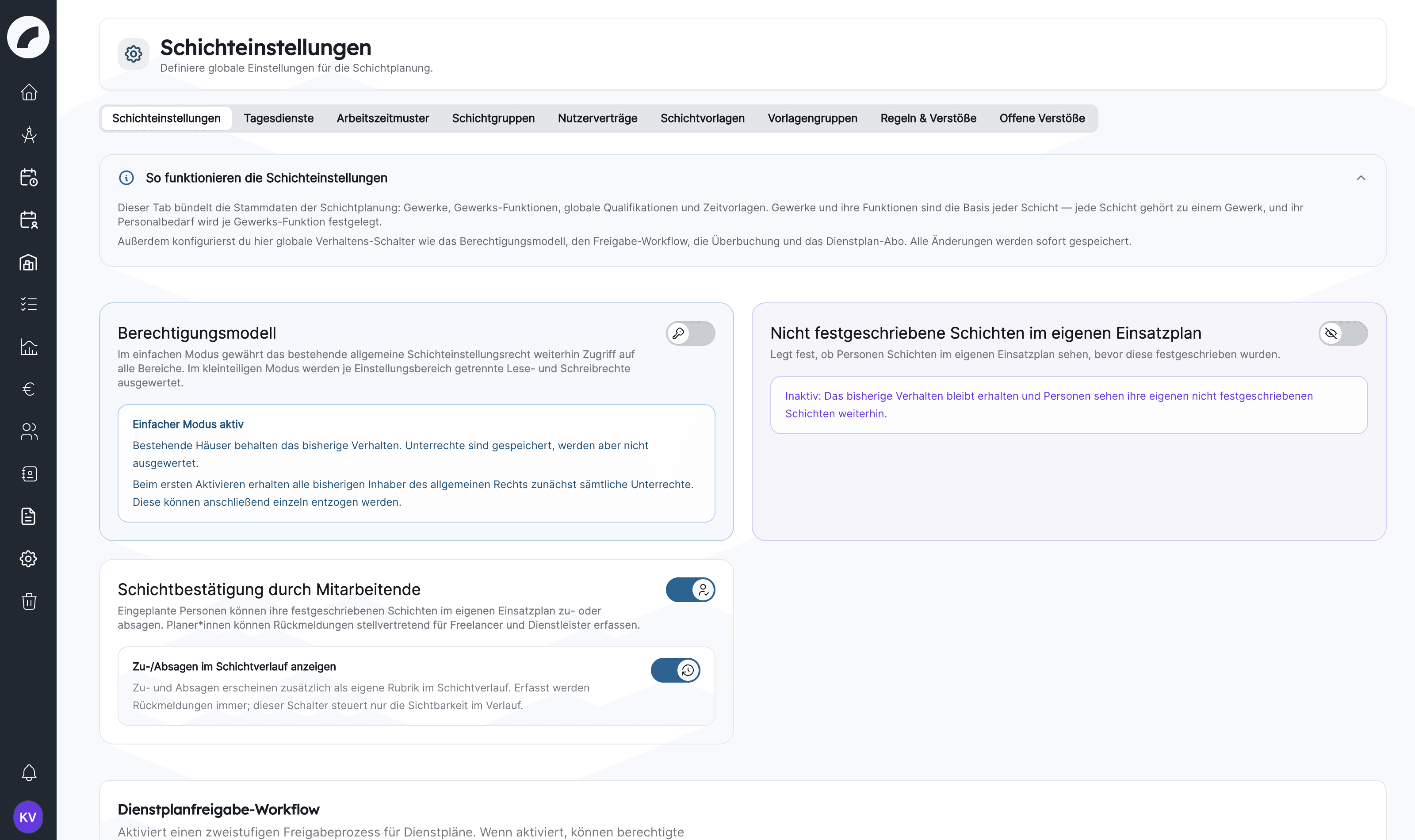
Settings map
| Tab | Effect in shift planning |
|---|---|
| Shift Settings | The general tab: permission model, visibility of uncommitted shifts, shift confirmation, approval workflow, night work period, crafts, global qualifications, craft functions, time presets, sorting, calendar feed, overbooking, project assignments and work time accounting |
| Day Services | All-day markers assignable to a person's day |
| Work Time Pattern | Recurring basis for target hours. The tab only appears while work time accounting is switched on |
| shift groups | Mark related shifts, warning on multiple shift assignments |
| User Contracts | Contract templates with the contract values that time accounts and rule assignment refer to |
| shift templates | Templates for single shifts |
| Shift preset groups | Combine several shift templates into one sequence |
| Rules & violations | Working-time rules: thresholds, warning colours, assignment to contracts |
| Open violations | List of detected rule violations to edit, ignore and resolve |
Changes to the switches of the general tab are saved immediately; only the night work period has its own Save button.
The path through the setup in stages is described in Setting up the duty roster. All master data and templates are covered on this page. The complete workflow for rule violations and substitute days off is covered in Rules & Violations.
Permission model
Only artwork admins see the Permission model card. It defines how finely access to the shift settings is controlled:
- Simple mode active (initial state): the permission Shift settings grants access to all tabs, reading and writing.
- Granular mode active: the permission Shift settings remains the access to the menu item. Which tabs someone sees and edits is decided by the Fine-grained shift settings permissions, one permission to view and one to edit each for: general shift settings, day services, work time patterns, user contracts, shift groups, shift templates (also covers shift preset groups) and shift rules (also covers the open violations). A permission to edit includes viewing.
When granular mode is enabled for the first time, all people and roles that already hold Shift settings receive all fine-grained permissions. Afterwards you remove individual ones in the user permissions. Switching the mode off and on again later does not distribute the permissions again, so removed ones stay removed. artwork admins always have full access.
Tabs without read access do not appear. Anyone who may only read the general tab sees the cards in the upper part, the approval workflow and the night work period locked, with the hint "You have read access only". The toggles in the lower part (sorting, subscription, overbooking, project assignments and working time calculation) are locked as well Coming with the next update. Some buttons remain operable; Artwork then rejects the change when saving.
Uncommitted shifts in own roster
The switch Hide uncommitted shifts from own roster defines whether people already see their shifts in My operational plan before the week has been committed.
- Off (initial state): everyone also sees their provisional shifts, marked with the Provisional badge.
- On: the own operational plan only shows committed shifts. As an exception you can give individual people, for example craft managers, the permission View own uncommitted shifts.
The switch only affects a person's view of their own operational plan and its PDF export. Planners still see all shifts in the duty roster. The calendar subscription does not follow this switch but the setting Shifts in shift plan subscription under Miscellaneous toggles.
Approval workflow
The Duty roster release workflow toggle enables the two-stage commit process described in Committing & Approval. Below the toggle you select the approvers who review approval requests. This list, not a permission, determines who may approve.
The workflow can only be enabled with at least one approver ("Add at least one approver before enabling the workflow."). If it is active and the list is empty, the page shows a warning because requests would go nowhere; removing the last approver triggers a confirmation.
When the workflow is disabled, authorized planners commit directly and the workflow pages disappear from the menu. With the workflow active, each craft additionally shows the field for the request deadline.
Night work period
In the general tab you maintain the time window whose hours are booked as night hours: Night hours from and Night hours until (default 22:00–06:00; for orientation: ArbZG 23–6 h, TVöD 21–6 h). The change only applies after Save. The window affects the night booking in the hour account and night work rules such as Daily maximum on days with night work. Shifts across midnight count their night minutes completely.
Crafts
Crafts are the backbone of shift planning. Create the functions first: the craft dialog only offers functions that already exist. Each craft has:
- a name, abbreviation (at most four characters) and color: the abbreviation and color identify the craft on every shift card,
- under Shift planning permissions the choice between Can be scheduled by all shift planners and Allocable to a limited extent with a list of the people who may plan the craft (only people with the permission Plan shifts are offered),
- the craft manager, who is highlighted in the workforce panel and receives notifications when no planner is listed. You can already enter them when creating the craft,
- the functions available in this craft,
- an optional Universally applicable flag: workers of such a craft may be scheduled into any craft's shifts if they hold a matching function. This is typical for apprentices or floaters,
- Days until notification if shift not fully staffed: how many days before shift start planners are notified about shifts that are not fully staffed (0 to 100). With 0 the notification is sent on the day the shift starts,
- Deadline for shift plan request (days before start of week), only visible with the approval workflow active: if no request has been submitted for the calendar week by this deadline, the craft management is notified. New crafts are prefilled with 14 days; leave empty to disable the reminder. The Week status shows the deadline as a yellow or red marker.
You change the order of the crafts by drag & drop in the list.
Which people work in a craft is not set here but in the person's work profile under Can be used in the following crafts.
Only people registered as planners of a craft may create, edit or delete its shifts; otherwise artwork reports "You are currently not registered as a shift planner for the craft …", and shift templates are only offered for crafts you can plan. There is one exception for your own shift note: every scheduled person may edit it, even without planning rights.
Deleting a craft deletes its shifts
When you delete a craft, artwork asks for confirmation and then removes all shifts of this craft. Scheduled people of committed shifts are notified. The shifts go to the recycle bin.
Functions and qualifications
Functions (e.g. Meister, Mitarbeiter, Fachkraft) are the slots a shift of a craft offers; each has an icon and an availability flag. You create them in the Craft functions card via New qualification. Which functions a person can take in a craft is stored per craft in their work profile. You change the order of the functions by drag & drop on the handle on the left.
Global qualifications are cross-craft attributes of people (e.g. first aider, forklift licence). They create no function slot of their own but can be requested on any shift in addition to the functions.
For reliable suggestions, functions must be maintained on both sides: as a requirement on the shift and as a capability on the worker.
The option Is taken into account for new shifts is off for a new function. It has no effect on the shift dialog, which always offers all functions of the selected craft. It takes effect in two places: the export Excel Personnel Plan (Project) only gives functions with this option a column, and in the dialog of a shift template a function without the option carries the note “not available” but can still be selected.
A function can be deleted even if shifts already use it: its slots and the assigned people then move to the default function. The default function itself cannot be deleted.
Time presets
You create time presets in the general tab in the Time presets for shifts card via New time preset. A time preset stores a recurring combination of start, end and break, for example “Early shift 08:00–16:30”. It speeds up the shift dialog without setting craft, functions or other shift data. An empty break is prefilled here too according to the Working Hours Act. If more than the time recurs, use a shift template.
Day services
Day services are all-day duty markers (with icon and color) that can be pinned to workers' day cells in the roster, e.g. office duty or on call. They are not a timed shift. In the workforce panel they appear as a fully coloured ball; the icon is automatically white or black depending on the brightness of the colour.
In the Day Services tab you create a service via New Day Service with name, icon and colour; all three are required.
Day services are assigned in the duty roster: in the workforce panel, switch on Day Services, pick the service next to the switch and click a person's day cell. Another click on the same cell removes the selected service again. This works for internal people, freelancers and service providers and requires the permission Plan shifts. The switch only appears once at least one day service exists. Day services have no effect on time accounts or the rule check.
Deleting removes all assignments
When you delete a day service, artwork asks for confirmation and then also removes all of its assignments to people, including past ones.
Work time patterns & contracts
Work time patterns define recurring weekly working-time schemes. In the User Contracts tab you create contract templates with their contract parameters; contract and pattern are assigned to a person in their profile. They feed the hour balances in the workforce panel.
You create a work time pattern via Add Work Time Pattern: with a name, an optional description and one value per weekday. The values are daily target hours, not times of day: 08:00 means a target of eight hours on that day, 00:00 a day without a target. The list shows the daily values and the Total hours of the week for each pattern.
Editing a pattern affects everyone it is assigned to
When you edit a pattern, artwork applies the new daily values to all people it is assigned to, in all of their periods with this pattern, including past ones. For a change from a certain date, create a new pattern instead and assign it in the profile via Plan change. When you delete a pattern, people keep their previous daily values as individual weekly hours.
Fields of a contract template
You create a contract template in the User Contracts tab via Add User Contracts. The name is required. The number fields Free Full Days Per Week, Free Half Days Per Week and Compensation Period (in days) are prefilled with 0 and must not be left empty, otherwise the template is not saved.
| Field | Effect |
|---|---|
| Free Full Days Per Week, Free Half Days Per Week | Key-figure targets: weekly value times the weeks of the season half, 0 means no target. The full-days value also applies to the rule Minimum whole free days per week when no value of its own is set there |
| Special Day Rule Active | Active (preset): special days reduce the person's daily target. Inactive: special days do not count, every day has the normal daily target |
| Compensation Period (in days) | Deadline within which a missed free day must be granted as a substitute day off |
| Use three-month average for target-hour reductions | For weekly holidays and holiday-related compensation days without work, the target is reduced by the average actual daily working time of the three completed calendar months before. If there is no working day in that period, the contractual daily target applies. This switch exists only in the template, not per person |
| Season-related info data | Six minimum entitlements that you activate individually and give a Minimum value (X): free Sundays per season, days off in the first 26 weeks of the season, free Sundays connected with Saturday/Monday per season half, free Sundays + Saturdays per season, free Sundays per calendar year and 1.5-day combinations. They appear as targets in the person's key figures |
| Annual vacation days (per calendar year) | Vacation entitlement as a target in the key figures |
| Non-reduced overtime within the deadline leads to financial compensation | Activates the overtime deadline. The field Period within which overtime must be reduced (days) states after how many days overtime that has not been reduced counts as due for financial compensation |
On assignment, artwork copies the template's values into the person's contract period. If you change the template later, periods that are already assigned keep their copied values and show them in the profile as deviations from the template. Only numeric values that are 0 in the person's period, and the three-month average, still follow the template. The note in the edit window says the same Coming with the next update: change all other values and switches in the contract of each person.
Working-time rules are bound to the template, not to the person. On days on which a person has no contract, or an individual contract without a template, they are not covered by the rule check Coming with the next update. The same holds when you delete a template: the people's contract periods remain as individual contracts with their values, but the rules of the deleted template no longer apply to them.
Contract values are also the basis for working-time rules, vacation and overtime. If a contract changes, maintain the validity period carefully so past and future weeks are evaluated with the right target hours. Details are covered under Contract & working hours.
Shift groups
Shift groups connect related shifts that already exist. They can appear as tags on shift cards (display setting Show Shift group tag). They are also the prerequisite for the rule type Rest time between shift groups: without maintained groups this rule cannot take effect.
You create a shift group via New shift group with a name, a colour and an optional icon. It is assigned per shift in the shift dialog, in the Shift Group field. When you delete a group, its shifts remain and only lose the assignment.
The shift groups tab also holds the switch Waring on multiple shift assignments. When it is on, the duty roster draws a red frame around a person's day cell as soon as they are assigned to shifts of at least two different shift groups on the same day. Several shifts of the same group do not trigger the warning. In granular mode this switch belongs to the permission Edit general shift settings, not to Edit shift groups.
| Tool | Purpose |
|---|---|
| Shift preset group | Use several shift templates together when creating shifts |
| Shift group | Mark related concrete shifts and check assignments |
Templates
Shift templates and shift preset groups each have their own tab. A shift template copies recurring information into a new shift. In the shift dialog the inserted values remain editable before saving; templates are starting points, not locked shift types. Via Add Shift based on templates in the duty roster, by contrast, the shifts are created immediately, without an intermediate step. Use recognisable names such as “Evening admission – Front of house” instead of “Standard”.
You create a shift template via Create Preset. It stores name, start and end time, break, craft, description and the demand per function; name, times and craft are required. Room, project, shift group and global qualifications are not part of the template. The list can be searched by name or craft, filtered by craft and sorted by start time or name. Later changes to a template do not affect shifts that were already created from it.
Shift preset groups combine several templates into one sequence, such as setup, event and strike. A group consists of a name and the selected shift templates; a template can be part of several groups. Deleting a group leaves its individual templates intact. Deleting a shift template also removes it from its groups. Practical use is explained under Creating shifts.
Shift rules — rules & violations
The Rules & violations tab defines working-time rules (rest periods between shifts, maximum working time, night work, days off …) that are bound to specific contracts. Assignments that break a rule appear in the Open violations tab. There planners edit them, ignore them with a reason or resolve them and, if needed, book substitute days off. A separate dashboard under Shift plan → Compensation days overview tracks granted and open substitute days off. The person's contract determines which rules apply.
Rule types, violation handling and substitute days off are described under Rules & Violations.
Personal planning preferences
Several settings are not global but saved per user: open crafts and function groups, worker sorting, compact view, light or dark workforce panel, zoom level, visible period, filters and display settings per view. Two planners can therefore work with different perspectives without changing the shared duty roster.
Miscellaneous toggles
- Sort settings: toggle between Sort by first name (left, initial state) and Sort by last name (right); the side shown in bold applies. The choice applies to everyone and decides what the alphabetical sort orders in the workforce panel of the duty roster sort by
- Shifts in shift plan subscription: Only committed shifts or All shifts. With All shifts the ICS feed also contains shifts that are not yet committed, marked with "[vorläufig]"
- Overbooking of shifts: with Allow overbooking, planners may assign more workers than a shift requires. Overbooked positions are marked separately and the demand remains unchanged
- Shift confirmation by employees: scheduled people can accept or decline their shifts in My operational plan; planners record replies on their behalf. Only people with the permission Accept or decline shifts see the accept/decline buttons, see Committing & Approval. While shift confirmation is active, the switch Show confirmations in shift history appears below it: accepted and declined shifts then show as their own category in the shift history. Responses are always recorded; the switch only controls whether the history shows them
- Work time accounting: Activated (default) or Deactivated. When switched off, the duty roster is only used to create and staff shifts: no target from work time patterns, no time account, no overtime, no nightly booking; the calendar week column shows only the planned hours, and the Work Time Pattern tab, the work time overview export and the tabs Actual hours and Overtime in the key figures window are removed. Stored data is kept; days while the calculation was off are not booked afterwards
- Project assignments: Activated (default) or Deactivated. When switched off, all buttons and displays for project assignments and project wishes disappear from the duty roster, operational plan, project shifts tab, availability calendar and multi-edit, as does the display setting Show project assignments. Existing assignments remain stored and reappear when the setting is switched back on.
Recommended setup order
The setup builds up in three stages; each stage can be used on its own. The detailed guide is Setting up the duty roster.
Last updated on