Getting Started
Log in, understand navigation, prepare your account and start using Artwork safely
This chapter takes you from your invitation to your first working day in Artwork. Your interface may differ from examples in the manual: modules are enabled organisation-wide and roles additionally determine which data and actions you can see.
Getting access to Artwork
An authorised person usually creates your account and sends an invitation to your email address. The invitation link is valid for seven days. Open it promptly and complete the personal details requested. If the link has expired, Artwork shows a notice page; ask the inviting person for a new invitation. Use the email address for which the invitation was issued. After registration you are signed in straight away and land on the dashboard; there is no separate email confirmation step.
When setting your own password, fixed requirements apply: at least ten characters with upper- and lower-case letters and at least one digit. Use a password unique to Artwork and store it in a password manager.
Some organisations use central login instead. The login page then offers Sign in with … for the configured identity provider. Use your organisational account; a separate Artwork password may not be required. Once the session expires, sign in again through the identity provider.
See Accounts & invitations for more about account setup.
Logging in
Show password lets you check your entry briefly. Do not use it where other people can see your screen.
If your organisation is connected to an LDAP directory, you sign in through the same form with your email address and directory password. Accounts with OIDC use the central sign-in button only; the password form rejects them.
Forgotten password
Select Forgot your password?, enter your email address and request the reset link. Artwork confirms the dispatch regardless of whether the address is known and limits the number of requests. Open the email and use its link to set a new password; the same password requirements as at registration apply. If no email arrives, check the spam folder and spelling, then contact your Artwork administrator.
With central SSO, the password is managed by the identity provider. Use its reset process or contact your IT team.
Two-factor login
If two-factor authentication is enabled, Artwork asks for a code from your authenticator app after your password. You can alternatively use a previously stored recovery code. A recovery code cannot be reused once consumed.
Understanding the sidebar
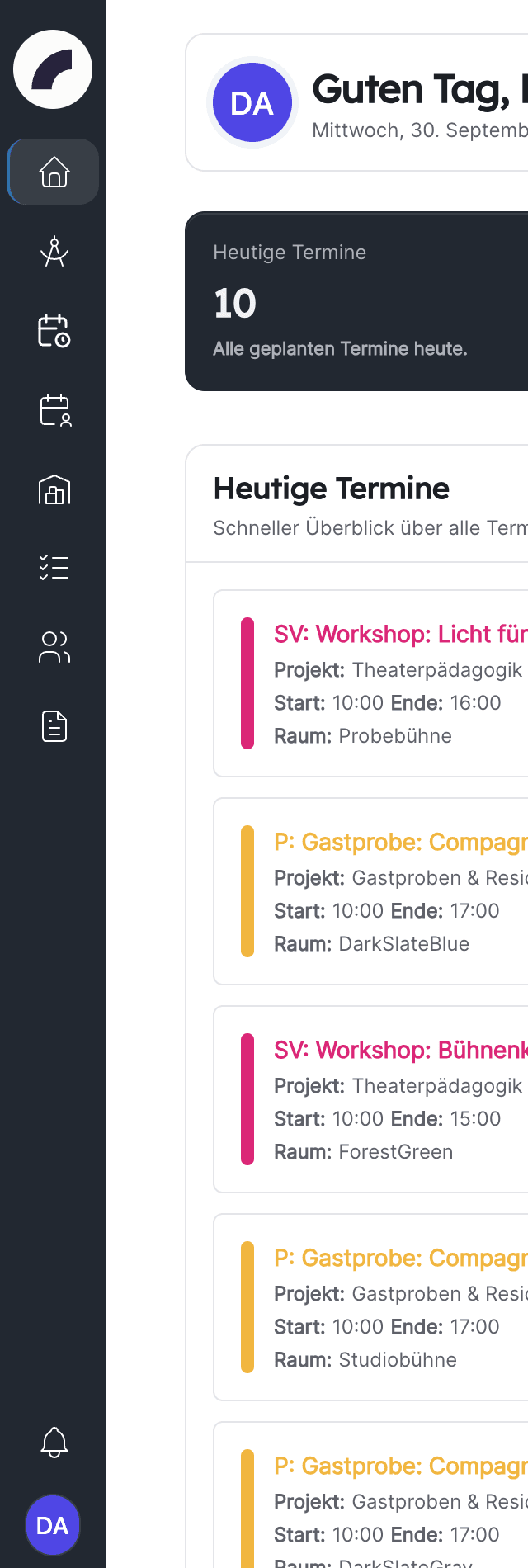
The left sidebar is the main navigation. It can show only icons in compact mode or icons and names when expanded. Areas with several pages open a submenu: Calendar, Shift plan, Inventory System, Documents and System.
The main areas appear in this order:
| Area | Purpose |
|---|---|
| Dashboard | Your personal working status for today |
| Projects | Productions, teams, events, budgets and project components |
| Calendar | Submenu with Calendar, Planning Calendar and Event Verifications |
| Shift plan | The duty roster. Submenu with Duty rosters, Shift plan list view, My operational plan, Work time change requests, the approval pages, Week status and Compensation days overview |
| Inventory System | Submenu with Inventory, Article Planning and Material Issues |
| To-dos | Personal tasks, checklists and templates |
| BI Dashboard | Organisation-wide figures and production comparisons |
| Sources of funding | Grants and cross-project budgets |
| Users | People, teams, roles and work data |
| CRM | Contacts and their project relationships |
| Documents | Submenu with Contracts and Document requests |
| System | Global configuration for authorised administrators |
| Recycle bin | Restore deleted objects (permission Open trash) |
User manual, Notifications and your profile menu are at the bottom. User manual opens this documentation in the language of your interface. A dot on the bell indicates new notifications. In the profile menu, Your account opens your own account and Logout signs you out.
Which submenu items you see depends on your permissions. An area without any visible submenu item does not appear at all.
A missing menu item is not automatically an error
The feature may be hidden for the organisation (module visibility) or unavailable to your permissions. Ask the responsible feature administrator if you need it for a specific task. A direct link does not bypass permission checks: without the required permission, Artwork shows the error page No permission.
Using the dashboard as a starting point
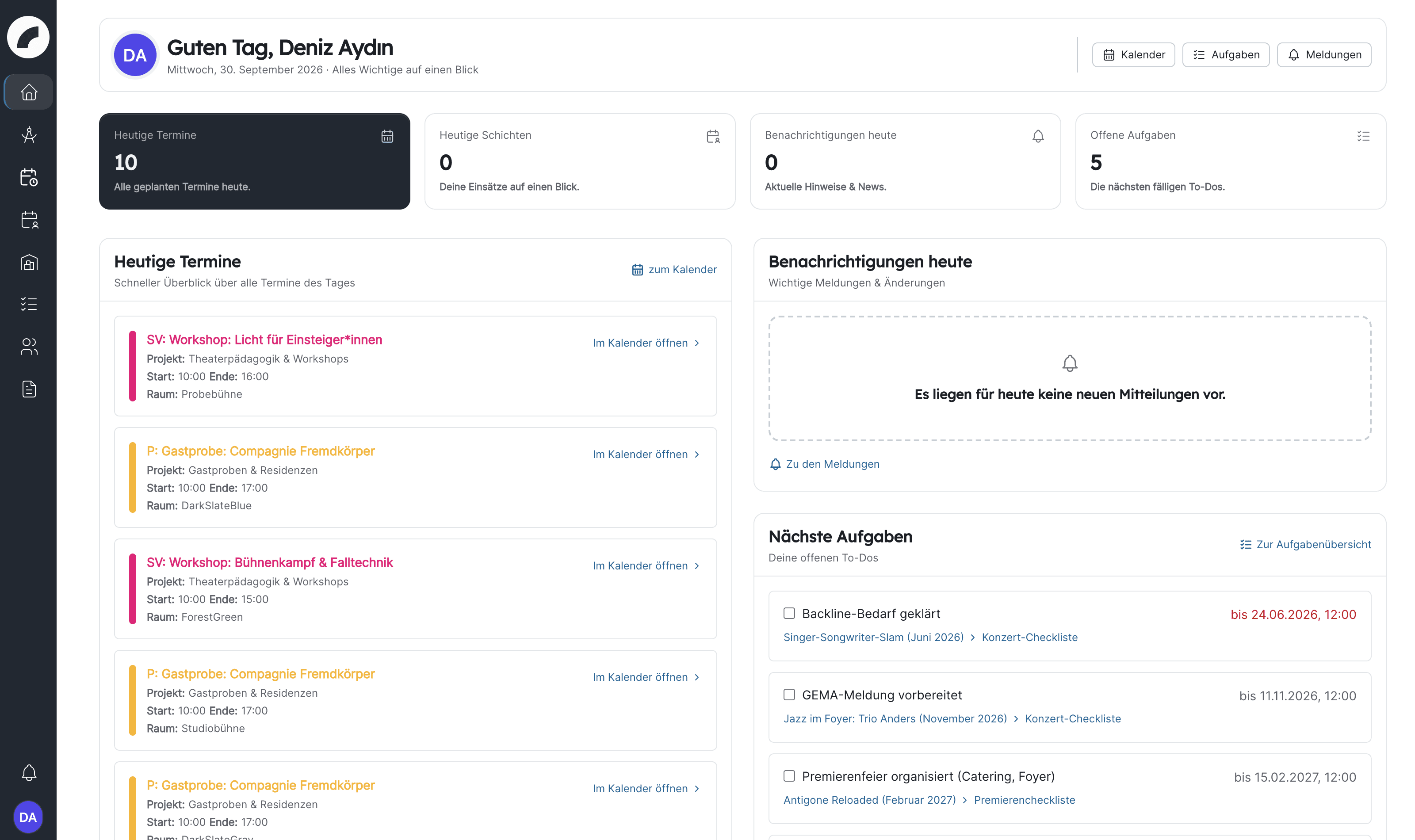
After login, Artwork usually opens your personal dashboard. It shows today's events from your projects, your shifts and individual times, unread notices received today and a selection of your next tasks. Use its quick links to open the full feature area.
The dashboard is a personal daily summary, not a replacement for the complete calendar, task or shift view. See Dashboard.
Preparing your profile
Open Your account through your profile picture and check:
- first and last name,
- position, email address and phone number,
- profile picture and short description,
- application language,
- teams and other work details where visible.
A complete profile makes assignments and collaboration easier. Teams and administrative work data can only be changed by authorised people. See My account.
Securing your account
You can change your password in your personal account. If enabled in your installation, set up two-factor authentication, scan the QR code with an authenticator app and store the recovery codes. Keep those codes outside Artwork in a protected password manager.
Log out through the profile menu after work, especially on shared computers. If you suspect unauthorised access, change your password, log out other browser sessions under My account and inform your administrator.
Input, exports and forms
- Text stays text: in comments, chat messages, text components, inventory descriptions, timelines and manufacturer details, HTML is not interpreted as formatting but shown as text; line breaks are preserved.
- Excel exports: cells whose content starts with "=", "+", "-" or "@" are exported as text so spreadsheet applications do not execute them as formulas.
- PDF exports are downloaded by your browser as soon as they have been created. artwork cleans up the copy on the server after one day; for a new state, export again.
- Page expired: if you submit a form that has been open for a very long time, Artwork may report "Page expired". Reload the page and submit again.
Configuring notifications
The notification centre groups notices by topic and provides direct actions. In the Settings tab you decide for each notification type whether you additionally receive an E-mail and a Hint in artwork, and whether email arrives immediately or as a summary.
Start with enough time-critical messages enabled and adjust after a few working days. See Notifications.
Recommended first steps
- Check your profile and contact details.
- Set a strong password and, if possible, two-factor authentication.
- Open the dashboard, calendar and task overview.
- Verify that expected projects, teams and shifts are visible.
- Adjust e-mails and hints in the notification settings to your responsibilities.
- Review an existing record before creating new data yourself.
- If permissions are missing, describe the concrete work need instead of requesting general administrator access.
Do not alter live data just for practice
Artwork contains shared production, staffing and financial data. Use a designated test project or coordinate exercises with the team. Deletions, acceptances, approvals and commitments can directly affect other people.
Last updated on