Accounts & invitations
Invite, find, register, and manage internal users
Find and sort users
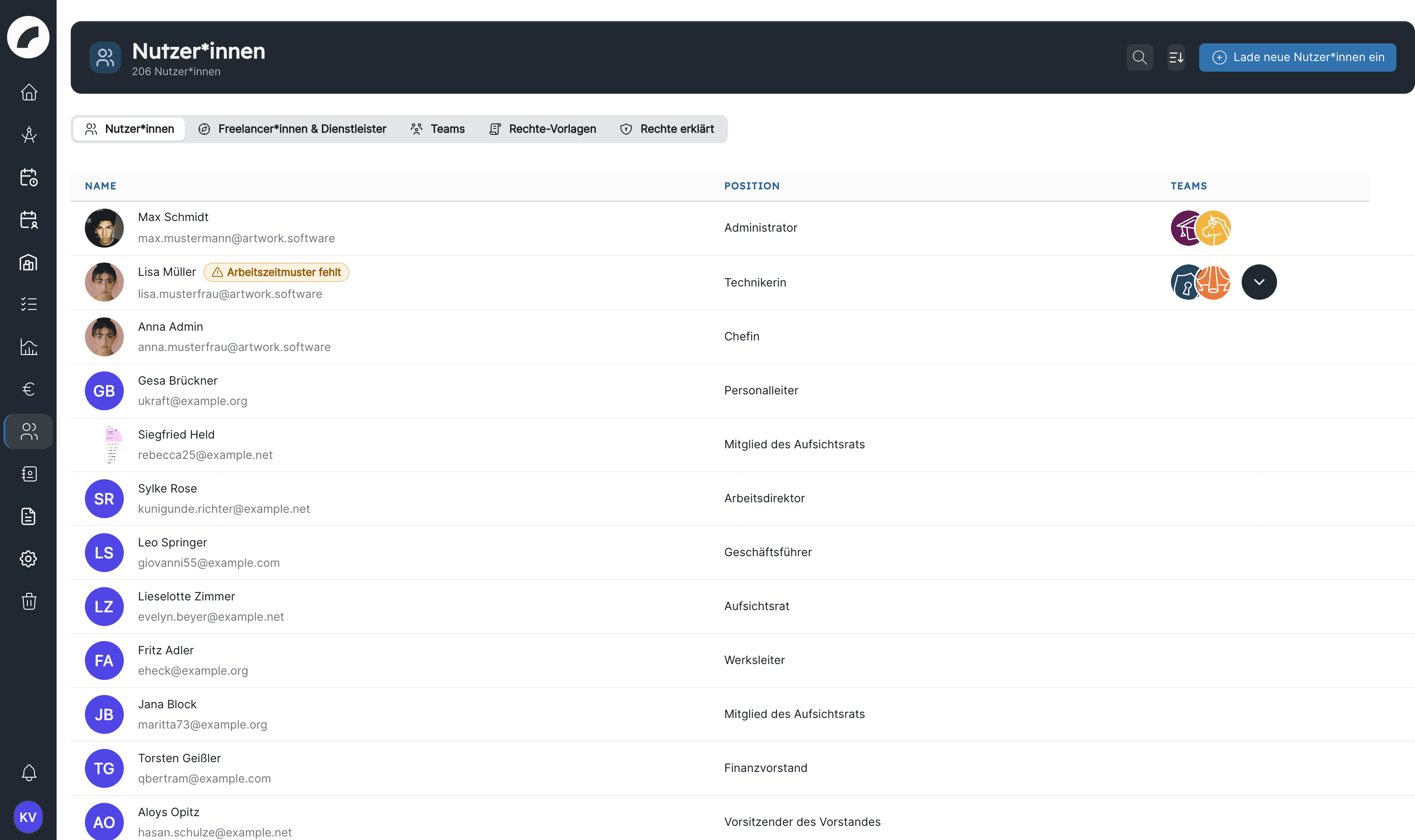
The Users tab shows names, email addresses, positions, and team memberships. Select a person to open their profile—depending on your permissions, initially on their operation plan or personal data.
Search uses the person query you enter. Sort changes the order, while Reset removes your saved sorting. Artwork remembers this choice for your own view.
For people in several teams, the table initially shows only some team icons. Open the additional selection to see the complete list. A warning badge Work time pattern missing marks people who work shifts but for whom no target hours can be calculated.
Accounts that sign in via LDAP or OIDC carry the label SSO next to the name. If such a connection is active, SSO only narrows the list to these accounts. Deactivated accounts are not in the list but under Deactivated (see Deactivate account).
Invite one or more people
Invite new users is visible to artwork admins and people with the permission HR administration. The dialog can prepare several email addresses with the same team and permission settings at once.
The dialog does not accept addresses that are invalid, entered twice, or already used by an account, and states the reason below the input field. Review the messages before sending. If an address belongs to a deactivated account, Artwork rejects the invitation on sending; reactivate the existing account in that case. An address that already has an open invitation is accepted without a message, however: the new invitation replaces the old one including its permissions and teams, and the earlier link stops working.
Teams that are room admin of a room can only be passed on by someone with the permission Room administration. Without it, such a team is left out of the invitation without any feedback.
An invitation is valid for seven days. If the link is opened later, Artwork shows the page Invitation expired and asks the person to request a new invitation. There is no list of open invitations. To invite again, enter the address in the dialog once more and set teams and permissions again; the invitation is then valid for seven days again. Seven days after its validity has expired, Artwork deletes an invitation that was not accepted Coming with the next update; the old link then leads to an error page.
Permissions in an invitation
The invitation dialog uses the same permission view as the user rights page: modules in menu order, with a Role preset selector at the top. An invitation may include:
- a role preset (permission preset) whose permissions are added,
- individually selected permissions,
- team memberships,
- the admin role—only artwork admins can grant it.
Inviters can only pass on permissions they hold themselves. If a role preset contains permissions the inviting person lacks, those are not included. In that case, have the invitation sent by someone with the appropriate permissions or by an admin. See Roles & permissions for role presets and individual permissions.
What does the invited person do?
The link in the invitation email opens the page Accept Invitation. The person enters first name, last name, phone number, position, and password. The email address is taken from the invitation and cannot be changed. Company is prefilled with the name of your organisation; the field carries an asterisk but may stay empty. First name, last name, and password are required. The password must be confirmed and contain at least ten characters with upper- and lower-case letters and at least one digit.
Register creates the account. The person is then signed in right away and lands on the dashboard; there is no separate email confirmation step, because accounts are created only through invitations, LDAP, or OIDC. The teams and permissions prepared during invitation are available on the account immediately. Later they sign in with their email and chosen password.
Inviting is different from creating a freelancer
An invitation creates an account with a login. Create a freelancer instead for someone who only needs to appear in shift planning and will not use Artwork personally.
Edit account data
Depending on permission, a profile provides these tabs:
- Operational plan
- Personal data
- User permissions
- Work profile
- Contract & working hours
- Work Times
- Substitute days off
- Overtime
Users maintain their own contact details and preferences themselves. Contact details and team assignment of other people, as well as work-related staff data, are edited by people with the permission HR administration. Reserved for artwork admins are: editing accounts with the admin role, changing another person's email address, because it is the login and the target of password resets, and the profile image, name and application language in other people's profiles (see Personal data). Private contact details the editing person is not allowed to see remain unchanged when saving.
Reset a password
On the profile, an artwork admin can select Reset Password under Security. The affected person receives an email for choosing a new password. Never ask for or share the old password.
Users can also request the link themselves via Forgot your password? on the login page. Artwork confirms the dispatch regardless of whether the address is known and limits the number of requests.
Changing your own password is described under My account.
Deactivate account
A deactivated account is suspended but not deleted. Rights, settings and all assignments to projects and shifts are kept, and the account can be reactivated at any time. This is the right way for people who leave, are absent for a longer period or will return later.
Artwork admins and people with the HR administration permission may deactivate and reactivate accounts. Admin accounts can only be deactivated by admins. Nobody can deactivate their own account.
| Area | What deactivation changes |
|---|---|
| Sign-in | The person can no longer sign in, not via SSO and not in the app either. Running sessions end. A sign-in attempt shows a notice that the account is deactivated; Forgot your password? sends no link for the account. |
| Notifications | No more e-mails, hints or summaries are sent to the person. |
| Calendar subscriptions | Subscribed calendars no longer deliver data. |
| User list | The account is no longer in the list but under Deactivated, with the note "Deactivated on … by …". Only HR administration and admins see the button, and only while deactivated accounts exist. |
| People search | The person no longer appears in people searches and therefore cannot be newly assigned. |
| Existing assignments | In project teams, shifts and similar places the person stays visible: with a grey profile picture and the note Account inactive instead of the e-mail address. |
| Duty roster | The person only appears while they have shifts in the displayed period. From the day of deactivation no more target hours accrue for them. |
To reactivate, open Deactivated in the list and choose Reactivate account in the action menu, or use the Account status block in the profile. The person then signs in with their previous credentials. API keys and app sign-ins stay stored during the deactivation and work again after reactivation.
Deactivate instead of delete
Deleting removes assignments and cannot be undone. Deactivate an account if you only want to block access.
Delete an account
Only artwork admins can delete: via Delete user in the action menu of the user list or via Permanently delete user at the end of the User rights tab. The action requires confirmation and is marked as permanent. Nobody can delete their own account.
When deleting, Artwork removes the person's team and project memberships, crafts and qualifications. What they created or were involved in, such as events, rooms, projects, comments, tasks and shift assignments, is transferred to a placeholder entry ("Deleted user"). Working time bookings, notification settings and calendar subscriptions are deleted.
Before deleting, review at least:
- open tasks and responsibilities,
- project and team assignments,
- planned shifts and time accounts,
- responsibilities for funding sources or approvals,
- whether permissions should simply be removed and work handed over instead.
Deleting an account is not a suitable way to suspend someone temporarily or remove them from a team. To block access, use Deactivate account.
Last updated on