Roles & permissions
Understand the user rights page, apply role presets and grant permissions per module in a controlled way
Artwork combines the admin role with individual permissions. This lets you provide broad responsibility or restrict access to specific areas and actions. A person's permissions are maintained on their profile under User rights; only artwork admins can open that tab.
How permissions work together
Whether a person can see or do something is decided by several layers in turn:
- artwork admin – can do everything, in every module and every setting.
- Module switch – a module disabled under Module visibility is hidden for everyone, regardless of permissions.
- Global permissions – the permissions on the user rights page.
- Project team – write, delete and budget access per project, plus the project-manager flag.
- Tab and component permissions – can only restrict access within a project, never extend it.
Since version 1.7.7 Artwork also checks permissions on the server in every area. Anyone who opens a function through a direct link without the required permission sees an error page stating No permission.
The admin role
The artwork admin switch sits in the header of the user rights page. Artwork asks for confirmation when you enable it, because the person can then do everything, including granting rights to others. Individual permissions remain stored and take effect again once the admin role is removed.
Only artwork admins can grant the admin role, also in the invitation dialog. Grant it to a small number of explicitly responsible people. Do not confuse it with a project role, which describes a function in one project only.
Structure of the user rights page
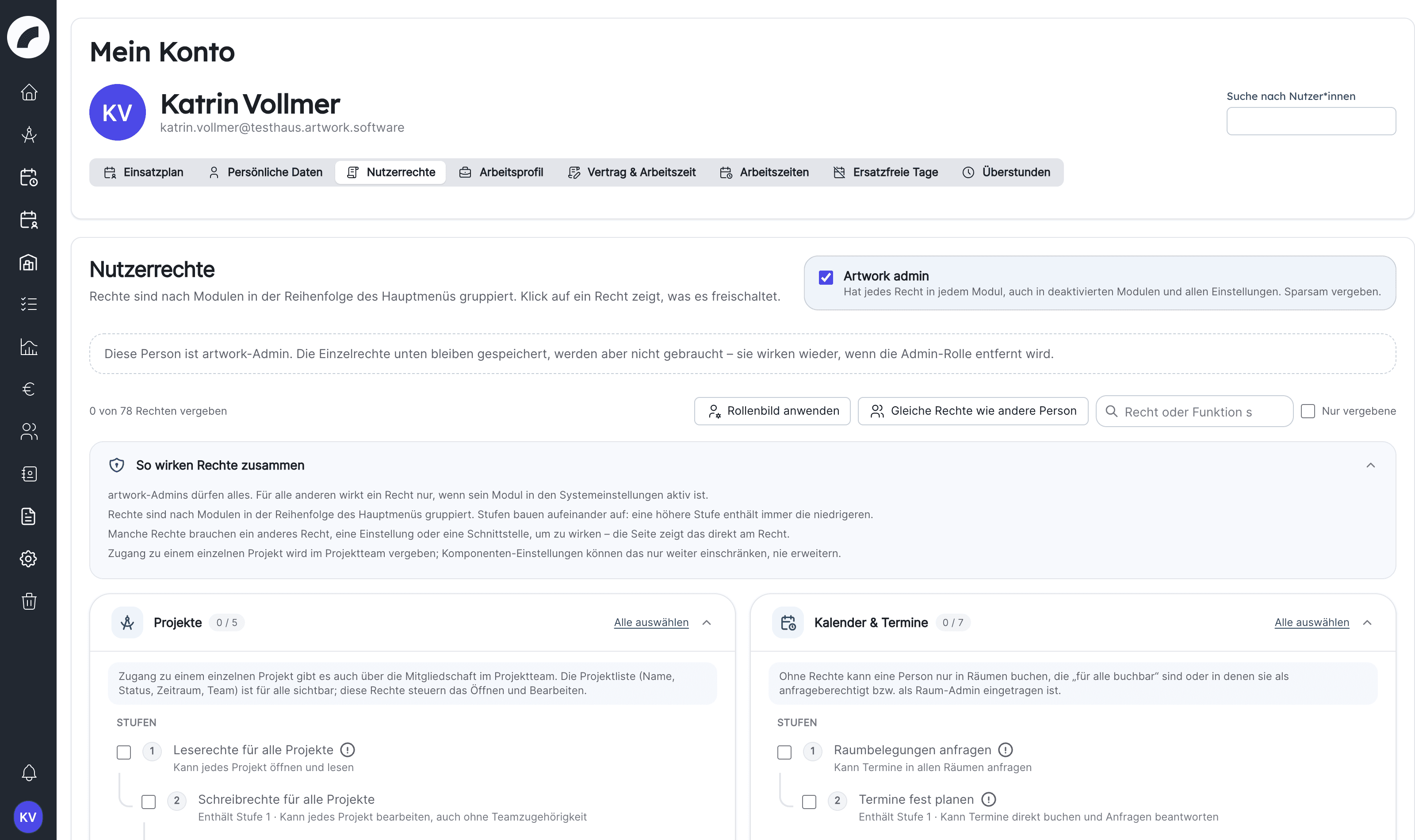
Permissions are grouped by module in the order of the main menu: Projects, Calendar & events, Duty roster, Staff, Inventory & material issues, Documents & contracts, Budget & funding, CRM, Business Intelligence, To-dos, System settings and Interfaces. The Artwork-Tickets card only appears when Artwork-Tickets has been set up for your instance. The page header summarises how many permissions are granted and how many modules are disabled.
Each module card contains two kinds of permissions:
- Levels build on each other, for example View duty rosters → Plan shifts → Commit duty rosters. A higher level automatically includes the lower ones; when you remove a level that higher levels depend on, Artwork asks for confirmation.
- Additional permissions sit beside the levels and unlock individual functions, such as View own roster or Open trash.
Every permission has a one-sentence effect ("Can …"). Clicking a permission opens its effect card with the fields Unlocks, Allows, Requirements, Includes, Typical for and Note, plus the number of people who currently hold it. Requirements (another permission, a module switch, a setting) are checked live against the person's current state. A permission that is included in another one is greyed out as "included" and set automatically.
The page offers these tools:
| Element | Effect |
|---|---|
| Search | Filters by permission name and function in both languages |
| Only granted | Shows only the permissions the person already has |
| Apply role preset | Applies a permission preset with a preview (see below) |
| Same rights as another person | After a preview, adds the permissions the selected person has in addition; existing permissions stay. Only with the switch Also remove permissions this person does not have are the permissions set 1:1, and the preview then also shows what is removed |
| Select all / Deselect all | Grants or removes all permissions of a module in the header of its card |
| Change history | Logs every change with date, person and diff. The header shows "Last changed by … on …"; Show history next to it opens the list |
Changes are saved directly; the save status is shown in the page header. The fine-grained shift settings permissions sit in a collapsed section of the duty roster card and only take effect with the shift setting Granular permissions enabled.
Disabled module
If a module is switched off in the tool settings, its card is greyed out. The permissions remain stored and take effect again as soon as the module is enabled.
Role presets and permission presets
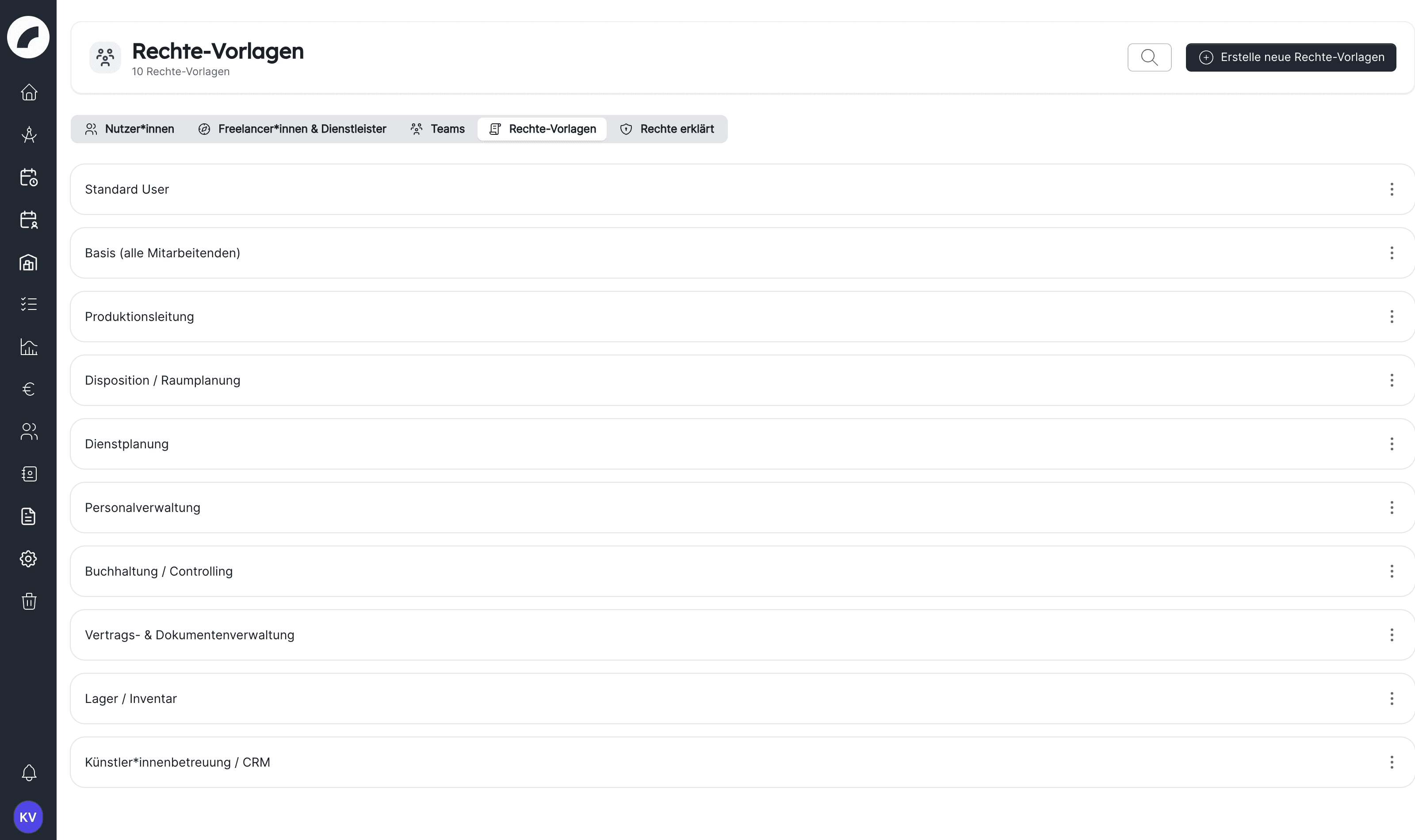
A permission preset bundles permissions into a role profile. Artwork ships ten role presets: Basis (all staff), Production management, Disposition / room planning, Duty roster planning, HR administration, Accounting / controlling, Contract & document administration, Warehouse / inventory, Artist relations / CRM and Box office / admission. There is no role preset for system administration; that is what the admin role is for. Presets customised by your organisation are kept during updates.
Every shipped role preset contains the permissions of Basis (all staff): Read all projects, Request room occupancy, View own roster, Subscribe to roster calendar, View day remarks, View contract modules and View inventory.
Role presets are applied additively: the preset's permissions are added, existing permissions stay. This works when inviting and afterwards on the user rights page via Apply role preset, each time with a preview.
In the Permission presets tab of user management, administrators can search presets, create a named preset with selected permissions, edit an existing one and delete an obsolete one after confirmation. A preset is not a separate account status; it helps set the contained permissions. After changing a preset, check whether existing accounts also need adjustment.
The permission Accept or decline shifts is not part of any role preset. Organisations with shift confirmation enabled grant it to the affected people once.
Permissions explained
The Permissions explained tab in user management shows all modules and permissions with their effect cards as a read-only page, printable for training and acceptance. People with HR administration and artwork admins can open it. The complete, always current list of permissions lives there; the following sections name the most important permissions per module.
Key permissions per module
Projects
The project list is visible to everyone; these permissions control opening and editing. Access to a single project is also granted by membership in its project team.
| Permission | Effect |
|---|---|
| Read all projects (level 1) | Can open and read every project |
| Write all projects (level 2) | Can edit every project, even without being in the team. Edit restrictions on components do not apply; components that only certain people may see stay locked |
| Delete all projects (level 3) | Can move every project to the trash and delete it permanently; reaching the recycle bin additionally requires Open trash |
| Create own projects | Can create new projects and edit them afterwards |
| Can be project manager | Can be marked as project manager in a project team; grants no access to other projects |
Anyone who can only read a project cannot edit its tab components. Editing is allowed for team members with write permission or project manager, the creating person, assigned departments and people with Write all projects. Explanation boxes on the user rights page, in the preset dialog and in the invitation dialog describe this interplay in place. Through the project permissions, events of other people's projects can only be edited or deleted by someone with write permission in the event's project; Can be project manager is no longer sufficient. Independently of that, the person who created the event, room admins of its room and people with Plan events directly may do so.
Calendar & events
| Permission | Effect |
|---|---|
| Request room occupancy (level 1) | Can request events in all rooms |
| Plan events directly (level 2) | Can book events directly, edit, decline and delete other people's events and answer room requests |
| View planning calendar | Can see the planning calendar and planned events |
| Edit planned events | Can edit, move, duplicate and delete planned events |
| Plan directly in the planning calendar | Can create planned events in all rooms; requires View planning calendar |
| View / Edit day remarks | Read or maintain the "Day remarks" column (only with the calendar setting enabled) |
Calendar and planning calendar are permitted separately: Plan events directly no longer includes Plan directly in the planning calendar. Planned events are never room requests: View planning calendar only allows viewing, creating them requires Plan directly in the planning calendar. Whether a planned event may be confirmed depends on the verifier assignment of the event type, not on these permissions. When the setting Events always directly bookable is enabled, the user rights page marks affected permissions as "No effect" or "Partially no effect". Room admins have the same options within their own rooms without these permissions.
The hint for the group sums this up Coming with the next update: creating events requires one of the permissions to request, create or plan events, or a role as room admin or requester in the room. In rooms that can be booked by anyone, everyone who may create events books directly instead of sending a request; the room setting itself does not grant a right to create events.
Duty roster
| Permission | Effect |
|---|---|
| View duty rosters (level 1) | Can see all duty rosters, including shift history, exports and other people's rosters; required for "Show shifts" in the calendar |
| Plan shifts (level 2) | Can create shifts, assign people, manage substitute days off and record accept/decline replies on behalf of others |
| Commit duty rosters (level 3) | Can commit calendar weeks per craft; with the approval workflow enabled, submit a commit request |
| View own roster | Can open the own roster; without this permission it is not reachable |
| View own uncommitted shifts | Can see own uncommitted shifts although the shift setting Hide uncommitted shifts from own roster is enabled; requires View own roster |
| Accept or decline shifts | Can accept or decline own shift assignments (only with shift confirmation enabled) |
| Enter own individual times | Can create, edit and delete individual times for themselves in the own roster from today onwards; requires View own roster |
| Subscribe to roster calendar | Can subscribe to the own roster as a calendar (ICS) |
| View hour accounts | Can see working time accounts and weekly hours of others |
| View staff info data | Can open the info window per person in the duty roster; working times and overtime in it additionally require View hour accounts |
| Pay out overtime | Can book out expired overtime with a comment, always with today's date; reachable via the info window or, with HR administration, via the person's profile |
| Manage availability of others | Can maintain vacation, availability and individual times of other people |
| Shift settings | Can manage crafts, functions, templates, rules and the workflow |
Which crafts a planning person may edit is set per craft in the Shift settings.
Enter own individual times exists since version 1.9.0. With the update to 1.10.0, all people and permission presets with View own roster received it once. Past days remain reserved for people with Manage availability of others or Plan shifts.
Staff
| Permission | Effect |
|---|---|
| HR administration | Can maintain profiles, contracts and working times of others, invite people and deactivate or reactivate accounts; includes External worker administration |
| External worker administration | Can create, edit and delete freelancers and service providers, including conditions and absences – without access to in-house colleagues |
| Team administration | Can create and maintain teams; does not allow editing other people's profile data |
| View private contact details | Can see e-mail and phone marked as private; also opens the profile pages of freelancers and service providers |
Other people's profiles are edited by HR administration, no longer by Team administration. Accounts with the admin role and other people's e-mail addresses can only be changed by artwork admins. Admin accounts can also only be deactivated and reactivated by admins (see Deactivate account). Permanently deleting users and granting user rights is reserved for artwork admins as well.
Inventory & material issues
| Permission | Effect |
|---|---|
| View inventory (level 1) | Can see the inventory overview and its articles; without this permission the menu entry Inventory is missing |
| Create & edit inventory (level 2) | Can create and edit articles |
| Delete inventory (level 3) | Can delete and restore articles |
| Inventory disposition | Can plan articles on events and manage material issues; opens the menu entries Article Planning and Material Issues and includes View inventory |
| Material issue log | Can see the change history of material issues; requires Inventory disposition |
| Create & edit sets / Delete sets | Can maintain material sets (tab "Material Sets" under System → Inventory) |
| Inventory settings | Can manage categories, properties, status, tags and manufacturers |
View inventory is a permission of its own since the inventory overview is no longer visible to everyone automatically. During the update, all existing people and permission presets received it once; admins can remove it selectively. Members of the project team with write permission create the material issues of their project even without Inventory disposition.
Documents & contracts
| Permission | Effect |
|---|---|
| View contract modules (level 1) | Can see and download contract modules |
| Manage contract modules & project contracts (level 2) | Can upload modules and maintain project contracts |
| Create / Edit document requests | Can create and assign requests, or edit and delete them and change their status; a person can always answer requests assigned to them by uploading a document, even without these permissions |
Budget & funding
Budget access per project is granted in the project team; these permissions additionally apply to all projects.
| Permission | Effect |
|---|---|
| Global budget access | Can read and edit the budgets of all projects; opening a project additionally requires Read all projects or membership in the project team |
| Remove verifications & locks | Can verify budget positions and lock or unlock columns |
| View / Edit budget templates | Can see or edit budget templates |
| Manage sources of funding | Can see, create and edit sources of funding |
| Delete all sources of funding | Can delete every source of funding |
| Project Sage data / Global Sage data | Can see Sage bookings with or without a project (only with the Sage interface enabled) |
CRM
| Permission | Effect |
|---|---|
| Use CRM (level 1) | Can read and maintain contacts; there is no read-only permission |
| Manage CRM (level 2) | Can manage contact types and properties, see all property groups, import and export contacts, merge duplicates, and restore and permanently delete contacts |
| Invite externals | Can invite external people to project tabs and their CRM contact |
Invite externals only takes effect once the switch Activate external access under System → External access is enabled; until then the permission is marked as a disabled feature on the user rights page. See External access for details.
Business Intelligence and to-dos
| Permission | Effect |
|---|---|
| View BI dashboard (level 1) | Can open the organisation-wide BI dashboard |
| Export BI data (level 2) | Can export BI and booking data as Excel |
| Manage all to-do lists | Can edit and delete other people's to-do lists; own, shared and assigned lists are editable without it |
System settings and interfaces
Most of these permissions open their own entry in the System menu; the table names the exceptions.
| Permission | Effect |
|---|---|
| Tool settings | Can manage branding, mail, interfaces, module visibility and file settings |
| Project settings | Can manage categories, genres, sectors, status, tabs, components, print layouts and project roles |
| Event settings | Can manage event types, status, properties, holidays, BI tags and timeline presets |
| Calendar settings | Can change the calendar settings |
| Room administration | Can manage rooms and areas |
| Checklist templates | Can manage templates for to-do lists; includes Manage all to-do lists |
| Sources of funding settings | Can manage the categories of the sources of funding |
| Budget settings | Can manage general budget settings, accounts and cost units; the Budget templates tab additionally requires View budget templates or Edit budget templates |
| Open trash | Shows the menu item Recycle bin with the tabs Projects, Areas, Rooms, Events and Project Settings; the Shifts tab additionally requires Plan shifts. The tabs Articles, CRM contacts, Budget and Sage API data sets depend on Delete inventory, Manage CRM, Global budget access and the Sage permissions, the tabs Accounts and Cost Units on Budget settings Coming with the next update. Restoring and permanently deleting additionally requires the right to delete the project (Delete all projects or the delete permission in the project team) and, for areas and rooms, Room administration |
| System notifications | Can maintain the message to all; the button for it sits on the Notifications page, not in the System menu |
| Manage webhooks | Can manage webhook endpoints and their deliveries in the Interfaces tab of the tool settings; the other sections there require Tool settings. Without Tool settings the entry Interfaces Coming with the next update in the System menu leads straight to this page |
The Timeline presets page under Settings → Events requires Event settings, Plan shifts or Shift settings.
Artwork-Tickets
This card only exists when Artwork-Tickets has been set up for the instance.
| Permission | Effect |
|---|---|
| Manage Artwork-Tickets | Can connect this artwork to Artwork-Tickets and change the ticketing settings |
| Change dates on sale | Can move or withdraw dates on sale |
| View ticket sales | Can see the sales, passes and subscriptions of Artwork-Tickets |
| Run admission | Can check guests in and admit pass holders at the door; the guest list of a date also needs the project to be visible |
| Manage passes and subscriptions | Can correct sold passes and change subscriptions by hand; additionally requires View ticket sales |
Removed permissions
Version 1.7.7 merged or removed permissions; existing holders were migrated automatically:
- "Global budget access without document access" has been merged into Global budget access.
- "Manage external worker conditions" has been replaced by External worker administration.
- "Can see, edit and delete all budget documents & contracts", "Use to-dos", "Create events when creating a project", "Manage inventory stock" and "Inventory planner" no longer exist.
Recommended permission process
Common reasons for missing access
If someone cannot see or perform a function, check:
- Is the required permission active and are its requirements on the effect card met?
- Is the module enabled in the tool settings?
- Is the person assigned to the project, team, craft or funding source?
- Do they have read access only in the project team, or write, delete or budget access as well?
- Is the system-wide function, such as shift confirmation or external access, enabled at all?
- Is the person's account deactivated? Then signing in is not possible, although all permissions stay stored.
Remove access
Do not immediately delete the entire account. Removing a permission, team membership or project-specific access is often enough. If a person should not work in Artwork at all for a while or after leaving, Deactivate account is the right way: permissions and assignments are kept. When removing a level, Artwork points out if higher levels depend on it. The change history documents who made the change.
Last updated on