Setting up the duty roster
The guided path for admins – in three stages from "plan and staff shifts" via time accounts to rules and violations, with everything you can leave out
The duty roster is the module with the most settings. This page walks through the setup in the order in which the parts build on each other. Each stage can be used on its own: a house can plan productively after stage 1 and switch on stages 2 and 3 later or never.
| Stage | What you can do | What you need |
|---|---|---|
| 1 – Plan and staff shifts | Create shifts, assign people, commit, send out operational plans | Functions, crafts, planning rights, work profiles |
| 2 – Calculate working time | Target and actual hours per week, time account, overtime, work time overview | Work time patterns, user contracts, assignment per person |
| 3 – Rules and violations | Check working time law, collective agreements and house rules, manage substitute days off | Stage 2 (contracts), rules, shift groups where needed |
In addition there are features you can switch on at any time, regardless of the stage, such as templates, the release workflow or shift confirmation – see Available at any time.
Where the settings are
Everything on this page is under System → Shift settings (permission View and edit shift settings) and in the person's profile under Users (permission Manage workers). The Shift Settings tab is a long page: the switches are at the top, below them Crafts, Global qualifications, Craft functions and Time presets for shifts.
Stage 1: Plan and staff shifts
After this stage you can create shifts, assign people by drag & drop and commit weeks. The order matters: the craft dialog only offers functions that already exist.
Create functions. In the Shift Settings tab, further down in the Craft functions section, with New qualification: name and icon, for example Master, Specialist, Assistant, Rigging. Functions are the slots a shift offers ("2 × specialist, 1 × master"). artwork ships Mitarbeiter (worker) and Meister (master); Mitarbeiter cannot be deleted because it serves as the fallback function.
- A function applies to every craft you assign it to. Create it in general terms (Specialist), not per craft (Lighting specialist).
- Is taken into account for new shifts has only a small effect: it controls the function columns in a project's personnel plan export. The shift dialog always offers all functions of the craft.
- The drag & drop order sets the order in shifts and in the workforce panel.
Create crafts. At the top in the Crafts section with New Craft. Crafts usually follow the house's departments: stage, lighting, sound, video, props, make-up, costume, front of house.
- Name, abbreviation (at most four characters) and colour – abbreviation and colour appear on every shift card.
- Universally applicable for special cases: people of this craft can be assigned to shifts of all crafts. Typical for apprentices, floaters or a general event technology team. The person still needs a matching function in the other craft; the functions they hold in the universal craft count.
- Days until notification if shift not fully staffed can stay at 0.
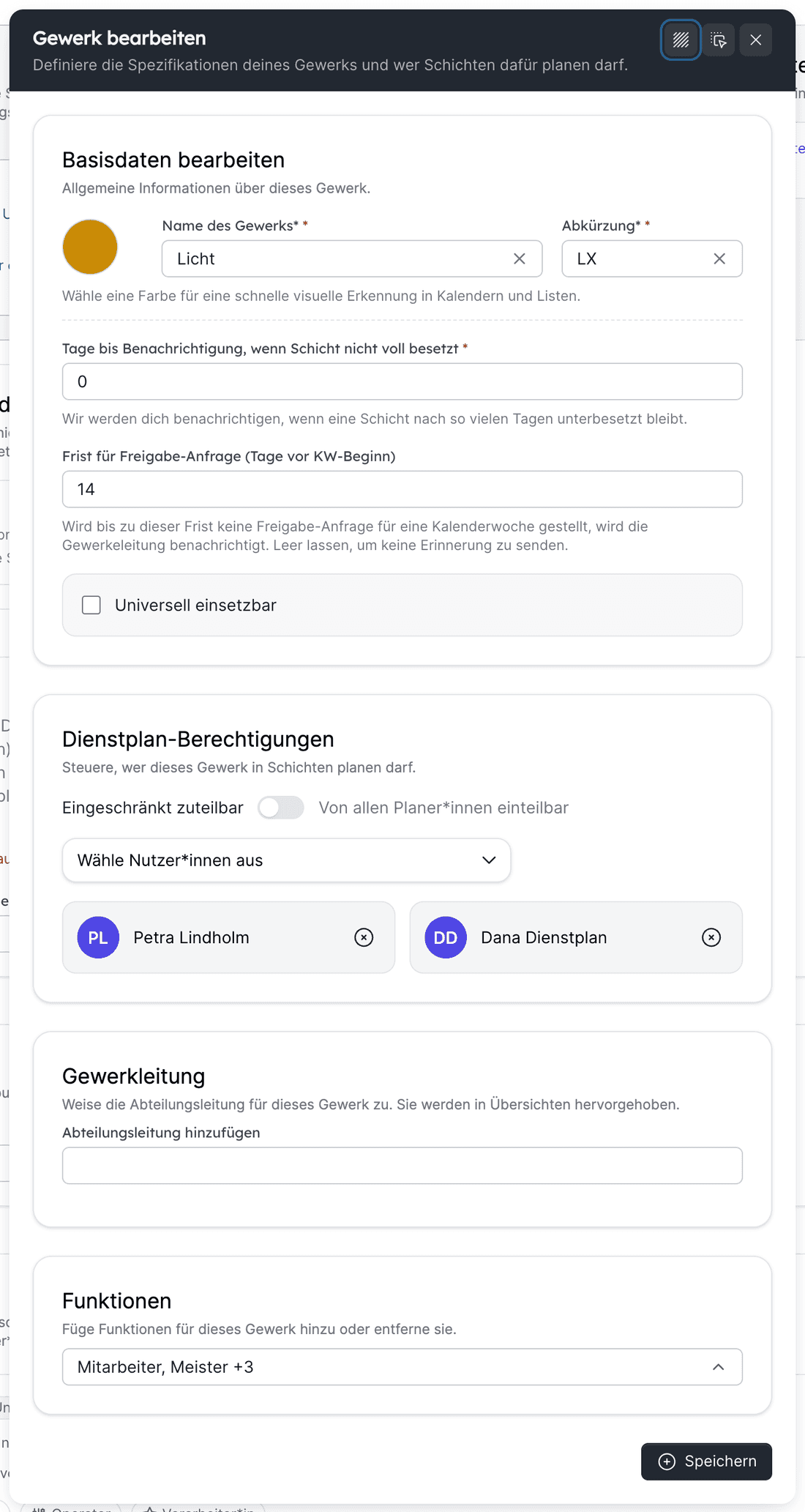
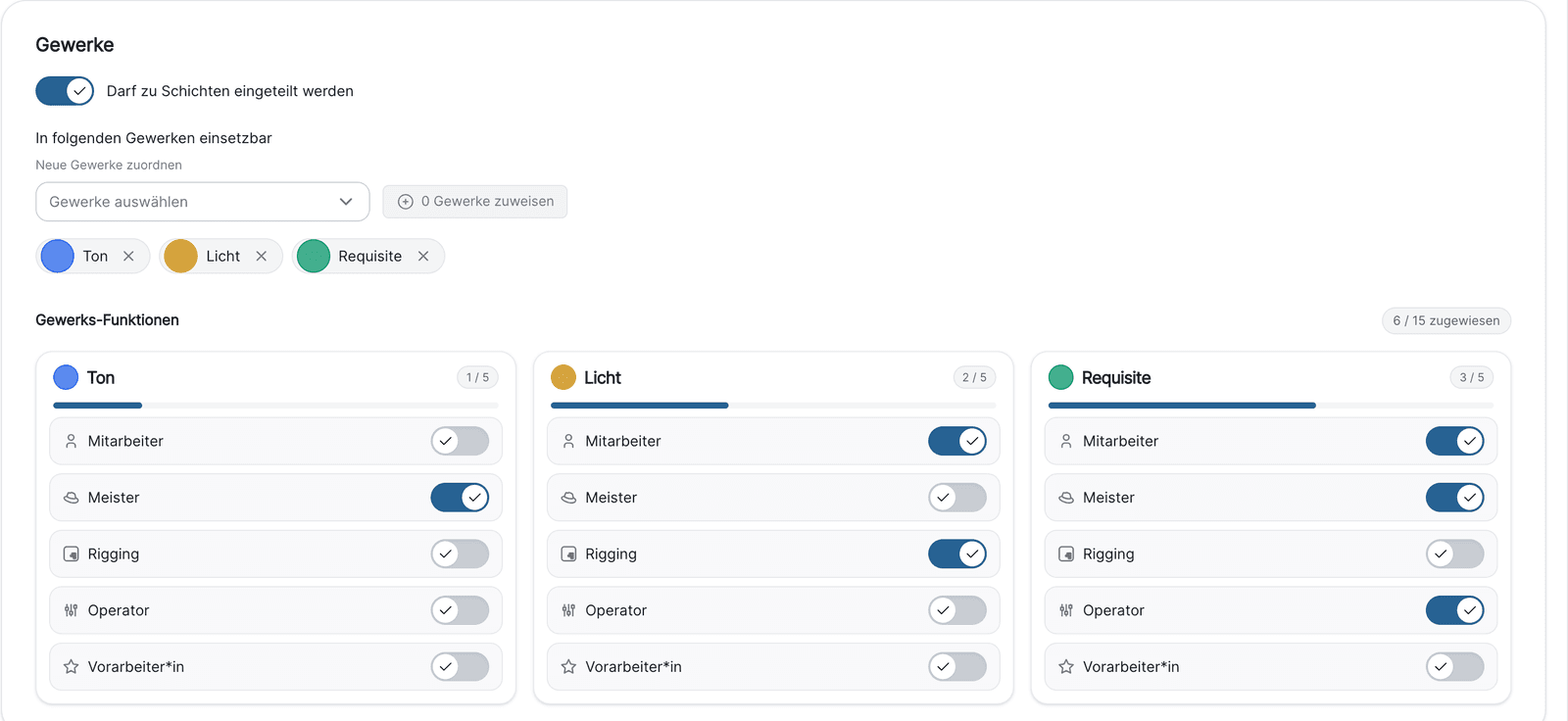
Assign functions to the crafts. In the craft dialog under Functions, select the functions used in this craft. Only these can be requested in the craft's shifts.
Decide who may plan. Planning requires two things:
- the permission Plan shifts on the person (through a permission preset such as Duty roster planning or individually), and for committing also Commit duty rosters;
- the release in the craft under Shift planning permissions: Can be scheduled by all shift planners (default) or Allocable to a limited extent with a list. The list only offers people who already have Plan shifts. A restricted craft without entries can only be planned by admins.
The craft manager is optional: they are highlighted in the workforce panel and receive notifications when no planner is listed. Add them via Edit after the craft has been saved.
Make people assignable. For every person under Users → person → Work profile:
- Switch on May be assigned to shifts.
- Assign the crafts under Can be used in the following crafts.
- Under Craft functions, switch on the functions the person can take on in each craft.
Freelancers and service providers have the same Work profile tab on their profile page. Crafts are assigned to people only here – the craft dialog has no list of people.
Trial run. Create a shift in the duty roster (craft, time, demand per function), drag a person from the workforce panel onto it, commit. If this works, stage 1 is done. Creating shifts · Assigning staff
A person does not appear or cannot be assigned
For a person to be dragged onto a shift, all of this must be true: May be assigned to shifts is on; the craft is assigned to the person (or they belong to a universally applicable craft); the function is switched on for the person in this craft; the craft has the function; the shift still has a free slot for this function. Without a craft the person does not appear in the workforce panel at all.
If you stay at stage 1
Without a work time pattern, artwork shows "–" in the calendar week column and the hint Work time pattern missing. If you do not want to keep time accounts, switch off Work time accounting Coming with the next update in the Shift Settings. Then:
- the calendar week column shows only the planned hours of the week;
- the time account, target hours, overtime, the nightly booking, the Work Times and Overtime tabs in the profile, the Work Time Pattern tab in the shift settings and the work time overview export are removed;
- stored patterns, contracts and time accounts are kept. When you switch it back on, artwork continues from the next day; days while the calculation was off are not booked afterwards.
Stage 2: Calculate working time
With this stage every person gets a target per day and week that is compared with the planned and booked hours. It requires stage 1 and Work time accounting switched on.
Create work time patterns. Work Time Pattern tab: per pattern a name and the daily target in hours per weekday (not clock times), for example Full time 39 h with Mon–Fri 7:48 or Part time 20 h. A pattern describes how many hours are owed on which weekday.
Create user contracts. User Contracts tab: templates for the contract terms, for example TV-L full time, NV Bühne, Temporary staff. A contract contains among other things full and half days off per week, vacation days, the special day rule, the compensation period, the three-month average, season key figures and the overtime rule with its deadline.
Assign the package to the person. Under Users → person → Contract & working hours with Plan change: from a date, choose a contract (template or individual values) and a work time pattern (or individual weekly hours). The previous period ends automatically on the day before. This way artwork also handles contract changes during the season correctly. Contract & working hours
Check. In the duty roster the calendar week column now shows the difference to the target, the person tile shows the time account. Booking runs every night at 23:59; the time account therefore shows the state up to yesterday.
- Check the Night work period (default 22:00–06:00): hours in this window are booked as night hours.
- Import public holidays so that special days reduce the target: Public holidays & school holidays.
- Take over opening balances at go-live via Work Times → Book working hours in the profile.
- A person without a work time pattern has no target and no booking; a person with a pattern but without a contract has a time account but no overtime rule.
Working time, time account and overtime · Use case: time account
Stage 3: Rules and violations
With this stage artwork checks working time law, collective agreements such as TVöD or NV Bühne and your own house rules while assigning, and manages substitute days off. Rules are attached to contracts: a rule only applies to people whose contract valid today is assigned to the rule. Without stage 2, no rule applies.
Start with the legal default rules. Rules & violations tab → Create legal default rules. artwork creates nine active rules:
| Rule | Value |
|---|---|
| Legal daily maximum | 10 h |
| Legal weekly maximum | 48 h |
| Legal rest period | 11 h |
| Legal maximum of consecutive working days | 6 |
| Sunday work (substitute rest day) | 1 substitute day off within 14 days |
| Work on a special day (substitute rest day) | 1 substitute day off within 56 days |
| Legal free Sundays per year | 15 |
| Legal weekly average | 48 h over 24 weeks |
| Legal night work maximum | 8 h |
Clicking again creates nothing twice; it only assigns existing rules to the contracts that are still missing.
Add your own rules. Create new rule for collective agreements and house rules: rule type (cannot be changed later), limit, period, default substitute days off and deadline, warning colour.
Assign contracts and set recipients. Under Assign contracts, choose the contracts the rule applies to; under Notify on rule violation, the people who are informed.
Meet the requirements of individual rule types. Rest time between shift groups needs shift groups set on the shifts. Night work rules use the Night work period. The overtime deadline rule needs work time accounting switched on.
- Violations appear in the duty roster as a coloured marker, under Open violations and in the Compensation days overview.
- The Rules & violations and Open violations tabs also require the permission Plan shifts.
- Freelancers and service providers are not checked.
Available at any time
| Feature | Purpose | Requirement | If unused |
|---|---|---|---|
| Time presets for shifts | Quick selection of start, end, break | – | Times are entered by hand |
| Shift templates and Shift preset groups | Recurring shifts (craft, times, demand) in one click, sequences such as set-up–performance–get-out as a group | Crafts and functions | Each shift is created individually |
| Global qualifications | Request cross-craft attributes such as first aider or forklift licence in addition | – | No effect; qualifications never block an assignment |
| Day Services | All-day markers such as office duty, standby, key service | – | No effect on hours or rules |
| Shift groups | Categorise shifts, warn about multiple assignments per day, check rest time between groups | – | The rule Rest time between shift groups does not apply |
| Duty roster release workflow | Crafts submit weeks for release, a second person releases; request deadlines per craft | at least one approver | Default: off. Anyone with Commit duty rosters commits directly |
| Shift confirmation by employees | People accept or decline shifts | Permission Accept or decline shifts per person | Default: off |
| Project assignments | Assign people to a project bindingly or as a wish | – | Default: on; when off, all displays disappear, data is kept |
| Overbooking of shifts | Assign more people than there are slots | – | Default: off; full shifts accept nobody else |
| Shifts in shift plan subscription | Also show uncommitted shifts in the calendar subscription (as provisional) | – | Default: only committed shifts |
| Uncommitted shifts in own roster | Hide provisional shifts in the operational plan | – | Default: visible |
Shift settings in detail · Committing & release
What you can leave out
Stage 1 is enough for a lean start. You can leave out these parts or keep them switched off without side effects:
| Leave out | Effect |
|---|---|
| Work time patterns and user contracts | No target, no time account, no rule checks. With work time accounting switched off, no hints about it either |
| Rules | No warnings, no substitute days off from violations |
| Shift groups | Only the rule Rest time between shift groups and the multiple-assignment warning are lost |
| Craft manager | No highlighting; notifications go to the planners |
| Global qualifications, day services, time presets and shift templates | No effect on other areas |
| Release workflow, shift confirmation | Committing is direct; people see their shifts without responding |
| Project assignments | Switch off if you do not assign people to projects in advance |
| Notification days in the craft | At 0, the message about understaffed shifts arrives on the day of the shift |
Dependencies at a glance
- A craft needs functions created beforehand.
- A shift needs a craft with at least one function.
- Assigning needs a person with a work profile (switch, craft, function) and a planner with Plan shifts who may plan the craft.
- Committing needs Commit duty rosters; with the release workflow also an approver.
- Target and time account need a work time pattern on the person and work time accounting switched on.
- Overtime also needs a contract with an active overtime rule.
- Rules need a contract that is assigned to the rule and valid today.
- Rest time between shift groups needs shift groups on the shifts.
Variants
- Small house: one craft Technology with the functions Specialist and Assistant, all planners may plan, work time accounting off. Set up in an hour.
- House with apprentices: a craft Apprentices, Universally applicable, with the function Assistant; apprentices can then be assigned to assistant slots in every craft.
- House bound by collective agreements: stage 2 with one contract per pay group, stage 3 with the legal default rules and additional agreement rules assigned to the same contracts.
Continue with setting up the project view or go back to Setup for administrators.
Last updated on
Setup for administrators
For each module, what is essential for it to work, and what you can add optionally and what it is meant for
Setting up the project view
The guided path for the project builder – components, tabs, visibility, documents, print layouts and project list, with everything you can leave out