Event settings
Configure event types, statuses, properties, holidays, standard values (including "Events always bookable directly") and timeline presets
The functional event configuration lives under System → Events (permission Event settings). The page is organized into tabs: Event Types, BI Tags, Standard values, Public holidays & school holidays, Event Status, Event properties and Timeline Presets:
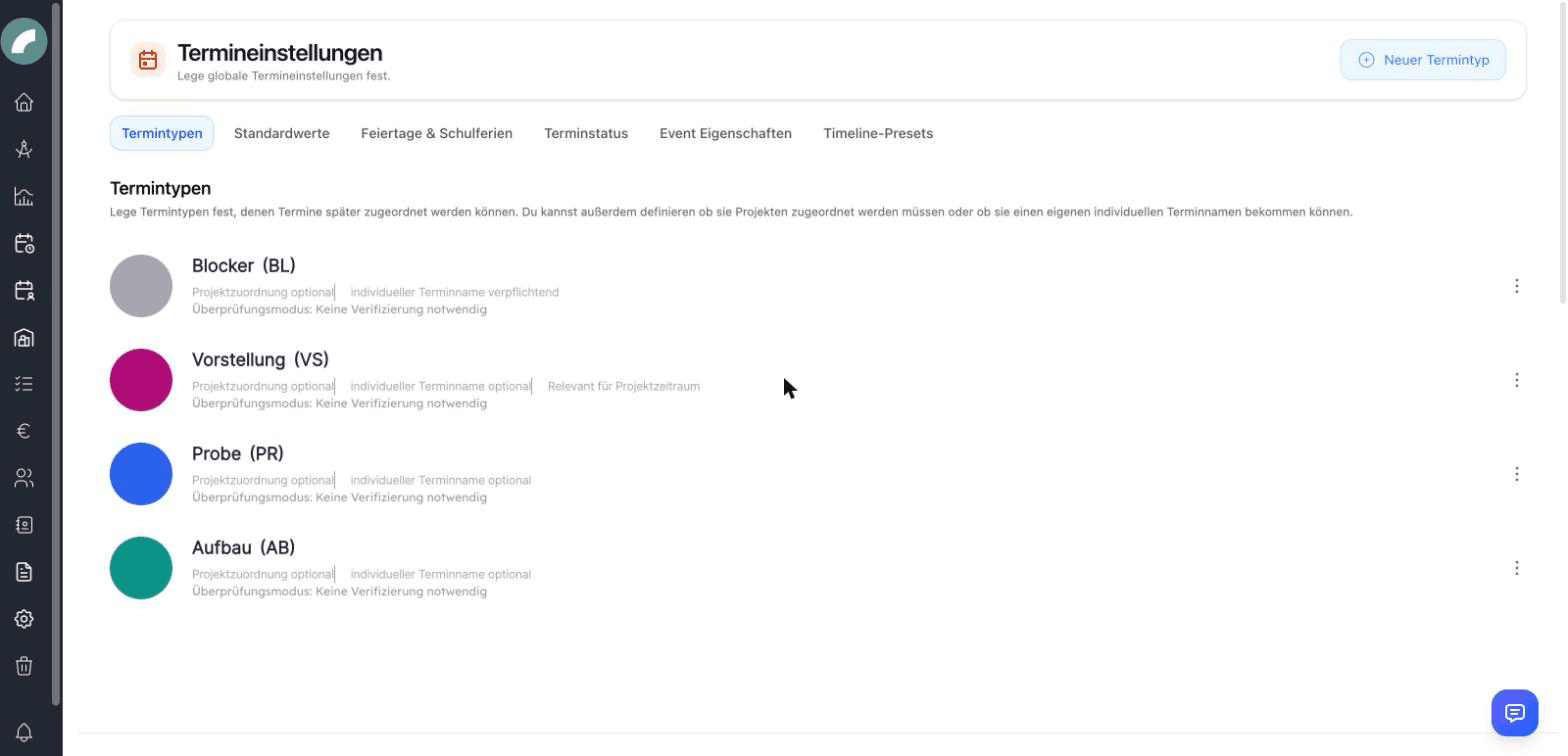
Settings map
| Area | Effect for users |
|---|---|
| Event Types | Colour, required fields, project period, and verification of planned events |
| BI Tags | Group event types for analysis; described under Business intelligence in the project |
| Standard values | Initial duration, start time, and all-day state for new events; activation of the admission field; the switch "Events always bookable directly" |
| Public holidays & school holidays | Markers in calendar, planning calendar and duty roster; special days for working-time calculation |
| Event Status | Additional processing state and optional calendar colouring |
| Event properties | Reusable characteristics, icons, and filters |
| Timeline Presets | Importable sequences within an event |
Event types
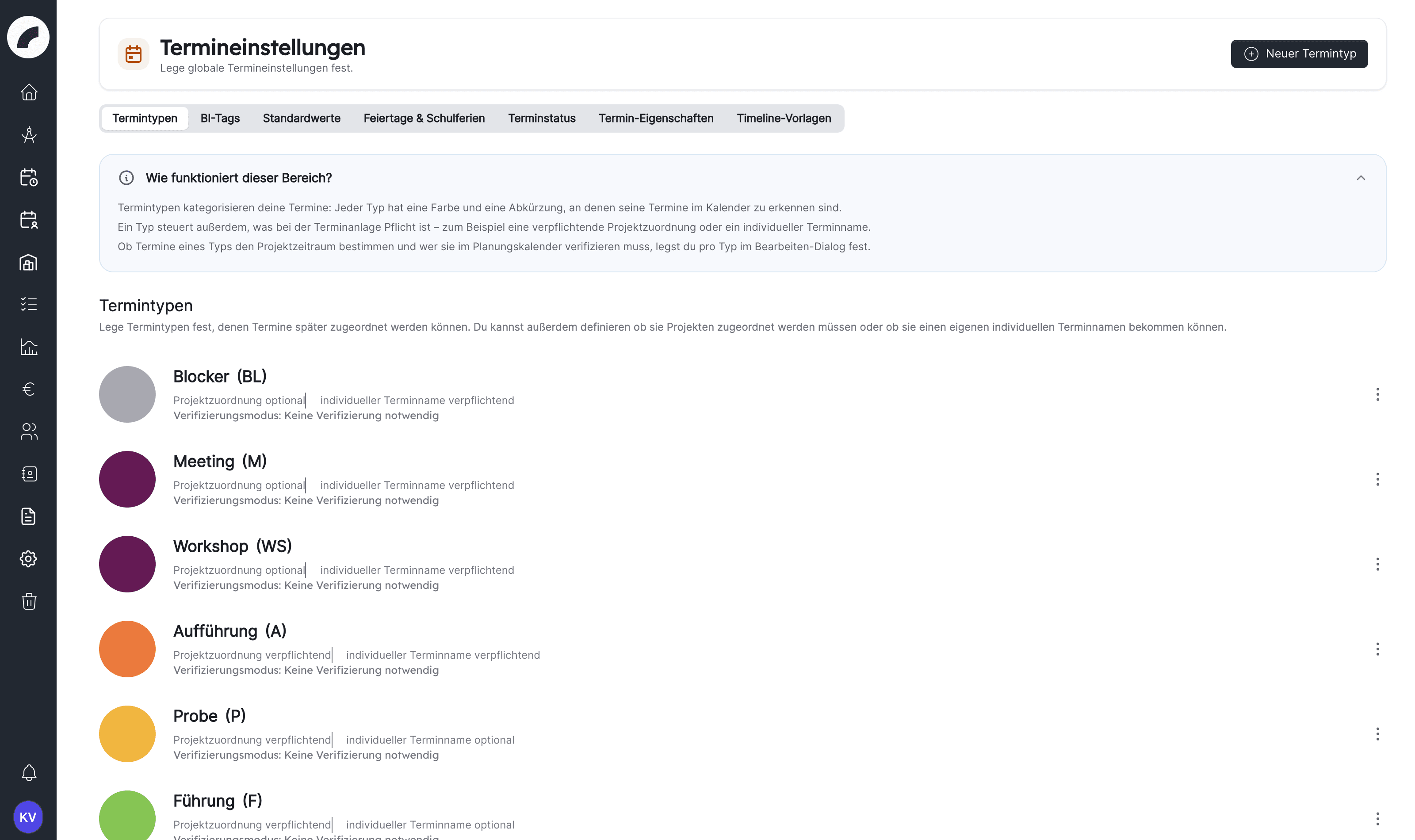
Event types categorize every event. Configurable per type:
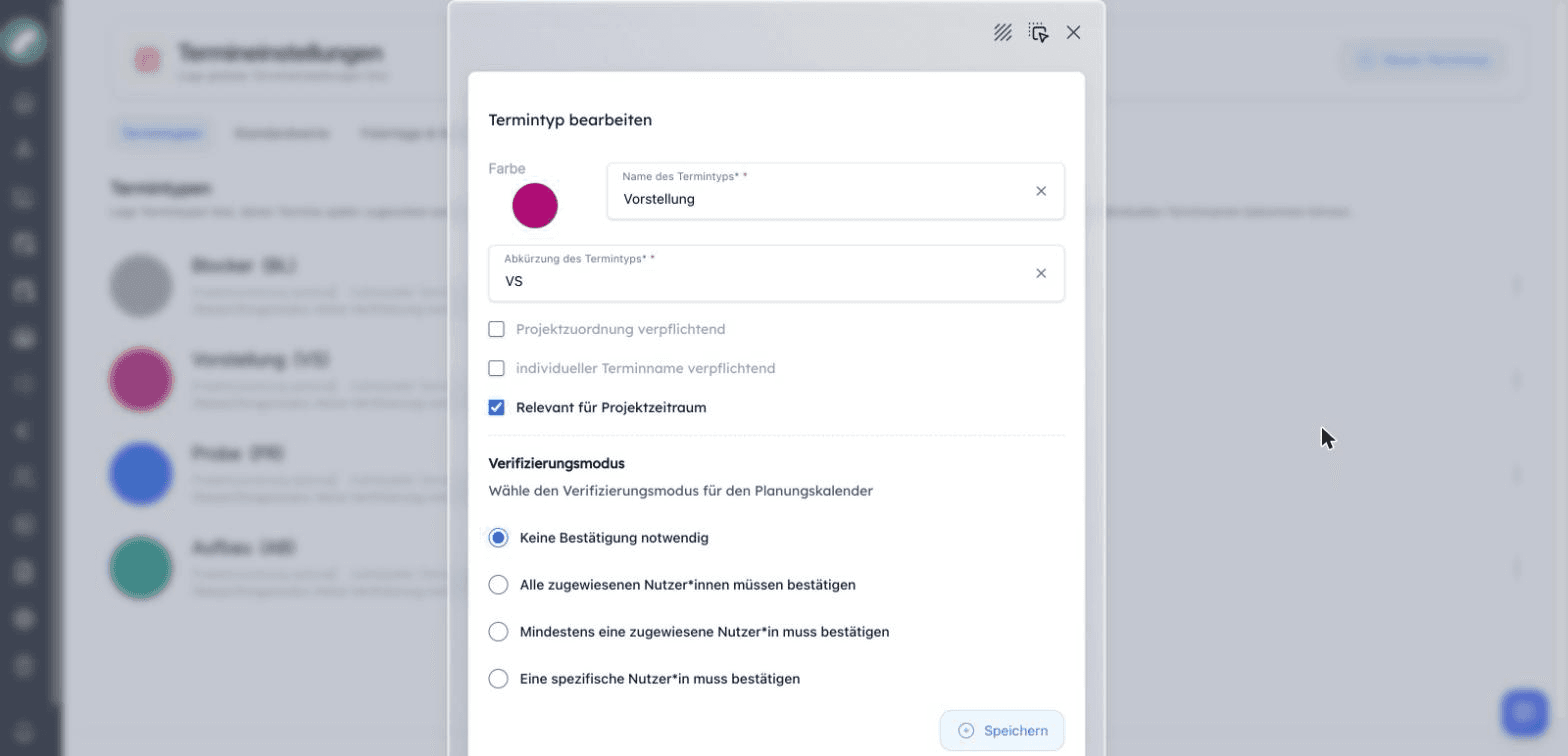
- Name, color and abbreviation (max. 4 characters) — this is how the type appears on every event card,
- Project assignment mandatory — events of this type need a project,
- Individual event name mandatory — enforces a distinct name per event,
- Relevant for project period — events of this type count towards the automatically calculated project period,
- Can sell tickets (only visible when Artwork-Tickets is active): only events of such types appear in the ticketing component of a project,
- Verification mode: whether and by whom planned events of this type in the planning calendar must be confirmed before they become fixed events: no confirmation, all named reviewers, at least one, or a specific person. The mode has no effect on events created directly in the regular calendar. If Events always bookable directly is active, the dialog hides this section; the stored configuration is kept and applies again as soon as the switch is off.
The first event type in the list is the standard event type: it can be edited but not deleted, and only events of this type can get sub-events.
The shift settings no longer offer a venue-wide setting for shift-relevant event types. Within a project the selection can still be maintained as a hint for planning, see Shift information in the project.
Event types affect more than colour. Before creating a new one, decide whether it extends the project period, requires a project, needs separate verification and should appear in shift planning. Clear names and short, distinct abbreviations make dense calendar views easier to read.
Event statuses
The optional event status module adds freely definable statuses to events (e.g. requested, confirmed, cancelled): each with a color, a sortable order and a default status for new events. The module is activated at the top of the status page; the display option Use event status colour then colors the calendar by status instead of by event type, and Event status spelled out shows the status as its own row with a colour dot on the event tile.
Event properties
Event properties are configurable attributes with an icon and a name (Publikum for audience and Laut for loud are supplied; you add others such as Catering needed yourself). They appear as checkboxes in the event form, as icons on event cards and as filters in the calendar.
Properties describe practical effects of an event and are therefore a good complement to event types. Rehearsal would be a type, for example, while loud, with audience or catering needed are properties that can occur with different types. This keeps the number of event types manageable and enables targeted room filters.
Holidays & school holidays
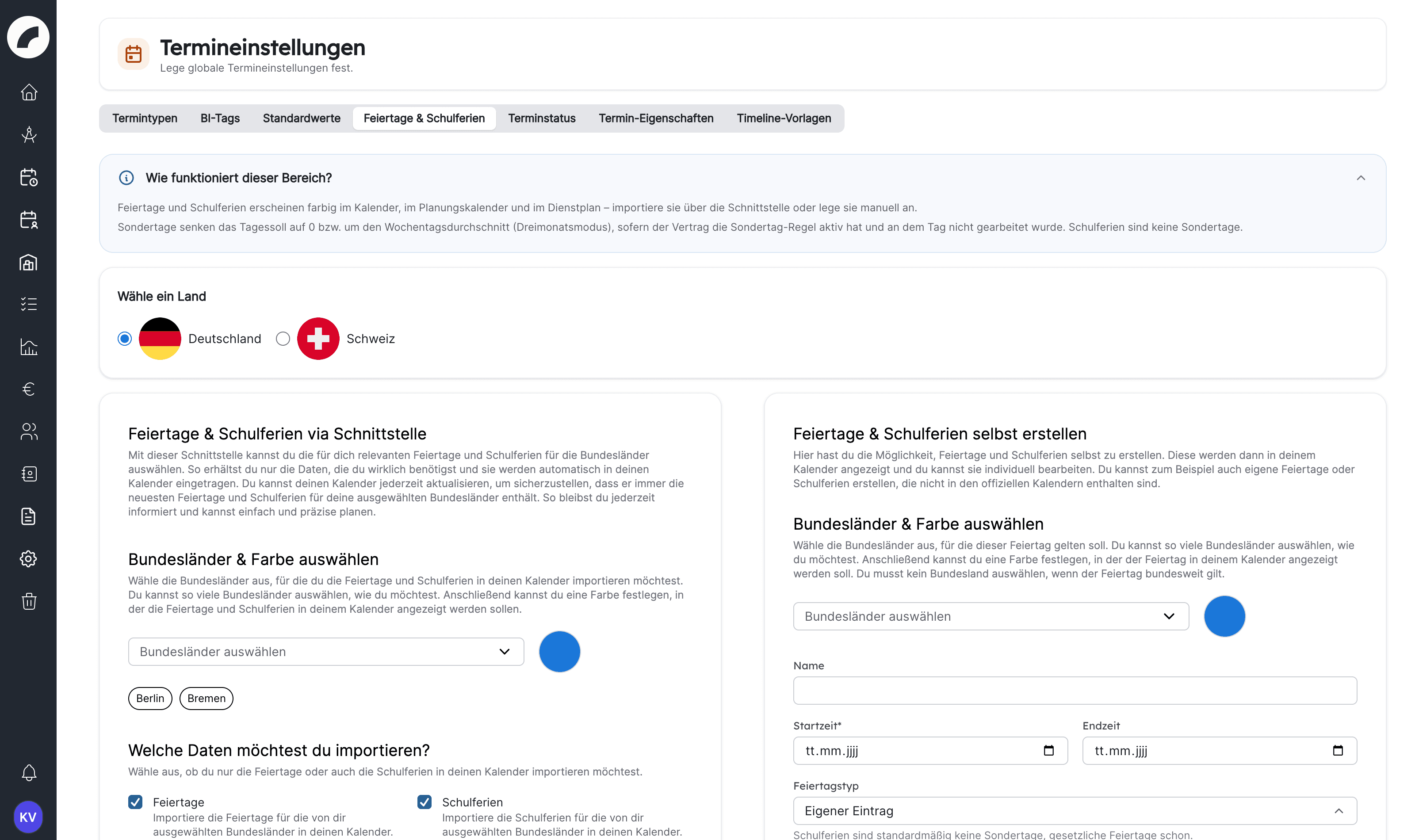
Under Public holidays & school holidays you maintain the public holidays and school vacations that the calendar, planning calendar and duty roster show in colour on the day rows. There are two ways:
- Public holidays & school vacations via interface: first the country (Germany or Switzerland), then under Select states & color any number of federal states or cantons as chips and a colour, and finally the checkboxes Holidays and School vacations. Save & Import loads the entries from the current year until the end of the year after next; identical holidays of several states are merged into one entry, and statutory public holidays are automatically marked as special days. Every new run replaces the previously imported entries with the current data; entries you created yourself are kept. On 1 January, Artwork repeats the import automatically with the saved selection so that the new following year is available (this run sets the colour to dark grey).
- Create holidays & school vacations yourself: own entries with name, start and end time, federal states (without a selection, the entry applies nationwide), colour and the switch Repeat the holiday annually / One-off public holiday.
In the table, the column Via interface shows where an entry comes from (imported via the interface or created manually); imported entries cannot be edited or deleted individually, manual ones can. Check the Special Day column after every import. If several entries fall on the same day, an entry you created yourself defines the day colour before an imported one; a differing second colour appears as hatching in the calendar.
Every entry has a Holiday type: Statutory public holiday, School vacations or Custom entry. Filter by type narrows the list down to one type.
Special days
The checkbox Treat as special day decides whether an entry counts as a special day in the duty roster's working-time calculation: on a special day without work, a person's daily target drops to 0 (or by the weekday average in three-month mode), provided their contract has the special day rule active; hours worked count normally. Statutory public holidays are special days by default, school vacations are not.
Access for shift planners
People with the permission Plan shifts open the holidays page as a read-only view and can only set the special day checkboxes there. Creating, editing, deleting and importing require the permission Event settings.
Timeline presets
The Timeline Presets tab manages reusable production schedules (get-in, soundcheck, doors, show …) that can be imported into events.
Standard values
The standard values speed up creating events: Default event duration (minutes), Default start time and Full day as default.
The optional Admission field is also activated here: when the toggle is on, an admission time can additionally be entered on events. Via a display option in the calendar, the admission then appears in the event cards above the existing time information.
The values are starting points for new events and can be overridden in the form at any time. Choose them so that the most common case needs as little input as possible without forcing special cases.
Events always bookable directly
The switch Events always bookable directly turns off room booking requests and event verification for the whole installation. When it is active, everyone who may create events books directly in the calendar, and planned events are confirmed without a review step:
- The event form no longer offers Request occupancy, the menu entry Event verifications disappears, and room admins receive no requests.
- Planned events are adopted with Confirm as fixed events without a review step; "Request verification", "Approve" and "Reject" are gone from the planning calendar. Since version 1.9.0, creating planned events still requires the permission Plan directly in the planning calendar (room admins in their own rooms do not need it).
- The room settings Can be booked by anyone and Authorized to request have no effect in the regular calendar. Request room occupancy counts like "create events" (including bulk creation and series); Plan events directly only still covers editing, declining and deleting other people's events, events without a room and timeline presets. Room admins keep editing in their rooms.
- Room page, event type dialog and notification settings hide the request and verification parts; the permissions page marks affected rights as "Without effect" or "Partly without effect".
When switching on, a dialog shows how many open room requests become firmly booked events and how many planned events with an open verification request become fixed events. Switch on and accept requests records this in the event history but sends no notifications.
Cannot be undone
The requests accepted when switching on remain fixed events even if you switch the setting off again later. The room and event type configuration, however, stays stored and applies again immediately after switching off.
Effects of changes
Central event settings apply to all users and often to existing events as well. Personal display options and saved filters remain individual. Before deleting a used event type, status or property, check which existing events reference it. When you delete an event type, all its events switch to the standard event type, including those in the trash.
Which hours the daily view hides is maintained separately under Calendar settings. Areas, rooms, capacities, and booking access are covered in Rooms, areas & booking access.
Last updated on