Event Verifications
Room booking requests and the verification workflow for events
Not everyone may simply occupy every room, and planned events should, depending on their event type, be reviewed before they become fixed. Both cases come together under Calendar → Event verifications: the inbox for incoming requests and the overview Requests sent by me.
Not used with ‘Events always bookable directly’
If the switch Events always bookable directly is active in the standard values, there are neither room booking requests nor event verification: everyone who may create events books directly, the menu entry Event Verifications disappears, and open requests are accepted when the switch is turned on. Everything else on this page applies only while the switch is off.
Both kinds of request look similar but answer different questions: for a room booking, the person responsible for the room decides. For an event verification, the reviewers assigned to the event type decide about its content. Room booking requests only exist for fixed events in the regular calendar, verification only for planned events from the planning calendar. An event therefore never goes through both: a verified planned event is firmly booked right away.
Who can book directly?
Whether an event takes effect immediately or has to be requested is decided per room:
- Rooms with "Can be booked by anyone" are open to everyone who may create events (calendar permission or a right on the room).
- Otherwise, only the room's room admins book directly — as well as users with the global permission Plan events directly (Termine fest planen) and admins.
- Everyone else with Request room occupancy (or the per-room setting Authorized to request) submits a room booking request: the save button of the event form becomes "Request occupancy" ("Belegung anfragen"), and the event appears hatched as requested in the calendar.
Room admins and users authorized to request are maintained per room under Access to room (room management); whole teams can be entered there as well, and all their members then receive the rights and notifications. If a room has no room admins, the person who created the room decides on requests. They receive the request as a notification and answer it there; the Event Verifications page does not list these requests for them. Plan events directly applies to the calendar only; in the planning calendar there are no room requests, and creating events there needs the separate permission Plan directly in the planning calendar.
Handling room booking requests
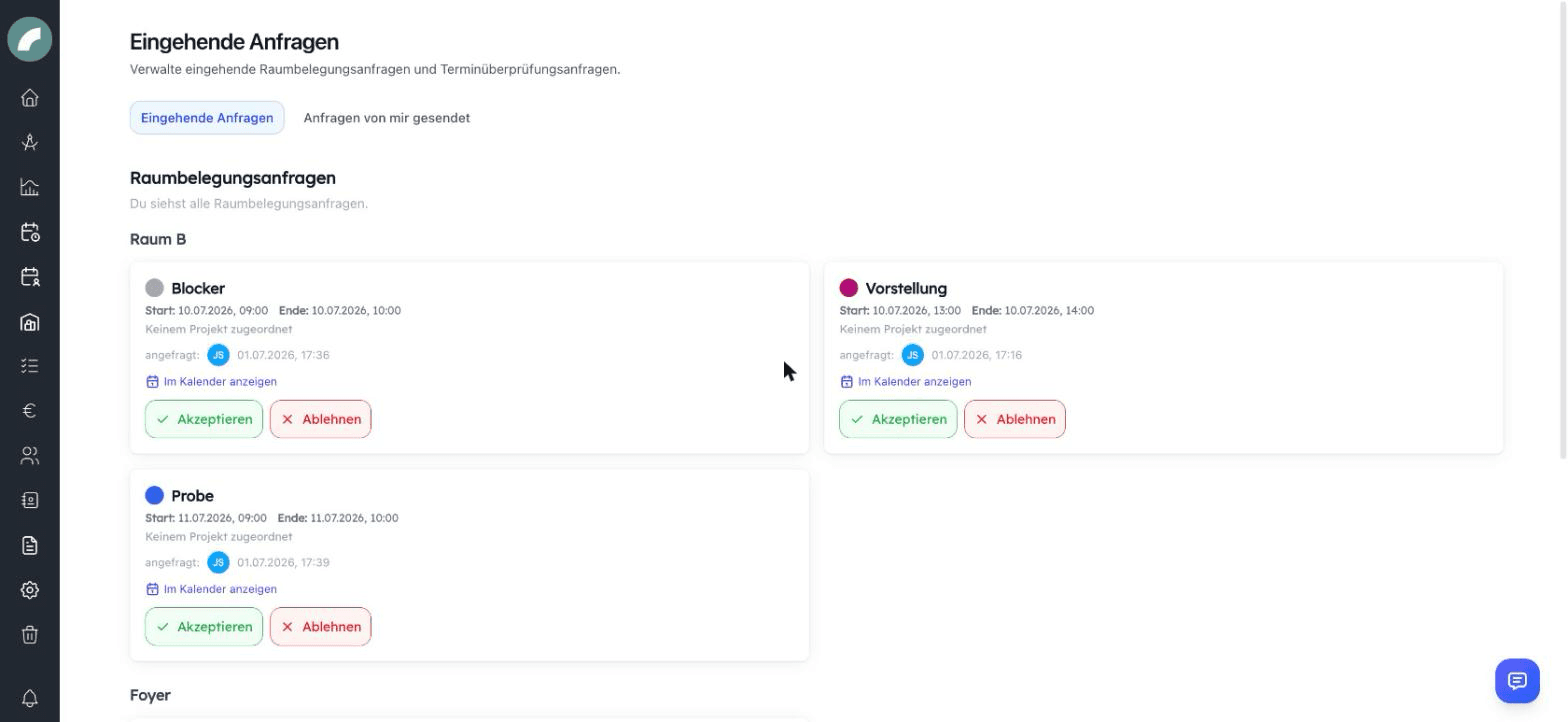
Under Event Verifications, room admins see the open requests for their rooms (admins and users with Plan events directly see all), grouped by room. For each request:
- Accept: after a confirmation prompt the occupancy becomes firm.
- Decline: the event loses its room but continues to exist. It remembers the declined room and is then listed in the calendar under Events without room.
- Show in calendar jumps to the week of the event and resets your calendar filters in the process.
The notification about the request offers the same actions. In the calendar, room admins and admins find Accept room request in the three-dot menu of the tile; Decline event declines and asks for a reason, which is sent to the requesting person as a notification.
The event dialog offers more. Open the request in the calendar or choose Edit and accept (pencil icon) in the notification. The dialog is then titled Change & confirm occupancy:
- Commitments books the occupancy firmly.
- Optional commitment also books it firmly and adds a note Option 1 to Option 4 to the event.
- Accepting in a different room: choose another room in the dialog and tick Commitments. The event does not remember the originally requested room in this case; that only happens when declining.
- A comment on the booking is sent to the requesting person as a notification. Without an acceptance the button reads Send message, and the request stays open. The requesting person can write back via Answers in the notification.
An optional commitment suits cases where the room is reserved but the event itself is not yet final. For the room occupancy it makes no difference to a regular acceptance. The note is stored on the event; in this version, however, the display settings have no switch that shows it on the tile. Therefore also record an option via the event status or the description. Comments are not shown on the event, only in the notifications.
Several requests can be accepted or declined at once via multi-edit.
The verification workflow for event types
Independently of rooms, every event type can have a verification mode. It applies to planned events of that type and controls who has to confirm them before they become fixed events. Events created directly in the regular calendar do not go through verification.
| Mode | Meaning |
|---|---|
| No verification needed | Planned events are confirmed without a review (default) |
| All assigned users must verify | Every named reviewer must approve |
| At least one assigned user must verify | One approval is enough |
| A specific user must verify | Exactly the named person decides |
Planned events are submitted for verification: individually via the three-dot menu of the tile in the planning calendar, in bulk via multi-edit, or via Requests sent by me. Whoever created the event or has Edit planned events may request. The reviewers are notified and find the requests under Event Verifications → Incoming requests in the section Verification requests for planned events, grouped by event type. There they approve or reject; Open in Calendar leads to the week of the event in the planning calendar. When rejecting, a Rejection Reason can be entered, which goes back to the requesting person. Until the decision, the tile carries the note Verification requested; a still-open request can be withdrawn.
What happens after the decision:
- Approved and rule fulfilled: the planned event becomes a fixed, firmly booked event. In the mode at least one, the remaining open requests are thereby settled.
- Rejected: the event stays planned and can be sent for verification again after a correction. In the mode all, one rejection ends the round; the remaining reviewers no longer have to answer.
- If you are a reviewer yourself in the mode all, your approval counts as given when you submit. If you are the only reviewer assigned, the event is confirmed immediately Coming with the next update. If you are the specific person or one of the reviewers in the mode at least one, the event is confirmed immediately on submitting; the action is then called Approve.
- Admins can approve any planned event directly, even without a request and even if other reviewers have not yet approved.
- If no reviewers are assigned to the event type, nothing is sent and a message says so.
For the modes all must confirm and at least one person must confirm, the status under Requests sent by me shows which responses are still missing.
Requests sent by me
The second section shows what is still awaiting a decision:
- My room booking requests lists your open room requests with the status Pending. An accepted or declined request disappears from the list; you learn the outcome from the notification. After a decline, Change request there takes you to the event so you can move it to another room, and Delete event removes it. The event is also listed in the calendar under "Events without room"; the event dialog notes the declined room.
- My Verification Requests shows the reviewers for each planned event, sorted into Approved, Rejected and Pending. You read the rejection reason by hovering over the person who rejected.
- The Planned Events card lists your planned events without an open request; Request Verification submits them from here.
Conflicts
When you select a room in the event form, Artwork shows potential conflicts with existing events live. Accepting despite a conflict is possible; the responsibility lies with the room admins. You find alternative rooms in the grid when the display setting Hide unoccupied rooms is off and you narrow the filter down to matching room categories or room attributes.
A conflict warning is not an automatic rejection. It draws attention to overlapping occupancies so that room admin and requesting person can decide deliberately. Only the selected room is checked: events in adjoining rooms do not count as a conflict. Before accepting, you should therefore look at sub-events, multi-day occupancies and adjoining rooms in the grid yourself.
Notifications and follow-up
New requests and decisions appear in your personal notifications. Comments and rejection reasons help you make the next change right away. Under Requests sent by me, the state of your verification requests remains available even after the notification has been read. Answered room requests are no longer listed there; you find read notifications in the notification archive.
Last updated on