Overview
What the calendar is and how events, rooms and approvals fit together
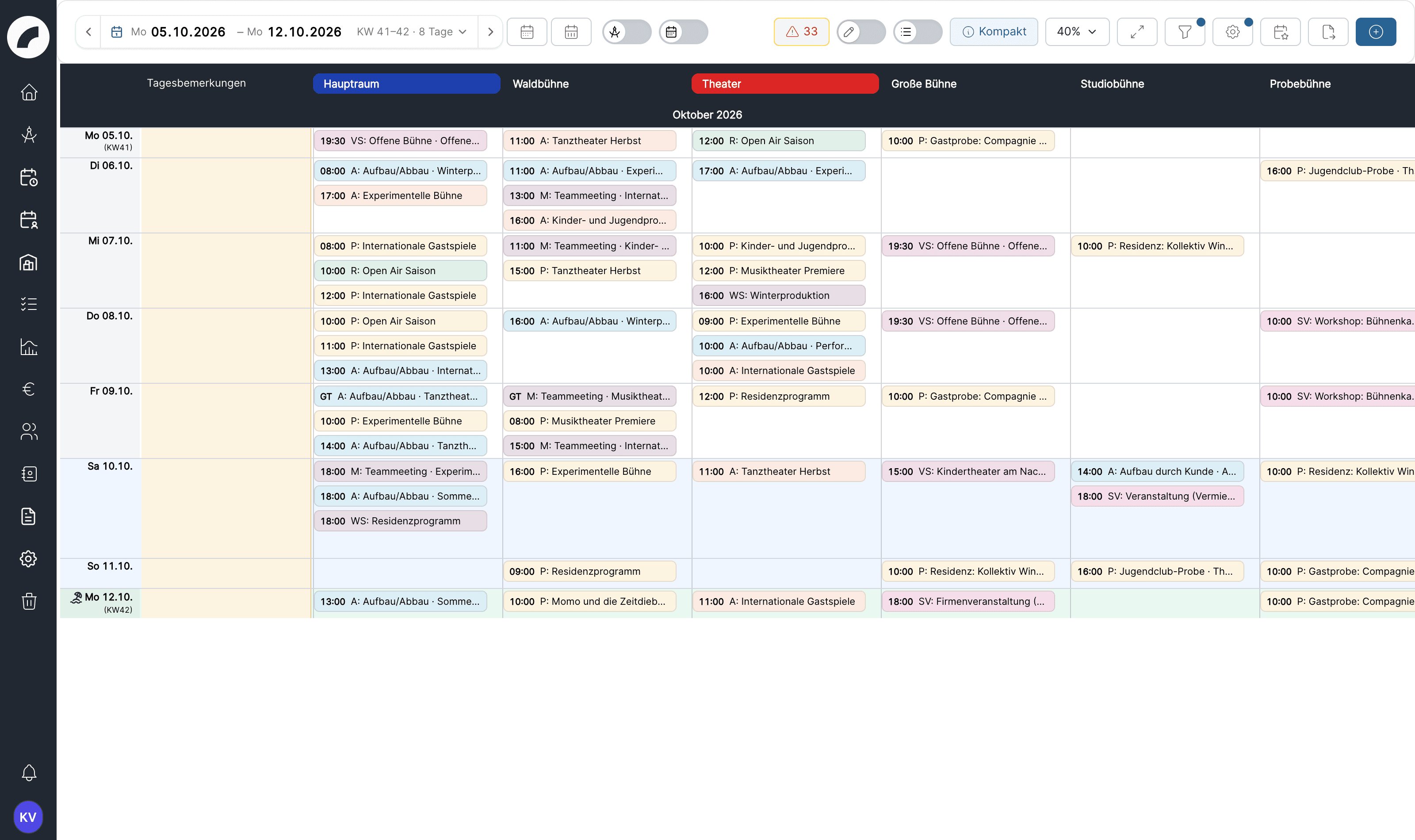
The calendar is Artwork's room occupancy and event planning module: performances, rehearsals, setups and teardowns, blockers — everything is planned as an event into a room. The grid shows days as rows and rooms as columns, so you see occupancy and free slots at a glance.
The calendar is also the starting point for project and staff planning: an event can be assigned to a project, determine its period, contain sub-events and a production timeline, and provide the context for shifts. Changes to an event are therefore immediately visible in the project and the duty roster.
Core concepts
| Concept | What it means |
|---|---|
| Event | A calendar entry with an event type, a time range (or all-day), a room and an optional project. |
| Event type | The category of an event (e.g. performance, rehearsal, setup, blocker) with a color and abbreviation — configurable, including mandatory fields and a verification mode. |
| Event status | An optional add-on module: freely definable statuses (e.g. requested, confirmed) with a color — the calendar can color events by status or spell the status out on the tile. |
| Event properties | Configurable attributes such as Publikum (audience) or Laut (loud), shown as icons on the event and available as filters. |
| Series | A repeating event with frequency, weekdays and end — changes apply to one event, to this and following events or to the whole series, see Editing series. |
| Room booking request | Anyone who may not book a room directly submits a request — room admins accept or decline. Not used when "Events always bookable directly" is active. |
| Planned event | An event in the planning calendar: provisional and invisible to regular users until it is adopted. |
The "Calendar" menu
| Menu entry | Contents |
|---|---|
| Calendar | The event calendar — the main view |
| Planning calendar | The separate space for provisional planning. Only visible with the permission View planning calendar or Edit planned events, and as long as the "Planning calendar" module is enabled. |
| Event Verifications | Incoming room booking and verification requests, plus your own sent requests. The entry disappears when the setting Events always bookable directly is active. |
A typical event workflow
Narrow down period and rooms. Choose the period you need and use filters for areas, rooms, properties, event types and project status.
Create the event. Event type, time, room, project, description and properties provide its working context. Repetitions and sub-events cover series and detailed day schedules.
Coordinate room and content. Artwork shows potential occupancy conflicts. Depending on room rights, the event is booked directly or requested from the room admins — unless your organisation has switched on direct booking for all events.
Have provisional plans verified. Provisional season planning is created in the planning calendar. A planned event becomes a fixed event through verification; the verification mode of the event type defines who has to verify.
Continue and publish. Maintain further events in the project table, create shifts in the duty roster, and pass approved information on through exports or calendar subscriptions.
Three different approvals
A room booking request asks in the regular calendar whether a room may be used. A planned event is a provisional planning-calendar entry. Event verification turns a planned event into a fixed one: it only exists for planned events, and an event confirmed this way is firmly booked without an additional room booking request. With the setting Events always bookable directly, room booking requests and event verification are dropped entirely; only the planning calendar remains as a provisional stage.
The pages of this section
The Calendar View
Navigation, zoom, filters, display settings, daily view and multi-edit.
Views & Display Settings
Which view for what, every display option explained, and recommended settings for typical tasks.
Creating Events
The event form: type, times, repetition, room, project, sub-events, editing series.
Rooms & Booking Access
Areas, room details, capacities, temporary rooms, administrators, and requests.
Event Verifications
Room booking requests and the verification workflow for events.
Planning Calendar
Plan provisionally without occupying the real calendar.
Exports & Calendar Subscription
PDF and Excel exports, season schedule, personal ICS subscription.
Calendar Settings
Define the hidden hours of the daily view and the day remarks column.
Event Settings
Configure event types, statuses, properties, holidays, defaults, and timeline presets.
Permissions
| Permission | Allows |
|---|---|
| Request room occupancy (Raumbelegungen anfragen) | Submit booking requests in all rooms, also as a series or for several cells via the calendar's multi-edit, and edit your own events |
| Plan events directly (Termine fest planen) | Book events directly in all rooms; answer room requests; edit, decline and delete other people's events; create several events at once in the project's event list; save timeline presets |
| Event settings (Termineinstellungen) | Manage the event settings |
| Calendar settings (Kalender-Einstellungen) | Manage the calendar settings |
| Room administration (Raumverwaltung) | Create, edit and delete rooms |
| View planning calendar (Planungskalender einsehen) | Open the planning calendar and see planned events, also in the regular calendar via Show planned events. Read only. |
| Edit planned events (Geplante Termine bearbeiten) | Edit, move, duplicate and delete planned events, convert fixed events to planned events, request and withdraw the verification of all planned events |
| Plan directly in the planning calendar (Im Planungskalender fest planen) | Create planned events in all rooms and request verification for your own. Independent of Plan events directly; room admins create planned events in their own rooms without this permission. |
| View day remarks (Tagesbemerkungen sehen) | See the day remarks column in the calendar, planning calendar and duty roster |
| Edit day remarks (Tagesbemerkungen bearbeiten) | Create, change and delete day remarks |
| View duty rosters (Dienstpläne einsehen) or Plan shifts (Schichten planen) | Use the display setting Show shifts in the calendar |
In addition, every room grants its own rights: room admins (edit the room and approve occupancies) and users authorized to request — see Event Verifications.
Series are not tied to a permission of their own: whoever may create an event can also repeat it. If you may only request the room, all events of the series are created as room requests.
When ‘Events always bookable directly’ is active
Everyone who may create events then books directly in the calendar. Request room occupancy acts like "create events", and Plan events directly only still covers editing, declining and deleting other people's events, events without a room and timeline presets. The permissions page marks affected rights as "Without effect" or "Partly without effect". Creating planned events still requires Plan directly in the planning calendar; they are then confirmed as fixed events without a verification step.
Last updated on