Rooms, areas & booking access
Organise rooms, model availability, and control booking requests
Rooms are more than names in a selector. Their properties, capacities, validity periods, and access rules determine where events can be planned and whether a booking is immediately confirmed or requires approval. Manage them under System → Rooms. The page is titled Rooms & areas; the calendar filter and the calendar subscription list the same entries under Areas.
Structuring areas and rooms
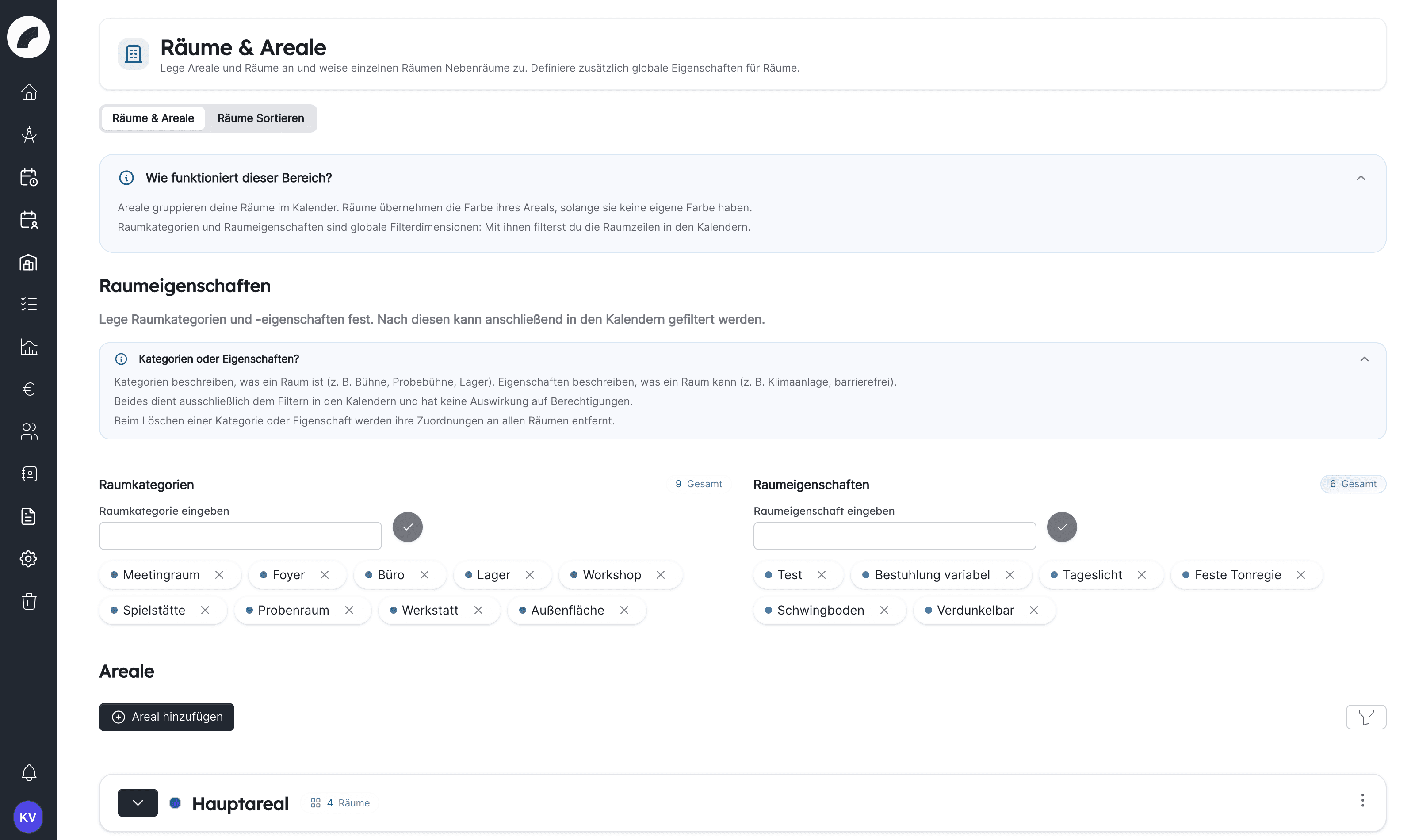
Areas organise rooms by building, location, or operational unit. Every room belongs to exactly one area, which places it in the corresponding room and calendar views. Use short, unambiguous names; make the location visible where similar names exist.
Creating an area and a room
Both require the permission Room administration.
- In the Areas section, click Add area, enter the Name of the area in the New area window and confirm with Create. You choose the colour of the area afterwards via its three-dot menu under Edit.
- Expand the area and click Add room. The room is created in this area; the New room window has no separate field for it, and neither has the Edit room dialog.
- The Room name is mandatory, for a temporary room also the end date. The other fields are described in the table under Room information. Create adds the room.
You set the colour of a room only after creating it, under Edit room. Room admins and people authorised to request are entered on the room detail page, see Understanding booking access.
Room information
| Field | Effect |
|---|---|
| Name and short description | Identifies the room in calendar, search, and detail view |
| Area | Spatial or organisational assignment; results from the area in which you create the room |
| Category | Groups rooms such as stages, rehearsal, or meeting rooms |
| Room properties | Search and selection criteria such as equipment or accessibility |
| Color | The room's own colour or Inherit color from area; visually separates the rooms in the calendar |
| Capacity | Supports planning and BI occupancy calculations |
| Adjoining rooms (adjacent rooms) | Record which rooms can affect each other. Information only, see below |
| Relevant for disposition | When the switch is off, the room appears in no calendar, shift plan or export and is missing from the room list of the calendar filter |
| Temporary room with start and end date | Limits room use to the specified date range; the room only appears in the calendar during it |
| Can be booked by anyone | Everyone who may create events books directly instead of only requesting. The switch does not grant a right to create events |
Use the short description for lasting room information. Event-specific agreements belong in the event itself.
Categories, properties, and adjacent rooms
Categories answer “what kind of room is this?”, while properties answer “what does this room offer or permit?”. A room can carry several categories and several properties; both can be filtered in the calendar (Room Categories, Room Attributes). Consistent labels make filters useful.
Adjacent-room links (labelled Adjoining rooms in the interface) record which rooms can affect each other, for example through noise, audiences, setup, or shared access. The assignment is shown on the room detail page and in the room's history.
For the calendar it is information only: an event in an adjoining room does not block a room, does not appear as a conflict in the event form and cannot be filtered separately. The help text in the room dialog says the same Coming with the next update: Adjoining rooms record which rooms are next to each other. There is no notification about loud events in an adjoining room; the notification type Side events no longer appears in the notification settings Coming with the next update. So check parallel occupancies yourself in the grid, for example with the filter for the event property Laut (loud).
Capacity and project-specific differences
The room capacity is its standard value and supports project occupancy reporting. If one production uses a different seating plan, enter a project-specific capacity in Business intelligence without changing the room for other projects.
Understanding booking access
| Role/setting | Meaning |
|---|---|
| Room admin | Can edit the room and approve or reject booking requests |
| Authorized to request | Can request a booking for this room |
| Can be booked by anyone | Whoever may create events (calendar permission or role in the room) books directly instead of requesting |
The help text at the switch says Coming with the next update: Decides whether everyone who may create events books this room directly or only the room admins. If it is off, the others can only request the room.
Under Access to room, whole teams can be entered as room admins or as authorized to request in addition to individual people; all members then receive the rights and the notifications. If a room has no room admins, the person who created the room decides on requests.
A person can be a room administrator, requester, or both. If the room is not generally bookable, the event remains a request until a room administrator decides it.
No effect with ‘Events always bookable directly’
If the switch Events always bookable directly is active in the event settings, everyone who may create events books every room directly in the normal calendar. Can be booked by anyone and Authorized to request have no effect there. The room page shows a notice; the fields stay editable and apply again as soon as the switch is off. Room admins may still edit and delete other people's events in their room; only answering requests is dropped.
In the planning calendar, Can be booked by anyone keeps its effect: in such rooms everyone who may create events creates planned events. In all other rooms this needs Plan directly in the planning calendar or the room admin role.
Calendar and room permissions work together
Room admins and users authorized to request create events in their room even without the calendar permission Request room occupancy: via the plus in the room cell. Can be booked by anyone alone is not enough, however. Someone with neither a calendar permission nor a right on the room sees a notice instead of Save in the form Coming with the next update: To create events you need a calendar permission or a role as room admin or requester in this room. The bulk actions in the calendar then create nothing either, neither directly nor as a request. Likewise, calendar access does not automatically permit confirmed booking of every protected room.
Temporary rooms
Temporary rooms suit guest venues, outdoor areas, and rented locations. Set the first and last available date. Artwork checks that an event—including an overnight or multi-day event—fits fully within this period.
Room detail, history, and cleanup
The room detail combines description, area, categories, properties, adjacent rooms, validity, and access. View history lists who changed the name, description, categories, properties, adjoining rooms, room admins or the validity period, and when. Description, Access to room, Room properties and Documents sit directly on the page and are edited via the pencil icon. The pencils are only visible to people with Room administration, admins and the room admins of the room.
Duplicate (copy icon on the room card, three-dot menu, or room detail page) creates "(Copy) room name" in the same area and takes over the master data: colour, description, validity period, capacity, and the switches for direct booking and scheduling relevance. Categories, properties, adjacent rooms, room administrators, files, and events are not copied – you maintain them anew on the copy. An area can also be duplicated via its menu, then including all its rooms.
Deleted rooms first move to the trash and can be restored. If you delete an area, all its rooms move to the trash with it. Only delete permanently after checking how existing events and reports refer to the room.
Sorting rooms
The Sort rooms tab under System → Rooms lists all rooms regardless of their area. Drag them into the desired order; every change is saved immediately. This order applies to all users and determines the room columns or rows in the calendar, planning calendar and duty roster as well as in the exports.
When a room cannot be booked as expected
- Is Relevant for disposition switched on for the room, and does no filter hide it?
- For a temporary room, does the complete event fit its validity period?
- Does the user have a calendar permission (Request room occupancy or Plan events directly), or are they entered on the room as room admin or authorized to request?
- Is Events always bookable directly active? Then the room's request settings do not apply, and everyone with a create permission books directly.
- May they request this room, or is it directly bookable?
- Is room-administrator approval still pending?
- Does the event overlap an existing booking?
- Is something scheduled in parallel in an adjoining room? Artwork does not check this automatically.
Recommended maintenance
- Assign room administrators before opening a protected room for requests.
- Update capacities and properties after alterations.
- Review validity periods for temporary rooms.
- Move unused rooms to the trash before permanent deletion.
- After changing access, test the intended direct-booking or request workflow with a requester account.
Last updated on