Views & Display Settings
Which calendar view suits which task, what each display option does and in which view it applies, plus recommended settings for typical tasks
You can adapt the calendar to your way of working in many respects. Almost all of it sits in two places of the function bar: the zoom and the gear (display settings). This page explains every option, says in which view it applies and suggests settings for typical tasks. How to use the calendar in general is described in The Calendar View.
Display settings are personal
Everything on this page applies only to you and stays saved across sessions. Other users see the calendar with their own settings. What display settings do not do: they change no events and do not restrict what others see.
Which view for what?
| View | How to get there | Best used for |
|---|---|---|
| Grid (default) | Open the calendar | Comparing several days and rooms, spotting free space, moving events by drag & drop. |
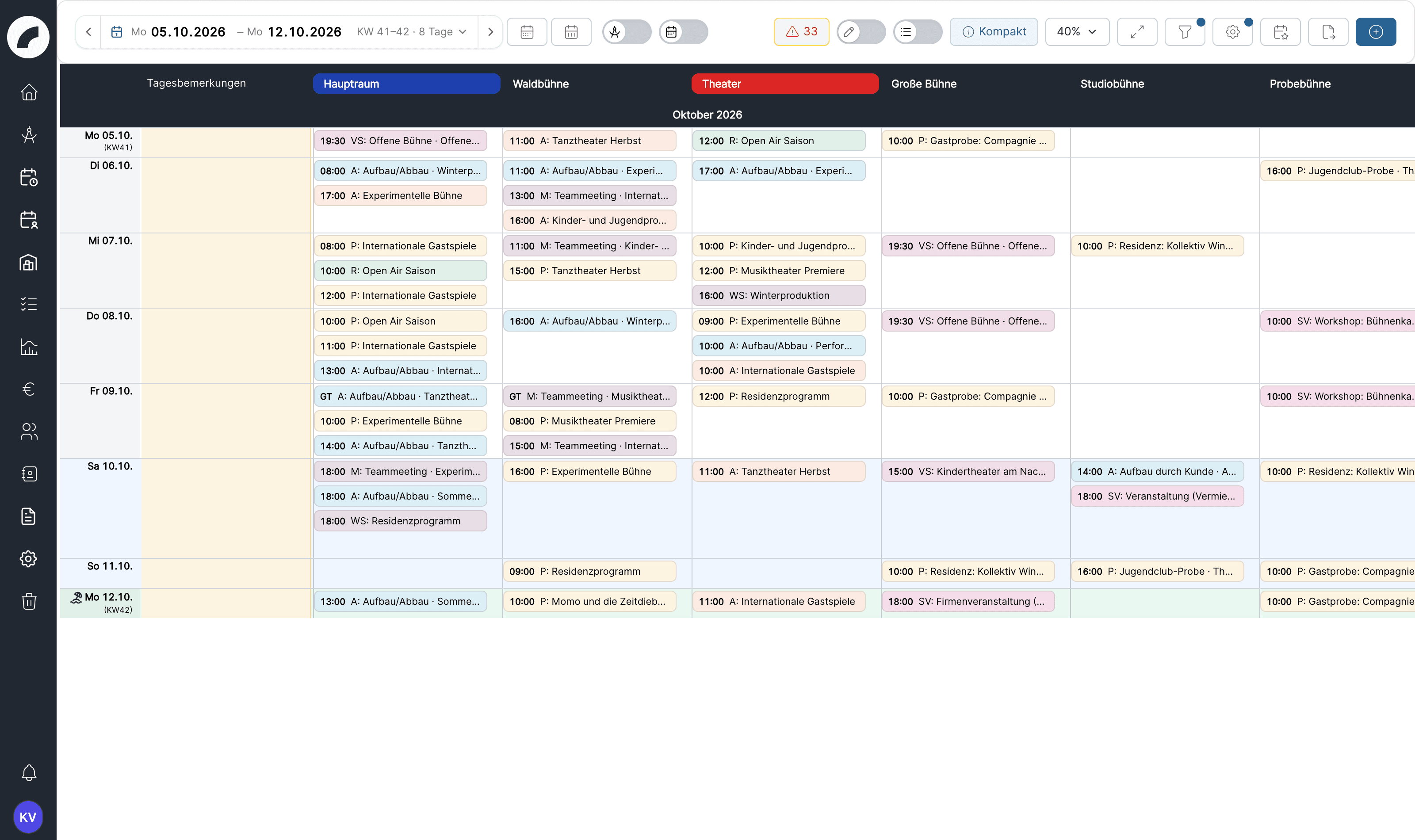
| Month view | Zoom dropdown → Month view (40%) | Reviewing a whole month at a glance; tiles appear in compact mode. |
| Daily view | Switch Switch between weekly and daily view | Time overlaps within a day, the schedule on a show day; a maximum of 31 days. |
| At a glance | Switch At a glance | Comparing room utilisation over the period: one column per room, all events listed below each other, without day rows. |
| Project period | Switch Project search, then choose a project or artist | Working only on the events of one production in its automatically calculated period; other events stay visible for orientation. |
| Planning calendar | Menu Calendar → Planning calendar | Planning provisionally without colleagues seeing the drafts in the calendar — see Planning Calendar. |
Zoom, fullscreen, daily view and "At a glance" only change the presentation. Filters and project period, on the other hand, change which content is shown — this matters before an export, because exports adopt the active filters.
Zoom, compact mode and room column width
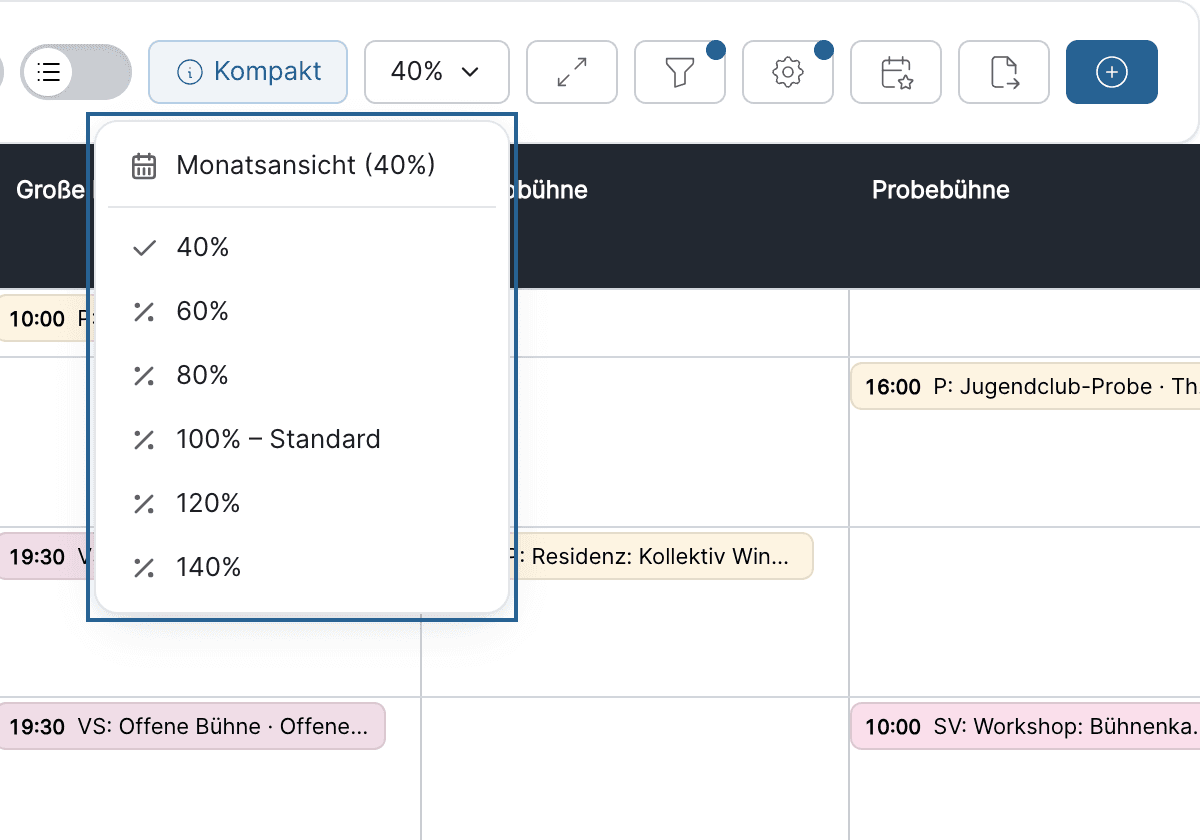
The percentage dropdown in the function bar offers the levels 40 %, 60 %, 80 %, 100 % (default), 120 % and 140 %. The first entry, Month view (40%), also jumps to the start of the month of the currently visible range. Alternatively, zoom with Ctrl (Windows) or Cmd (Mac) + mouse wheel over the calendar.
Important to understand: the zoom only controls the row height, i.e. how many days fit on the screen. The width of the room columns stays the same at every level; you set it separately via Room column width in the display settings (Narrow 160 px, Standard 212 px, Wide 280 px, Very wide 320 px).
Below 80 %, the calendar switches to compact mode, recognisable by the Compact chip in the function bar:
- Every tile becomes one line with time and title. The title is the event
name, otherwise the project name, otherwise the event type; the event
type abbreviation precedes it (for example
SET: Stage setup). - A click on the tile opens the event directly; the three-dot menu is not available in compact mode.
- Hovering shows a tooltip with all details.
- The options under Event Content (see below) only affect the large tiles from 80 % upwards.
In the daily view, the zoom instead determines the height of the hours and the width of the room columns; "Room column width" does not exist there.
Display settings in detail
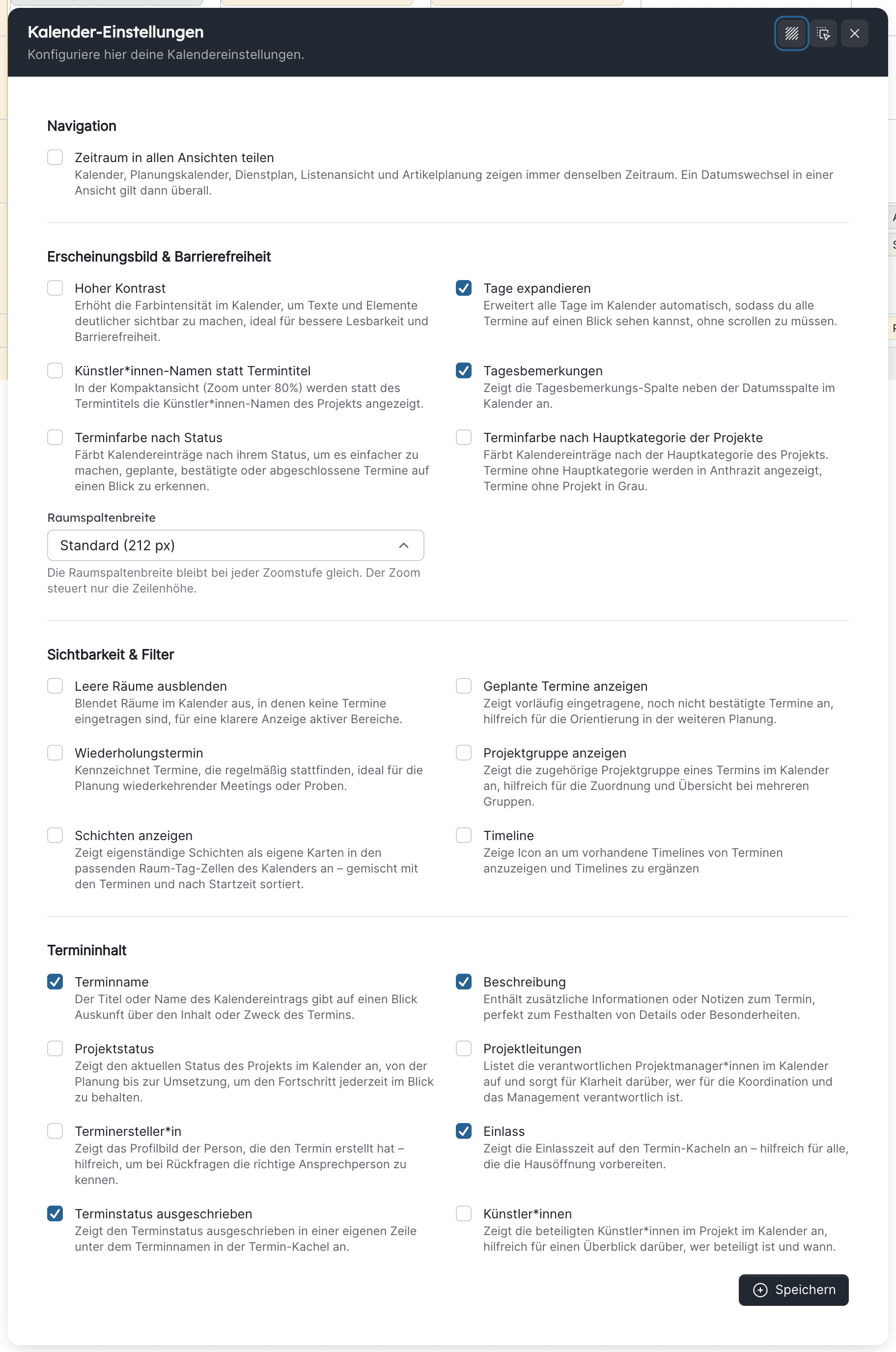
The gear opens the Calendar Settings window. It shows only options that actually take effect in the view that is currently open; that is why the daily view has fewer checkboxes than the grid, and the planning calendar an additional section. Changes apply after Save. A dot on the gear indicates that at least one option is switched on (options that are on by default and "Share time period across views" do not count).
The Applies in column uses these abbreviations:
| Abbreviation | View |
|---|---|
| C | Calendar (grid) |
| CD | Calendar daily view |
| P | Planning calendar (grid) |
| PD | Planning calendar daily view |
Navigation
| Option | Effect | Applies in | When useful |
|---|---|---|---|
| Share time period across views | Calendar, planning calendar, duty roster, duty roster list view and article planning always show the same period. When you switch it on, all views adopt the period of the view you are currently in. When it is off, each view remembers its own period. | all | When you switch back and forth between calendar and duty roster and do not want to navigate anew every time. Switch it off if, for example, you look at next week in the duty roster and at the season in the calendar. |
Appearance & Accessibility
| Option | Effect | Applies in | When useful |
|---|---|---|---|
| High contrast | Stronger colours for grid lines, weekends, holidays and tiles. Text on coloured areas switches to white only on really dark shades. | C, CD, P, PD | With light event colours, on a projector or for visual impairments. |
| Expand days | Day rows grow until all events are visible. Off: fixed row height, each cell scrolls on its own. | C, CD, P, PD | For rooms with many events per day. Switch it off for the month view, otherwise the month does not fit on the screen. |
| Artist names instead of event title | In compact mode (below 80 %), the tile shows the project's artists instead of the event title. | C, P | For guest-performance venues and festivals where the artists say more than the event title. |
| Day remarks | Shows the day remarks column next to the date column. Only appears if the column is enabled in the calendar settings and you have View day remarks. If your administration has made the column mandatory, the checkbox is locked and always on. Default: on. | C, P | Switch it off if you need space and the notes play no role in your work. |
| Use event status colour | Colours tiles by event status instead of event type. Only with the event status module active. Excludes "by main category". | C, CD, P, PD | When the confirmation state (requested, confirmed, cancelled) matters more than the kind of event. |
| Event colour by main category | Colours tiles by the project's main category. Events without a main category appear anthracite, events without a project grey. Excludes "by status". | C, CD, P, PD | For venues that work in divisions (drama, music, rentals) and want to read the calendar that way. |
| Room column width | Width of each room column, independent of the zoom (see above). Default: 212 px. | C, P | Narrow for many rooms side by side; Wide or Very wide when tiles carry a lot of content (description, artists). |
Where does a tile's colour come from?
If neither colour option is active, every tile carries the colour of its event type. The two colour options cannot be active at the same time: switching one on switches the other off. The same logic controls the colours in the exports.
Visibility & Filters
| Option | Effect | Applies in | When useful |
|---|---|---|---|
| Hide unoccupied rooms | Rooms without events in the visible period disappear from the grid. Shifts do not count as occupancy in the calendar. | C, CD, P, PD | With many rooms of which only a few are in use; for printouts and presentations. Switch it off when you are looking for free rooms. |
| Show planned events | Shows provisional entries from the planning calendar in the normal calendar. Only with View planning calendar or Edit planned events. | C, CD | For schedulers who want to check fixed and planned occupancy together without opening the planning calendar. |
| Repeat event | Marks events that belong to a series with a repeat icon. | C, CD, P, PD | Whenever you want to know while editing whether a change affects a series. |
| Show project group | Shows the project group (e.g. the festival) on the tile. | C, CD, P, PD | For project groups with many individual projects. |
| Show shifts | Stand-alone shifts appear as separate cards in the room/day cell, mixed with the events and sorted by start time. Only with the permission View duty rosters or Plan shifts. | C, CD, P, PD | For technical and craft managers who want to see in the calendar where staff are scheduled. The filter Only show shifts that are not fully staffed goes well with it. |
| Timeline | Shows an icon on tiles through which you open and extend the event's timeline. | C, CD, P, PD | For venues that maintain daily schedules (admission, start, interval, end) in artwork. |
Event Content
These options determine what appears on the large tiles (from 80 % zoom). The more you switch on, the taller the tiles become; with Expand days everything still stays readable.
| Option | Effect | Applies in | When useful |
|---|---|---|---|
| Event name | The name of the event. Default: on. If there is no name, the tile shows the project or event type. | C, CD, P, PD | Switch it off only if your events have no names of their own and project name plus event type are enough. |
| Description | The description text of the event. Truncated texts show the full wording on hover. | C, CD, P, PD | For show days and for venues that keep notes directly on the event. |
| Project Status | The status of the associated project (for instance in planning, confirmed). | C, CD, P, PD | When the calendar also shows projects that are not yet certain to take place. |
| Project managers | The project managers of the project. | C, CD, P, PD | For queries from technical and administrative staff. |
| Event creator | The profile picture of the person who created the event. | C, CD, P, PD | In venues where many people create events. |
| Admission | The admission time on the tile. Only if the admission field is enabled. Default: on. | C, CD, P, PD | For admission, box office and evening duty. |
| Event status spelled out | The event status as its own row with a colour dot below the name. Only with the event status module active. | C, CD, P, PD | When you want to read the status without switching the tile colour to it. |
| Artists | The project's artists. | C, CD, P, PD | For guest performances and concerts. |
Planning Mode
| Option | Effect | Applies in | When useful |
|---|---|---|---|
| Show fixed events | The planning calendar normally shows only planned events. With this option, the fixed events of the calendar appear as well. | P, PD | When planning against the real occupancy, to spot collisions early. |
What is saved where?
The settings are saved per user, but not every view has its own set. This explains why a change sometimes takes effect in more places than expected:
| Setting | Shared by |
|---|---|
| All checkboxes of the gear and the room column width | Calendar and planning calendar (grid) share one set; the two daily views share a second one. |
| Zoom, "At a glance", weekly/daily view switch | Calendar and planning calendar together; independent of the duty roster. |
| Period and filters (including saved filters) | Each of the four views on its own: calendar, calendar daily view, planning calendar, planning calendar daily view. With Share time period across views, one shared period applies. |
| Project period (project search) | Grid views together, daily views together. |
So if you set Hide unoccupied rooms in the planning calendar, you will also see that in the normal calendar afterwards.
Recommended settings for typical tasks
The following combinations have proven themselves. They are starting points, not rules.
Goal: see occupancy and free space for the coming weeks, move and create events.
- Grid, zoom 100 %, room column width Standard
- Expand days on, so that full days are not cut off
- Event name, Project Status and Repeat event on
- Hide unoccupied rooms off, so that free rooms stay visible
- Filter: only the areas you schedule
Filter or display setting?
Both sit next to each other in the function bar, but they do different things:
- A filter decides which rooms and events are loaded. It also affects exports and can be stored as a saved filter.
- A display setting decides how the loaded content looks. It does not affect other people and is adopted in exports only as a preset that you can change there.
If you cannot find an event, first check the active filters (tags in the filter panel, dot on the funnel), then Hide unoccupied rooms and the period.
Last updated on