Planning Calendar
Plan provisionally without occupying the real calendar
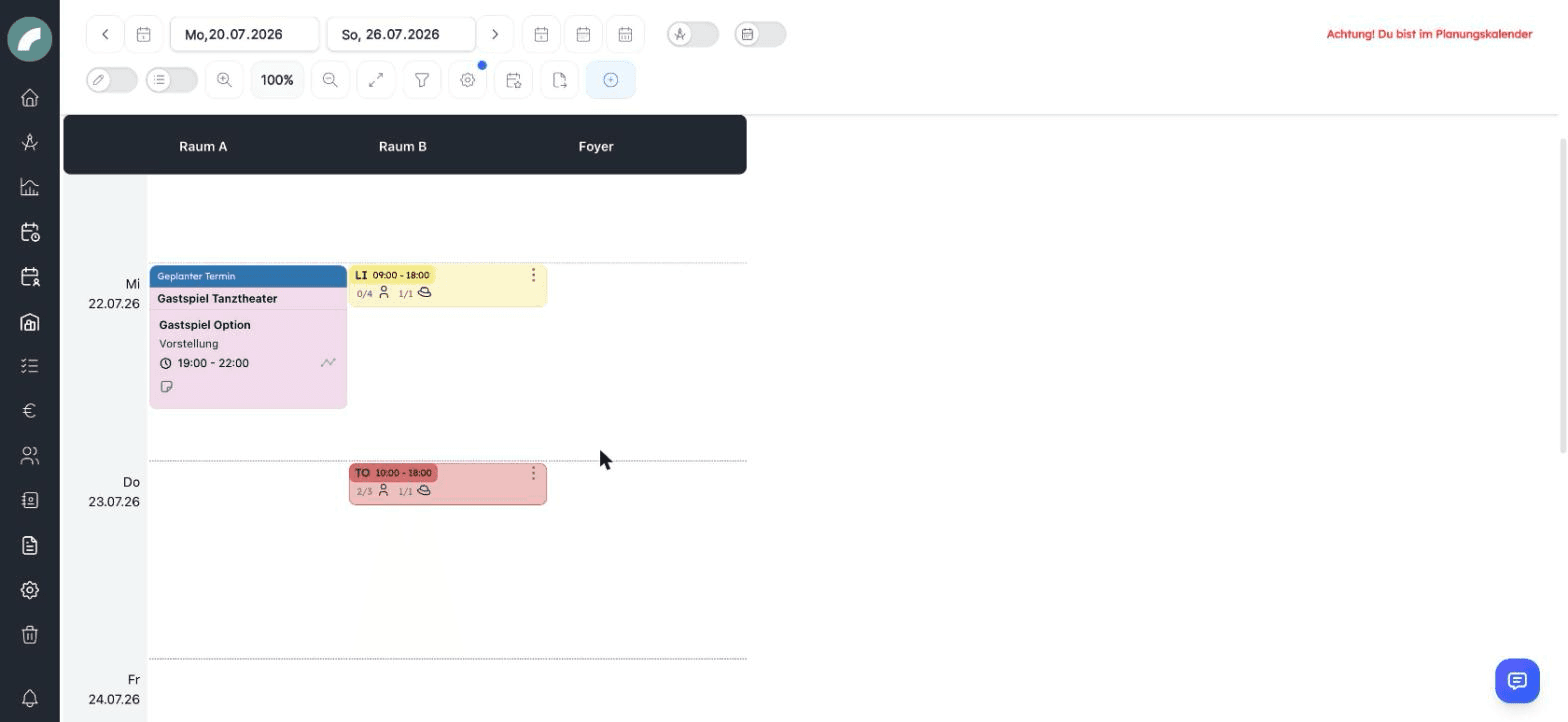
The planning calendar (Calendar → Planning calendar) is a separate space for provisional planning — for instance the season planning for next year. It looks like the normal calendar, but:
- Events here are planned events: they do not occupy rooms bindingly and are invisible to regular users until they are adopted as fixed events.
- A red warning "Attention! You are in the planning calendar" in the function bar prevents mix-ups.
- The planning calendar has its own filters and display options — saved filters and display settings of the normal calendar remain untouched. The Project status filter applies here as well. The option Show fixed events shows the real occupancies for orientation.
- Multi-edit can do the same as in the normal calendar: duplicate events into selected cells, create (individual) events in several cells at once, and move selected events into one cell — see Multi-edit. Moving, duplicating and deleting require Edit planned events here.
- Planned events are never room requests: they are always created as firmly planned and appear neither in the calendar subscription nor for people without a planning calendar permission, not even in the duty roster.
Typical uses include season drafts, unconfirmed guest performances and alternative room plans. Entries can already contain project, properties, description and times without filling the binding calendar for all users.
From plan to real event
Plan. Anyone with Plan directly in the planning calendar creates planned events here, with the same handling as in the event form. Room admins can do so in their own rooms without this permission, and in rooms with Can be booked by anyone so can everyone who may create events. View planning calendar alone only allows viewing, and the calendar permission Plan events directly is not sufficient: the form then shows the notice "You lack the permission 'Plan directly in the planning calendar' to create planned events in this room."
Request verification. Whoever created the planned event or has Edit planned events sends it for verification with Request verification: individually in the three-dot menu of the tile, in bulk via multi-edit, or under Event Verifications → Requests sent by me. Who has to verify is defined by the verification mode of the event type. If the event type needs no verification or your own approval would be enough (you are the designated verifier or one of the verifiers in the mode at least one), the action is called Approve and confirms the event immediately.
Become visible. As soon as the verifiers have approved, the event becomes a normal, firmly booked calendar entry; no additional room booking request is created. After a rejection it stays planned and can be sent for verification again. You take back an open request with Withdraw verification request. Conversely, Convert to planned event (three-dot menu, with Edit planned events) turns a fixed event back into a planned one; an open room request is withdrawn in the process.
Before adopting, check whether room, event type, project and times still match the current planning state, because the confirmed event occupies the room bindingly right away. Admins can approve planned events directly at any time, even without a requested verification. If no verifiers are assigned to the event type, the request is not sent and a message says so.
No review step with ‘Events always bookable directly’
If Events always bookable directly is active in the standard values, there is no verification: instead, Confirm as fixed event (tile) or Confirm as fixed events (multi-edit) turns planned events into fixed events immediately. "Approve" and "Reject" no longer appear. Creating planned events still requires Plan directly in the planning calendar.
Projects with a planning status
A project status can be marked centrally as a planning status (the switch Project counts as "in planning" on the project status). The mark does not turn the events of a project into planned events by itself. It only presets the switch for planned events in the event entry of the project (schedule and Set up events during creation): new rows are created there as planned events as long as you do not change the switch. Events you create in the calendar do not follow the project status, and existing events stay as they are.
If a project changes to such a status, the dialog Project status change asks whether all events of the project should become planned events (Convert to planning events). If the project changes to a status without this mark, the dialog Project status change asks whether verification should be requested for all planned events of the project (Request event verification; with "Events always bookable directly" Confirm as fixed events). Both require Edit planned events.
Seeing planned events in the normal calendar
Planners can show planned events in the normal calendar too, via the display option Show planned events — as dashed cards, clearly distinguished from fixed events.
Fixed events as a reference
The display option Show fixed events overlays the real bookings in the planning calendar as a reference. They are not converted into planned events and cannot be adopted here by accident. Use the overlay to develop alternatives without overlooking existing occupancies.
Permissions
| Permission | Allows |
|---|---|
| View planning calendar (Planungskalender einsehen) | Open the planning calendar and see planned events (read only); also unlocks the display option Show planned events |
| Edit planned events (Geplante Termine bearbeiten) | Edit, move, duplicate and delete planned events, convert fixed events to planned events (also all events of a project), and request and withdraw the verification of all planned events. Only applies to planned events, not to fixed ones. |
| Plan directly in the planning calendar (Im Planungskalender fest planen) | Create planned events in all rooms and request and withdraw verification for your own. This permission alone does not allow editing planned events of others. |
Approving and rejecting does not depend on any of these permissions but on who is assigned as verifier on the event type. Opening the planning calendar requires View planning calendar or Edit planned events; Plan directly in the planning calendar alone does not open it.
The "Planning calendar" module is switched on and off in the tool settings on the tab Module visibility. When it is off, the menu item is missing and the page is closed for admins as well. Planned events that already exist are kept and can still be shown in the normal calendar via Show planned events by anyone with a planning calendar permission.
Since version 1.7.7, Plan directly in the planning calendar is independent of Plan events directly: calendar and planning calendar are permitted separately. Anyone who only has Plan events directly cannot create planned events in the planning calendar. Since version 1.9.0 this also applies when the switch Events always bookable directly is active, and View planning calendar only allows viewing.
Last updated on