The Calendar View
Working with the event calendar — navigation, filters, display settings, daily view and multi-edit
Open the event calendar via Calendar → Calendar in the sidebar. The grid shows days as rows (grouped by calendar week) and rooms as columns; each cell contains that room's events on that day as colored cards with the type abbreviation and time.
Click a room heading to open its room view. Long room names wrap onto up to two lines in the header; if a name is still truncated, hover to see it in full. Clicking an event card opens the event — read-only if you have no edit rights, otherwise as an editable form. The project symbol on a card links directly to the associated project.
The function bar
The time range and the view switches sit on the left, the tools on the right:
| Element | Function |
|---|---|
| Time range | Two directly editable date fields with the weekday, followed by the calendar weeks and number of days (e.g. "CW 12–14 · 21 days"). The arrows Time range back / forward shift the range by its own length, or by one month for a whole month. The calendar icon opens Select period with the mode chips Day, Week, Month and Free selection, the quick selection (Today, Current week, Current month, Current year, Next 7/14/30/90 days, Next 12 months) and two month calendars; clicking a calendar week number selects the whole week. Keyboard: when the time range bar has focus (not inside a date field), ←/→ page and T jumps to today. In the open window, Enter applies the selection and Esc closes it. The calendar shows at most 2 years; longer ranges are cut to 2 years from the start date. |
| Current week / Current month | Jumps to the common time ranges; Current month also takes you from the daily view back to the grid. |
| Jump to month | Appears as soon as the range spans several months: a click scrolls to the first day of the selected month without changing the range. Not in "At a glance" and not in the project period. |
| Daily view | Hour-based detail view — limited to a maximum of 31 days. |
| At a glance | Compact list display of the events. |
| Project period | Couples the calendar to a project: search for a project or artist, and exactly its period is shown. |
| Zoom | Dropdown with the levels 40–140 % and the entry Month view (40%); alternatively Ctrl/Cmd + mouse wheel over the calendar. Below 80 %, compact mode applies — see Views & Display Settings. |
| Multi-edit | Select several events and edit them in bulk — see below. |
| Display settings (gear) | Personal display options — fully explained under Views & Display Settings. |
| Filter (funnel) | The filter panel — see below. |
| Export | PDF/Excel exports — see Exports. |
| Subscribe to calendar | Personal ICS feed — see Exports. |
| Fullscreen | Fullscreen mode on/off. |
| Add Event (plus) | Opens the event form without a preselected room. |
If the browser window is narrower than 1536 pixels, only the filter, the display settings and Add Event stay directly visible. Zoom, fullscreen, Subscribe to calendar and Export calendar then sit in the More options menu.
If events in the selected period lack a room, a yellow button with a warning triangle and the number of these events appears in the function bar. Clicking it opens the list Events without room, from which the events can be scheduled after the fact. In the calendar tab of a project, a red notice above the calendar appears instead ("n event(s) without room!").
Which view for what?
Grid, month view (zoom 40 %), daily view, "At a glance" and project period show the same calendar with a different focus. A comparison of the views, the effect of each zoom level and recommended settings for typical tasks are described under Views & Display Settings. In short: zoom, expanded days and fullscreen affect presentation only; filters and project mode determine which data is included — which matters especially before an export.
Month view
The month view is the smallest zoom level (Month view (40%) in the zoom dropdown). With Expand days switched off, a whole month fits on the screen; the tiles appear in compact mode. Details under Zoom, compact mode and room column width.
Narrow room columns (for instance with a small room column width) still show the full tile content and the three-dot menu in the grid at 80 % zoom and above; the text simply wraps more. Only in the daily view do narrow tiles shrink to name, time and an info icon with a tooltip. Truncated descriptions show the full text on hover.
Filters
The filter panel (the Calendar Filter window) narrows the grid down to what you are working on right now. At the top, the Active filters appear as removable tags; below are the collapsible categories with the number of selected entries. Apply takes over the selection, Reset clears all check marks. A dot on the funnel shows that a filter is active.
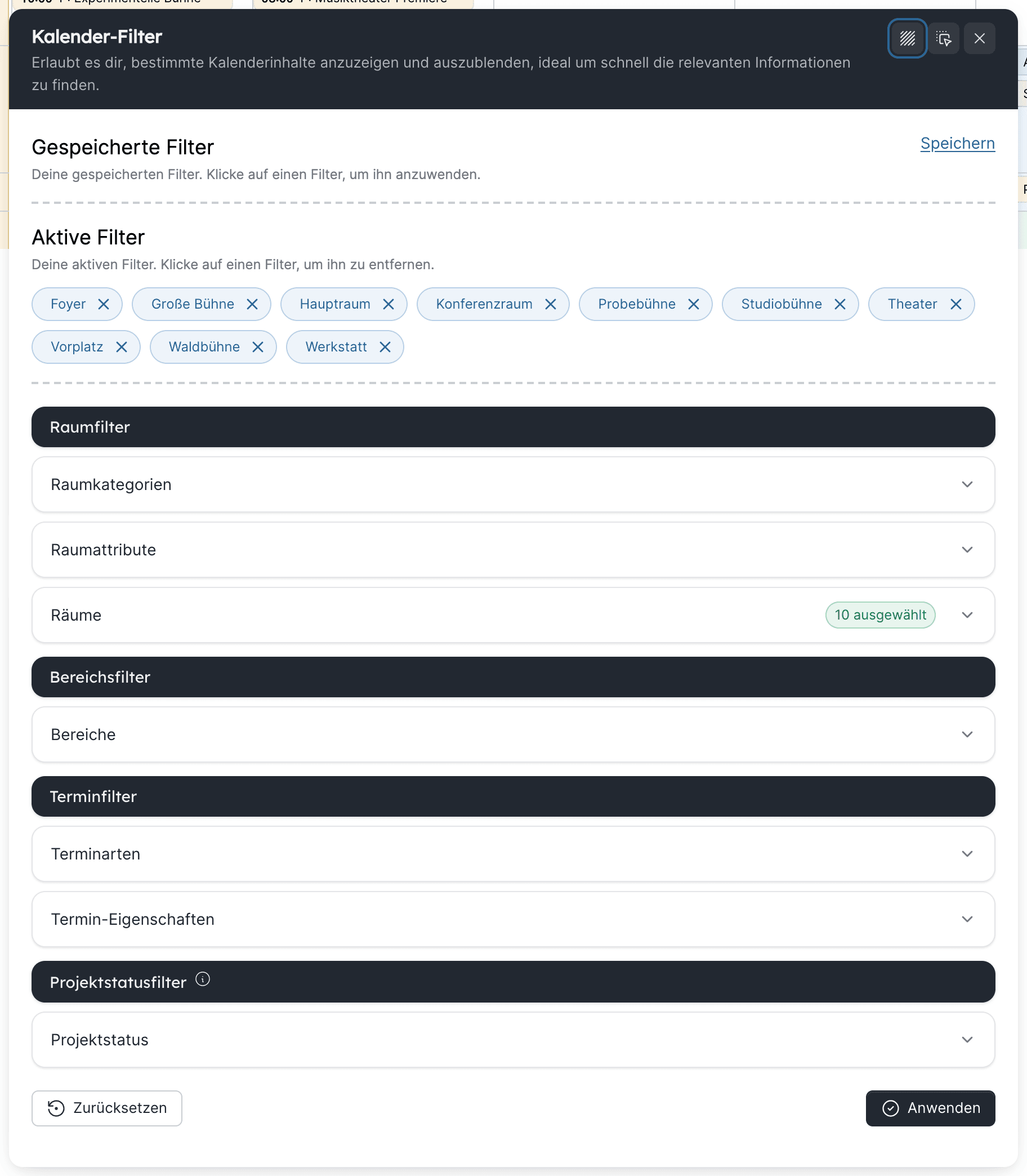
The calendar offers four groups:
| Group | Categories |
|---|---|
| Room Filters | Room Categories, Room Attributes, Rooms |
| Area Filters | Areas |
| Event Filters | Event Types, Event Properties |
| Project Status Filters | Project Status |
The room list only contains rooms marked as Relevant for disposition; other rooms do not appear in the calendar anyway. To avoid placing a quiet rehearsal next to a loud event, for example, filter by the matching event property (e.g. Laut, the property for loud events) and see where such events are.
- Project status shows only events of projects with one of the selected statuses; events without a project are hidden. The filter applies to the calendar, the planning calendar, the daily views and the project's event list, and can be stored in saved filters.
- A filter by crafts and the Shift filters section (Only show shifts that are not fully staffed) only exist in the duty roster, not in the calendar. Shifts shown in the calendar (Show shifts) can therefore not be filtered by staffing here.
To find free rooms, use the display setting: switch Hide unoccupied rooms off, and unoccupied rooms stay visible in the grid. If a filter or Hide unoccupied rooms hides all rooms, the calendar shows a notice with the cause instead of an empty area.
Saved filters
Save filter stores the current combination as a saved filter that you can apply later with one click. The currently active saved filter is highlighted in green with a check mark; the Deselect filter icon switches it off without deleting it, while the X deletes the saved filter. A saved filter remembers the combination for your personal workflow; it never changes events. The same behaviour applies in the duty roster (week, day, list) and in the project's event list.
Display settings
The gear opens your personal display options; they persist across sessions and show only settings that take effect in the current view. The options are sorted into four groups:
- Navigation — Share time period across views
- Appearance & Accessibility — contrast, expand days, colour source of the tiles (event type, status or main category), room column width, day remarks
- Visibility & Filters — unoccupied rooms, planned events, series, project groups, shifts, timeline
- Event Content — what appears on the large tiles
Every option with its effect, the views it applies in and a usage recommendation is described in Views & Display Settings. The calendar and the planning calendar each have their own display settings, and so do the daily views; details under What is saved where?.
Show shifts requires duty roster access
Show shifts (calendar and daily view) is only available to people with the permission View duty rosters or Plan shifts. Without one of them the option is missing and shifts do not appear in the calendar.
Day rows additionally show public and school holidays (managed in the event settings). Weekends inside a holiday period are recognisable by a darker shade of the holiday colour. If several entries fall on one day, an entry you created yourself defines the day colour before an imported one, and a single-day entry before a multi-day one (vacations). If another entry of that day has a different colour, it is laid on top as hatching.
Day remarks
If the day remarks column is activated in the calendar settings, the calendar (and likewise the planning calendar) shows a dedicated column next to the date column for notes covering the whole day, for instance hints for all crafts or organisational specifics. There is one shared remark per day: it applies to all rooms and appears with the same content in the calendar, the planning calendar and the duty roster. Whether you can hide the column via the display setting Day remarks depends on whether your administration has set it as mandatory. If a remark does not fit into its cell, a tooltip shows the full text on hover — in the calendar, the daily view and the duty roster. The permissions View day remarks and Edit day remarks control who may see and who may edit the column.
With Edit day remarks you click into the cell of the day, write up to 500 characters and save. An empty text deletes the remark. The change appears for everyone else immediately.
Daily view
The daily view shows up to 31 days as an hourly grid per room — ideal for show days. Which hours it hides on quiet days (e.g. 00:00–08:00) is defined by the calendar settings system setting.
On days without a timed event in this range the hours are missing, and a note appears above the day. As soon as an event falls into the range on a day, that day shows all 24 hours. Multi-day and all-day events remain visible. The tiles show their full content at every zoom level; if parallel events make them narrow, name, time and an info icon with a tooltip remain. On very short tiles, the status (Planned Event, Verification requested) appears only as a colour stripe at the edge, with the text in the tooltip. For long periods, switch back to the grid, as the daily view is limited to 31 days.
Multi-edit
The multi-edit switch lets you select several events and cells and handle them in bulk:
- Duplicate or delete events (to the trash; sub-events are deleted along with them)
- Duplicate one event into selected cells — select the event, then click the day/room cells it should be copied into
- Create events in several cells at once — first select several day/room cells, then create an event; this creates independent individual events, not one collective event. If you may only request the selected rooms, the button reads Request event in n cells: the events are created as room requests and the room administration is notified. The same applies to copies into rooms you may only request; the request then runs under your name. If you may neither create nor request events in one of the selected rooms, a notice appears instead of the button. In rooms with Can be booked by anyone you book directly, provided you may create events; the switch alone is not enough Coming with the next update
- Move selected events into one cell — when exactly one cell and at least one event are selected, the events move together into that day and room cell. Times and duration are kept; multi-day events and their shifts move along accordingly
- Accept / decline requests (for room admins, as long as room booking requests are in use)
- Convert to planned events: turns the selected fixed events into planned events in the planning calendar; open room requests are withdrawn in the process. Only with the permission Edit planned events
- Only in the planning calendar: Request verification, Approve and Reject (in the verification workflow). Moving, duplicating and deleting require Edit planned events there
If you are not allowed to edit one of the selected events, the bulk action changes, deletes or copies nothing at all instead of stopping halfway.
Activate multi-edit mode first, then select the events or cells. The available bulk actions depend on the status and permissions of the selection. Before confirming, check in particular whether series, room requests or planned events are included — their follow-up actions can differ from those of regular individual events.
Trash
Deleted events move to the trash for 30 days and can be restored from there.
When deleting a series event, Artwork asks whether only this event, this and following or the whole series should go to the trash — see Editing series. Series events always go to the trash first; there, Restore series brings back all events of a series at once. After the 30 days they are removed permanently like other events. The trash protects against accidental deletion but is not a long-term archive.
Last updated on