Creating Events
The event form — type, times, repetition, room, project, sub-events and editing series
Hover over a room/day cell and a plus icon ("Add event") appears — it opens the event form with the day and room prefilled. The plus button Add Event on the right of the function bar opens the same form without a preselected room. Clicking an existing event opens it for editing.
Which fields and actions you see depends on the event type, room rights and your permissions. Without edit rights, a clear read-only view opens with type, status, time, room, project, description and properties. This lets many people look up events reliably without changing them by accident.
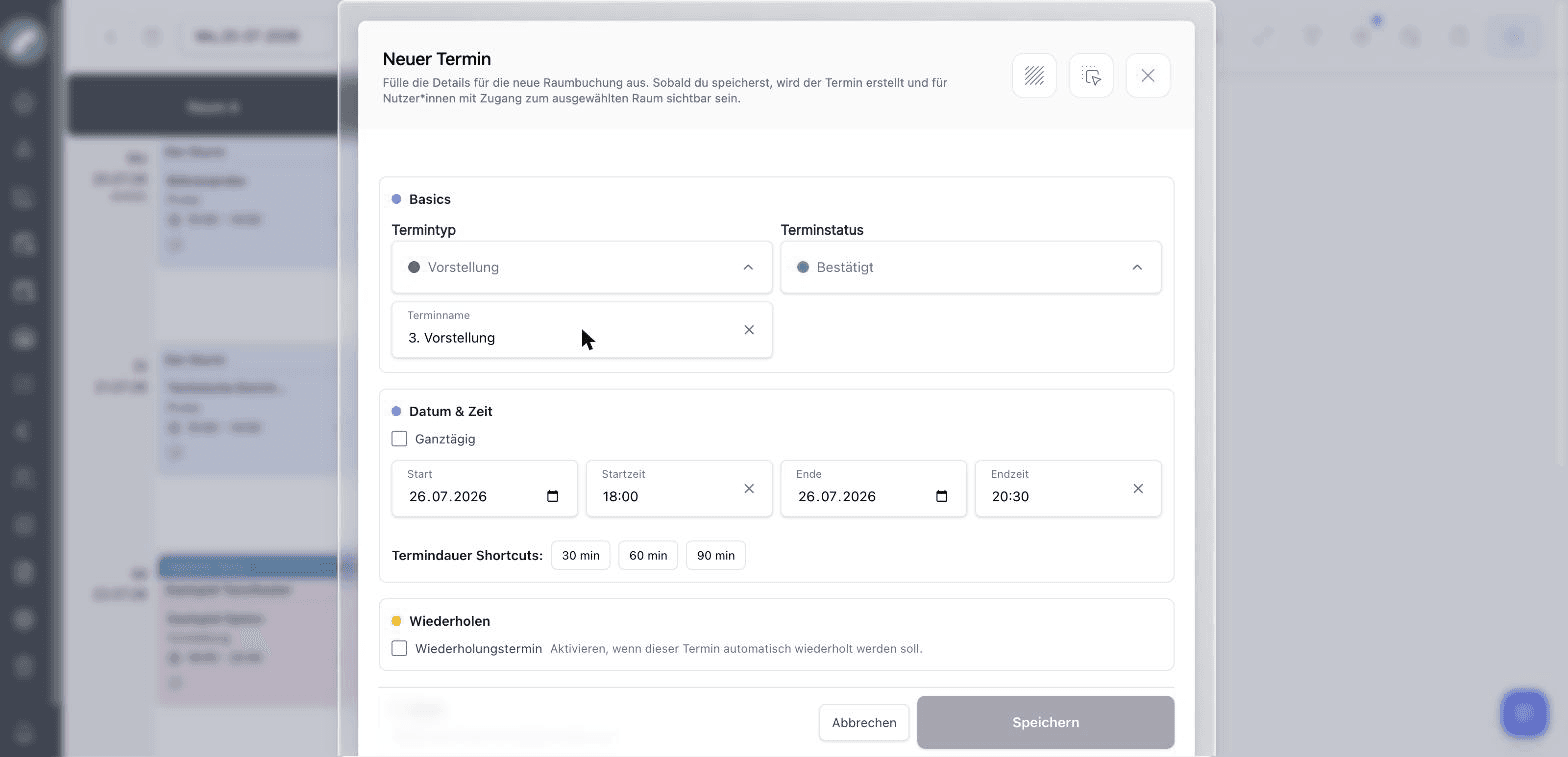
The event form
Basics
- Event type — the category of the event; determines its color and abbreviation in the calendar. Depending on the type configuration, a project assignment and an individual event name may be mandatory.
- Event status — only visible when the status module is active; the default status is preselected.
- Event name — optional (or mandatory if the event type requires it).
Date & Time
All-day or with a start/end time; the event duration shortcuts (30/60/90 min) set the end to a standard duration after the start. If your default event duration differs from these, it appears as a fourth button (Default: n min). The shortcuts only work once date and start time are set, and not for all-day events. The switch to the right of the section heading is called Move the end date along when the start date is changed: when it is active, the event keeps its length if you change the start day. The presets (default event duration, default start time, "full day as default") come from the standard values.
If the Admission field is enabled in the standard values, an optional admission time can be entered as well — a calendar display option shows it in the event cards above the time. The admission time always refers to the start day.
Start and end may be on different days. This also covers multi-day guest performances, overnight setups or long blocking periods correctly. If start and end time are identical or the end is arithmetically before the start, check the end date in particular — in the project's event list, Artwork may turn this into an event lasting until the following day.
Repeat
In the Repeat section, the Repeat event toggle turns the event into a series:
- Frequency — Daily, Weekly, Every 2 weeks or Monthly.
- On these weekdays — with Weekly and Every 2 weeks you can pick several weekdays (for example Mon and Wed). The weekday of the first event is always included.
- Series ends — either Ends on date with an end date or Ends after with a Number of events. A series is limited to 500 events.
Below the form, the Preview of the series shows live which events will be created — with date, time and room. Room conflicts are counted ("n potential conflicts detected"), so you can adjust frequency or room before saving. How to change an existing series is described under Editing series.
Room & project
- Room — the room search shows potential conflicts with existing occupancies live. Whether you can book directly or submit a booking request depends on your rights for the room — unless your organisation has enabled Events always bookable directly, in which case everyone books directly.
- Project: The checkbox Enable project assignment shows the project selection. Under Existing project you search for a project or pick one of the recently opened ones; under New project you create one on the spot. Events whose type is relevant for the project period contribute to the project's automatically calculated period. If the project belongs to a project group, the group is shown next to the project name.
With an existing project you can switch straight to the project view from the form, provided you have access. If you choose New project, it is saved together with the event. For detailed master data, team rights and further project content, open the new project afterwards in the project overview.
If the New project choice is missing, your administration has switched off project creation from events in the calendar settings. Events can then only be linked to existing projects.
Description & properties
A free-text description ("What do I need to bear in mind for the event?") is visible in the calendar and in the project's event list. Below it, tick the applicable event properties (e.g. Publikum for events with an audience, Laut for loud events). They appear as icons on the event and can be filtered.
Save
Save creates the event — or Request occupancy ("Belegung anfragen") if you may only request the room. After a request, the notice Room request submitted confirms that the event is not firmly booked yet. If you have neither a calendar permission nor a role in the selected room, a notice appears instead of the button Coming with the next update; see Understanding booking access. Afterwards you can plan shifts on the event or create a timeline.
Room admins can treat a requested occupancy as a firm acceptance or as an optional acceptance (Commitments or Optional commitment) and add an option (Option 1 to Option 4) and a comment. The requesting person is informed about the decision. What the optional commitment does and where the note is visible is described under Handling room booking requests. If Events always bookable directly is active, there is no request mode; the button is always Save.
Sub-events
An event can contain sub-events — e.g. the soundcheck from 16:00–17:00 inside an all-day blocker. Sub-events have their own type, their own times (at least 30 minutes), their own properties and description. They appear in the event card below the main event. The times are pre-filled with those of the main event. Artwork does not check whether a sub-event lies within the main event; make sure of that yourself. A deleted sub-event is removed permanently right away and does not go to the trash.
You create a sub-event via the three-dot menu of the event tile with Add Sub-Event. The entry only appears on events of the standard event type (the first event type in the list, which cannot be deleted) and only for room admins, the person who created the event, and admins. In compact mode (zoom below 80 %) the menu is not available.
Sub-events suit clearly delimited sections that should be visible and filterable within the main event. They do not replace a separate main event when another room, a separate project or an approval process of its own is needed.
Timeline
For show days you can maintain a timeline on the event — the production schedule (get-in, soundcheck, doors, show …) with times. Timeline presets from the event settings can be imported; the Timeline display option shows timelines in the calendar. The timeline may be created and edited by anyone who may edit the event (write access to the project, Plan events directly, room admin or the person who created the event) or who has the permission Plan shifts. If the permission is missing, the dialog tells you when saving.
In the three-dot menu of the event tile, Import timeline preset brings a preset into the event. Save timeline as preset appears as soon as the event has a timeline and requires Plan events directly.
A timeline is a scheduling aid within the event and does not need to consist of independent calendar bookings. It is therefore ideal for internal production steps. Recurring sequences can be saved as a preset and imported into other events.
The description of a timeline entry appears next to the time in the event's schedule (shifts tab of the project) and in the daily view of the duty roster — visible to everyone who can see the schedule. A hint in the edit modal and in the inline card of the shifts tab reminds you of this.
Moving and duplicating events
Events can be dragged into other cells in the grid via drag & drop. Multi-edit duplicates, moves or deletes many events at once. For projects there is additionally the tabular bulk event creation in the project's event list.
If people are assigned to the project for specific days and those days fall outside the project period because of the move, the dialog Dissolve project assignments? asks on saving. It only appears when the event's period actually changes.
Editing series
When you open an event that belongs to a series, frequency, weekdays and end of the series are prefilled in the Repeat section. At the top of the event dialog you choose what your change applies to:
| Choice | Effect |
|---|---|
| Only this event | Changes apply only to this event. Changing date, time or room makes it a deviating event of the series. Frequency and end of the series cannot be changed with this choice. |
| This and following | Changes apply to this and all following events of the series. |
| Whole series | Changes apply to all events of the series, including past ones. |
With This and following and Whole series, fields such as name, description, event type, status, room, project and properties are applied one to one. Changed times are applied as a shift: if you move the event one hour later, all affected events move by one hour. Deviating events receive the field changes too, but keep their individually set time.
"Series" tab
Next to the choice, the event dialog has the Series tab with the list Events of this series: date, time and room per event, plus the markers Deviating, In the trash and Shifts (count) as well as a note on room conflicts. Past events are greyed out. The open event is highlighted as This event; Show in calendar jumps to the week of the respective event and resets your calendar filters in the process. When creating a new series, the same tab shows the preview.
Changing frequency and end
- Extending the end date appends events at the end of the series; shortening removes only the events after the new end (to the trash).
- Changing the frequency or weekdays re-creates the future events from the edited event on. The dialog Change series? tells you beforehand how many events and shifts are affected.
- Individually moved (deviating) events are kept when the series changes; events in the trash count as occupied. No date is created twice.
Deleting
Delete offers the same three-way choice ("This event is part of a series. Which events should be put in the trash?"): Only this event, This and following or Whole series — with the number of affected events. Nothing is deleted permanently: all events go to the trash, where Restore series brings back all events of a series together. From the tile or from multi-edit, Delete all series events is also available.
Removing from the series
If you switch off the Repeat event toggle on a series event, Remove from series? asks:
- Detach only this event — the event becomes a single event; the other events of the series stay as they are.
- End the series — all other events of the series are put in the trash; this event becomes a single event.
Exception or series?
Change only one event when it is a genuine exception. For a new standard time, a different room or a changed description of the whole run, use This and following or Whole series so that you do not end up with many deviating individual states.
Many project events at once
The project's event list is faster than the single form for productions with many events. There you can add rows, adjust column widths, show or hide descriptions and change several events together. The regular calendar remains the better view when you need to assess room conflicts in the context of other projects.
Last updated on