The Project View
Tabs and sidebars, project team, checklists, comments, documents and contracts
Clicking a project opens the project view. Its structure — which tabs exist and what they contain — comes from the tab construction kit; here we describe the default configuration as shipped.
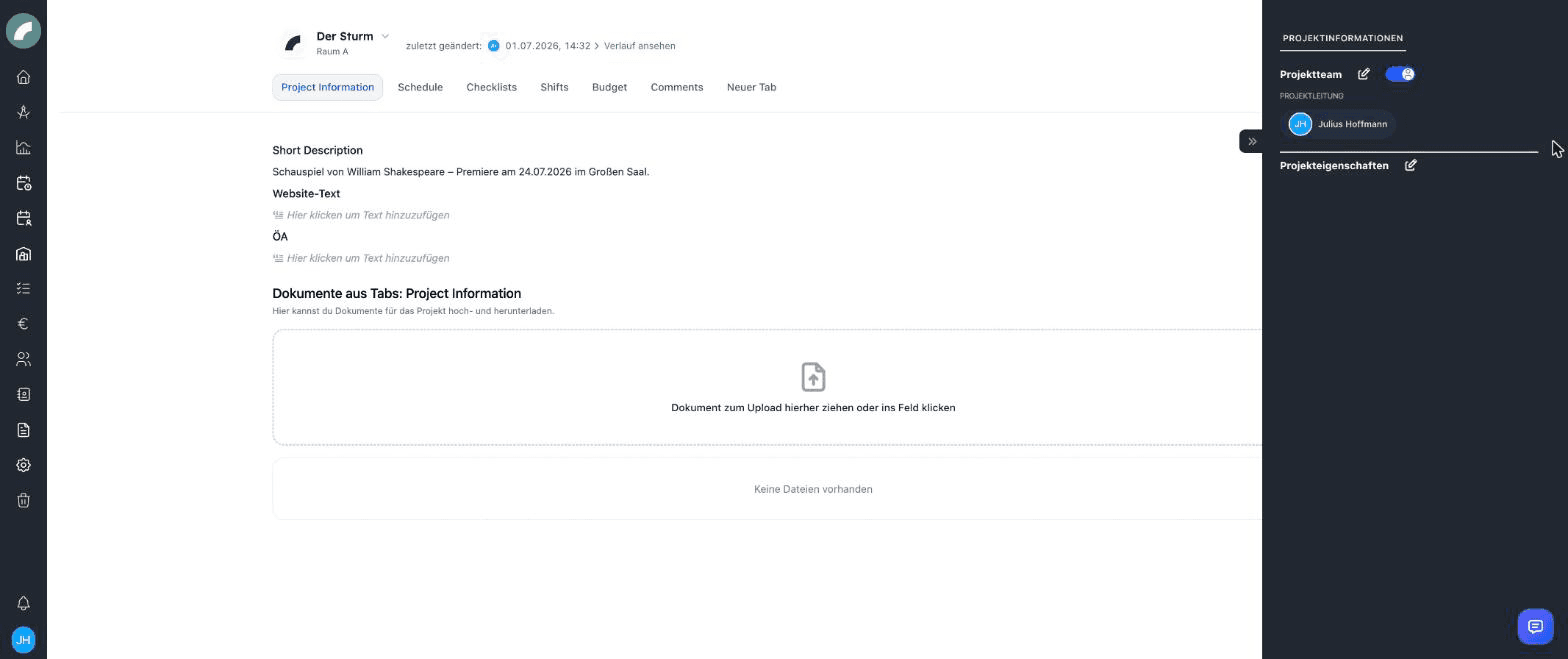
Header
At the top are the Key Visual, the project name and status, plus the project actions. Three icons are visible to everyone who may open the project:
- Select print layout (printer icon): opens the selection of print layouts and generates a project PDF.
- Copy link: copies the direct address of the open project. The recipient still needs the appropriate access rights.
- View history: the project's change log; next to it you see who last changed the project and when. The entry appears as soon as there is a first change.
The three-dot menu next to them is only visible to people with write or delete permission in the project; anyone who may only delete finds just Put in the trash there Coming with the next update:
- Duplicate: creates a copy with the basic data and the team, without tab content, budget or events. See Duplicating instead of templates.
- Edit basic data: name, properties, status, project group, Key Visual and the conversion into a project group. If you change the status here to one marked as Project counts as “in planning” in the project settings, the Project status change dialog asks whether all events of the project should be converted into planned events — Convert to planning events affects every event without exception, including past and fixed ones; with No only the status changes. Converting requires Edit planned events. In the opposite direction (from “in planning” to a normal status) the dialog offers Request appointments verification or Confirm as fixed events. The dialog only appears when editing via the header, not when changing the status from the project list or via the status component.
- Put in the trash: moves the project to the trash. In the header the entry appears for admins, for team members with the Permission to delete checkbox and for people with the global Delete all projects permission Coming with the next update, as in the project menu of the project list.
For project groups the menu also provides Add projects to group and Create project in this group, and the header lists the Projects in this group. A member project links back to its parent group from the header.
Clicking the project name opens a quick switcher with a search field. It lists the current project, for a project group its projects, and for a member project its group. The switch stays in the tab that is currently open.
Below the project name are the rooms in which the project has events with an audience. If there are none, the period from the first to the last event is shown there. The header shortens long room lists to three rooms plus "+n". It collapses automatically while you scroll so the tab content gets more space.
Orientation and project period
The top tabs switch between major work areas. An optional sidebar keeps frequently used details such as the team, properties, shift contacts, and budget information available independently of the current tab. Collapsible folders help structure longer pages.
The project period is normally calculated from the earliest and latest events whose event type is marked as relevant. If a project has no event with a relevant event type, all of its events count. The period drives the project mode of the calendar and duty roster and updates when relevant events change.
The default tabs
The tab names come from the configuration and can be renamed at any time. A new instance creates the default tabs in its own language. In brackets is the German name, in case your instance carries it:
| Tab | Contents |
|---|---|
| Project Information (Projektinformationen) | Short description, website text, press & public relations and the project documents. |
| Schedule (Ablaufplan) | The bulk event creation: create and edit many of the project's events in one table (see Project schedule). |
| Checklists (To-do-Listen) | The project's checklists. |
| Shifts (Schichten) | The shift tab: shift planning within the project period (see Shift Plan). |
| Budget | The project's budget table. |
| Comments (Kommentare) | Discussions about the project. |
Every default tab comes with a sidebar: Shifts shows the Shift information there (relevant event types, contact persons, general shift information), Budget the Budget information, and all others the Project Information with project team and project attributes. The sidebar is expanded and collapsed via the arrow at the right edge.
Project team
The team component lists everyone involved. Anyone on the team can open and read the project. Per person, the project additionally grants via the permissions menu:
- Write permission — may edit the contents of the tab components. New team members start with write permission set; remove the checkbox deliberately wherever read-only access is intended.
- Project management — marks the person as project management. Write permission is then set automatically and greyed out; an info icon in the menu explains the differences (see below).
- Budget access — may see and edit the budget table.
- Permission to delete — may delete the project.
- Project roles — freely definable roles (e.g. direction, production management), managed in the project settings. Each user can have default project roles that are preselected when they are added. Project roles are plain labels and grant no rights.
You edit the team via the pencil icon on the component (window Assign project team). The icon is visible to anyone who has write permission in the project or created the project. The permissions menu Permissions & Project Roles on the individual people, however, is only visible to project management, the person who created the project, and admins. Other people with write permission can add and remove members but cannot grant rights. The Show names switch on the component shows the names next to the profile pictures; the setting applies only to you.
Only users with the global permission Can be project manager can be marked as project management. Project management differs from a team member as follows:
- Always has write permission in the entire project, even without the Write permission checkbox.
- Automatically sees the project's contracts (Contracts component, separate from the Documents component) and linked funding sources.
- Receives notifications for room requests, room changes, unfilled shifts at the staffing deadline and submissions from external accesses.
- Is shown as project management in the project header, on calendar and duty roster tiles and in exports.
Depending on the setup, users and departments can be found while editing the team. Members of an assigned department have write permission in the project. The checkboxes apply only to this project; house-wide permissions for all projects are managed in the user rights (see Permissions). A person may thus be unable to edit projects in general but receive targeted write or budget access within one production.
Anyone who joins the team receives the notification “You have been added to …” — whether when the project is created, via the team component or automatically through a shift, a task or a checklist. New project managers receive “You have been appointed as the project leader of …”. As long as an identical notification is unread, no second one is created.
Without write permission, read only
Team members without Write permission see all components released to them but cannot edit anything — regardless of the component settings. Component permissions only restrict write permission further; they never extend it. Admins and people with Write all projects are exempt.
Access and project roles are different
A project role describes a person's responsibility, such as direction or production management. Write permission, project management, budget access and permission to delete determine what that person can do in Artwork.
External team members from the CRM
If the toggle CRM contacts in project team is enabled in the project settings, the team window additionally offers CRM contacts. This lets you record which external contacts — an agency or a company, for example — are relevant for the project and assign project roles to them. External team members appear in the project team and in project outputs with their contact type; they do not gain access to Artwork through this. If a project role is deleted, it is also removed from external team members.
Email to the project team
Email the entire project team in the team component opens your mail client with all team addresses as recipients — including in Outlook. People without a stored email address, or whose address is marked as private, are flagged accordingly in the component.
Project calendar, schedule, and shifts
The project calendar shows only this project's events. The schedule table maintains many events quickly: add rows, sort and filter, adjust column widths, and edit or delete several entries together. Room, event type, name, dates, times, all-day status, description, and timelines can all be handled there. You multiply similar events via Copy in the row; this creates individual events, not a series. A series is created in the event form.
Shift information in the project
The shift tab opens the duty roster restricted to the project period and its events. If shifts of the project lie before or after the project period, for example for set-up and dismantling, the displayed period extends to include them. If the project has neither events nor shifts, the tab only shows a note. Three project-specific components, Contact persons for shifts, General shift information as free text and Relevant dates for shift planning (a selection of event types), tell planners what to include and whom to contact. The selection is a hint for planning; the shift tab still shows all events of the project.
Via the shift tab's display settings, events and shifts from other projects can additionally be shown — handy for spotting conflicts with other productions while planning. The display setting Show project assignments adds an overview of the people assigned to the project and project wishes, including the avatars in the day bars.
Checklists
Checklists belong to a project (or stand on their own) and contain tasks with assignees and a done status:
- Lists can be private — only you see them.
- Tasks can be assigned to users, sorted and moved between lists; "complete all / reset all" is available per list.
- Checklist templates (system settings) fill in recurring workflows with one click; users stored in the template are assigned to the tasks automatically and added to the project team if necessary.
- Depending on the construction kit, a tab shows one specific list or all lists of the project.
- Checklists in a project follow the project permission: creating, editing and ticking off require write permission in the project. Without editing rights the tick-off checkbox is greyed out.
See To-dos & checklists for details.
Comments
The comment component collects discussions with timestamp and author. All Comments shows every comment of the project; the Comments component only shows those of the tabs selected when it was placed, in the simplest case those of its own tab. Anyone with write permission in the project sees the input field, and anyone who sees it can also comment Coming with the next update: the project team, admins and everyone who may edit the project via a department, as its creator or via Write all projects. If a comment is rejected, Artwork shows an error message. You can only delete your own comments; admins can delete any. The delete icon only appears there.
Documents & contracts
- Project documents — files on the project, as a per-tab component or as a complete list. Depending on the type, they can be previewed, downloaded, printed, renamed, or replaced. Files uploaded by an invited external person via an external access carry the badge Uploaded externally by ….
- Contracts — contracts have their own metadata (contract partner, contract type, amounts) and are collected project-wide under Contracts; reusable contract modules are available as downloads. Access is controlled by dedicated permissions (e.g. view/edit/upload contracts); project management automatically sees the contracts of its project.
- Document requests — missing files can be requested from users and tracked with a deadline. The Document request component shows them together with the contracts in the tabs Assigned to me, Created by me, Unassigned, Assigned to others and Completed requests (see Document requests). Uploaded files remain linked to the request and, where applicable, the resulting contract.
Additional project components
| Component | Everyday use |
|---|---|
| Links and link lists | Keep production folders, ticketing, press, streaming, and approvals with the project. |
| Artist residencies | Record stays, travel dates, and custom residency details, then export them; the name can be changed directly in the table with a click. |
| Material issue | Track inventory articles, special items, rooms, periods, notes, and attachments. Visible to everyone with read access to the project; creating and editing require write permission in the project. |
| Sage invoice overview | All Sage bookings of the project as a table — only with an active Sage integration. |
| BI figures | Record and evaluate audiences, revenue, occupancy, production attributes, and time efforts. |
Business intelligence
The BI component combines project and event data with manually maintained figures. Values can be recorded as a project total or per event (input mode). Artwork derives KPIs, highlights missing information, and offers room and event filters. Snapshots compare reporting states with current figures; reusable column presets tailor Excel exports. See Business intelligence in a project for details.
External accesses in the project
If external access is enabled and you have the permission Invite externals, every project tab offers the button Invite external to this tab. Use it to invite a company or agency by email to read or fill in this tab without an Artwork account. In the project you recognise the results as follows:
- Uploaded files carry the badge Uploaded externally by … in document components.
- Next to the invite button there is a round status icon for each invited person. Clicking it opens the window External persons in this tab with the status of each person (invited, in progress, submitted, confirmed, returned). Everyone who may open the project sees the icons, even without the permission Invite externals.
- When the invited person clicks Submit entered data, the tab is locked for them, an entry is written to the project history with the external person as the actor, and the inviting person as well as project management are notified. Confirm completes the process; the tab stays locked for the person. Return for revision reopens the tab and lets you add a comment. This is still possible after confirming. In both cases the person receives an email. Confirming and returning is allowed for anyone with write permission in the project or who invited the person to this tab.
- Contacts that externals create in a CRM contact list carry the badge External · not reviewed until you confirm the submission.
The workflow, the invitation dialog and access management are described on the page External access.
Project history
Via the header you reach the history: who changed what on the project and when — from base data to events to the team list. Submissions from external accesses appear here too.
The history is useful for handovers because it shows when and by whom a value changed, not only its current state. Shifts and budgets provide additional specialist histories.
Last updated on