Project Settings
Categories, genres, areas, project statuses, creation settings, project roles and print layouts
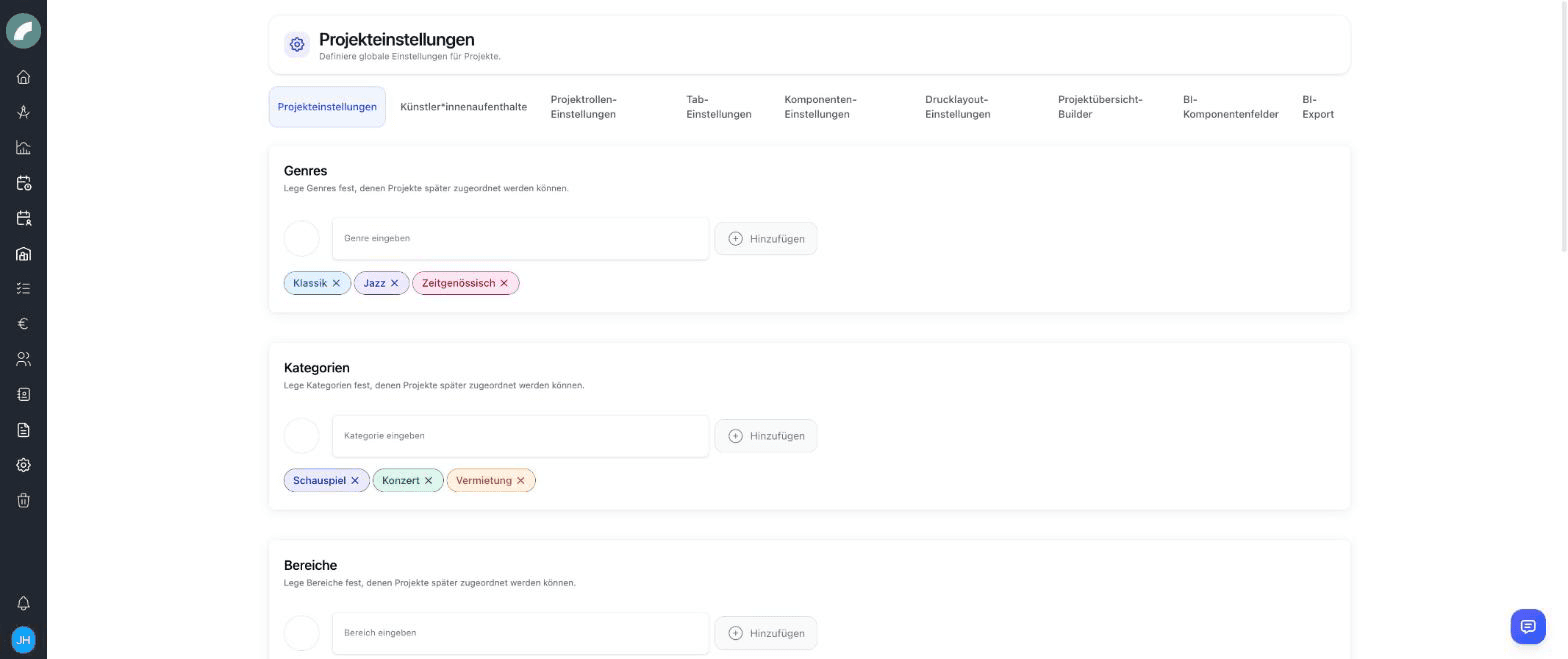
The project settings live under System → Projects (permission Project settings) and are organized into tabs: Project Settings (master data & creation toggles), Artist residencies, Project Role Settings, Tab Settings, Component Settings, Print Layout Settings, Project overview builder and BI Field Settings. The biggest lever, the tabs & components of the project view, has its own page; this one covers master data and toggles.
Settings map
| Settings area | What changes for users |
|---|---|
| Project settings | Selection values, statuses, and fields offered during project creation |
| Artist residencies | Which default values a new residency starts with and which name columns the residency table shows |
| Project roles | Functions available for assignment in the project team |
| Tab and component settings | Structure, order, visibility, and editing access in the project view |
| Print layouts | Project content and arrangement available in PDF output |
| Project overview builder | Columns and information blocks in the central project list |
| BI Field Settings | Additional figures, fields, and reporting structure |
These are central changes. After adjusting them, test one existing and one new project from a regular user's perspective.
Properties: categories, genres, areas
Three freely definable attribute lists used to describe and filter projects:
- Categories (e.g. drama, concert, rental)
- Genres (e.g. classical, jazz, new drama)
- Sectors (e.g. in-house production, guest performance, education)
Each entry consists of a name and a color. New entries, renames and deletions are saved immediately; deleted entries are in the recycle bin.
Projects can carry several values per list; one of each can be marked as the main category/genre/sector. The display option Event color by main category uses this in the calendar.
Project statuses
Freely definable statuses with a color (e.g. idea, in planning, confirmed, cancelled). Add Status creates a status; clicking an existing status opens it for editing.
In the status window you can tick Project counts as "in planning". Such statuses carry a calendar icon in the list. The marker is more than a visual label:
- In the project's event entry (the project schedule and Set up events when creating a project) the switch for planned events is preset for a project in this status. New rows are then created as planned events instead of fixed events, as long as you do not change the switch. The browser remembers your choice per project. Events you create in the calendar do not follow the project status.
- Existing events do not change by themselves. When a project moves into or out of such a status via Edit basic data, a dialog offers to convert the events or to request their verification (see Header).
Choose the colors so that the status is quickly understood in the project overview and the calendar.
Project creation settings
These toggles determine which fields the creation window offers — keeping it as lean as your process allows:
| Toggle | Field in the creation window |
|---|---|
| Project Attributes | Category / genre / sector |
| Project status | Status selection |
| Project management | Project management selection |
| Cost bearer | Name of the cost unit |
| Budget deadline | Deadline date field. The toggle also shows the tab Budget export by deadline in the export of the project overview. |
| Artists | Artists field |
The toggles also apply to the Edit basic data window: a field that is switched off is missing there too. Changes are saved immediately.
Two further toggles on the same page take effect beyond the creation window:
- Project status as a required field (in the Project Status section): a project status must be selected when creating a project; an assigned status remains changeable when editing the base data but can no longer be removed.
- CRM contacts in project team — CRM contacts can additionally be linked in the project team as external team members and given project roles.
Project roles
Project roles (e.g. direction, dramaturgy, production management) are defined in the Project Role Settings tab and assigned in the project team. Each user can have default project roles in their profile, which are preselected when they are added to a team. Project roles are plain labels and grant no rights. They appear in the project team, in the person's profile and in the export Excel Project Role Overview. If CRM contacts in project team is enabled, they can also be assigned to CRM contacts in the team.
Other project-related master data
The same page also maintains Contract Types, Company Types and Currencies (for the contract module); there are additionally separate settings pages for artist residencies and the budget settings.
Project overview builder
The project overview builder determines which columns and contents the project list displays, so the overview, too, can be adapted to your venue. The selection only contains components that work as a column (no separators or titles, no large tools such as calendar, shifts or budget), and each component only once. Remove a column via its three-dot menu with Delete; the component and its project values are kept. The columns for the project title and the actions are fixed and can only be moved. Every change is saved immediately.
The overview builder is arranged by drag and drop. Typical contents include period, status, artists, properties, project team, group, and BI figures. The layout is central, while each user's filters and sorting remain personal.
Print layouts
Print layout settings define what the project PDF looks like: you assemble a layout from the printable components of the project view (title, base data, texts, properties …); when printing from the project header, users then pick one of the layouts. This way there can be, for example, an internal info sheet and a rental exposé from the same project data.
Print layouts can include headings, custom text, base data, period, status, team, properties, shift and budget information, document lists, and other printable components. The PDF always uses current project data.
Placed components are rearranged via drag & drop: you can move them or swap their places, also across the areas of the layout. The component search also finds special components by their German name.
A layout consists of a Header (1–5 columns), a Body (1–3 columns) and a Footer (1–5 columns); the column counts are fixed after creation. With a one-column body all special components can be used. Each header and footer column can carry a free note. Only layouts with Should this print layout be available? switched on can be chosen in the project. Printing runs via the printer icon in the project header and the browser's print dialog (Save as PDF).
Print layouts respect visibility
A layout only outputs what the printing person may also see in the project view: components with restricted visibility or from tabs invisible to them stay empty, and document, comment and checklist lists only contain content from visible tabs. Deactivated layouts can only be opened with the project settings permission.
Which layouts have proven useful and how to build them is described in Setting up the project view.
Artist residencies and BI settings
The Artist residencies tab contains default values. They are pre-filled when someone creates a new residency in a project and can be overwritten there. Existing residencies are not changed by a new default.
| Setting | Effect |
|---|---|
| Deduction per breakfast | Amount deducted per breakfast |
| Default daily allowance | Pre-fills the daily allowance field of a new residency |
| “Do not save artist in database” checked by default | Ticks this checkbox in advance for new residencies |
| Name columns in the artist residency table | Which name columns the table shows and in which order |
Unlike the other tabs, this one only saves when you click Save. The user workflow is covered in Documents, contracts & additional project data.
BI settings
The BI Field Settings tab (permission Tool settings) bundles the setup of the BI module:
- The setup checklist at the top of the page shows in seven steps what the module still needs — enable the BI module, assign the key-figure tags to event types, place the BI component in a project tab, enter seat capacities for rooms, check audience categories, set the season window, grant BI permissions. The status is read live and every step links directly to the relevant page.
- Audience categories structure how ticket numbers are recorded (full, reduced, free).
- BI fields are free additional fields for venue-specific figures.
Which event types count as performances or event days is defined in the BI tags under System → Events → BI tags: in the tag dialog, Controls key figure decides whether the tag controls "Performances" or "Event days". There is no separate menu item for the BI export any more; the export sits in the BI dashboard and in the project's BI component. Their day-to-day use is covered in Business intelligence in a project.
Deleted settings
Central settings may still be referenced by existing projects. Deleted genres, categories, sectors, project statuses, contract types, company types and currencies therefore end up in the recycle bin in the sidebar, tab Project Settings (permission Open trash). From there they can be restored or removed permanently; both additionally require the permission Project settings. Check current use before permanent deletion.
Last updated on