Project Overview & Creating
Work with the project list and create new projects or project groups
Open the project overview via Projects in the sidebar.
The project list
The overview is the personal starting point for daily project work. Filters and sorting are saved per user, so production managers can focus on their current projects while administrators can look specifically for groups, projects without events, or productions with BI data.
- Search: the field Search for projects or their artists finds projects by their name, by the free text in the artists field and by linked artists from the CRM.
- Pinning — projects can be pinned via the project menu; they then appear for you at the top in the Pinned section. The section stays in place during a search as well and shows the pinned projects that match the search; they do not appear a second time in the normal result list. Filters do not affect pinned projects: they stay visible whatever the filter selection is.
- Sorting — alphabetically or chronologically, each ascending and descending. When sorting by project period, projects without events always come last; the period column shows the date only, without time. If no sorting is selected, the most recently created projects come first.
- Filters: the selection only takes effect with Apply and is saved
per user; Deselect all resets it.
- Filter by type: Project groups, Projects. If neither is ticked, both appear.
- Filter by time: Show future projects (at least one event from today onwards), Show expired projects (at least one event before today). If both or neither are ticked, there is no time restriction. Projects without events stay visible in both cases unless you hide them.
- Other filters: Hide projects without events, Show only projects without group, Only projects where you are in the project team, Only productions with BI data. The project team filter only counts whether you yourself are on the team as a person; membership via a department is not enough.
- Project status: only projects with certain statuses
- Export project list — opens the export dialog with up to four tabs (see Exports from the project overview).
- Select multiple projects: with Delete all projects you select several projects and move them to the trash together. Select all on this page selects the current page of the list; tick pinned projects individually.
- New browser tab — Ctrl-click (Windows), Cmd-click (Mac) or the middle mouse button opens a project in a new tab.
Open the project menu via the three-dot menu that appears when you hover over a row, or by right-clicking. It is only available to people with edit or delete permission on the project; without one of these you cannot pin a project either. The first entry, Open, opens the project. Below it, depending on the permission, are Edit basic data, Pin or Undo pinning, Duplicate and Put in the trash. Pinned projects carry the Pinned badge, project groups the Group badge with the number of their projects.
Exports from the project overview
| Tab | Contents |
|---|---|
| Excel Event List Export | All events by project (project search, recently opened projects) or by period, with room, area and event filters and selectable columns (event ID, project name, artists, date and times, admission, event type, event name, description, event status, room, project team, project properties). The columns for artists and admission only exist if the respective field is enabled at your venue. |
| Excel Calendar Export | The calendar grid as a table, using the calendar's display settings. |
| Budget export by deadline | Only visible if the Budget deadline is enabled in the project settings and you have Global budget access Coming with the next update. Exports all project budgets whose deadline lies between Start date and End date, either aggregated (one row per project with forecast and Sage totals; the forecast values come from the column marked "Relevant for budget") or itemised (one row per budget line and per Sage booking, with cost center, ledger account and position). Columns can be deselected. The download requires the permission Global budget access. |
| Excel Project Role Overview | Only with Read all projects. A matrix: all productions touching the selected period as columns (with their event period), all people with a fixed project role as rows, and the assigned role in the cells. Quick selection This week, This month, Next month, This year, Next year; up to 36 months. Only people who have default project roles in their user settings and hold a role in at least one project team during the period are listed. Project groups are not exported. |
Last visited project takes you straight back to your most recent work; the Recently opened projects dropdown of the project search lists up to ten productions. This list is stored in the browser and therefore only applies to the device on which you opened the projects. Pinned projects are a separate, permanent personal favourites list.
The overview lists all projects of your venue, including those you are not allowed to open. You can open a project if you are on its project team (as a person or via a department) or hold Read all projects or Write all projects. Rows without access cannot be clicked, and their columns with content from the project tabs and with budget information stay empty. The same applies to columns whose component you are not allowed to see.
Creating a project
The New project button opens the creation window (permission Create own projects). A switch toggles between Project and Project group.
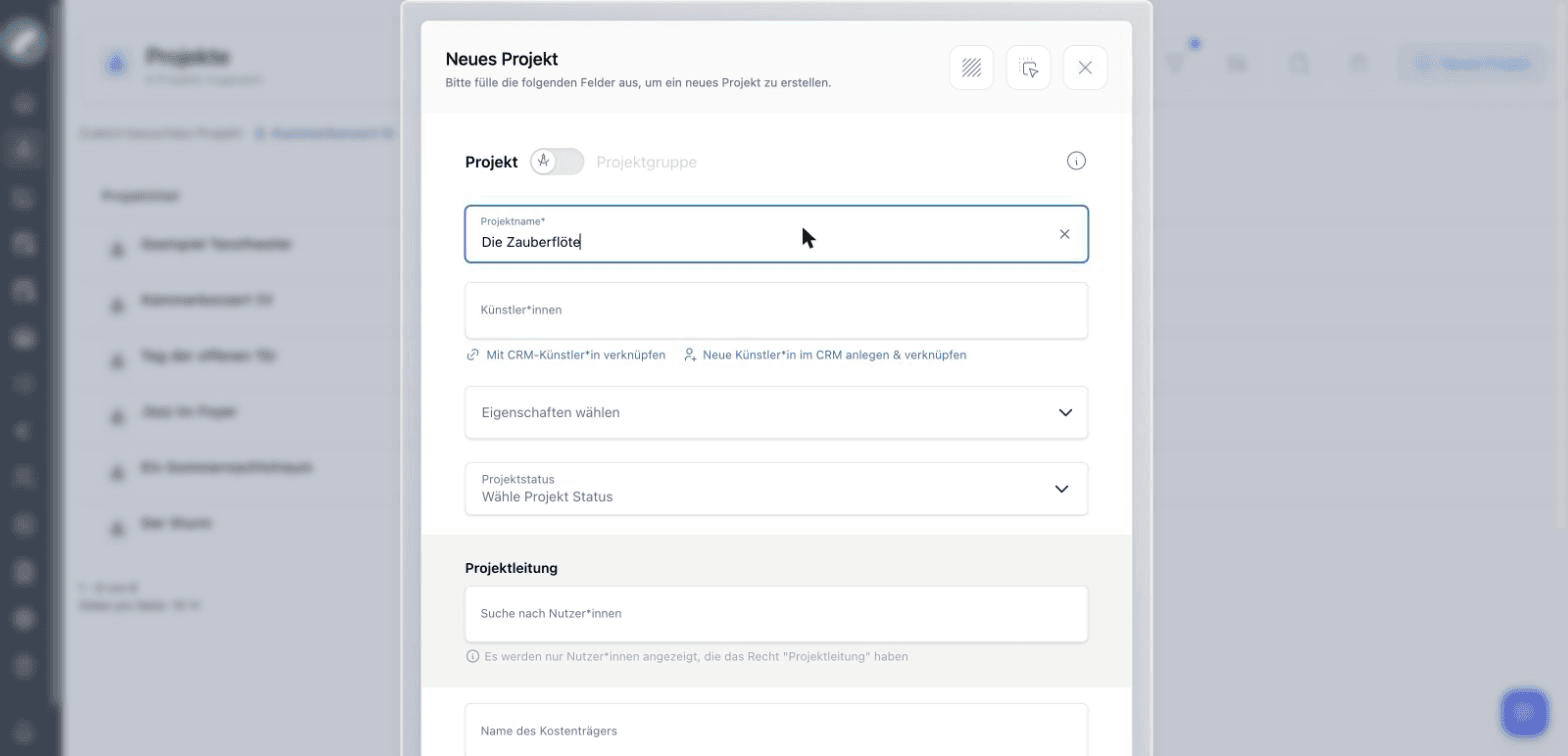
Besides the mandatory project name, the window asks — depending on your venue's creation settings — for:
| Field | Contents |
|---|---|
| Artists | Artists as free text or linked from the CRM |
| Project properties | Category, genre and sector as an expandable checkbox grid (multiple selection); the main marker sits directly on the respective row |
| Project status | One of the configured statuses. If Project status as a required field is enabled, a status must be selected — it remains changeable when editing the base data later, only removing it is blocked |
| Project management | Users with the permission Can be project manager |
| Name of the cost unit | Cost unit for the budget evaluation |
| Budget deadline | Cut-off date for the budget export |
| Belongs to project group | Assign the project to an existing group right away. This field is always present. |
| Mark as Done | The project no longer appears in the project searches, for example when selecting a project in an event. It stays in the project overview. This field is always present. |
Anyone who creates projects but does not hold Read all projects is automatically added to the project team as project management with write permission. This keeps the project reachable for the person who created it. With the global read permission you are only on the team if you enter yourself as project management.
The window has two buttons: Create creates the project and returns to the project overview, where it appears in the list. Set up events creates the project and then opens the event entry for this project right away. When creating a project, only people who may create events directly see this button (Plan events directly or Edit planned events).
These initial details are not final: authorised users can change them later via Edit basic data in the project menu. There you can also upload a Key Visual, the image of the project in the header. The main content—description, team, events, checklists, shifts, and budget—is then maintained in the project tabs.
Artists and CRM contacts
Artists can be entered as a name or linked to an existing CRM contact. A link is useful when contact details, company relationships, and other projects involving the same person should remain discoverable. Project search also considers assigned artists.
Project groups
A project group is technically a project itself, with a group flag. Typical use: a festival as the group, the individual concerts as members. Projects can be assigned to a group at creation or later; the group shows its members in a dedicated component. When creating a project group you additionally choose an Icon and a color and add existing projects right away under Projects of the group. In the budget the group combines the values of its sub-projects: it takes the column marked "Relevant for budget" from each sub-project and adds up the rows whose account (KTO) and cost center (KST) match a row of the group.
The header of a project group offers additional actions: add existing projects or create a new project directly inside the group. Member projects link back to their parent group, making it easy to move between a festival, season focus, or tour and its individual productions.
Converting a project into a project group
In Edit basic data, Convert to project group turns a project into a group and Convert to project turns a group back into a project. A confirmation window states the consequences beforehand: if a project group becomes a project, the connection to its subprojects is lost. The subprojects themselves remain as separate projects.
Project group or regular project?
Use a group when several independent projects should be navigated or evaluated together. Several events belonging to the same production will usually be better represented by one regular project with multiple events.
Duplicating instead of templates
There is no "project from template" — instead, an existing project is duplicated via its menu and serves as the blueprint. Budget templates exist as a separate concept on top.
A duplicate is an independent new project named "(Copy) …". Only the project's basic data is copied:
- name, project status and number of participants
- whether it is a project group
- the properties (categories, genres, sectors) and the departments
- the project team with all rights and roles. Whoever duplicates the project and is not yet on the team is added with budget access.
- the cost unit including its description Coming with the next update
Not copied:
- artists, budget deadline, Key Visual and the membership in a project group
- content entered in the components of the project tabs, such as text fields, checkboxes, dropdowns, links or CRM contacts
- the budget: the copy starts with an empty default budget table
- events, shifts, timelines, checklists, files, comments, material issues and funding sources
Component content is not copied because every venue sets up its tabs and components differently, so there is no common structure to copy from.
Anyone who may open the project can duplicate it if they additionally hold Create own projects or Write all projects, or are project management or have budget access in the project. After duplicating, Artwork opens the copy in the first tab that contains the shift component. If there is no such tab, you end up in the project overview.
The duplicate is meant as a starting point. Review its name, team and status afterwards, and add events and tab content anew. Later changes to the source and the copy are not synchronised.
Trash and recovery
Put in the trash removes a project from normal work without deleting it irrevocably. Anyone who holds Delete all projects or has the Permission to delete checkbox in the project team may delete. All team members receive a notification with the number of events deleted along with it. If a project has events that are on sale via Artwork-Tickets, it can only be deleted after the sale has been withdrawn.
Deleted projects are in the recycle bin in the sidebar, tab Projects. The recycle bin is visible to anyone with the permission Open trash. There you may restore and permanently delete the projects you would also be allowed to delete; Delete all requires Delete all projects. Entries in the recycle bin are removed automatically once the retention period has passed.
Last updated on