Project Budget
The budget table — positions, verifying and committing, templates and the Sage integration
Every project has a budget table (default tab Budget). It is only visible to people with budget access in the project and to users with global budget access.
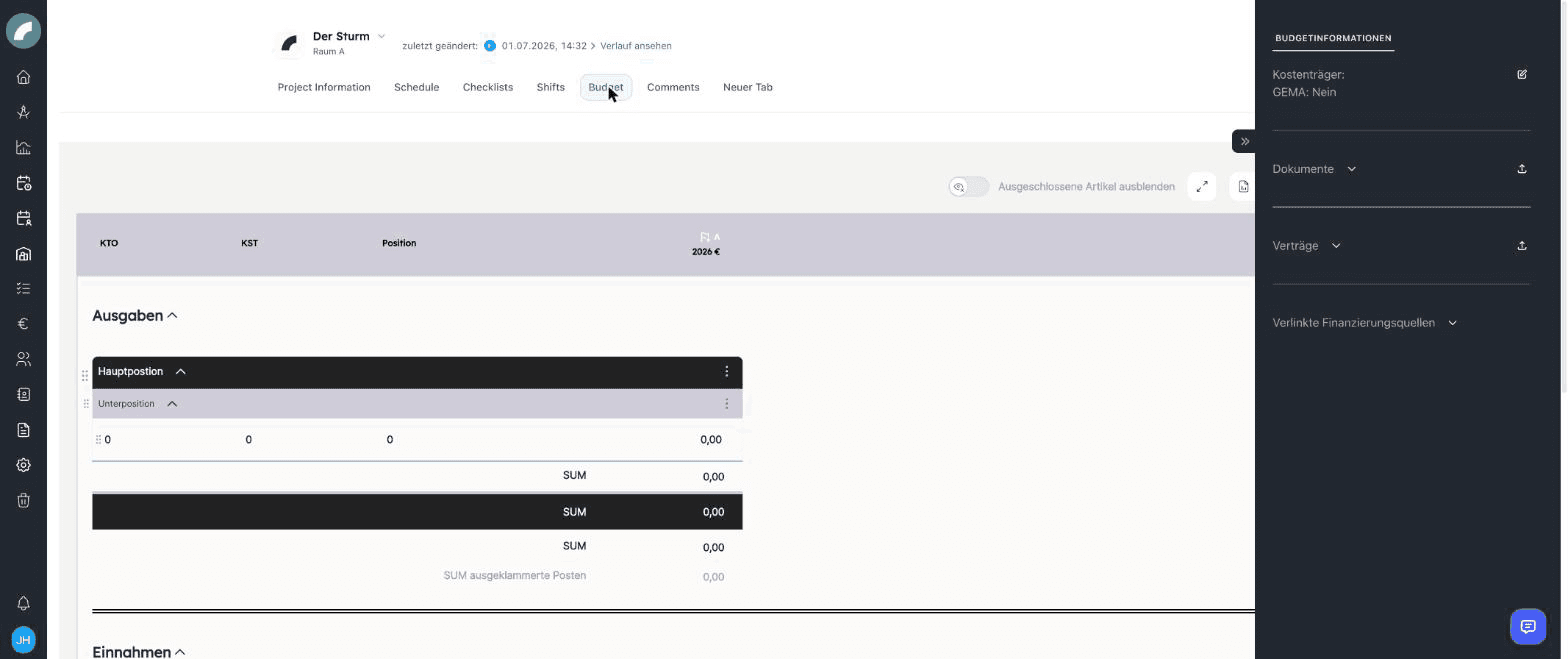
Table structure
The table is organized hierarchically:
- Main positions (e.g. income, artistic expenses) contain
- sub positions (e.g. fees, technology), which in turn contain
- rows with the actual amounts.
The columns are configurable: besides the base columns (KTO, KST, description), further columns can be created, renamed, colored and calculated from other columns via formulas. Cells support comments and calculations; totals run per sub position, per main position and overall.
Exactly one column carries the flag "Relevant for budget": wherever Artwork pulls budget data from projects (e.g. in overviews and evaluations), only this column is used. For newly created columns the flag is set automatically in a sensible way; it can be moved to another column manually at any time — info texts in the table explain the behaviour. Assigning it more than once is not possible.
With the required permissions, positions, rows, and columns can be created, duplicated, renamed, reordered, and deleted. When reordering via drag & drop, the message Order saved confirms that the new order has been applied. Column colours and comments help distinguish plan, actual, forecast, and explanatory data.
Accounts and cost centers in the row
If accounts and cost centers are enabled in account management, the KTO and KST cells always show the entry as number – name — in the budget table, in template and compact view and in the Excel export. There is no longer a switch between number and name.
The account search in the KTO/KST cell searches number and name and can be operated with the keyboard: arrow keys move between results, Enter takes one over, Escape closes the search. If there is only one result, Enter takes it over directly. The search term is highlighted in the results; if you type a number or a unique name exactly, the entry is taken over automatically when you leave the field. If you leave the field without a matching result, the previous value stays. In the expenses area the search only finds expense accounts, in the income area only revenue accounts (see account type). The search shows at most 50 results and points out with More results available – refine your search when there are more.
Values and calculations
Cells may contain direct values or calculations based on other cells. Calculated columns are useful for differences, forecasts, and percentages; hierarchical totals update automatically. The source remains visible for Sage postings and other imported values.
Cell details: calculation, comment, linking
The plus icon on a value cell opens the Cell Details with three tabs:
- Calculation: you build the amount from individual calculation items, each with name, value and an optional comment. On saving, the total overwrites the previous value of the cell; Artwork asks for confirmation first. The tab only exists in ordinary value columns, not in sum, difference or Sage columns.
- Comment: notes on this item, with the history of previous comments. You can only delete your own comments.
- Linking: connects the value as expense or revenue to a funding source.
If a cell has comments, a calculation or a link, it shows a small icon for each; clicking it opens the matching tab directly. In a locked column, calculation and linking cannot be changed.
The sum cells of sub positions, main positions and the overall total have corresponding Sum Details with the tabs Comment and Linking.
Excluding items
Rows and whole columns can be taken out of the totals without deleting them, for example for variants or items that are not yet confirmed. In the row menu choose Exclude and later Include positions, in the column menu Exclude column or Include column. Excluded values appear greyed out, do not count towards SUM and are shown per section in the separate row SUM excluded items. The switch Excluded items hidden above the table hides them completely for your account.
Verifying & committing
Three mechanisms make the numbers binding. Besides budget access, all three require the permission Remove verifications & locks (module Budget & funding); admins may always use them.
- Verifying: in the menu of a main position choose Get verified by user and select the reviewing person (a four-eyes principle for the budget). The position then shows requested to be verified. The requested person confirms with Mark as verified; afterwards the position shows verified. The reviewing person needs the permission mentioned above as well.
- Committing: in the menu of a main or sub position, Commitment records the current state without a second person. Canceling a fixed term takes this back. Commitment is only offered while the position is neither requested for verification nor verified.
- Locking a column: in the column menu, Lock locks a whole column. Its cells can then no longer be edited, rows of the table can no longer be deleted, and the link to funding sources is fixed for this column. The column header shows who locked it; Unlock removes the lock.
Verifying and committing remember the values at the time of confirmation but do not lock the cells. If a value is changed afterwards, Artwork highlights the cell in red, and a verified main position shows a lock with an exclamation mark. To prevent changes technically, lock the column as well.
If the requested person does not yet have budget access to the project, the Grant budget access dialog offers to give them this access together with the request. An open request is withdrawn by the requesting person or the project management with Withdraw verification request; a confirmed verification is removed by the reviewing person or the project management with Cancel verification. Copied positions and tables taken over from templates always start unverified.
This allows staged approvals: one section can be closed while others remain in progress.
Budget templates
A finished table structure can be saved as a budget template and applied to new projects — so all productions start with the same chart of accounts. Templates are managed centrally under System → Budget (permissions View/Edit budget templates; the menu item itself requires Budget settings); in addition, a project's table can be reset to the base structure.
The actions are in the three-dot menu to the right of the heading Expenses above the budget table. Which ones you see depends on whether the table still has the empty base structure:
| Menu item | Visible | Effect |
|---|---|---|
| Import template | only with the empty base structure | Takes a central budget template over into this project |
| Import from project | only with the empty base structure | Takes over the budget table of another project, including values, comments and calculations. The Sage column with its bookings, verifications and links to funding sources are not taken over |
| Save as template | as soon as the table has content | Saves the table under a name as a central template. Requires the permission Edit budget templates |
| Reset | as soon as the table has content | Resets the table to the base structure after a confirmation; all links are lost |
| Restore deleted columns | always | Brings back deleted columns of this table |
A template can therefore only be imported into a budget that has not been edited yet. If an already filled budget should receive a template, reset it first.
Templates can standardise hierarchy and column logic as well as row labels. Before resetting a budget, check for project-specific data because the reset intentionally changes the existing table structure.
Accounts & cost centers
Under System → Budget you globally maintain accounts (KTO) and cost centers (KST) in Account management, which are available for selection in the budget rows, and the names of the first columns in the General tab — see Budget settings.
Sage integration
If the Sage100 interface (tool settings) is set up, Artwork pulls booking data from your accounting: bookings are matched to budget rows via KTO/KST; bookings that cannot be matched land in a separate list for manual assignment. Dedicated permissions control who sees project-related or global Sage data.
Bookings that were not matched automatically are listed above the budget table in the collapsible blocks Project-related Sage data and Global Sage data (bookings without a project). Which block you see depends on the permissions Project Sage data and Global Sage data. You assign a booking via drag & drop:
- onto the Sage cell of an existing row: the booking is counted towards this row.
- onto the line between two rows of a sub position: Artwork creates a new row there and fills in KTO, KST and booking text.
Bookings that are already assigned can be dragged in the same way from a Sage cell to another row. If the cell contains several bookings, a dialog lets you choose which of them move. The trash icon on an unassigned booking removes it from the list.
Difference and sum columns that include the Sage column calculate with the assigned bookings from the start.
Sage invoice overview
The tab component Sage invoice overview (special component in the tab construction kit) shows all Sage bookings of the project as a table — those assigned to a budget cell as well as the project-related ones not yet assigned:
- Columns Creditor / name, KTO (general ledger account, otherwise debit account, with the account name from account management), KST, Designation, Amount, Document date and a status chip Assigned or Not assigned.
- Group headers per cost center, a total row across all bookings; collective bookings can be expanded.
- A click on a booking opens the familiar booking detail window — read only for bookings that are not assigned.
The component is only visible with an active Sage integration and requires budget access to the project as well as the permission Project Sage data. If one of the two is missing, it shows a note naming the missing permission instead of the table.
Place the component once
After the update the Sage invoice overview exists as a component but is not yet in any tab. Drag it once into the desired tab under Tab settings.
Funding sources
Budget rows can be linked to funding sources to set grants and third-party funds against the budget — see Funding Sources.
Exports
- Project budget as Excel — the project's table. KTO, KST and description are output as text; leading zeros such as "04000" are preserved.
- Budget export by deadline — across projects: all budgets whose budget deadline falls within the chosen time range (the field from the creation window). Because this export reads the budgets of all projects, it requires the permission Global budget access.
You start the export of the individual table with Excel-Export above the budget table; it requires budget access to the project or global budget access.
The project export is intended for one calculation. The deadline export is a cross-project management tool for a selected planning or reporting period.
Project group aggregation
The budget of a project group combines the numbers of its sub-projects in a dedicated column, which is named Unterprojekte in every interface language. From each sub-project the column flagged "Relevant for budget" is used; a separate flag for project groups no longer exists. The values of those rows are summed whose KTO and KST values match the row of the group.
For a group row to collect values, the following applies in detail:
- In the group row the first two columns (KTO and KST) must both be filled. The exact value is compared.
- Expenses are only compared with expenses, income only with income.
- In addition to the budget-relevant column, the Sage bookings assigned to the matching row in the sub-project are counted.
- Each value of a sub-project counts only once. If the same pair of KTO and KST occurs in several group rows, it ends up in the first one.
- Only matching sub-project rows are counted Coming with the next update. The group row's own values and Sage bookings are not included; if no sub-project row matches, the column shows 0.
If the amount is greater than 0, a list icon appears next to it. It opens Details of the Selected Cell with a breakdown by project, column and value.
Last updated on