Overview
What projects are in Artwork and how the module is structured
Projects are the central bracket in Artwork: a production, a concert, a festival edition or an event series — with its own team, events, budget, checklists, documents and shifts. Almost everything in the system can be assigned to a project: calendar entries, shifts, contracts, funding sources.
A project is therefore more than a digital project folder. Changes made in one place feed into the connected modules: events define the project period, shifts appear in the duty roster, budget figures can roll up into project groups, and documents stay attached to the production. Core information is maintained once and then shared by planning, technical, administrative, and communications teams.
Core concepts
| Concept | What it means |
|---|---|
| Project | The planning unit — from a single event to an entire production. |
| Project group | A project with a group flag that bundles other projects (e.g. a festival with its individual events). Budget columns can be aggregated across the group. |
| Project status | Freely definable statuses with a color (e.g. idea, in planning, confirmed, cancelled). A status can be marked with Project counts as "in planning": new rows in the project schedule of such projects are then preset as planned events (see Project status). |
| Properties | Category, genre and sector: freely definable attributes with an optional main assignment, by which projects can be filtered. |
| Tab | A page within the project view. Which tabs exist and what they contain is freely configurable. |
| Component | A content element in a tab — from text fields to checklists to the complete budget. |
Everything is composable
Unlike most modules, the project view is not a fixed layout: administrators assemble the tabs from components — standard components such as calendar, budget, shifts or comments, plus custom fields (checkboxes, texts, dropdowns, links). Visibility and editing can additionally be restricted per component. What your project view looks like therefore depends on your venue's configuration; this documentation describes the default tabs as shipped.
A typical project workflow
Create and classify the project. Name, artists, status, properties, project leaders, and an optional project group provide the shared starting point.
Set up the team and access. Decide who can view the project, who may edit it via the Write permission checkbox, who is project management, who receives budget access, and which project role each person performs.
Plan events and the project period. Add events in the calendar or in the project table. Relevant event types automatically determine the period.
Work together. Custom fields, checklists, comments, links, documents, contracts, material issues, and shift information keep the current state in one place.
Evaluate and share. Budgets, BI figures, history, Excel exports, and configurable project PDFs support reporting, handovers, and documentation.
Your view may look different
Artwork can be adapted to the workflows of each organisation. Tab names, order, fields, and visible functional blocks may therefore differ from the examples in this guide, while the underlying interaction stays the same.
Project Overview & Creating
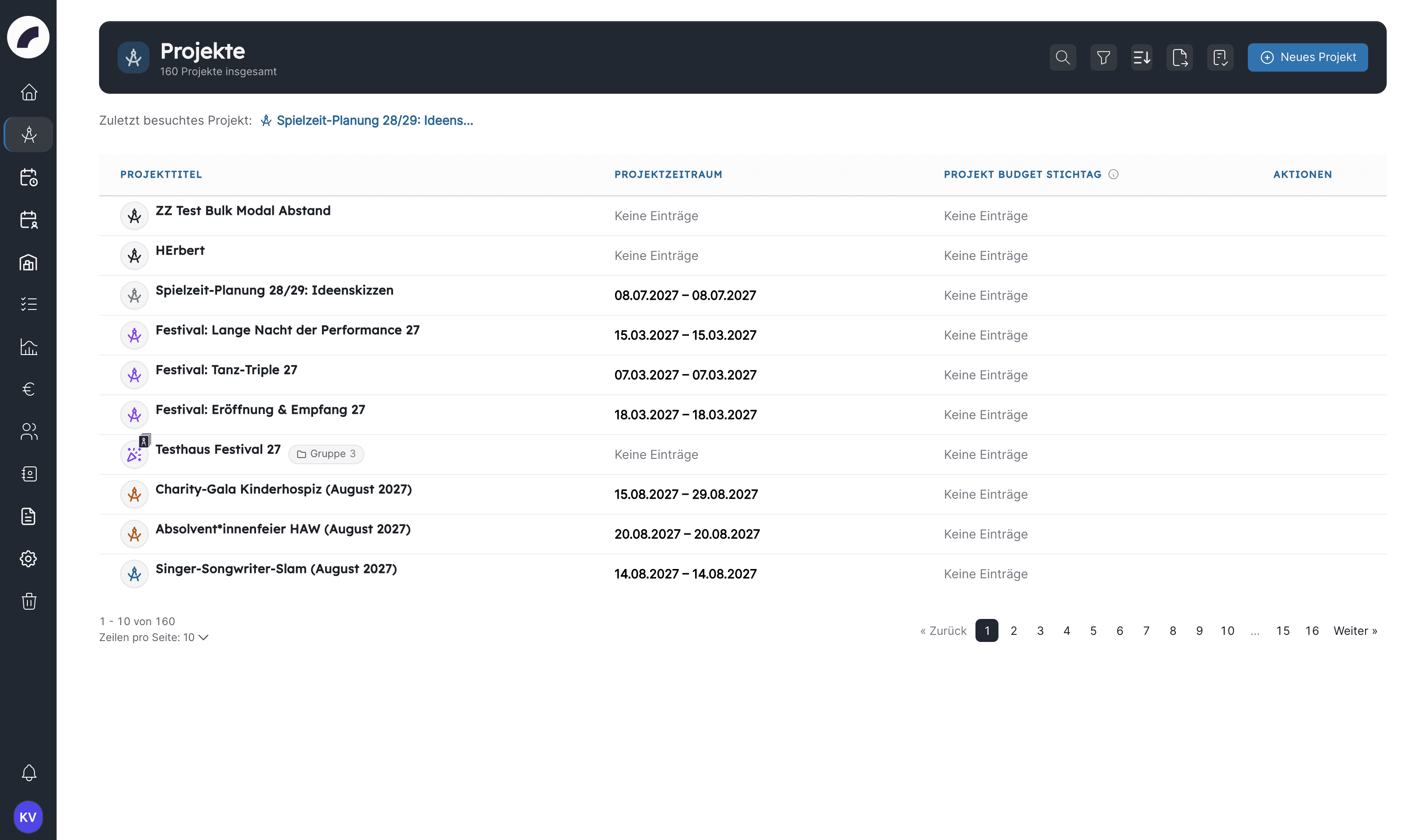
The project list, search, filters, pinning — and creating new projects or project groups.
The Project View
Tabs, team, checklists, comments, documents & contracts, printing.
Project Schedule
Create and bulk-edit project events and connect them with calendar and shift planning.
Documents & Additional Data
Documents, contracts, requests, artist residencies, and material issues.
Project Budget
Budget table, positions, verifying & committing, templates, Sage integration.
Business Intelligence
Attendance, tickets, revenue, capacity, production data, snapshots, and Excel export.
Project Settings
Categories, genres, areas, project statuses, creation settings, project roles.
Tabs & Components
Assemble the project view from components — the construction kit behind the tabs.
Permissions
| Permission | Allows |
|---|---|
| Read all projects (Leserechte für alle Projekte) | Open and read all projects (otherwise only your own or team projects). Read only: editing requires write permission in the project team or the global write permission. |
| Create own projects (Eigene Projekte anlegen) | Create projects; the creating person can edit their project afterwards. Deleting is not included. |
| Write all projects (Schreibrechte für alle Projekte) | Open and edit any project, even without team membership. The editing restriction of individual components does not apply, but the setting "Only visible to the following" still does. |
| Delete all projects (Löschrecht für alle Projekte) | Move any project to the trash, delete several projects at once, and restore or permanently delete projects in the recycle bin |
| Can be project manager (Projektleitung sein) | Can be marked as project management in a project team. Grants no access to and no write permission for other projects. |
| Project settings (Projekteinstellungen) | Manage the project settings and the tab construction kit |
The project list itself is visible to everyone. The permissions control which projects you can open and edit (see The project list).
There are additionally rights per project (the checkboxes Write permission, Project management, Budget access and Permission to delete — granted via the project team) and restrictions per component.
How project permissions work together
- Access: whether a project can be opened is decided by membership in the project team (person or department) or by the global permission Read all projects.
- Editing: writing in a project requires write permission within that project — the Write permission or Project management checkbox in the project team, having created the project, or belonging to an assigned department. The global permission Write all projects grants this for every project.
- Components: the permission settings of individual tab components (component settings) can only restrict these rights further, never extend them.
Read only means read only
Anyone who may only read a project cannot edit its tab components — even if a component is set to "editable by everyone". The permission Can be project manager no longer opens other people's projects; anyone who is meant to work in a project needs a team membership or the global read or write permission. The rules apply in the interface and on the server alike.
Last updated on