External access
Invite external contacts by link so they maintain their own data and shared project tabs without an Artwork account
External access lets you invite people without an Artwork account, such as companies, agencies, touring partners, or artists. They receive a personal access link by email and can use it to read or fill in shared project tabs and maintain their own contact data. No password or user account is needed.
Typical uses are technical riders, contact persons and travel details that a guest production enters itself, or logos and press material that an agency uploads straight into the project tab.
Requirements
New in 1.7.8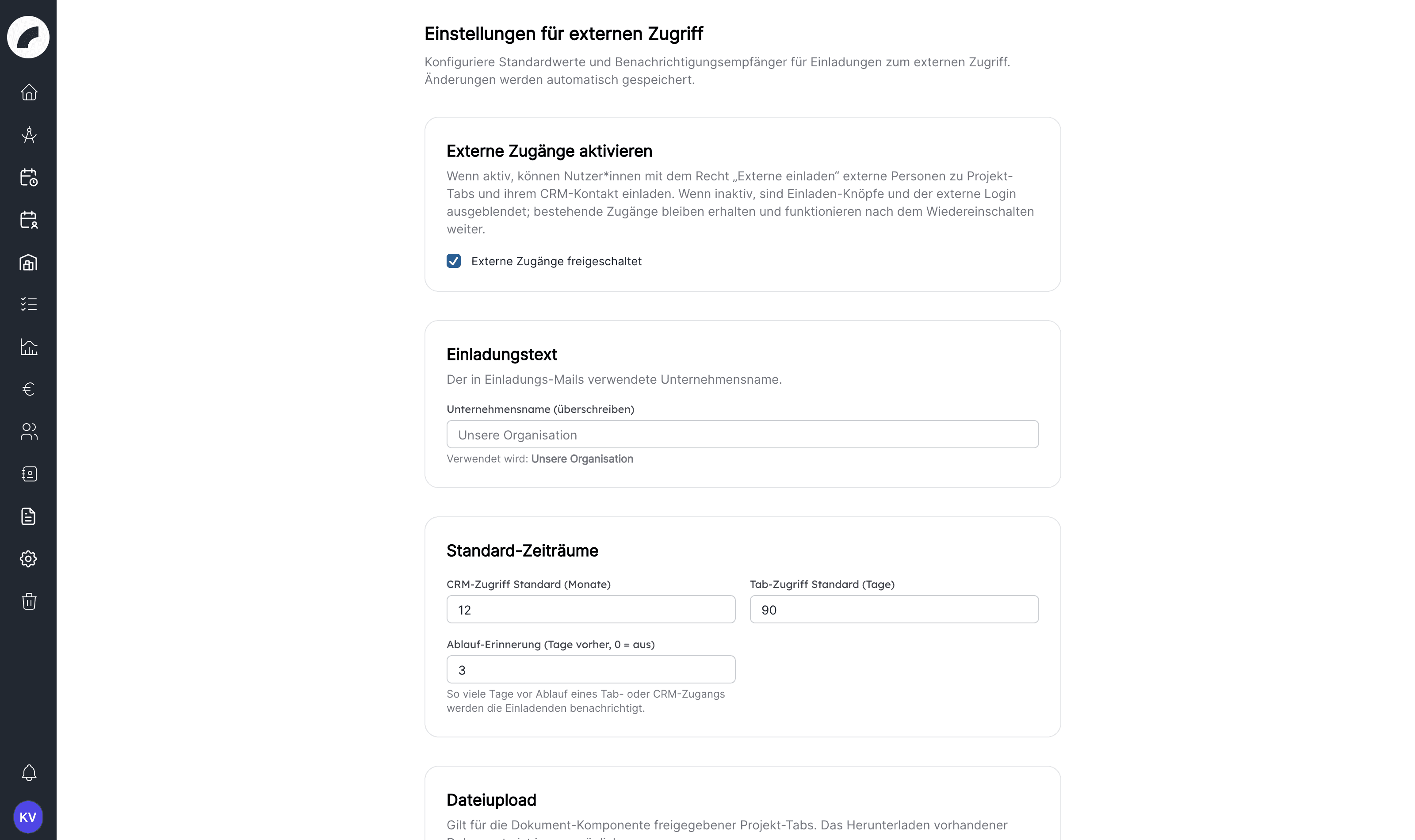
External access must be enabled first
After a fresh installation or an update the feature is switched off. Only when an Artwork admin enables Activate external access under System → External access do the invite buttons appear and external access links work. Existing accesses are kept when the feature is switched off and keep working after it is switched on again.
The System → External access page is visible to Artwork admins only and holds all installation-wide defaults. There is no save button: switches take effect immediately, number and text fields when you leave the field, and Saved briefly appears at the top. Rejected values show their error message directly below the field.
| Setting | Effect |
|---|---|
| Activate external access | Switches the feature on or off as a whole (default: off). |
| Allow file upload for external accesses | Only with this switch can invited people upload their own files in a documents component and remove them again (default: off). Without it they can only view and download documents. The file types and size limit of the “project” area from the file settings apply. |
| Company name (override) | Name used in invitation emails; leave empty to use the name from the tool settings. |
| CRM access default (months) | Default for how long an invited person may maintain their own contact data (default: 12 months). |
| Tab access default (days) | Default end date of a tab release (default: 90 days). |
| Expiry reminder (days before, 0 = off) | This many days before a tab or CRM access expires, the inviters receive a reminder (default: 3). |
| Security & rate limiting | Validity of the access link, session duration, and limits for link requests; change with care. |
Under Blanket notification recipients you can additionally add users or departments who receive a copy of every external access notification. Without an entry, only inviters and project managers are informed.
The upload switch applies to the whole installation
Decide both switches deliberately: file upload applies to every external access of your installation, not per project or person.
Who may invite is controlled by the Invite externals permission in the user permissions. It requires the CRM module and has no effect while the feature is disabled; the permissions page then shows it as a disabled feature. The permission unlocks the invite buttons in the CRM, on contact pages and in project tabs, plus the External access overview.
Invite externals
You can start an invitation in three places:
| Starting point | Button | Purpose |
|---|---|---|
| Project tab | Invite external to this tab at the top of the tab | Tab invitation: a person should read or fill in project tabs. No CRM contact is created; an email address, an optional name and the tabs are enough. This is the only way to grant tab releases. |
| CRM list | Invite external in the header | Contact invitation: a person should maintain their own master data (address, bank details …) in the CRM. The dialog points out that tab releases are granted via the project. |
| Contact page | External access block with Invite contact for external access or Invite again / extend | Like the CRM list, but the contact is already set and the access is linked to it. The block shows email, CRM access period, the shared tabs with project and end date, and the time of the last submission. |
The invitation is tied to the email address. Inviting the same address again extends the existing access and adds the newly selected tabs; the same person can receive the same tab in several projects. Addresses that belong to an Artwork user account or to another CRM contact are rejected.
The invitation dialog
The collapsible help box How does external access work? explains the process, what the invited person sees, the CRM link, and management. Which details follow depends on the starting point.
Tab invitation from the project
Coming with the next updateEnter the E-mail address and optionally a Name. The name appears in notifications and in the tab status; no CRM contact is created for the person.
Select Shared tabs. The current tab is preselected if it contains externally visible components; otherwise it shows No externally visible components. For each tab set the Access — Read only or Read and write (preselected) — plus From and Until.
Read the notes and choose Send invitation. The person receives an email: “… has invited you to fill in information for the project … at …”, noting that no account or password is needed, entries are saved automatically and are submitted at the end in the form.
Contact invitation from the CRM
Set the contact. From the contact page the contact is already set. From the CRM list, Invite an existing CRM contact lets you pick an existing contact by name or email; without this option a new contact is created: choose the contact type via the search field and complete its public mandatory fields. Confidential mandatory fields must be filled in by you; the external person never sees them.
Check the email. The invitation goes to the contact's stored address. Send to a different email address instead stores a separate Email for external access; the contact's own address stays unchanged. If the contact has no address yet, the entered one is saved on the contact.
Set CRM access until. Up to this date the person can maintain their own contact data. Left empty, the default period from the settings applies.
Choose Send invitation. The person receives an email with the access link.
The dialog shows two notes when relevant:
- Important: The external person sees every component of the selected tabs, regardless of their internal visibility settings. Create a dedicated tab for exchange with externals (see tab configuration).
- File upload disabled: If a selected tab contains a documents component and the upload switch is off, the person cannot upload files there.
Shown externally are text fields, dropdowns, checkboxes, text areas, titles, separators, disclosures, links and link lists, project title, project basic data, artist names, the documents component, and the CRM contact list. With write access, text fields, dropdowns, checkboxes, text areas, links, link lists, disclosures, documents, and the contact list can be filled in. Other components, such as budget, checklists, or shifts, never appear externally. Hint texts stored on fields are shown to the external person below the field.
What the invited person sees
Access link and sign-in
The link from the invitation email first opens the Confirm login page. The session starts only after a click on Sign in, so a link preview in the mail client does not consume the link. The link is valid only briefly (default: 15 minutes) and can be used once. Afterwards the person can request a new link to their email address at any time via Request login link, as long as the access has not expired or been revoked.
External sessions have a fixed maximum duration (default: eight hours, sign
out after two hours of inactivity). After that a new click on a fresh link is
required. External users stay entirely within the /external area and see
nothing of the internal application.
Overview and navigation
After signing in, the Overview shows a greeting, for contact invitations the validity of the CRM access, and the Shared with you list with project, tab, and access type; each entry leads straight to its tab. The navigation contains Overview, My data (only while CRM access lasts), the shared tabs per project, marked “read only” where applicable, and Sign out.
My data
Under My data the person sees their own CRM contact with its non-confidential property groups and can adjust it with Edit. Which master fields are offered depends on the contact type, for example first name, last name, email, phone, and address for freelancers; artist name, first name, last name, email, phone, and position for artists; or name, contact person, email, phone, website, and address for manufacturers; accommodation and custom contact types show their respective fields. Confidential groups never appear.
Changes are not applied directly: Submit changes for review sends a submission to the inviting person (see Approving contact data). The status — open, applied, partially or fully rejected — is shown to the person under My data; a new submission replaces one that is still open.
Filling in shared tabs
A tab shows the project, tab name, whether editing is possible, and Access valid until at the top. The content is divided into section cards that follow the tab's headings; disclosures also work externally. With write access, Artwork saves every entry immediately as a draft; the person can close the tab and continue later. Internally these drafts are visible directly in the components.
Only the Submit entered data button tells the inviting person and the project management that the entries are complete. From that moment the tab is locked for the person until someone reviews the data internally: if the tab is returned for revision, the person can continue editing and finish with Submit entered data again; if it is confirmed, it stays closed. In both cases an email reports the outcome, optionally with a comment from the reviewer.
Filling in the CRM contact list
Coming with the next updateIf the tab contains a CRM contact list — such as “Names of all arriving people” in the Production inquiry template — the external person can create contacts of the allowed contact types with Add …. They see and fill in only the non-confidential fields; only the public mandatory fields are required. They may edit and Remove from list only contacts they created themselves. A configured Maximum number of contacts limits the list.
Viewing and uploading documents
In a documents component the person sees all files of the tab with name, size, and date and can retrieve them at any time with Download. Active content such as HTML is never rendered in the browser during an external session.
If Allow file upload for external accesses is enabled and the tab is shared with write access, the person can additionally upload their own files and delete them again with Remove — only their own, marked uploaded by you. Without the switch, a note explains that uploading is not enabled for external accesses.
What happens internally
- Tab status: Next to Invite external to this tab, the tab shows the External persons in this tab block with each person's status: Invited – not logged in yet, In progress – not submitted yet, Submitted on … – waiting for confirmation, Confirmed by … on … or Returned for revision by … on …. While a tab is being filled in externally, a note in the tab points this out.
- Review: For a person who has submitted, Confirm and Return for revision are available, each with an optional comment. Confirming also marks the externally created contacts as reviewed; returning reopens the tab for the person. Anyone who may edit the tab or who sent the invitation may review.
- Notification: When a tab is submitted, the inviting person and all project managers receive a message that the external person submitted the data for the tab, with the number of fields changed since the last submission and the link Open project. Individual field changes do not trigger notifications. The messages belong to the External access group in the notification settings.
- CRM contact list: Externally created contacts carry the badge External · not reviewed and the note Added externally by … – not yet reviewed. If Artwork detects a contact with the same name, it warns with Possible duplicate in the CRM and offers Merge into existing contact. Internally you can add contacts to the same list, include existing ones with Link existing CRM contact, Open in CRM or Remove from list — the contact itself stays in the CRM.
- Project history: Every submission creates an entry “External person … submitted data in tab …” with the external person as the actor, not an internal account.
- Externally uploaded files: In the project's documents component such files carry the badge Uploaded externally by …; the tooltip shows the access's email address.
- Contact page: The External access block shows accesses, periods, shared tabs, and the time of the last submission. If a contact-data submission is pending, the note There is a data update request to review appears there with a link to the review.
Approving contact data
The person's own contact data, including property values, always goes through approval by the inviting person: what the external person submits under My data is written to the CRM contact only after review. The inviting person or an Artwork admin may review.
The Review submission page — reached via the note on the contact page, the notification, or the access detail page — compares the current and the proposed value for each field. Decide per row with Accept or Reject and apply the selection with Apply decisions, or choose Approve all or Reject all (optionally with a reason). The external person then receives an email stating whether their changes were applied, partially applied, or rejected.
Manage external accesses
The External access button in the CRM list opens the External access overview (permission Invite externals). It lists all accesses with email, linked contact, status (Active, Expired, Revoked), CRM access until, number of scopes, Invited by, and Last login; filter buttons narrow by status.
Details opens the detail page of an access:
| Area | Options |
|---|---|
| Header | Resend invitation (new access link while the access is still active), Revoke access with reason, Reactivate, Re-link to another contact |
| CRM access | Show validity and set a new expiry date with Extend. For pure tab invitations this only shows Tab access only (no own CRM contact); extending is not available then. |
| Tab access | Table with project, tab, access, validity, and Last submitted; per row Make read-only or Make writable and End now |
| Recent submissions | Status and number of changes per submission with the link Review |
| Audit log | History of all actions — invitation resent, access extended, revoked, reactivated, tab access ended, tab data submitted — with time and actor; external actions carry the badge External |
An access is never deleted, only revoked; it can be reactivated at any time. Once the CRM access and all tab releases have expired, sign-in no longer works until you extend the access or invite again.
Reminder before expiry
Every day Artwork checks which tab and CRM accesses expire within the days
set under Expiry reminder and notifies the inviting person — for tab
releases also the person who granted the release. Each release is reported
once; after an extension the reminder applies again. With the value 0 the
reminder is off.
Recommendations
- Create a dedicated tab per project for exchange with externals and share only that one.
- Keep bank details, conditions, and internal notes in confidential property groups; external accesses never see them.
- Give tab releases a clear end date and end them after the production with End now.
- Review submitted contact data promptly so the external person is not left waiting for feedback.
Last updated on