Overview
Manage contacts using your own types, fields, and access rules
The CRM is the central directory for external people, organisations, and other specialist addresses. Depending on your setup, these might include artists, accommodation, manufacturers, agencies, partners, or completely custom contact types.
Contacts are not limited to name search. Each type can have its own fields, required details, list columns, and filters. Confidential property groups can be released to specific users or entire teams. External contacts can also be invited to maintain their own data and shared project tabs without an Artwork account (see External access).
Contact types as tabs
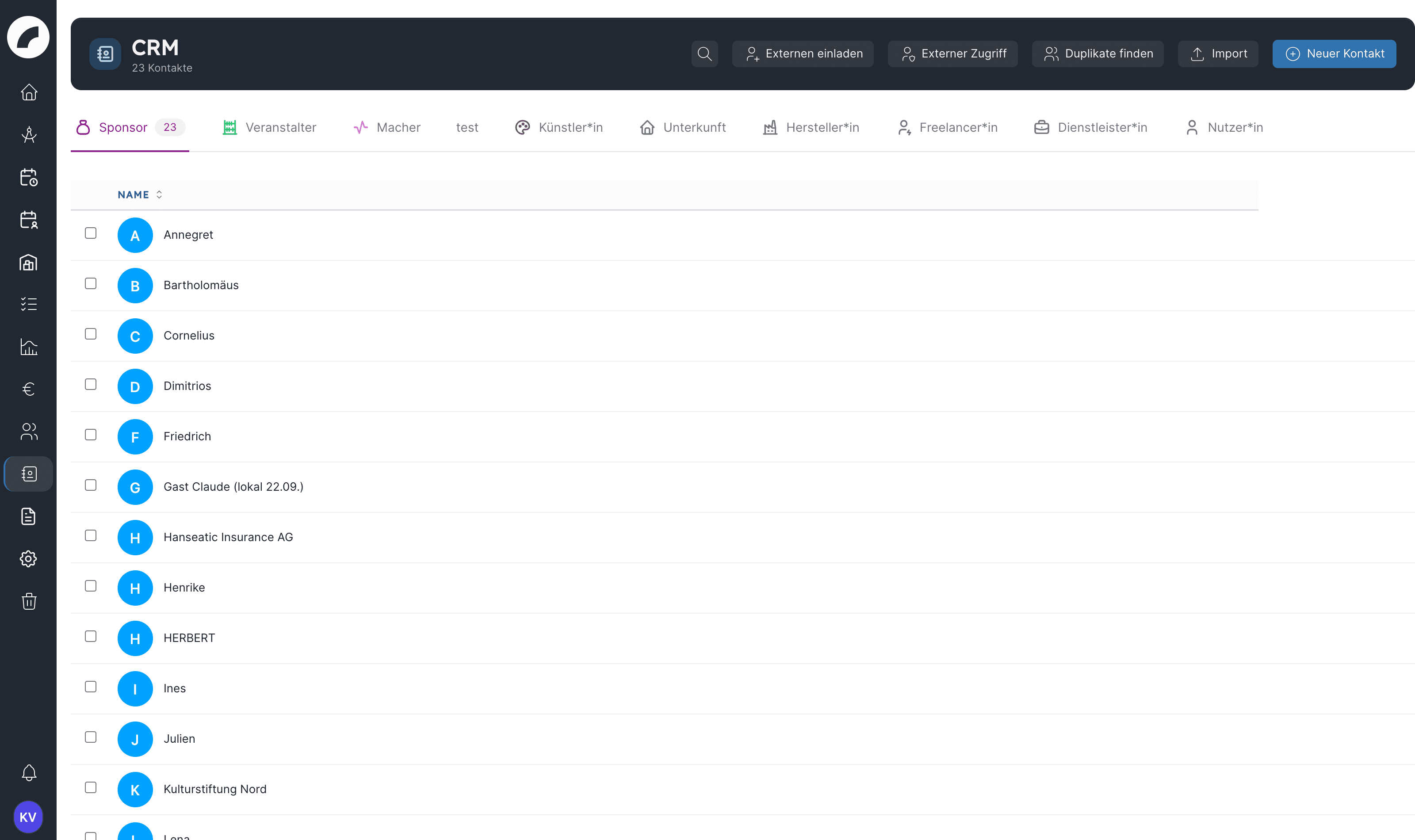
Each contact type appears as a tab with a name, icon, and colour. The order of the tabs is defined in the CRM settings. The active type determines:
- which contacts appear in the table,
- which fields a contact has and which of them are mandatory,
- which additional columns are shown,
- which filters are available,
- whether a contact can be created and edited directly in the CRM.
Some system types mirror data from other areas:
| System type | Leading area |
|---|---|
| Users | User management |
| Freelancers | Freelancer management |
| Service providers | Service-provider management |
These tabs are read-only in the CRM. Create and change records in User management; a link on the contact takes you straight to the original profile. This prevents two independent records for the same person or company.
Typical workflow
Contacts & projects
Search, filter, create, edit, and merge contacts, and link them to projects, artists, and accommodation.
External access
Invite external contacts by link so they maintain their own data and shared project tabs.
Import contacts
Upload CSV and Excel files, map types and columns, detect existing contacts, and review skipped rows.
CRM settings
Configure contact types, groups, confidentiality, properties, required fields, columns, and filters.
Permissions
| Permission | Effect |
|---|---|
| Use CRM | The CRM menu, reading, creating and editing contacts; the contact popover and artist linking in projects, residencies, and inventory. Only released property groups are visible. |
| Manage CRM | Additionally System → CRM Settings, import and duplicate check, deleting contacts, the CRM contacts tab in the recycle bin (restore, delete permanently), and access to all property groups, including confidential ones. |
| Invite externals | The invite buttons in the CRM, on contact pages and in project tabs, plus the External access overview. Only works while the external access feature is enabled in the settings. |
There is no read-only CRM permission: anyone who can see contacts can also create and edit them. Deleting contacts, however, requires Manage CRM. Confidential property groups can additionally have their own view and edit access for users or teams.
Two users may therefore open the same contact but see or edit different groups. Confidential groups are not simply exposed as general contact information in project cards, and external accesses never see them.
CRM structures contacts, not communication
The CRM stores master data, files, and links. It is not a full email inbox and does not automatically record calls or conversations unless you configure properties for that purpose.
Last updated on