CRM settings
Design contact types, groups, properties, and access rules
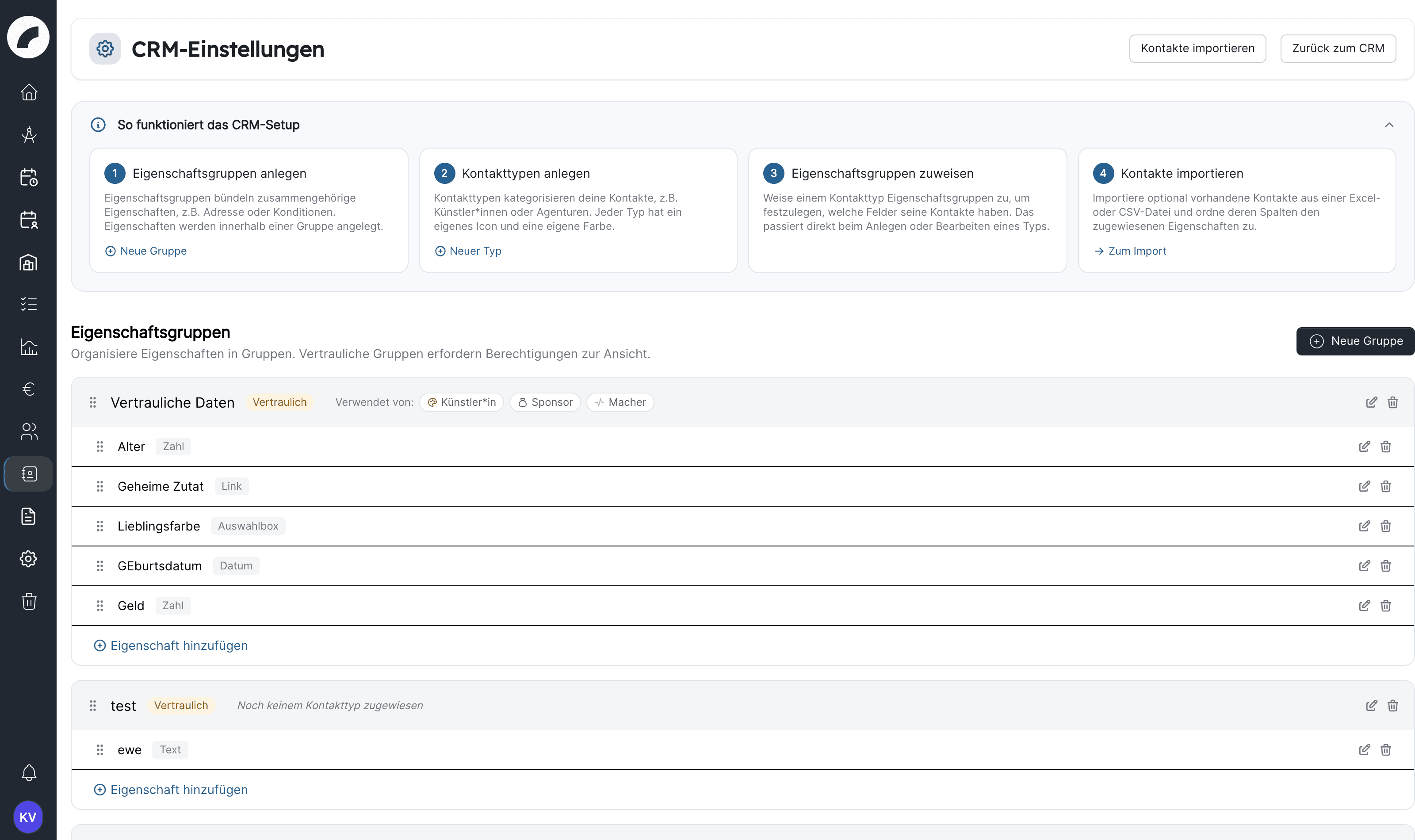
System → CRM Settings defines the CRM structure for all users. The page requires the Manage CRM permission. Changes affect entry forms, profiles, tables, filters, imports, and some project components.
Understand the three levels
| Level | Purpose | Example |
|---|---|---|
| Contact type | Categorises contacts and creates the tab | Artist, accommodation, agency |
| Property group | Organises fields into sections and may be confidential | Contact details, bank data, technical data |
| Property | Stores one specific value | Phone number, date of birth, website |
A property is first created in a group. You then assign the groups a contact type needs and define per property how it behaves in that type. Start with property groups when the CRM is still empty.
Manage contact types
Create a contact type with New type. It has a name, icon, and colour shown on its tab and profiles. Custom types can be edited and deleted after confirmation. A contact type can only be deleted while no contacts are assigned to it; move the contacts beforehand with Change type or delete them. Drag types in the list to change their order, and with it the order of the tabs in the CRM.
System types carry a System marker. Other Artwork functions depend on them, so they cannot be deleted. Name, icon, colour, and the property assignment may be adjusted without changing the underlying system function.
Assign properties to a contact type
When creating a contact type, and later via Edit contact type and property assignment, you select the property groups that apply to the type in the same dialog. Drag the assigned groups into the desired order; it defines the layout of the contact page for this type. Expand a group to enable its individual properties and set per property:
| Option | Effect |
|---|---|
| Mandatory field | Marked with a red asterisk and must be completed before editing a contact can be finished. The New contact dialog and the import create contacts even with empty mandatory fields. |
| Show in list view | Adds a sortable column to this type's tab |
| Filterable | Offers the field in the contact list filter |
Uploads cannot be filtered. Some system groups and properties cannot be deselected because other functions rely on them; the dialog marks them accordingly.
Keep the result focused: too many columns make the list difficult to scan, and every mandatory field increases effort during creation and import.
Property groups
Create a group with New group. It has a name and icon. The list shows how many properties each group contains and which contact types use it. Groups can also be reordered by dragging.
Enable Confidential when its fields should not be visible to all CRM users. Confidential groups are visible only to people with Manage CRM and to the users and teams you authorise under Manage access. For each entry you grant separately:
- Can view — the group and values are shown.
- Can edit — the group's fields are additionally unlocked for editing.
Can edit only works together with Can view: without view access the person does not get to see the group at all. If you turn off confidentiality, Artwork deletes the access list. If the group becomes confidential again later, enter the releases anew.
External accesses never see confidential groups
Contacts who maintain their own data through external access never see confidential groups, regardless of any release. Keep bank details, conditions, and internal notes in confidential groups.
Create properties
Select Add property in the desired group, then provide a name, type, and an optional help text (Tooltip text) that appears directly on the field in the entry form. Available types are:
| Type | Suitable for |
|---|---|
| Text | Short values such as phone, city, or reference number |
| Textarea | Notes and longer descriptions |
| Number | Purely numeric values |
| Date | Calendar dates |
| Checkbox | Binary characteristics (yes/no) |
| Selection | Controlled list of prepared values, exactly one value per contact |
| Multiple choice | The same kind of list, but several values per contact |
| Link | Web addresses displayed as clickable links |
| Upload | One file stored directly on the contact |
For Selection and Multiple choice, define the allowed options under Selection values using the intended spelling and add more with Add option. Change the order by dragging, without deleting options. Imports check these exact values.
For a Multiple choice property you additionally choose under Display whether it appears as Checkboxes or as Dropdown with multiple selection. An existing Selection can be converted into a Multiple choice; the existing values are kept. There is no way back: a Multiple choice cannot be changed to another type, and other types cannot be turned into a Multiple choice afterwards.
Drag properties within their group to change their order. This affects the contact page and entry forms.
Edit and delete
Custom groups and properties can be edited or deleted after confirmation. Before deletion, assume that existing values and assignments will no longer be available. Deleting a group also removes all properties it contains.
System items are protected:
- System properties can neither be renamed nor changed in type nor deleted; the list offers no edit and delete icons for them.
- System groups can be edited (name, icon, confidentiality) but not deleted.
- A custom group cannot be deleted either as long as it contains a system property.
Test structural changes first
Create a new field as optional and assign it to one contact type. Test entry, list, filter, and import. Only then make it mandatory and roll it out to more types.
Recommended conventions
- Name contact types clearly and in the singular.
- Do not create duplicate properties with slightly different spelling.
- Group privacy-sensitive values into dedicated confidential sections.
- Keep selection values short, stable, and consistent.
- Reserve mandatory status for genuinely indispensable data.
- Do not treat protected system fields as freely interchangeable master data.
Last updated on