Notification centre
Organise, process and archive changes, requests and tasks by topic
The Notification centre collects personal notices from all important Artwork areas. Open it through Notifications in the navigation or the dashboard quick link. Opening the page resets the general notification indicator; individual messages remain unread until you process or archive them. The page has two tabs: Notifications with the messages and Settings for the personal delivery channels.
Topic groups
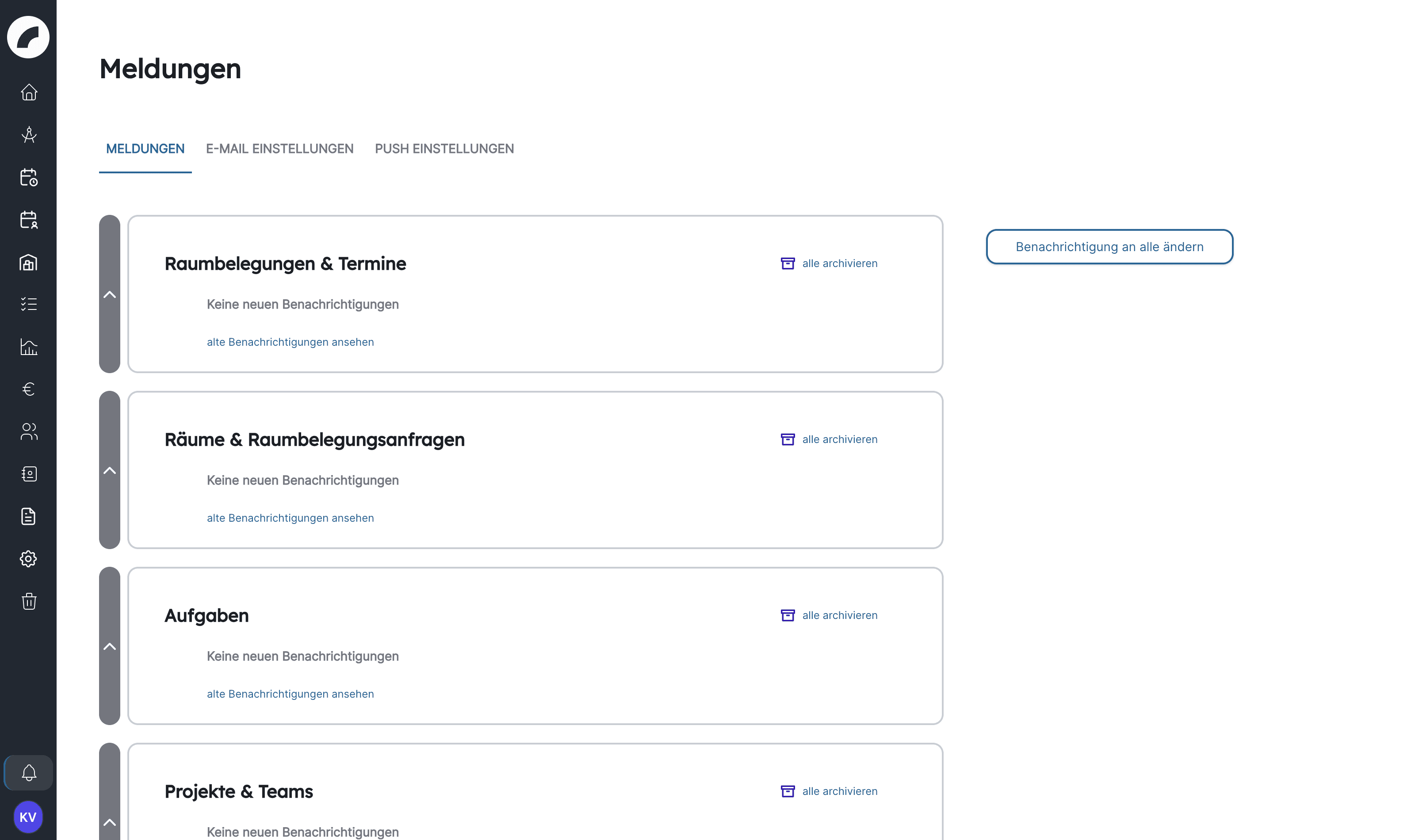
Messages are grouped by origin:
| Group | Typical content |
|---|---|
| Room bookings & events | Confirmed or declined room requests of your own, changed events, event conflicts, and requests concerning planned events |
| Rooms & room booking requests | New room requests for rooms you manage, messages about room requests, and changes to your rooms and to your role as room admin |
| Tasks | Assignments, changes and deadline reminders |
| Projects & Teams | Project changes and new project or team assignments |
| Project budgets & sources of funding | Approvals, calculation status, budget requests or critical funding levels |
| Shift planning | Shift changes, commitments, accept/decline replies, rule violations, replacement needs and change requests |
| Inventory & Material Issues | Changes, overbooking and material issue processes |
| Documents | New document requests, requested documents that have been provided, and contracts shared with you or deleted |
| External access | External people have filled in their data or submitted content in shared tabs; an external access is about to expire |
All nine groups are always listed. Whether messages arrive in a group depends on the enabled modules, your permissions and your responsibilities. A collapsed group shows its count of new messages; expanding it loads the latest entries. Select Show more to retrieve older messages.
Who receives duty roster messages
- Duty roster committed: the message "Your shift schedule … week n has been finalized" goes to every person assigned to one of the committed shifts, also when the commitment was made through the approval workflow. The message opens your personal roster in the affected week.
- Changes after commitment: when a committed shift is changed or deleted, only the people assigned to that shift and the planners entered on the craft are notified. If no planner is entered on the craft, the message goes to the craft manager.
- Rule violations go to the people entered on the rule under Notify on rule violation, and only while they hold View duty rosters or Plan shifts or are artwork admins. The message links to the duty roster starting on the day of the violation.
- Rest time and consecutive days are additionally checked by artwork on every assignment. The assigned person receives "You have been scheduled with insufficient rest time" or "You have been scheduled for more than 10 consecutive days". Whoever schedules another person this way receives the notice "Person scheduled with insufficient rest time" or "Person scheduled for more than 10 consecutive days"; other planners do not receive it.
Processing a message
A notification shows its reason, the person who caused it where applicable, and additional details. Depending on the process, relevant actions are available directly in the message, for example:
- open the calendar, project, budget, duty roster or task,
- accept, decline or change the room of a room booking request,
- review, edit or delete an event,
- answer a budget or verification request,
- view the history of a project, event or absence. For notifications about changed events, View history opens the event history: who changed date, time, room, event type, name, admission, project assignment, properties or schedule and when, who confirmed the room or converted the event into a planning event. The event history can only be reached through these notifications, not from the event form.
- for return reminders on external material issues, choose Confirm return or Not returned yet directly.
After a decision, the message may show who already accepted, declined or deleted the item. This is helpful when several authorised people receive the same request.
Act first, archive afterwards
Some messages require a decision. Artwork does not allow them to be dismissed as completed while that action is still open. Process the item using the buttons provided first.
Unread and archive
The main section of a group contains new or unread messages. Passive notices can be archived individually using the archive icon. Archive all moves all archivable messages in that group; messages that still require an action remain, and Artwork states their number. With many messages, archiving runs in the background and may take a moment.
View old notifications opens the group's archive, Close archive returns to the unread messages. The archive is a history aid, not permanent record storage. Archived messages are automatically removed after 30 days, and even unprocessed messages are eventually removed after one year.
Archiving a notification does not delete or change the underlying project, event, task or document. Only your personal notice moves to read history.
Organisation-wide announcement
An organisation-wide announcement with a title, description and image may appear on the right. It is also visible on the personal dashboard. People with the permission System notifications and artwork admins can use Change notification to all to create, update or delete an announcement with an expiry date and time. Files of the type .jpeg, .svg, .png and .gif are accepted as the image.
Such an announcement reaches all users, including external accounts. Use it for genuinely organisation-wide information and ensure its text and image do not contain confidential material.
If you receive too many or too few messages
- In-app messages result from your responsibilities, project assignments and roles.
- Email and hint in artwork can be controlled personally by area and message type in the Settings tab. The link Settings for this type below a message leads directly there.
- Switching off email or hint does not remove messages from the notification centre.
- You are not notified about processes you triggered yourself. Automatic reminders are the exception, for example about expiring sources of funding or returns that are due.
- Deactivated accounts receive no notifications (see Deactivate account).
- Missing actions may be caused by insufficient permission or an item already processed by someone else.
Personal delivery channels are explained under Email & push.
Last updated on