Assigning Staff
Fill shifts by drag & drop, conflict check, find replacement, warnings and overbooking
In the week view, staffing happens by drag & drop: grab a worker from the workforce panel at the bottom and drop them onto a shift card in the grid. In the daily view, in a project's shifts tab and in the list view (with Detailed function overview per shift) you instead click a slot labelled Unoccupied and pick the person from the list.
Reading a shift card
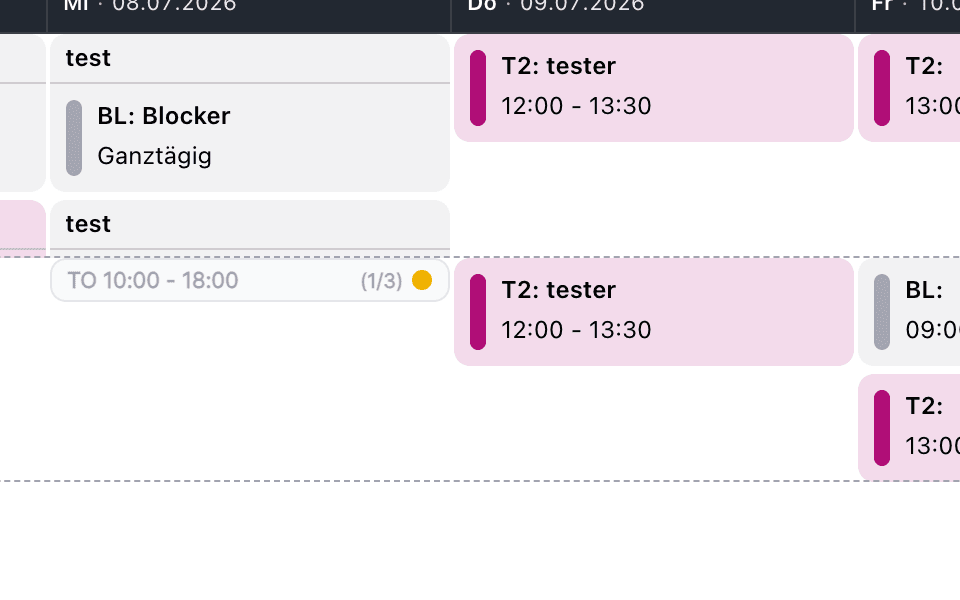
A standalone shift card shows the craft abbreviation, the time and the
occupancy — here TO 10:00 – 18:00 (1/3): one of three slots is filled. The
status dot summarizes staffing at a glance:
| Dot | Meaning |
|---|---|
| red | Nobody assigned yet, or overbooked (more people assigned than slots planned) |
| orange | Partially staffed |
| green | Fully staffed |
If an assigned person is not (or no longer) available that day, a warning triangle replaces the dot: red for committed shifts, otherwise orange. The tooltip names the affected people.
With the display setting Show qualifications enabled, the card additionally
lists each function with its own filled/required counter, so you see
exactly which slot is still open. At a reduced zoom the card becomes a
compact pill with time, abbreviation and staffing; the pill is a full drop
target as well.
Who can be assigned
Three types of workers appear in the workforce panel — internal employees, freelancers (dashed border) and service providers. To be assignable to a shift, a worker must:
- be marked as "May be assigned to shifts" in their profile,
- be assigned to the shift's craft (or the craft must be universally applicable),
- hold a function for which the shift still has an open slot.
And you, the planner, must be allowed to plan the shift's craft: each craft is either assignable by all planners or restricted to a list of planners. This applies to employees, freelancers and service providers alike (see Shift Settings).
People with a project assignment or project wish for the shift's project are suggested at the very top with priority and marked accordingly.
Drag & drop
Drag the worker onto the shift card. If exactly one matching slot is open, the worker is assigned immediately. If several of the worker's functions are open, Artwork asks which function to fill:
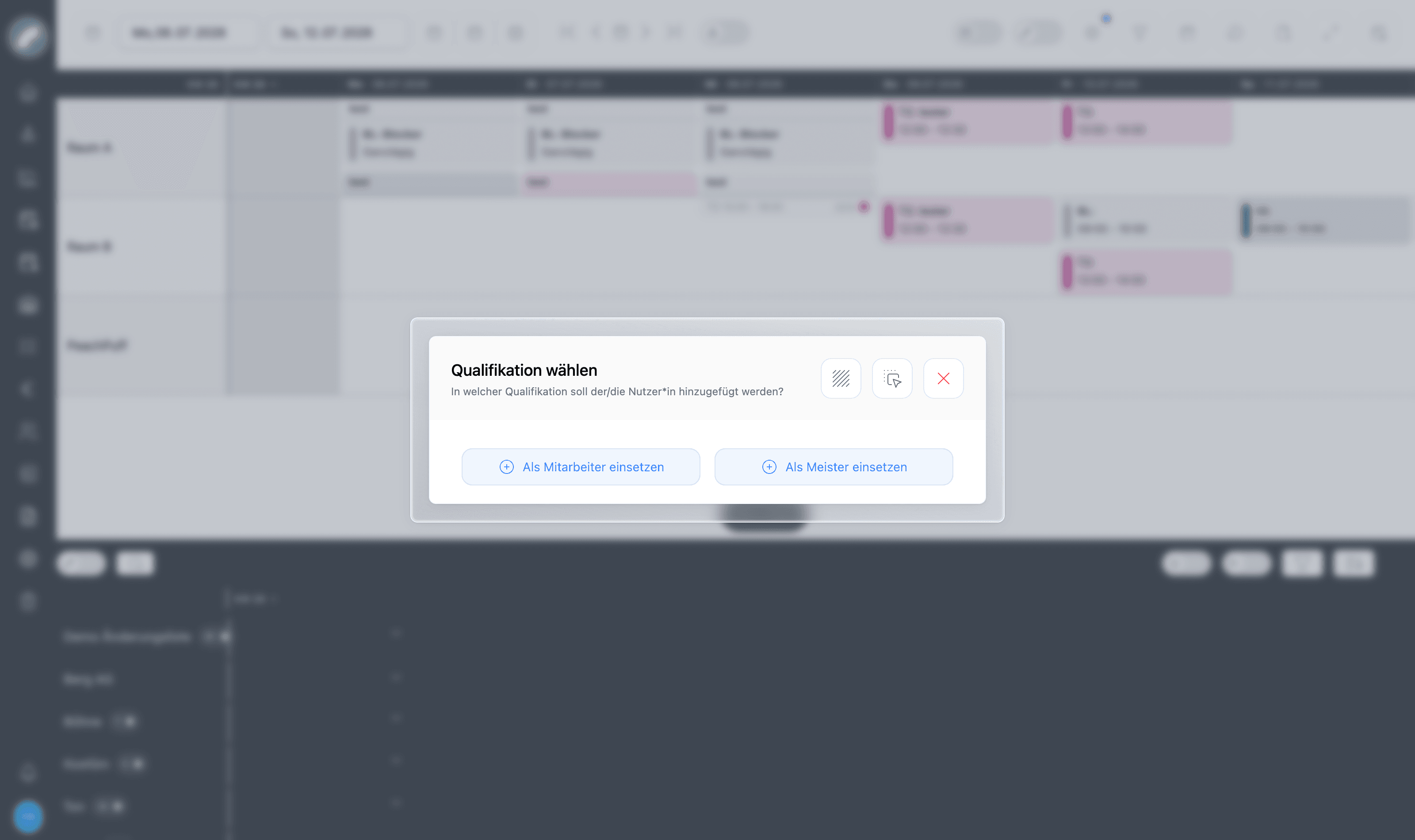
The Select qualification dialog offers a button Use as … for each matching function. If overbooking is allowed, functions that are already fully staffed are listed as well, with a dashed border and the suffix (Overbook). Artwork then always asks, even if only one regular slot is open.
The Assign function dialog, by contrast, appears in the multi-edit mode of the workforce panel (pencil switch), when you tick a shift for a person and several functions are possible. Its subtitle names "Shift 1/1", date, room and time. Fully staffed functions carry the note Place already fully staffed there; a tooltip explains that the person counts in addition to the planned places. Skip assignment closes the dialog without assigning the person.
After the assignment a success message confirms it, the card updates its counters, the worker's day cell in the workforce panel shows the new shift, and their weekly hour balance adjusts. For repeat shifts (shifts on a series event) the window Shift staffing period additionally asks whether the assignment applies For this day only or On this and other days; for the second option you enter the period and weekday.
Assigned people can be removed again via the shift or their day modal (trash button). For a whole day, planners can review all of a person's assignments together and remove them if needed. Who made which change stays traceable in the shift history.
Conflict check before the assignment
After the drop and, if needed, the function choice, Artwork checks time overlaps with the person's other assignments and their absences on the days of the shift. If there are hits, the window Conflicts when assigning appears with the list of conflicts and the button Assign anyway; the conflict is then marked on the shift. Cancel discards the assignment. Without hits, the assignment continues without interruption.
The list names Overlaps with another shift, Vacation (day status Work-free day), Free day (day status Free) and Not available. An unavailability with times only counts if it overlaps the shift time. The window does not check working-time rules; rule violations only arise after the assignment. For repeat shifts, only the shift you dropped the person on is checked. The same check runs when assigning via Unoccupied (daily view, shifts tab, list view), but not in the multi-edit mode of the workforce panel.
Why some drops are rejected
A drop is refused with a message when the worker cannot be assigned to this craft, holds no function the shift asks for, no matching slot is open any more (and overbooking is not allowed), or the worker is already in this shift. This keeps the plan consistent. Check the worker's day row or the shift's function counters to see what's blocking. If you are not allowed to plan the shift's craft, you instead see "Saving failed" together with "You are not allowed to perform this action." Without the permission Plan shifts, the shift card does not react to the drop at all.
Find replacement
If a scheduled person has declined their shift, the assignment in the shift card shows a red decline icon (tooltip with the person's comment) and next to it a replacement icon with the tooltip Find replacement for …, in the week view as well as in the daily view. The window Find replacement for … lists up to 30 suitable free people of the craft (or of a universally applicable craft) with the function of the slot, sorted by hour account, with hints such as "Already has a shift today: …"; a search field narrows the list. Suggested are internal employees and freelancers who are neither on vacation nor unavailable that day and have no overlapping shift; service providers do not appear here. You only see the hour values with the permission View hour accounts. Assign and the following confirmation swap the assignment in one step. As with every assignment, both people are notified only if the shift is committed. If nobody suitable is free, you can still staff the shift by drag & drop.
Conflicts and warnings
Artwork continuously checks assignments against:
- Availability — workers maintain availabilities and vacations; assigning someone who is absent flags a conflict on the shift. For committed shifts, the scheduled person also receives the notification "Conflict with your shift".
- Overlapping shifts — collisions with the worker's other shifts are detected across rooms and projects.
- Working-time rules — configurable rules (rest periods between shifts, maximum working hours, minimum breaks, night work …) produce rule violations that planners review, resolve or deliberately ignore with a reason. Whoever schedules another person with too short a rest period gets the notice "Person scheduled with too short a rest period". Rules and open violations are managed under Rules & Violations; substitute days off can be granted from there when extra work is paid back in time off.
Hard restrictions and warnings are different. A missing function or a slot that is no longer open blocks the assignment. A working-time rule may instead — depending on its configuration — create a reviewable violation that an authorised person ignores with a reason or handles through a substitute day off. Justified exceptions remain possible and documented.
Availability and absences
The day cell shows a person's day status: Available, Work-free day, Free or Not available, in the language of the interface Coming with the next update. With the permission Plan shifts you change the status in the day modal (click the day cell) under Availability status for this day; without this permission the status is read-only there. If you set Free or Not available on a day on which the person has shifts or individual times, the window Change availability status asks whether the person should be removed from all shifts of that day and their individual times deleted. It lists the affected entries, including committed shifts. Yes, remove clears them, No, only change status keeps them. For Work-free day this question does not appear. Changes to availabilities are mirrored immediately in the workforce panel of all open duty roster windows. What the four statuses mean and how they affect the hour account is explained under Opening a person and a day in detail.
A status change never removes a shift automatically, not even a committed one. If a person stays assigned despite a status other than Available (for example after calling in sick), Artwork points it out: with a warning triangle on the shift card at the top of the duty roster, an outlined day cell with a warning triangle in the workforce panel, and an outline around the person in the project's shifts tab. On the shift card and in the day cell, red stands for a committed shift; otherwise the mark is orange. The tooltip reads Assigned but not available, for committed shifts with the addition (committed shift). This way the shift can be consciously restaffed.
Individual times and day services
Not every working time is a shift:
- Individual times have a title, start, end and break or apply all day. Series can represent regular office hours or training for several people.
- Day services are all-day organisational markers such as standby or office duty. They are set directly on the day cell and have no start and end time of their own. In the workforce panel they appear as a coloured ball with icon.
Both give planners a fuller picture before another shift is assigned.
Overbooking
If the toggle Allow overbooking is enabled in the shift settings, more people may be assigned than required. The card's status dot then turns red, and the additional people are marked as Overbooked; they count in addition to the regular places. Otherwise, full shifts reject further drops.
Highlight mode
The lightbulb switch in the workforce panel activates highlight mode: click a shift and all workers assigned to it light up in the panel (and vice versa). In large plans, the fastest way to see who belongs to what.
In the compact view the workforce panel needs less height. Together with the people filter, sorting and collapsed crafts, even a large workforce can be reduced to the people currently needed.
Last updated on