Exports & Calendar Feed
Hand the plan to people outside Artwork — as PDF, Excel or calendar subscription
Export dialog
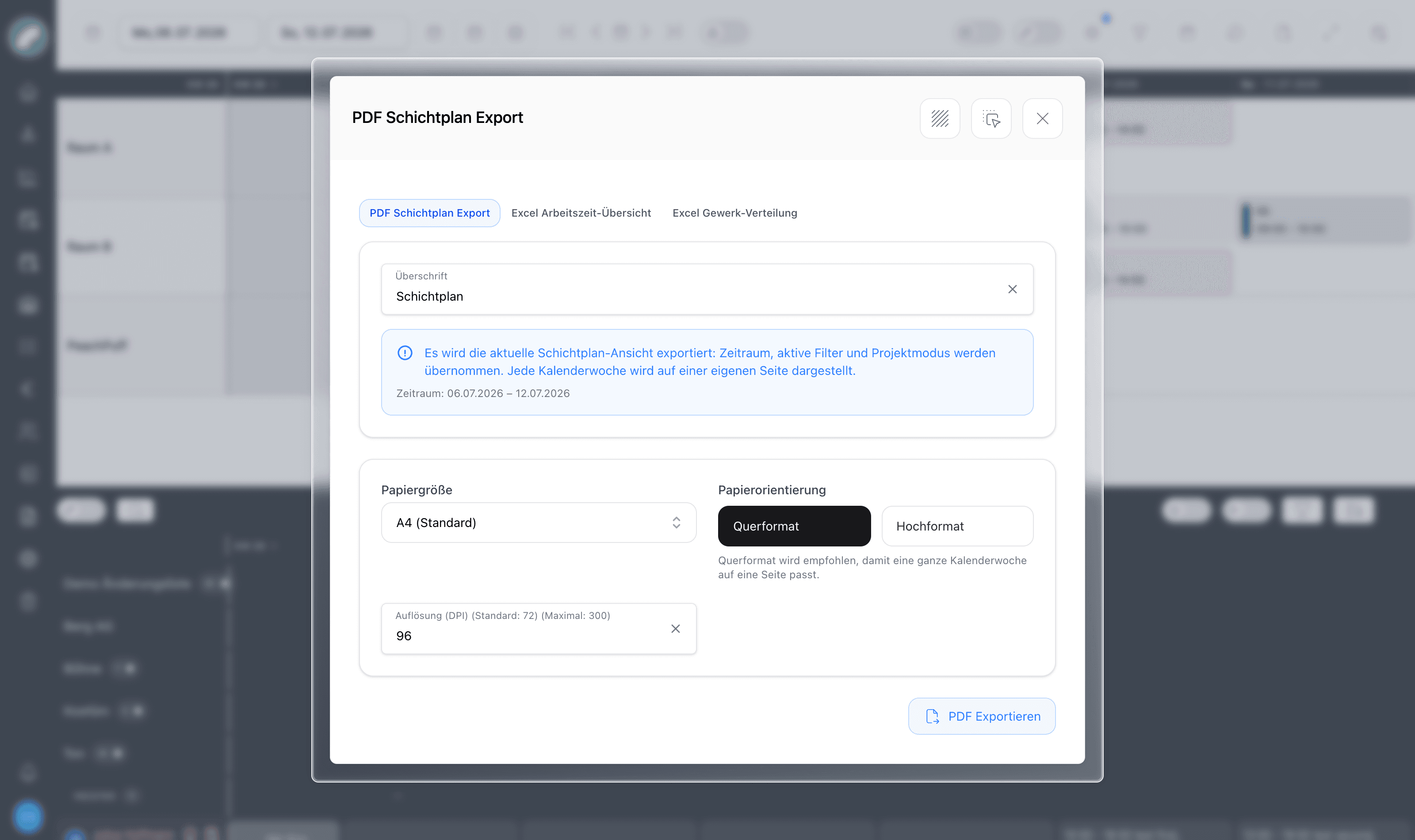
The export button in the function bar of the week view and the daily view opens the export dialog. It has up to three tabs:
| Tab | Visible |
|---|---|
| PDF Shift Plan Export | always |
| Excel Work Time Overview | only if work time accounting is activated in the shift settings |
| Excel Craft Distribution | only with the permission View hour accounts |
The other exports on this page open where their data lives:
| Export | Where to find it |
|---|---|
| Excel: Rule violations | Export button on the Rules & Violations page |
| Excel: Shift history | Export as Excel in the shift history and as second tab in the export dialog of the Rules & Violations page |
| Excel: Change list | Export button on the Shift plan Change list page |
| PDF Daily Plan (Project) and Excel Personnel Plan (Project) | Export button on a project's shifts tab |
Permission
The exports of the export dialog, the shift history export and the two project exports require the permission View duty rosters; the craft distribution additionally View hour accounts. The rule violations export requires the same permissions as the Open violations tab: Plan shifts and Shift settings, in granular mode additionally View shift rules or Edit shift rules. Plan shifts alone is not enough: people who only plan process violations on the person's day in the duty roster, but reach neither the list nor its export. The change list can only be exported by approvers.
PDF duty roster
The tab PDF Shift Plan Export is prefilled with your current view: time period, active filters and project mode are carried over. You can adjust everything in the dialog before exporting. You choose Heading, Paper size (A3, A4, A5; the default of the selected view carries the addition (Standard) Coming with the next update), Paper orientation (landscape is recommended so a full week fits one page) and resolution (the field is prefilled with 96 DPI and names this value as the default, maximum 300). The daily view has its own PDF layout.
The tab offers two layouts as tiles:
- Rooms by day: the grid as in the duty roster with rooms as rows and days as columns, each calendar week on its own page. You choose the period By date or By calendar week; one PDF holds at most six months. Under Filter you narrow down to rooms, areas, event types and crafts. A group without a selection does not filter. The craft selection affects shifts only, events stay visible. Hide empty rooms omits rooms without events and shifts in the period.
- Personnel overview: people as rows, days as columns, the cells containing shifts (time, room, craft · function, description, ✓ committed or … requested), individual times and day services. You choose the period By date (with the quick selection Current view, This week, This month, Next 4 weeks) or By calendar week, up to 31 days; the Worker types (internal workers, freelancers, service providers) and the Contents (shifts, individual times, day services, people without entries). Here the craft selection only filters the shifts per person; individual times and day services stay visible. The PDF defaults to A3; only A3 and A4 are offered Coming with the next update. Each page holds 18 people (A3) or 12 (A4), further people follow as "Personnel page x/y". The fitting printout for the question "Who works when?" rather than "What is happening where?".
Under This is how the PDF is structured the dialog previews rows, columns and cell content. A clear heading and suitable paper format make the scope of a printed plan explicit.
Excel work-time overview
The tab Excel Work Time Overview only appears with work time accounting activated. It exports a monthly matrix of target and actual hours per craft. In the dialog you choose:
- the time period in whole months, with the quick selections Last and this year, Last year, This year, This and next year. The export range must not exceed 36 months.
- the crafts that should appear as column blocks.
Working time overview per craft
This is how the work time overview file is built: every row is a month, plus total rows per year. Each selected craft has four columns: target and actual for internal workers, target and actual for external ones. A final column block sums all crafts. The values are decimal hours. The overview aggregates per craft and contains no rows for individual people. It is intended for controlling working times and broader staffing decisions.
Excel craft distribution
Shows how the shift hours of the people of a universally applicable craft (e.g. trainees) distribute across other crafts, with hours, shares and totals. Useful for internal cost allocation. In the dialog you choose the period (at most 36 months), the Universal craft whose people are analysed, and the crafts to be listed individually. Hours in crafts that are not selected are summarized as other crafts. If no craft is marked as universally applicable, the dialog says so. The tab is only visible with the permission View hour accounts.
Excel: Rule violations
Exports the rule violations of the selected period as a list: date, person, crafts, rule, measured value, severity, status, substitute days off and processing. On the Rules & Violations page, Export as Excel exports immediately with the filters active there. The export icon next to it opens the dialog, where period, status, severity and crafts can still be adjusted; it is prefilled with the active filters as well.
Excel: Shift history
Exports the shift history — who changed what and when — for shifts starting in the selected period, with the same filters as the history window. A set person filter is adopted; the column Relation says per entry why it is included (concerns the person, person is scheduled in the shift, performed by the person). The quickest way is Export as Excel directly in the history window: the export adopts the current selection. The same export is available as a tab in the export dialog of the Rules & Violations page; there you choose shift start from/to, craft, search term and Sort by shift day.
Excel: Change list
Exports the changes after commitment as a list: shift, affected person, kind of change, before/after, changed by and approval status. You reach the export on the Shift plan Change list page: Export as Excel takes the current filters, the export button next to it opens the dialog with craft, status, internal/external, person search and an optional period. The period refers to the date of the change.
Periods for rule violations, shift history and change list
These three exports are limited to one year — the dialog blocks longer periods, and a server message is shown. Without a date the current month applies.
Further exports
- PDF Daily Plan (Project): on a project's shifts tab. One day per page in a compact timeline layout. Privacy mode shortens names (e.g. "Max M.") and omits contact details and internal notes, also for freelancers and service providers; this makes the PDF safe to share externally.
- Excel Personnel Plan (Project): also on a project's shifts tab. One row per shift, grouped by day. Only functions with Is taken into account for new shifts set in the shift settings get their own column. You can choose the Number format: Readable format ("8 Std. 30 min") or Excel number format (decimal numbers such as 8.5 including totals, ready for calculations).
- Substitute days off: the Compensation days overview page exports its filtered list as Excel (permission Plan shifts).
- My operational plan as PDF: the personal roster can be exported as a monthly overview, one month per page in landscape format; see Personal Roster & Working Time.
Calendar subscription
Workers don't need to open Artwork to know when they work: the calendar-star button sets up a personal ICS calendar feed that phones and desktop calendars subscribe to (permission Subscribe to roster calendar). Only people with this permission can create a new subscription Coming with the next update. An existing subscription keeps delivering even if the permission is removed later.
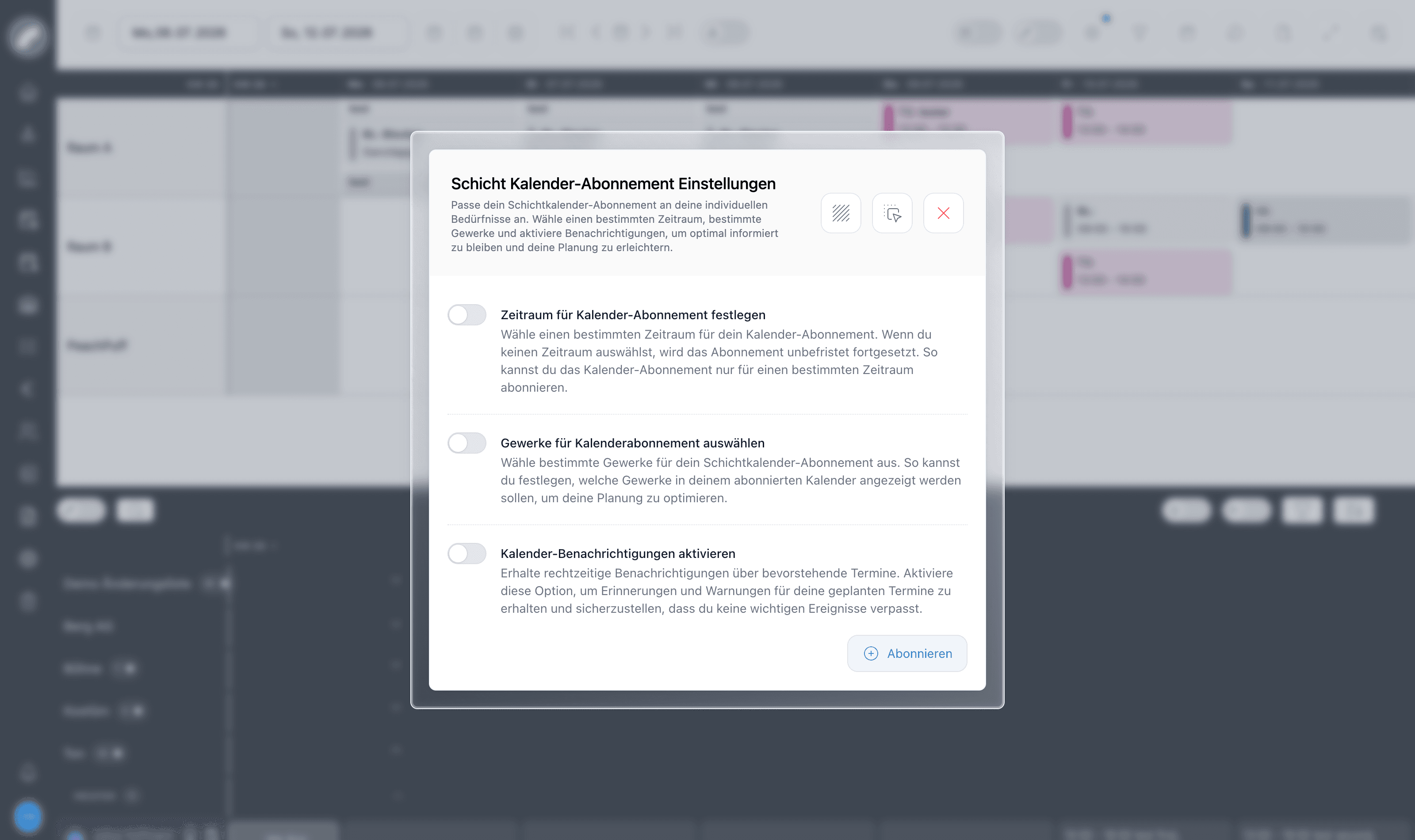
The feed can be limited to a time range and to specific crafts, and optional calendar notifications add reminders for upcoming shifts; you set the Lead time in minutes, hours or days. The reminder text is in your language: the name of the entry is followed by, for example, "starts in 30 minutes." Coming with the next update After subscribing, the instructions show the Calendar URL to copy and step-by-step guides for common calendar programs. Alternatively you can download an ICS file there; it does not update itself and must be re-imported after changes. Since it is a subscription, committed changes to the roster show up in the worker's calendar automatically. Entries contain the project and room name, function and break as well as individual times, and day services are also shown in the subscription on the corresponding day. Day services and all-day info entries do not block the day as "busy" in the subscribing calendar (also in Outlook).
Your venue decides in the global shift settings whether the calendar feed contains all shifts or only committed shifts. If the feed contains all shifts, uncommitted ones appear with the prefix [vorläufig] (the prefix is German in every interface language). This setting applies regardless of what planners already see in the full roster.
Keep the subscription address private
The feed URL belongs to the signed-in person and should not be passed on. Anyone holding it can retrieve the shifts published through that subscription in their calendar program. Renew link invalidates the old link.
Last updated on