Views & Display Settings
Week, day and list view compared, every display option with its effect and scope, the options of the workforce panel and recommended settings for typical tasks
The duty roster has three views, each with its own set of display settings. On top of that come the zoom of the week view and the tools of the workforce panel. This page explains every option, says where it takes effect and suggests settings for typical tasks. How to operate the roster itself is described under The Duty Roster.
Display settings are personal
Everything on this page applies only to you and is kept across sessions. It does not change any shifts and does not restrict what others see. Who may see and plan which shifts is controlled by the permissions.
Which view for what?
| View | How to get there | Best suited for |
|---|---|---|
| Week | Switch Week | Day | List | Rooms as rows, days as columns; assign people by drag & drop. The main view for planning. |
| Day | Switch, position Day | One section per day, one row per room, events on the left, shifts on the right; up to 7 days. For detailed planning and the event day. |
| List | Switch, position List, or menu Duty roster → Shift plan list view | All shifts of the period as a list by day, with the staffing status per row. The fastest way to find open slots and to duplicate or delete several shifts. |
| Project shifts tab | In the project, the tab with the shift component | The daily view, narrowed to one project, with the project assignments. Shares its settings with the daily view (see below). |
| My operational plan | Menu Duty roster → My operational plan | Only your own duties, without display settings — see Personal Roster & Working Time. |
The views show the same data. Period and filters, however, are stored per view: if you switch from the week to the list and back, your narrowing is still there.
Zoom in the week view
The percentage dropdown of the week view offers the levels 55 %, 75 % and 100 % (default); Ctrl or Cmd + mouse wheel works here too. Unlike in the calendar, the zoom controls the width of the day columns, i.e. how many days fit side by side; the room rows keep their height.
Below 100 % the chip Compact appears: shift cards then show only the
time, craft abbreviation and staffing (2/3) with a traffic-light colour.
A click opens the shift. Drag & drop is not possible in compact mode;
to assign people, zoom back to 100 %. With Show description the
description appears shortened below the compact card, the full text in the
tooltip.
The daily and list views have no zoom.
The display settings in detail
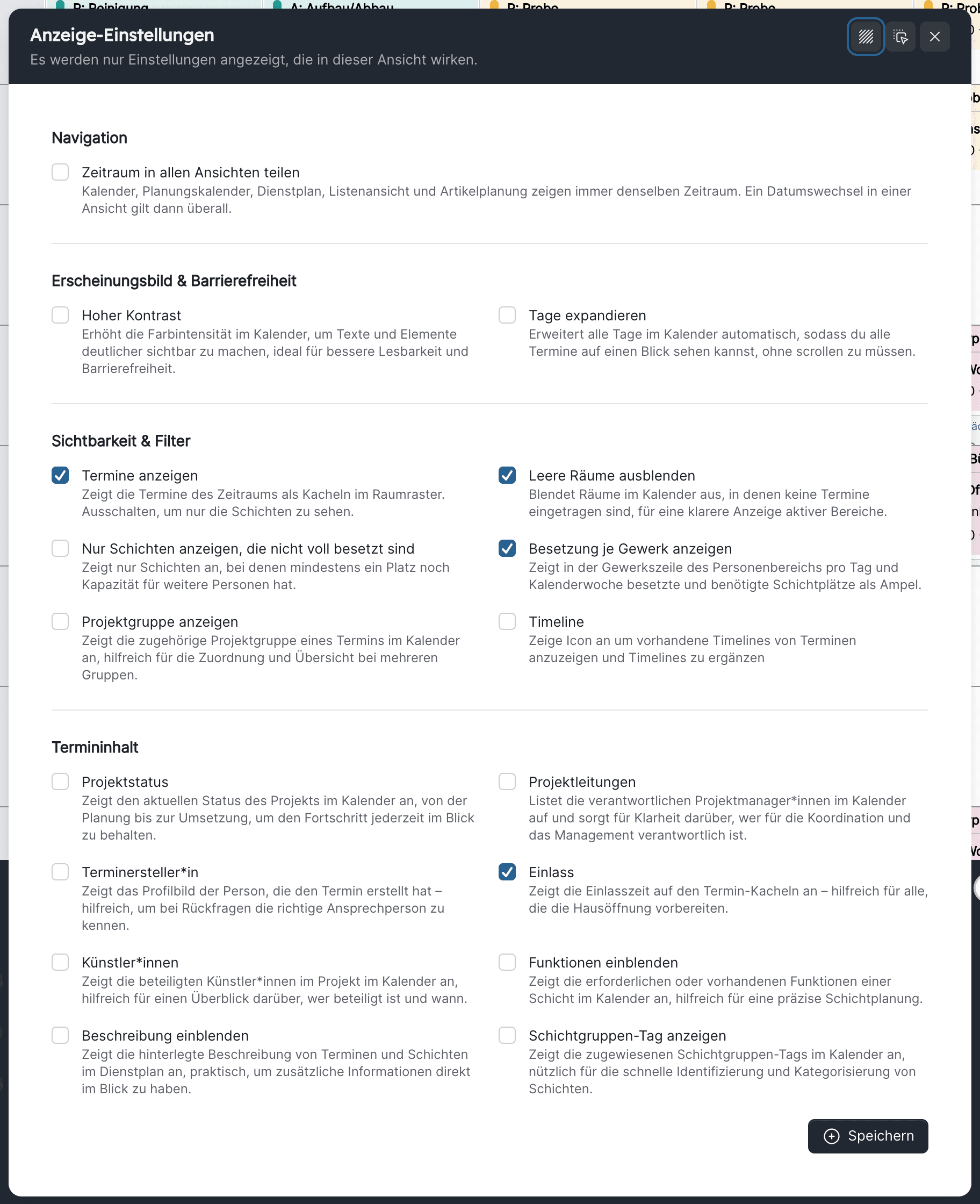
The gear in the function bar opens the display settings window. It only shows options that take effect in the view currently open. A dot on the gear means that at least one option is switched on (options that are on by default and "Share time period across views" do not count). Changes apply after Save.
The Applies in column uses these abbreviations:
| Abbreviation | View |
|---|---|
| W | Week view |
| D | Daily view |
| P | Project shifts tab |
| L | List view |
Navigation
| Option | Effect | Applies in | When useful |
|---|---|---|---|
| Share time period across views | Calendar, planning calendar, duty roster, list view and article planning always show the same period. When you switch it on, all views adopt the period of the current view. | W, D, P, L | When you switch between calendar and duty roster for the same week. Switch it off if, for example, you permanently work two weeks ahead in the duty roster. |
Appearance & Accessibility
| Option | Effect | Applies in | When useful |
|---|---|---|---|
| High contrast | Stronger colours for grid, weekends, public holidays and cards; in the daily view also on the cards. | W, D, P | For screens in the technical office, projection or visual impairment. |
| Expand days | Room rows grow until all events and shifts of the cell are visible, without scrolling inside the cell. | W | For stages with many shifts per day. Switch it off if you want to see as many rooms as possible one below the other. |
Visibility & Filters
| Option | Effect | Applies in | When useful |
|---|---|---|---|
| Show events | Shows the event tiles (and project group bars) in the room grid. Switched off, the grid contains only shifts; artwork then loads no events, which speeds up rendering, and Hide unoccupied rooms counts shifts only. Default: on. | W | Switch it off for pure staff planning when you know the events from the calendar anyway. |
| Hide unoccupied rooms | Rooms without events and shifts in the period disappear from the grid. | W, D, P | For venues with many rooms; almost always useful in the project shifts tab. |
| Hide unoccupied days | Days without events are skipped in the daily view. | D, P | When a project has only a few performance days over several weeks. |
| Only show shifts that are not fully staffed | Only shifts with at least one open slot stay visible. You can reach the same setting in the filter window under Shift Filters. | W, D, P | At the end of planning, to work through the remaining demand; switch it off again afterwards. |
| Show staffing per craft | Shows the pill staffed/demand with a traffic light per day and calendar week in the craft row of the workforce panel. Clicking the pill filters the grid to the open shifts of that craft. Default: on. | W | Switch it off if you want a calmer row; the click filter stays reachable via the people filter. |
| Show project assignments | Shows the Assigned persons overview and the avatars in the day bars. Only appears if project assignments are enabled in the shift settings. Default: on. | D, P | For productions that assign people bindingly or as a wish. |
| Show events from other projects | Also shows events of other projects and without a project in the project shifts tab. | P | When you want to see what else is happening in the venue while planning a production. |
| Show shifts from other projects | Also shows shifts of other projects and without a project in the project shifts tab. | P | To spot people double-booked across productions. |
| Show project group | Shows the project group on the event tiles. | W | For festivals and series with many individual projects. |
| Timeline | Shows an icon on event tiles for opening and adding to the timeline. | W | When shifts are based on schedule points (admission, start, end). |
Event Content
| Option | Effect | Applies in | When useful |
|---|---|---|---|
| Project Status | The status of the project on the event tile. | W, D, P | When you plan events whose project is not yet confirmed. |
| Project managers | The project managers on the event tile. | W, D, P | For questions from the craft. |
| Event creator | Profile picture of the person who created the event. | W, D, P | When many people create events. |
| Admission | The admission time on the event tile. Only with the admission field enabled. Default: on. | W, D, P | For evening duty and front-of-house staff. |
| Artists | The artists of the project. | W, D, P | For guest performances and concerts. |
| Show qualifications | Shows the required and filled functions on the shift cards of the week view. The daily and list views always show functions. | W | While assigning, to see which function is still missing. Switch it off for a more compact grid. |
| Show description | The description of events and shifts. At a reduced zoom it appears shortened below the compact card. | W, D, P | When shift notes (meeting point, tasks) should be visible directly. |
| Show Shift group tag | The tag of the shift group on the shift card. | W, D, P | If you use shift groups for rest-period rules or template groups. |
List view only
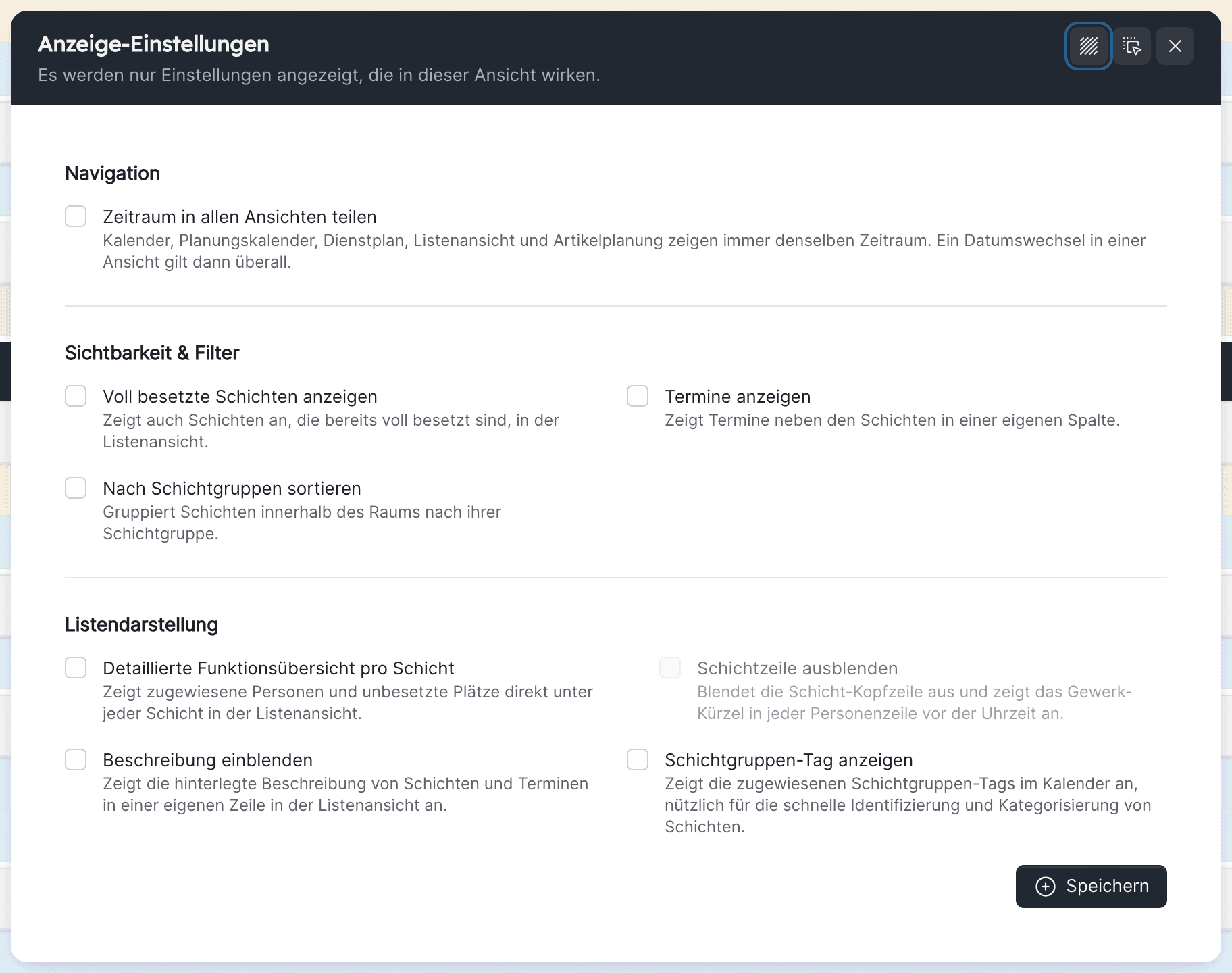
The list has its own window with two sections. Show appointments is the list's counterpart to Show events in the week view, but it is a separate setting with a different effect.
| Section | Option | Effect | When useful |
|---|---|---|---|
| Visibility & Filters | Show fully staffed shifts | Shifts that are already fully staffed also stay in the list. | Switch it off to see only the remaining demand. |
| Visibility & Filters | Show appointments | Events appear in a separate column next to the shifts. | When you want to read shifts in the context of their event. |
| Visibility & Filters | Sort by shift groups | Groups the shifts within a room by shift group. | For venues that plan in shift groups. |
| List layout | Detailed function overview per shift | Shows the assigned people and the open slots below each shift. | To check staffing without clicking into the shift. |
| List layout | Hide shift row (sub-option, only with the detailed overview) | Hides the header row of the shift; the craft abbreviation then precedes each person row. | For a pure list of people, for example for printing. |
| List layout | Show description | Description in a separate row. | As in the week view. |
| List layout | Show Shift group tag | Shift group tag on the row. | As in the week view. |
The workforce panel of the week view
The lower area with the assignable people has its own controls, which are not in the gear window. They too are stored personally unless stated otherwise.
| Element | Effect |
|---|---|
| Show user overview / Hide user overview (arrow in the floating bar at the bottom) | Collapses or expands the workforce panel. |
| Dragging the divider | Changes the height of the workforce panel; a double-click on the handle shows or hides it. |
| Compact view | Smaller person rows so more people are visible without scrolling. |
| Sun/moon | Renders the workforce panel light or dark. Plus/minus hours, availability, absence, substitute days off and the staffing traffic light remain readable in both modes. |
| Highlight (light bulb) | Click a shift or a person: everything else is dimmed. Only for the current session. |
| Edit (pencil) | Multi-edit on person cells: assign one person to several shifts. Only for the current session. |
| Day Services | Switches on the mode for assigning day services. Only for the current session. |
| People filter (funnel) | Show freelancer, Only show people with open rule violations (with counter), Crafts, Functions — see People filter. |
| Expanding and collapsing crafts and function groups | Click the row heading; the state is saved, even with an active craft filter. |
Sort menu
The sort menu of the workforce panel defines the order in which people appear within a craft:
- Reset — the default order, following the order of the craft functions from the shift settings.
- Group by function (default: on) — people appear under the heading of their function. The sub-option Show duplicate entries (default: on) shows a person with several functions under each of these functions; switched off, they appear only once.
- Alphabetically Intern/Extern ascending or descending — sorts alphabetically and inserts a separator row External before freelancers and service providers.
- Alphabetically ascending or descending by first name / last name — pure name sorting. Whether first or last name is used is the organisation-wide sorting setting in the shift settings; changing it here changes it for everyone.
What is stored where?
| Setting | Shared by |
|---|---|
| Gear checkboxes | The week view has its own set. The daily view and the project shifts tab share one set. The list view has a third. |
| Zoom | Week view only; independent of the calendar zoom. |
| Week/day view switch | Duty roster on its own; independent of the calendar. |
| Period and filters (including saved filters) | Each view on its own: week, day, list, project shifts tab. With Share time period across views a common period applies. |
| Workforce panel: height, shown/hidden, compact, light/dark, sorting, expanded crafts | Stored personally; highlight, edit and day services only for the session. |
So if you set Hide unoccupied rooms in the project shifts tab, you will also see it afterwards in the daily view of the duty roster.
Recommended settings for typical tasks
Goal: staff one calendar week for one or more crafts.
- Week, zoom 100 % (drag & drop)
- Show qualifications on, so missing functions appear on the card
- Show staffing per craft on
- Filter: narrow Crafts to your own; the workforce panel follows the craft filter
- Workforce panel: Group by function on
Filter or display setting?
- A filter (funnel) decides which rooms, events and crafts are loaded. It also affects the workforce panel (craft filter) and exports, and it can be stored as a saved filter.
- A display setting (gear) decides how the loaded content looks. It does not affect other people.
- The filter Only show shifts that are not fully staffed is deliberately reachable in both places; it is the same setting.
If a shift is missing, first check the active filters (tags in the filter window, dot on the funnel), then Only show shifts that are not fully staffed and the period.
Last updated on