Committing & Approval
Making duty rosters binding, the week status, the approval workflow in detail, changes after commitment and notifications
While a plan is in draft, shifts can be changed freely — staff are not notified yet. Committing makes a period binding:
- committed shifts show a lock icon and record who committed them,
- assigned internal employees are notified about their final duty roster (freelancers and service providers receive no notification from Artwork),
- later changes to committed shifts are collected in the change list so nothing goes unnoticed.
Before committing, a short final check pays off: filter for understaffed shifts, review open slots, check rule violations and absences, and confirm the right project period and craft. The Week status page bundles exactly these points for all crafts. Only the selected combination of calendar week and craft is committed — not automatically the entire visible roster.
Committing a week
The calendar-check button in the function bar opens the commit dialog (permission Commit duty rosters). A commit always targets a combination of calendar week, year and craft — and several crafts can be selected at once. Sound can be final while lighting is still in progress.
The dialog shows only the crafts you are allowed to commit and names its mode in the title:
- Commit duty roster (without the approval workflow): all shifts of the selected crafts in that week are committed immediately, and the assigned internal employees are notified.
- Submit duty roster for approval (with the workflow active) — the dialog explains that the plan is not committed directly but submitted to the approvers, lists those people and creates one separate request per craft (button Submit for approval). If no approvers are set up yet, the dialog says so.
After saving, Artwork reports the result: when committing, with calendar week and number of crafts; when submitting, whether a request was created, an existing one was updated or a rejected week was resubmitted (with the respective counts for several crafts). Server errors are shown visibly. Calendar week 53 is rejected in years with 52 calendar weeks.
You lift the commitment of a single shift in the shift dialog: clicking the shift card opens it, and at the bottom the note This shift is already committed. appears with the button Canceling a fixed term. The shift is committed again via the commit dialog of the calendar week. With the approval workflow active, committing directly is locked; shifts are then committed only via a request. Lifting a commitment stays possible even then.
In the workforce panel, the calendar-week cell of each person row is coloured as a status tile according to the state of their craft in that week; the cell's tooltip names the status:
| Status | Colour | Meaning |
|---|---|---|
| Requested | blue | An approval request has been submitted and awaits approval |
| Committed | green | The week is final for this craft |
| Changed after commit – confirmation pending | yellow | There were subsequent changes nobody has acknowledged yet |
Week status
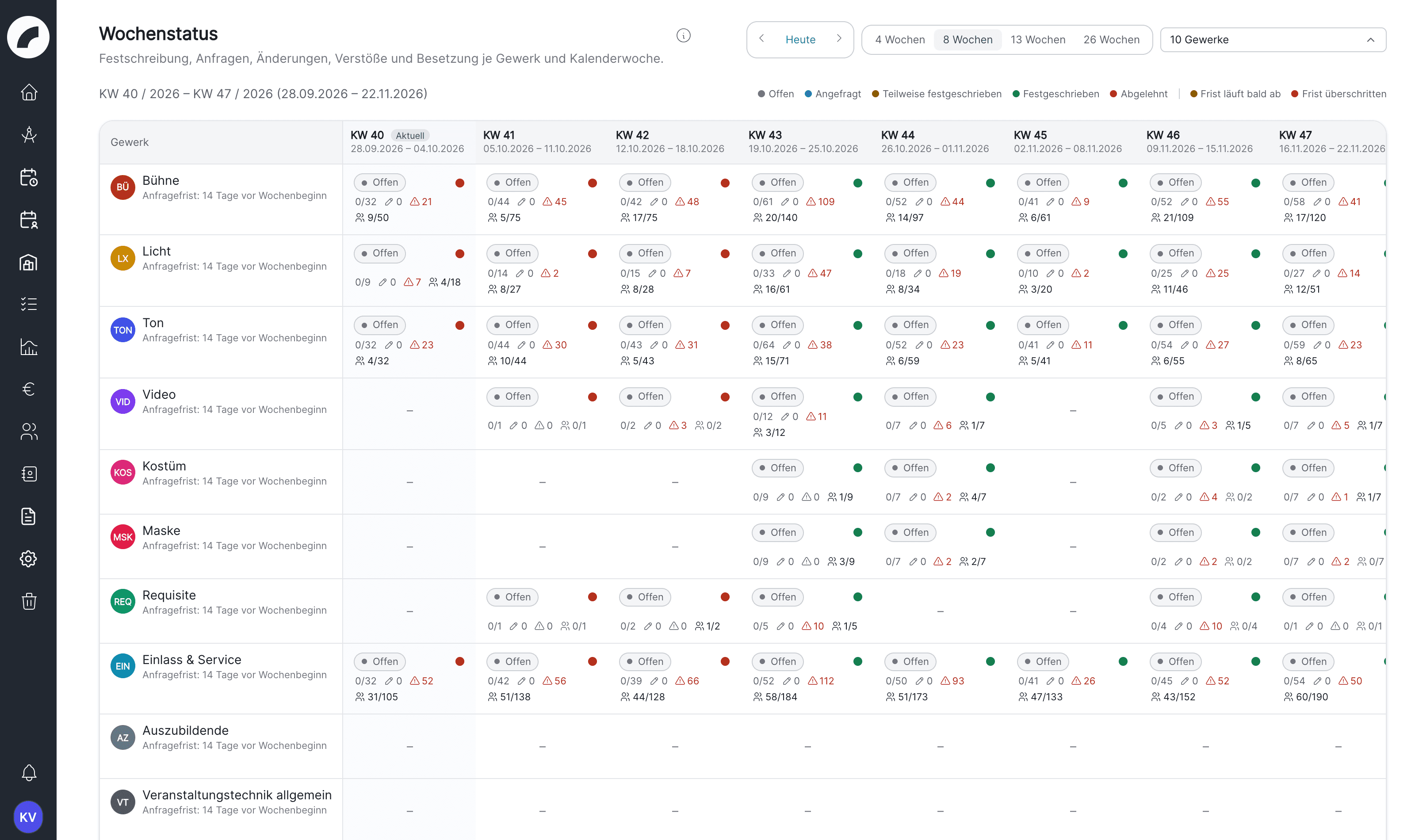
The page Shift plan → Week status (permission View duty rosters) shows a matrix crafts × calendar weeks. Above the matrix you choose the number of weeks (4, 8, 13 or 26), page in steps of 4 weeks and filter to individual crafts; Show all crafts clears the filter. Visible are the crafts you may plan: crafts that all planners may staff and those where you are entered as a planner. Admins see all crafts.
Each cell carries a status:
| Status | Meaning |
|---|---|
| No shifts | No shifts of this craft in this week |
| Open | Shifts exist, nothing is committed and no request has been submitted |
| Requested | An approval request is pending |
| Partially committed | Some shifts of this week are committed, others are not |
| Committed | All shifts of this week are committed |
| Rejected | The last request was rejected and nothing has been resubmitted |
The cell also shows how many shifts are committed (committed/total), unacknowledged changes, open rule violations and open slots / demand. If individual times belong to an approval request of the week, a clock counter Individual times released appears as well. A deadline marker refers to the request deadline of the craft (days before the week starts): yellow when the deadline is due soon, red when it is overdue. The row Total per week sums up how many crafts of the week are committed.
Clicking a cell opens the details with the matching actions: Go to week in shift plan, Submit request or Commit shift plan (depending on whether the workflow is active), Go to request, Open rule violations and Changes.
The approval workflow
Venues with a four-eyes principle enable the Duty roster release workflow toggle in the shift settings and name the approvers there. Approvers are not a separate permission but exactly this list (admins always may). The workflow can only be enabled with at least one approver. Only with the workflow active do the three workflow pages appear in the Shift plan menu.
Planners submit instead of committing. "Submit for approval" creates one approval request per selected craft for the calendar week. All still-free shifts of that craft in that week are attached to the request and are now "in the workflow". If an open request already exists for the same week, submitting again does not create a second one: shifts added since then are attached to the existing request. Shifts you create after submitting therefore only belong to it once you submit again. A pending request can be withdrawn by the person who submitted it and by any approver. The shifts then become freely editable again.
The individual times of the week go through approval with the request: those of the craft's people and of everyone assigned to a shift of the craft in that week. In the personal roster, in the person's day window in the duty roster and in the review they carry the badge In release request and, after approval, Released. Each individual time belongs to one request only; after a rejection or a withdrawal it is free again for the next one. An individual time can still be edited in both states. While the request is open, reviewers see the change; once the time is released, the change or deletion lands under Shift plan Change list and has to be acknowledged there. The edit dialog points this out in each case. Without the approval workflow these badges do not exist: committing a week directly only covers shifts.
Approvers review. The named users are notified and find all requests under Shift plan → Shift plan Review requests, grouped by craft, with pending requests plus those recently approved/rejected (older ones can be loaded). The review shows exactly which shifts, assignments and changes are included — including rooms and individual shift notes — and the same rule violations as the duty roster. The violation markers are clickable and open the edit dialog if you have Plan shifts and Shift settings (in the fine-grained permission model also Edit shift rules). On the overview page, To shift plan (current week) jumps into the current week. Requests can be browsed back and forth directly. The person rows can be shown or hidden by type (internal employees, freelancers, service providers), shortened with Only people with entries and sorted.
Approve or reject.
- Approve (button Accept) commits all shifts of the request and releases its individual times, optionally with a note that goes to the requesting person. Staff are notified just as with a direct commit.
- Reject requires at least one reason: global for the whole request, or on individual selected days or shifts/people. Without a reason the confirm button stays locked, and the server also refuses the rejection Coming with the next update: the request stays open and the dialog shows Please provide at least one reason for the rejection. Important: on rejection the request's shifts are reset to the state before the request. Changes made to them since submitting (times, assignments, craft, room …) are lost. The reasons are stored for the planners. The requesting person is notified, reworks the plan and resubmits for approval with one click.
Approve, reject and reset are protected against double clicks.
Planners keep track under Shift plan → Requested duty rosters: a read-only view of their own requests (and those for their crafts) as a flat list (newest calendar week first, with pages), filterable by status, craft and Only my requests, with status (Pending / Approved / Rejected), the stored reasons and the actions Withdraw request and Resubmit for approval. Here too, To shift plan (current week) leads directly into planning; in a rejected request, Go to week in shift plan opens the affected week.
A pending request marks a clear submitted state and makes parallel changes traceable. If corrections are needed, it is withdrawn or rejected by the approvers and then submitted again. Additional shifts for the same week and craft join an existing pending request as soon as you submit the week again.
Request deadline per craft
So that no week is left unanswered, each craft can have a deadline for approval requests in days before the week starts (see Shift Settings → Crafts). When the deadline is reached without a request having been submitted for the calendar week, the craft management is notified automatically: once per calendar week and only if the craft has shifts in that week. If no craft management is set, the notification goes to the craft's planners. In the Week status the deadline is visible as a yellow or red marker.
After committing
- Change list — changes to committed shifts (times, assignments, deletions) are collected under Shift plan → Shift plan Change list. The page is open to approvers only and appears in the menu only while the approval workflow is active. The list always shows one craft: on first opening you pick it via Select craft, later via Change craft. Each change has its own row per affected person with the working time before and after, Changed by and Changed at; if a shift with several people changes, there are correspondingly many rows. Changed or deleted released individual times appear here as well. Approvers acknowledge a row via Approve afterwards or everything at once via Approve all open changes; until then the yellow week status tile marks the week as "changed after commit". Filters: All changes, Open changes and Approval granted, plus All / Internal / External and the search field Search affected entity. The bulk acknowledgement applies to the selected craft with the search and internal/external selection and asks for confirmation first. The full trail also lives in the shift history; the list can be exported to Excel.
- Work time change requests: staff can request a different start and end time for their own shifts. Planners (permission Plan shifts) decide under Shift plan → Work time change requests in the tab Work time adjustment requests received. It lists the requests of the crafts in which they are entered as planner or which all planners may staff; these people are also notified about a new request. The status Pending is preselected. Approve does not change the shift but enters the new time as the person's individual time in that shift. An accept or decline already given is reset, and for a committed shift the change appears under Shift plan Change list. Decline works with or without a reason. The staff side is described in Requesting a working-time correction.
Changing a committed shift
A later change may be necessary, for example due to sickness, a time shift or a staff swap. Artwork does not prevent it outright but marks the affected state and notifies or records the change. The operational plan stays usable without losing the binding nature of the original approval.
The commitment of an individual shift can also be revoked deliberately (button Canceling a fixed term in the shift dialog, permission Commit duty rosters, and only for crafts you may plan). Use this only when the shift truly needs to return to normal editing; for a small, traceable correction the change list is often the better path.
Shift confirmation by employees
When the toggle Shift confirmation by employees is active in the shift settings, scheduled people with the permission Accept or decline shifts can accept or decline their shifts in My operational plan — also for provisional, not yet committed shifts, optionally with a comment. The help text of the toggle says so as well Coming with the next update. Unanswered assignments show the status Requested. If the times of the shift change, a reply already given expires and the roster shows Time changed – please confirm again. People without the permission are not asked and show no reply status; freelancers and service providers do not take part in the flow.
The reply is visible directly in the duty roster: in the workforce panel as a coloured pill on the shift (blue requested, green accepted, red declined) and in the day modal below each shift (Requested, Accepted on …, Declined on …, with comment). Planners with Plan shifts can record the reply on the person's behalf — in the day modal, via the assignment menu in the daily view or in the person's roster. After a decline, the shift card offers Find replacement.
The permission must be granted
The permission Accept or decline shifts is not part of any role preset. Venues with active shift confirmation must grant it to the people once in the user rights — until then they see no accept/decline buttons.
Notifications
The "shift planning" notification group keeps everyone up to date. The most important triggers:
| Recipient | Notified when … |
|---|---|
| Staff member | they are assigned to or removed from a committed shift (with function); there is no notification for provisional shifts |
| Staff member | their duty roster is committed, also in the approval workflow; one notification per craft and calendar week |
| Staff member | one of their own committed shifts collides with their vacation or unavailability ("Conflict with your shift") |
| Planner | a working-time rule is violated |
| Project management and the craft's planners | a shift with a project is not fully staffed n days before it starts (reminder configurable per craft) |
| Craft management | the craft's request deadline is reached without an approval request having been submitted |
| Approver | a new approval request awaits review (not when an existing request is merely updated) |
| Requester | their own request was approved or rejected (incl. note or reason) |
| Planner who made the assignment | a scheduled person accepted or declined their shift |
Frequency and channels are configured in each person's personal notification settings.
Last updated on