Article planning
Read daily availability, compare issues, and resolve overbooking
Article planning (menu Inventory System → Article Planning) shows articles as rows and days as columns. It combines stock with every internal and external material issue, revealing the quantity still available on each day. The menu entry requires the Inventory disposition permission.
Period and view
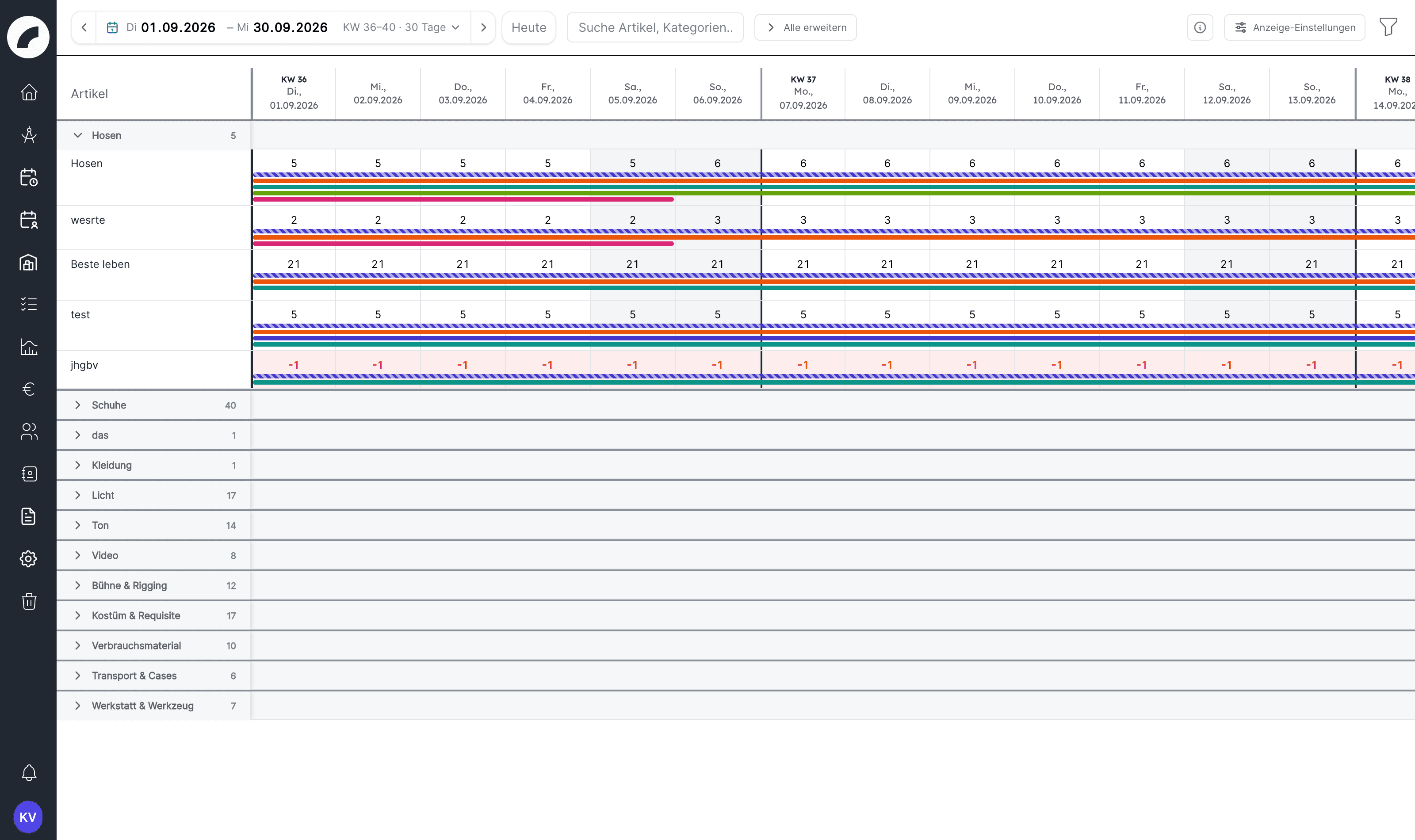
Choose the required date range in the period bar (with quick selection and Today); the arrows with the tooltip Jump by … move by day, week or month. The search field finds articles, categories and subcategories; if the term matches a category or subcategory, the whole category stays visible. Categories and subcategories start collapsed. Open them individually or with Expand all / Collapse all; the number next to the name is the count of contained articles. The grid shows the calendar week at the start of each week.
The Display Settings button offers:
- Only planned articles: hides rows without an issue in the visible period,
- Share time period across views: links the period to the calendar, planning calendar, shift plan and list view (see display settings).
The Legend info icon explains the colours: red dot Overbooked (< 0), blue Today, grey Weekend, green bar Internal issue, striped bar External issue.
Your open groups and the “Only planned articles” option are saved for future work.
Reading colours and bars
| Display | Meaning |
|---|---|
| Number in a day cell | Ready-for-use quantity still available that day |
| Red or below zero | Planned quantity exceeds available stock |
| Green bar | Internal material issue |
| Striped bar | External material issue |
| Highlighted date | Today |
| Different background | Weekend |
Availability equals ready-for-use stock minus all overlapping issues. Ready-for-use stock is the quantity in the status Einsatzbereit; for individually tracked articles it is the sum of the units in that status. A multi-day issue affects every day of its period.
An external material issue keeps its articles reserved beyond the return date up to today as long as the return has not been entered. An unexpectedly low value for past days and today therefore often comes from an overdue loan slip.
Opening a day cell
Click an article/day cell to open its usage panel. It shows total and ready-for-use stock, status breakdown, internal and external use, remaining or minimum available quantity, and the individual issues behind the result. The tabs internal and external separate the two kinds of use; the number next to each is the quantity reserved there. Edit on an issue opens its form. If stock is exceeded on the selected day, a red notice appears below.
If no issue exists yet for the demand, New material issue with this article opens the form for a new internal material issue directly from the usage panel. The article is prefilled with quantity 1 and the displayed day as the period.
Opening an issue bar
Hover for name, period, and project or recipient. Click the bar to edit the material issue. After the form is closed, article planning recalculates availability and bars.
Resolving overbooking
Check the complete period
An issue may start before the visible red date or end afterwards. Open the entire bar and verify its full period.
Filters and project reference
Article planning uses the same article permissions as the catalog. Its filter dialog narrows by categories, subcategories, properties and tags and is confirmed with Apply. Issues can additionally be highlighted by project: if you select one or more projects under Highlight projects in the filter, the bars of all other issues are dimmed. With no selection, all bars are highlighted. Internal issues lead to the linked project; external issues show the recipient instead.
Before a production week
- Include setup and strike in the date range.
- Enable Only planned articles.
- Open categories used by the participating crafts.
- Review negative and low positive quantities.
- Include external material issues in the same period.
- Coordinate changes with project and material owners.
Last updated on