Material issues
Create, edit, trace, and print internal and external material issues
Under Inventory System → Material Issues, manage two kinds of material movement:
- internal material issues for projects, rooms, and responsible staff,
- external material issues for people or organisations outside the venue, informally often called loan slips.
Both reserve article quantities during their period and appear in article planning. The menu entry requires the Inventory disposition permission.
The two issue books
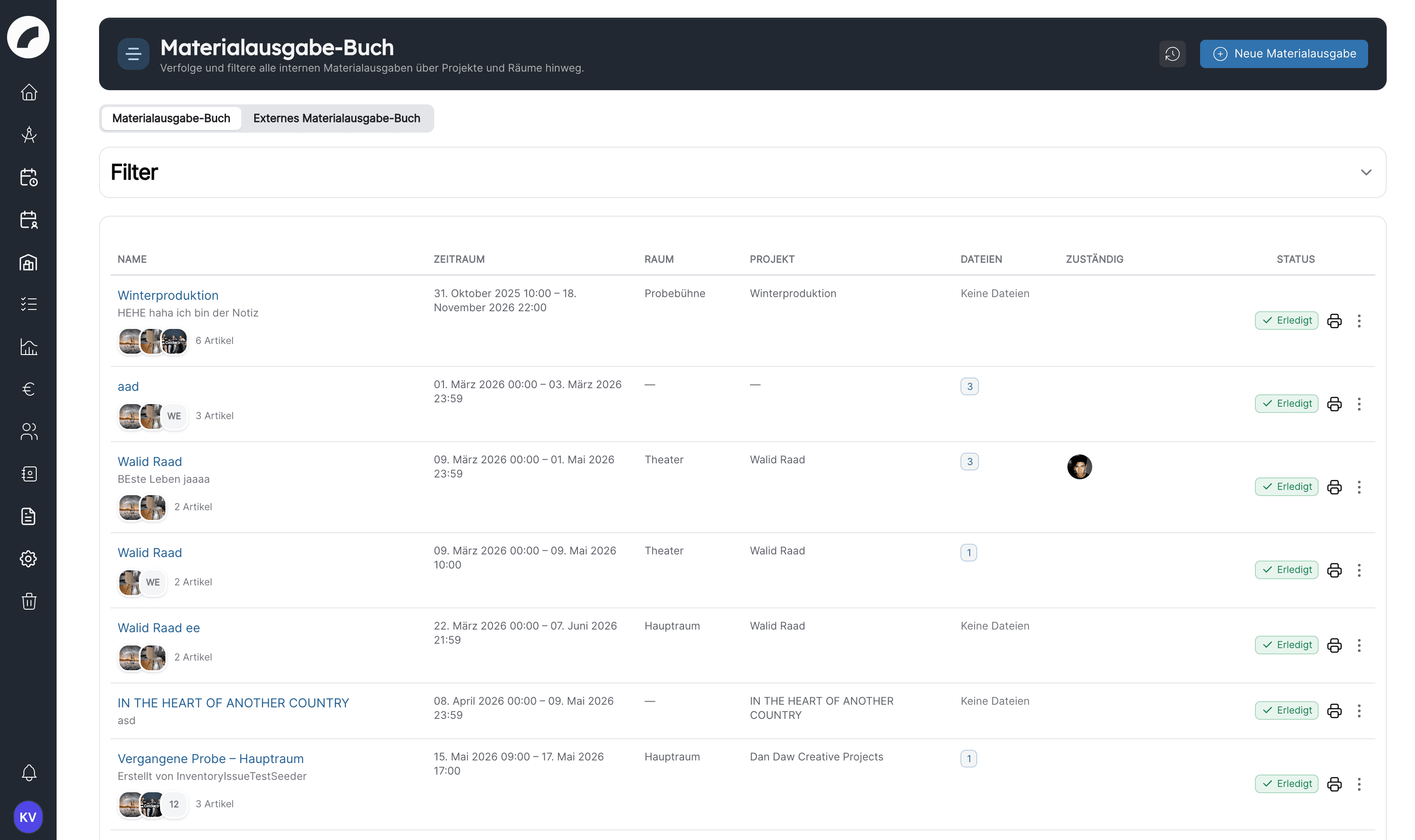
The Material issue book and External Material issue book tabs separate the workflows. The filters sit in a bar above the list:
| Book | Filters |
|---|---|
| Material issue book | Search by issue name (also searches the notes), period, room, project, Responsible |
| External Material issue book | Search by issue or external name (also searches the return remarks), period, Issued by, Received by, Only overdue returns |
Besides From and To, the period offers the quick ranges Today, This week (Monday to Sunday) and This month. The period filter shows every issue whose period touches the selected range, not only those that start within it. Reset filters clears all fields.
In both books the Status column shows whether custom items are still open (Status Open or Open) or whether the issue is Completed in that respect. The external book additionally shows the return state.
Creating a new material issue
New issue of material opens the form. At the top, the toggle switches between Internal material issue and External material issue; the fields adapt accordingly. When editing, the dialog is titled Edit issue of material for both kinds.
Two prefills help with the project reference:
- The Recently opened projects tiles next to the project search apply a project with one click.
- If you change the assigned project, Artwork resets the automatically adopted values (name, period, and project rooms). Values you changed manually before are kept.
No silent data loss
If you close a form with unsaved changes, by clicking beside it or pressing Escape, Artwork asks Should the entered data be discarded? and offers Save in addition to Discard and No, continue editing. Unchanged forms close without a prompt.
Creating an internal issue
An internal issue can contain a name, optional project and room, start/end dates and times, responsible users, notes, catalog articles and quantities, custom items, and files.
The Material issue name and the start and end dates are required. The times are prefilled with 00:00 and 23:59 and must not be left empty. The end must be after the start, taking date and time together. Each article appears only once per issue and needs a quantity of at least 1.
The same workflow can start inside a project's material-issue component, where project context is already available. Project team members with write access can create and edit their project's issues there without the Inventory disposition permission. Likewise, New material issue with this article in article planning opens a prefilled form.
Selecting articles and checking availability
Search available inventory on the left and review selected quantities on the right. As soon as a period is set, every added article states Available in period. In the internal form the search results additionally show the in period badge with the available quantity; the external form has no such badge. Availability is the lowest level across the complete period: the basis is the quantity in the Einsatzbereit (ready for use) status (for individually tracked articles, the sum of ready-for-use units), minus the highest simultaneous use by other internal and external issues. Issues that do not overlap therefore do not add up. Details reveals other issues consuming stock.
If a quantity exceeds availability, Artwork marks the field red, shows the Overbooking badge and, at the top, the Conflicts regarding availability banner with Requested and Available per article. Automatically adjust quantities sets all affected quantities to the available value. Saving remains possible despite overbooking, so this remains an operational conflict that must be resolved.
Notifications on overbooking and stock changes
If saving an issue causes an article in a current or upcoming issue to be overbooked, Artwork notifies the people concerned: the responsible users of internal issues and the person under Issued by of external issues. The same people are informed when the total quantity or the ready-for-use stock of an article in their issue changes. Whoever triggers the change themselves receives no notification. Therefore enter responsible people on every issue; without them the notification reaches nobody.
Sets and copied issues
A material set inserts a prepared article list and standard quantities; the button with the package icon (Select material set) opens the set selection. If the issue already contains articles of the set, Artwork asks: Add quantities adds the set quantities to the existing ones, Keep existing quantities leaves them unchanged. Articles not yet included are added in both cases.
Copy material from another material issue uses an earlier issue, which you find by name, as the starting point. You can choose from issues of the same kind: internal ones in the internal form, external ones in the external form. Articles that are in the recycle bin by now are not copied. In both cases check the resulting quantities: sets and copies save entry work but do not guarantee correctness for the new period. Availability, project, and custom items must be checked again.
Custom items
Custom items record material that is not in the catalog, such as consumables or one-off purchases. Enter name, quantity, and description. As long as custom items are open, the issue is listed as Open. The Special items done checkbox in the form or Special items closed in the row menu shows that the free list has been processed; the issue then counts as Completed. Custom items do not contribute to automatic stock availability. Recurring material should become a catalog article.
Creating an external material issue
An external issue additionally records name and material value, issue and return dates, external name, email, phone and address as free text fields (there is no link to a CRM contact here), issuing person (Issued By), an optional project assignment, return remarks or damage, and files. Name, Material Value, Issue Date, Return Date and External Name are required. Material value documents the loan and does not replace article valuation. The field is prefilled with 0; you can also save with 0, only negative values disable Save Coming with the next update. The return date cannot precede the issue date.
Reserved until the return is entered
The articles of an external issue stay reserved until the return is entered, even beyond the return date. If the return date has passed and no return is recorded, the issue keeps occupying its quantities up to today and thereby blocks other planning. Enter returns promptly. Loan slips from the time before return tracking was introduced count as returned.
Always enter a person under Issued By: they receive the return reminder and may edit the issue and confirm the return even without the Inventory disposition permission. Without that permission they cannot open the external issue book; the link in the reminder then takes them to the preview of the issue Coming with the next update. They confirm the return with the buttons of the reminder; they can edit the issue in the material-issue component of the assigned project.
Creating a PDF and printing
Material issues can be output as a PDF. The document of an internal issue states name, project, period, room, responsible people and notes and lists all articles with category and quantity as well as the custom items. For external issues it serves as the loan slip with issue and return date, external person or company, material value and defects after return. Both end with fields for place, date and signatures.
Documenting the return
Choose Enter return in the row menu of the external material issue. The entry appears for people with Inventory disposition and for the issuing person as long as no return has been recorded. Put damage or discrepancies in Defects after return. On saving, Artwork enters you as Received by. If the planned return date is still in the future, it is set to today, but no earlier than the issue date; the quantity is then available again. If the physical condition changed, also update the status of the affected article or individual unit in the catalog.
In the list, badges show the state:
| Badge | Meaning |
|---|---|
| Returned | The return is entered, the articles are free again. |
| Return open – material blocked | The return date has passed and no return is recorded. The articles stay reserved. |
| Not returned | Someone reported “Not returned yet”, but the return date has not passed yet. |
Return reminder
When the return date is reached and no return has been entered, the issuing person (Issued by) receives the notification Return date reached once, depending on their notification settings also by email. Artwork checks this daily at 8 a.m. If you change the return date, the reminder is sent again for the new date. The notification links to the issue, in the external issue book with Inventory disposition, otherwise as a preview Coming with the next update, and offers two buttons:
- Confirm return opens the return dialog; the issue then counts as returned. For an early return the return date is set to today and the quantity becomes available again.
- Not returned yet sets the status Not returned and records this in the log; the return can still be confirmed later.
Without an issuing person, no reminder is sent; it follows as soon as you add the person. The Only overdue returns filter in the external issue book lists all issues whose return date has passed and for which no return has been entered, including those reported as “not returned yet”.
Files and evidence
Attach packing lists, handover records, photos, or signed loan slips to internal and external issues. Existing files can be removed and new ones added while editing. An existing file is deleted immediately when you click the bin, not only on saving; this requires the Inventory disposition permission. Images and PDFs appear as thumbnails; a click opens the viewer, with page navigation for PDFs.
PDF, JPG, PNG, WebP, DOC, DOCX, XLS, XLSX, CSV, TXT and ZIP are allowed, up to 20 MB per file; active content such as HTML or SVG is rejected. Files are delivered only to signed-in users who may see the respective material issue. Direct links to the storage path do not work, so share files through Artwork rather than copied addresses.
Log
With the Material issue log permission, the history button in the material issue book opens changes across projects. It covers internal and external issues, including deleted ones. Filters narrow by period, project, issue type and search term. Without input, the log shows the current month. The date filter includes issues whose period overlaps at least one day with the selected range. With a project filter set, only internal issues appear. In the project tab the log is reachable without Inventory disposition.
The log supports traceability but does not replace clear names, responsibilities, and return notes in the issue itself.
Before saving
- Is internal versus external correct?
- Are dates and times correct?
- Does an internal issue reference the correct project or room?
- Are responsible people or external contact details complete?
- Were quantities checked over the entire period?
- Are custom items processed and required files attached?
- Does any overbooking still need coordination?
Last updated on