Inventory catalog & articles
Find, filter, create, and maintain pooled or individually tracked articles
Open Inventory System → Inventory for the complete article catalog. The menu entry requires the View inventory permission (see permissions). Use an image grid or table; categories and subcategories structure articles, while statuses, properties, and tags support precise searches.
Searching and filtering articles
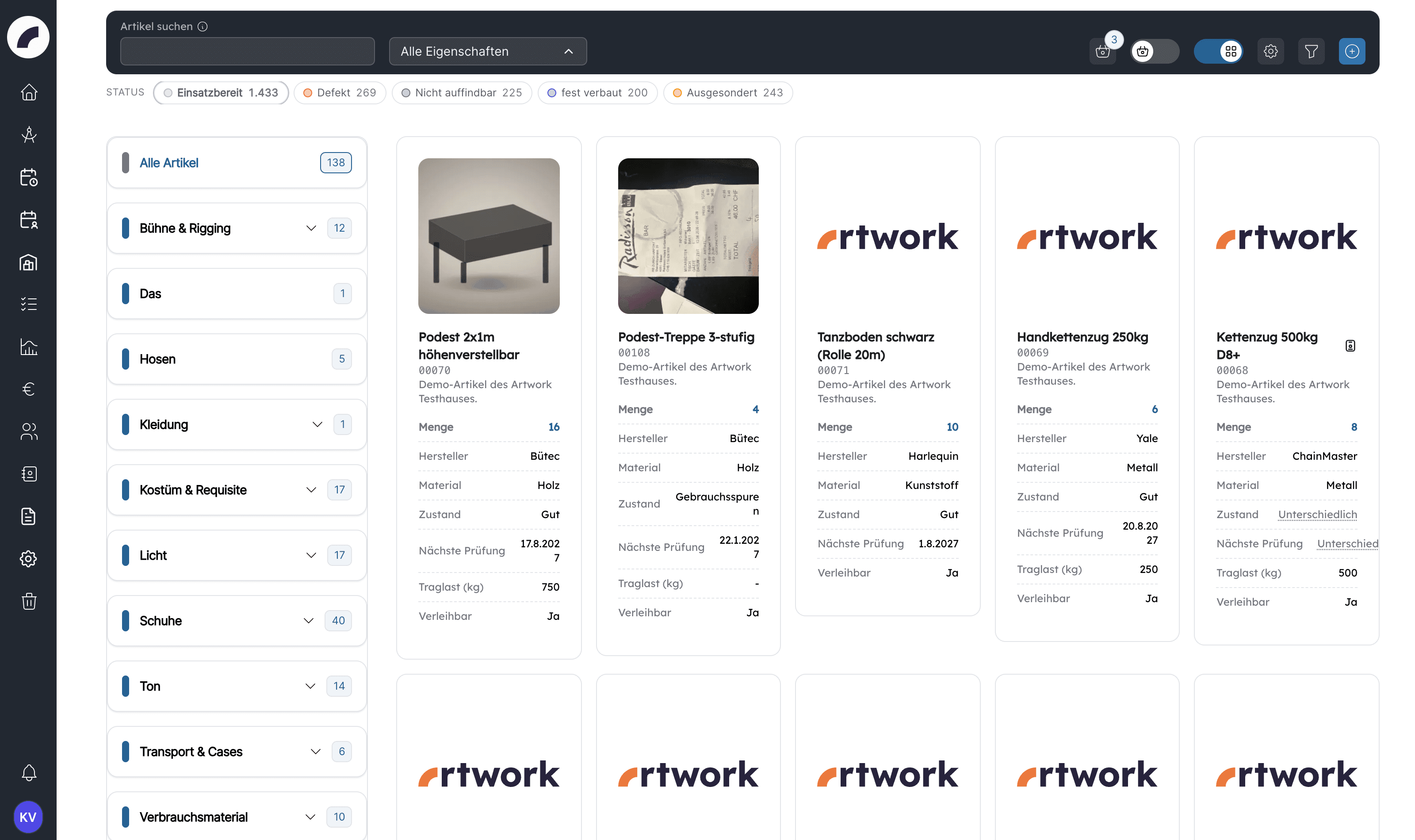
The Search Articles field can cover All properties or one selected property. This is useful when a value should be found specifically as a serial number rather than anywhere in an article name or description.
Additional filters include category and subcategory, quick status counts (one click applies the filter immediately, a second click removes it), configured properties with operators appropriate to their data type, tags grouped into tag groups, and saved filters.
Properties, tags and saved filters live in the Inventory Filter dialog (filter icon in the toolbar). Changes take effect immediately. Active filters appear as chips. The filter stays set when you switch categories and until your next visit. If no result is left, Artwork offers Reset all filters; reset them before assuming a missing result means the article does not exist.
Filter presets
Save a frequently used combination of properties and tags in the Inventory Filter dialog under Saved filters with Save. Give it a purposeful name such as “mobile audio, ready for use”. Saved filters are personal; other users do not see them. Click the name to apply the filter, use the cross to delete it.
With the star (Set as default) a saved filter is applied automatically when you open the inventory. The default applies to the category or subcategory in which you saved the filter; a default saved in the overall overview applies everywhere no specific default is set.
Grid and table views
The grid supports visual recognition through images. The table aligns articles in a category under shared property columns, making technical data and quantities easier to compare. While a quick status filter is active, the table shows a separate column with the quantity in that status next to the total quantity. Via the Display settings cog you can enable Hide article images in overview for yourself to fit more information on screen. The chosen view is saved for you as well.
Creating an article
The visible and required fields are controlled by inventory settings. A category change can therefore reveal a different set of fields. Fields can be prefilled with a default value stored in the category. Properties that do not fit this one article can be removed in the form.
Create stays disabled as long as a category or a required value is missing or the status quantities do not match the total quantity.
When editing an existing article, Artwork saves name, description, total quantity, category and subcategory immediately when you leave the field. The same applies to units that are already saved: name, description, quantity, status and property values are applied directly. All other details (status quantities, tags, images, properties of the article and newly added units) only take effect with Update.
Quantities and statuses
For a pooled article, enter a total quantity and split it across the predefined statuses. The status quantities must add up to the total: Artwork tells you whether the sum is above or below the total and only lets you save once both match. Only stock in the status Einsatzbereit (ready for use) counts for planning. The status list in the article dialog highlights it, and the order of statuses everywhere follows the sorting defined in the settings.
If you change the total quantity of an existing article, Artwork balances the difference in the status Einsatzbereit: 12 units with 10 ready become 13 ready automatically when the total is raised to 15. The total cannot be lowered below the sum of the other statuses. Reduce the quantities in the other statuses first in that case.
For individually tracked articles the total quantity cannot be edited manually: it is calculated automatically from the sum of the individual units.
For example, if ten of twelve cables are ready, one is defective, and one is retired, only ten are initially available for issues.
Status and issue are different
An issue reserves quantity for a period. A status describes stock condition. If an item returns damaged, its status may also need updating.
Individually tracked articles
Enable Single inventory capable where every unit needs a separate
identity, such as radios, cameras, or test devices. Each unit can have its
own status, properties, and inventory number. A global setting can force
every detailed unit to quantity 1. Only units in the status
Einsatzbereit are available.
Properties may be shared across all units, or marked as an individual value that is not copied during duplication or bulk editing, for example a serial number.
The article dialog then shows two areas: Across-article properties (once for all units) and Detailed article properties, with the list of units on the left and the editing area of the selected unit on the right. The Total quantity is calculated automatically from the units.
Many units at once
- Add Detailed Article creates a single unit (“New Article”). When you hover over a row you can copy it (name, description, status and properties are taken over, individual values cleared) or delete it.
- Bulk create creates up to 100 units in one step: quantity, status and a default value for each non-shared property (text, number, date, selection, checkbox, room, manufacturer). The units are named “New Article 1 … n” and have quantity 1.
- Edit selection changes marked units together: tick rows or use Select all (shift-click marks a range; the search field also finds inventory numbers), then set status, quantity or a property with its value and confirm with Apply. Delete selection removes the marked units after confirmation.
All three actions initially only affect the dialog; saving happens with Create or Update. Only individual fields of units that are already saved are stored immediately. Units with missing mandatory values are marked red.
Artwork assigns inventory numbers on saving in the format
main number-sequence number (for example 00042-001); sequence numbers are
never reassigned, not even after a unit is deleted. A central prefix and the
option to show the inventory number instead of the name come from the
inventory settings.
Properties, files, images, and tags
Properties can contain text, number, date, year, time, selection, checkbox, or file values. Special properties connect an article to a room or CRM manufacturer. File fields suit manuals, certificates, and data sheets. Descriptions and manufacturer details are plain text: HTML markup is not interpreted as formatting, and line breaks are preserved.
Images and tags
Upload several images by click or drag and drop and choose a main image. The maximum size of an image is defined in the inventory settings (10 MB by default). Tags add flexible attributes such as “outdoor”, “trained staff only”, or “inspection due”. A lock marks a tag with restricted assignment rights. You can only assign tags you are released for. If an article carries a restricted tag you are not released for, you can neither edit nor delete the article.
Viewing, editing, and deleting
The detail view combines description, inventory number, category, status quantities, properties, images, and individual units. Unticked checkbox properties are shown as “No”. Editing and deletion depend on permission (Create & edit inventory and Delete inventory).
Deleted articles move to the recycle bin under the Articles tab (permission Delete inventory). If the article is reserved in upcoming material issues, the delete dialog states how many: the article stays part of these issues but no longer counts as available. Before permanent deletion, check whether historical issues and reports still require it.
Artwork removes the article from all material sets as soon as it is moved to the recycle bin. If you restore it, images, individual units and status quantities come back; you have to add it to the sets again. Inventory numbers of deleted articles are not reassigned.
Using the product basket
The basket does not reserve stock. Availability changes only after the material issue is saved. After the issue is saved, Artwork empties the basket; if you cancel the form, the basket is kept.
Article-data checklist
- Is the name clear and unambiguous?
- Do total and status quantities agree?
- Is ready-for-use stock realistic?
- Are serial numbers and other unique values configured individually?
- Is there a useful main image?
- Are relevant files, room, and manufacturer maintained?
- Do tags improve search or access rather than merely duplicate categories?
Last updated on