My to-dos
Search, filter, and work with personally relevant checklists in list or Kanban view
Under To-dos, Artwork shows only checklists assigned to you or containing at least one task assigned to you. The page is titled My ToDo-Lists and is your personal work queue, not a complete list of every checklist in the organisation. The menu entry appears as soon as the To-dos module is enabled; no separate permission is required. New checklist creates a checklist from here.
Search
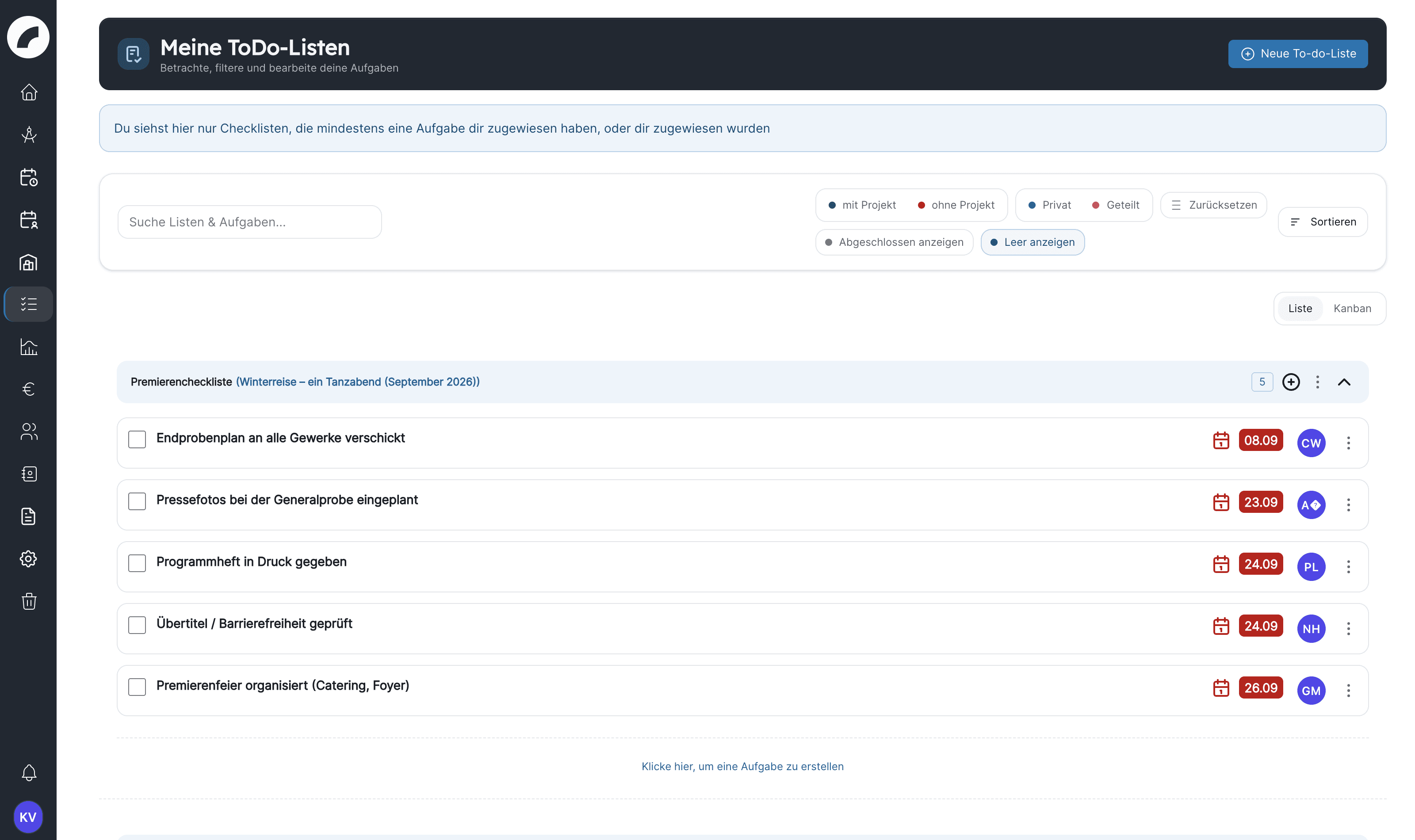
Search covers checklist and task names. A direct notification link briefly highlights the affected task.
Filters
| Filter | Effect |
|---|---|
| with project / without project | Separates production-related and free lists |
| private / shared | Shows personal or collaborative checklists |
| Show completed | Includes completed tasks |
| Show empty lists | Includes checklists without an open task |
Without Show empty lists, only lists with at least one open task appear. A newly created list without tasks and a fully completed list therefore only show up with this filter, even when Show completed is active.
Opposing options in a group are mutually exclusive. Reset restores the initial view. Filters are stored for your account and do not affect others.
Sorting
Sort by Project timeframe ascending or descending, or List name ascending or descending.
The project order sorts lists by the first event of their project Coming with the next update, across public and private lists.
List and Kanban views
The list view presents wide, collapsible checklists and suits detailed work. Kanban displays each checklist as a card or column and gives a quick overview of several smaller lists. Switch between the two with the List / Kanban toggle; the chosen view is saved personally.
Both views allow completing tasks and reading details. With sufficient rights, you can edit tasks or move them between lists.
Collapsing checklists
In list view, Artwork remembers which checklists you opened. Collapsing is only a personal display setting and does not change any task.
Funding-source tasks
The Funding source tasks subcategory appears below the checklists when tasks are assigned to you. It is collapsed by default and deliberately kept unobtrusive. Each task has a name, description, deadline, the avatars of the assignees, and a link to the funding source. The checkbox marks a task as completed and also reverts the completion; the tasks are not part of a normal checklist.
Daily routine
- Hide completed work initially.
- Narrow down with with project or without project and sort by List name ascending, or by Project timeframe ascending to see the lists of the next productions at the top (see Sorting).
- Review overdue and upcoming tasks.
- Correct unclear responsibility in the checklist.
- Complete tasks rather than delete them.
- Briefly show completed work at the end and verify handovers.
Last updated on