Managing contracts
Upload, assign, complete and retrieve contracts in day-to-day work
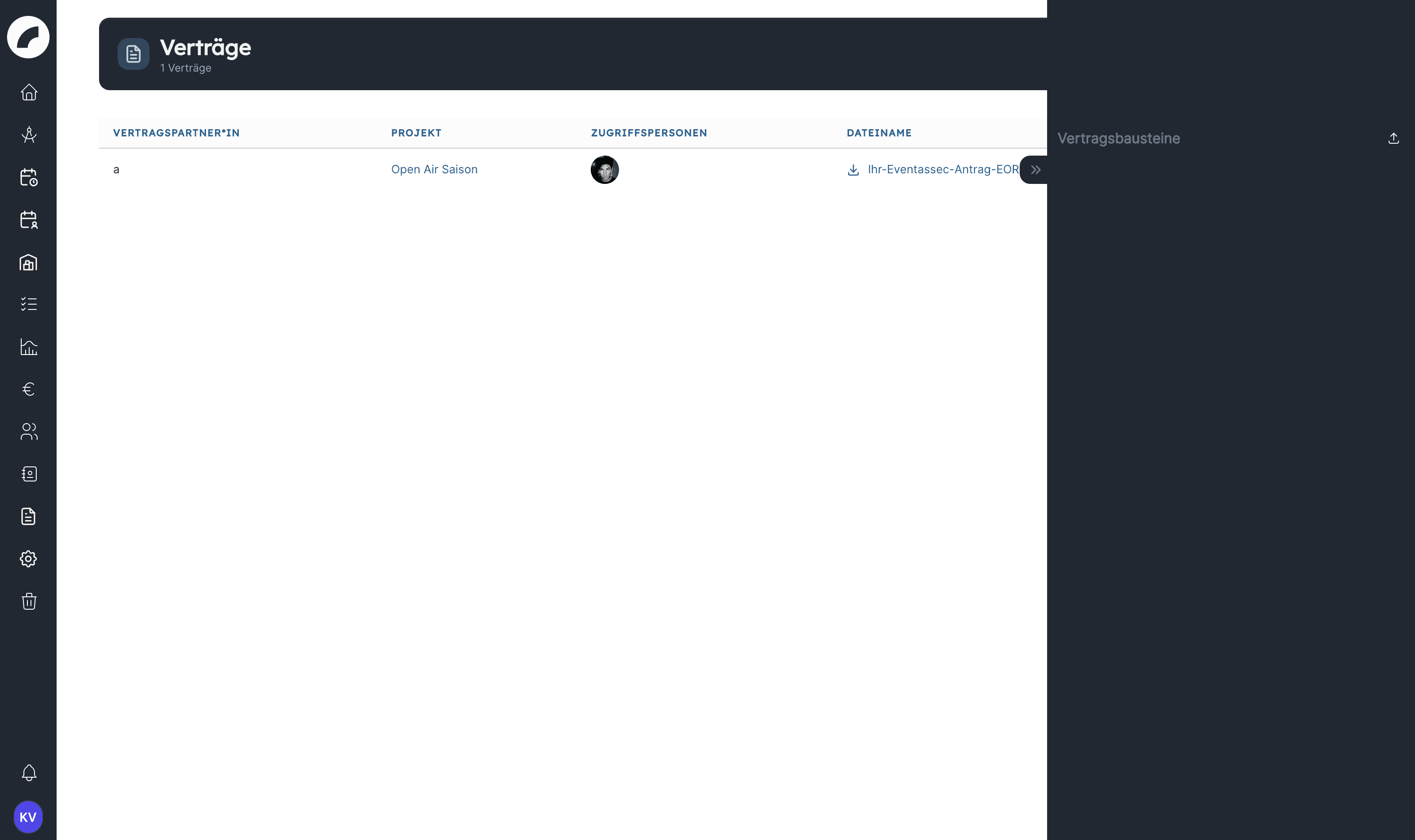
Under Documents → Contracts, you will find every contract you are allowed to see through its sharing settings. The table shows the contract partner, project, people or teams with access, and the file name. Click the file name to download the document; click the project name to open the associated project.
Uploading a contract
Select New contract and add the contract file together with its associated project and contract partner. The project is mandatory: without a selection the dialog reports Please select a project. The project assignment ensures that the document can be found both in the overall view and in the correct project context.
You can upload in projects where you have write access or, with the Manage contract modules & project contracts permission, in all projects you may see. Which file types and which file size are allowed is defined by the “Contract” area in the file settings.
The following details can be used to describe the contract:
| Detail | Benefit in daily work |
|---|---|
| Project | Assigns the contract to the relevant work and project view |
| Contract partner | Shows immediately who the agreement is with |
| Link CRM contact | Takes over the name of a CRM contact as contract partner and shows its contact details during the upload |
| Legal form and Contract type | Support consistent classification and later filtering |
| Amount and currency | Records the agreed financial scope, such as a fee or co-production contribution |
| KSK-liable | Artists' social security: with the box ticked you enter the KSK Amount, without it KSK Reason is available for the justification |
| Foreign tax | With the box ticked you enter Foreign tax amount, City and Country, without it Foreign tax reason is available |
| Reverse Charge Amount | Records a corresponding amount separately |
| Deadline date | Makes a contract-related deadline filterable and traceable |
| Contract status and Contract status comment | Describe the contract's individual business status |
| Comment / Note | Holds additional internal information; the entry made during the upload is saved Coming with the next update |
Not every field has to be completed for every contract. Agree within your team which information is mandatory for your filing and evaluations. The centrally maintained contract types and legal forms help keep values consistent.
If the upload comes from a document request, Comment / Note is pre-filled with the request's comment; whatever you change there is saved Coming with the next update.
Project and deadline
You can select a project through search or from your recently used projects. If the project has a budget deadline, Artwork enters it as the Deadline date when you select the project and overwrites a date set before. Check the date before saving: the relevant contract deadline may differ from the project deadline.
Using a CRM contact as contract partner
Instead of entering only a free-text name, you can select an existing CRM contact with Link CRM contact. Artwork uses the contact's display name as the contract partner. Show CRM details shows the contact information available to you; View in CRM opens the complete contact profile if you have access to it.
Only the name is stored on the contract. No permanent link to the CRM contact is created: the contact no longer appears in the Edit dialog, and a later name change in the CRM does not change the contract. A CRM contact stays permanently linked only on a document request.
Defining access
During upload, select individual people and/or teams under Document access for. Anyone with access may not only view and download the contract but also edit and delete it. Therefore include only those who need the document for their work. The selected shares are shown in the contract list using profile pictures and team icons.
The person creating the contract receives access automatically. Other people do not automatically gain access merely because they work on the project; the contract share or a higher-level administrative permission is decisive.
People with access receive a notification when the contract is uploaded, when they are granted access later and when the contract is deleted.
Follow-up tasks during upload
One or more tasks can be created together with the contract. Each task can have a name, a due date and time, responsible people and a comment. You find the tasks in the dialog under Add further details or task. This is useful for obtaining a signature, requesting a tax review or remembering a contract deadline.
Open the task form with New task, fill it in and confirm with Save task in contract. Only then is the task in the list and saved with Upload contract; a form that is still open is lost on upload. Without a time, Artwork sets 00:00. For every additional task the button is called Further task.
If you create several tasks before saving the contract, each one gets the people chosen for it Coming with the next update.
The responsible people see the task on their dashboard under Next tasks. It does not appear on the Tasks page.
When a task is assigned, the responsible people receive a notification Coming with the next update, except for the person who assigns it. For open tasks with a deadline, Artwork sends reminders as for to-dos: once when the deadline expires within the next 24 hours and once as soon as it has passed. The check runs daily at 9 a.m. The notification contains the contract name and the link to the project only if the person may open both the contract and the project; otherwise it names the task and the deadline and links to the dashboard. Whether the notifications arrive is controlled by the notification types New tasks and Reminders for Tasks in the notification settings.
Via Edit on the contract, the tasks are listed in the same area with a checkbox: ticking it and saving marks the task as done. You can also create further tasks there.
Coordinate task assignment and document access
Assignees must also be granted access to the contract. Artwork does not check this itself: add them under Document access for as well so that they can open the file associated with their task. Every task needs at least one responsible person; without a selection it cannot be saved.
Editing or deleting a contract
Use a row's action menu to update contract details and access settings later and to replace the file with a new version. Changes to the project context are also reflected in the project area. Artwork asks for confirmation before a contract is deleted.
Anyone who has access to the contract may edit and delete it. There is no separate user permission for this.
Deletion is permanent
A deleted contract does not go to the recycle bin. Artwork removes the entry and the contract file immediately and irrevocably. Download the file beforehand if it might still be needed.
Once deleted, colleagues can no longer access the file through either the contract overview or its project context. Check linked tasks and completed document requests before removing it.
Two different status fields
The freely worded Contract status field is part of the contract information. A document request, by contrast, uses the fixed stages Open, In Progress and Completed. The two fields serve different purposes.
Last updated on